

Key takeaways
- Connecting a phone directly to a TV via USB fails because smart TVs require USB Mass Storage Class (UMS), whereas smartphones exclusively use Media Transfer Protocol (MTP) or Apple AFC.
- Smart TVs lack MTP software drivers; their embedded RTOS or Linux kernels can only mount raw block storage partitions formatted as FAT32, exFAT, or NTFS.
- Security sandboxes in iOS (USB Restricted Mode, Trust Handshakes) and Android (SELinux charging-only defaults) physically cut off or block data transmission across unauthenticated USB hosts.
- Standard TV USB ports deliver only 2.5W (5V 0.5A), creating a net battery deficit that overheats and drains your phone while playback is attempted.
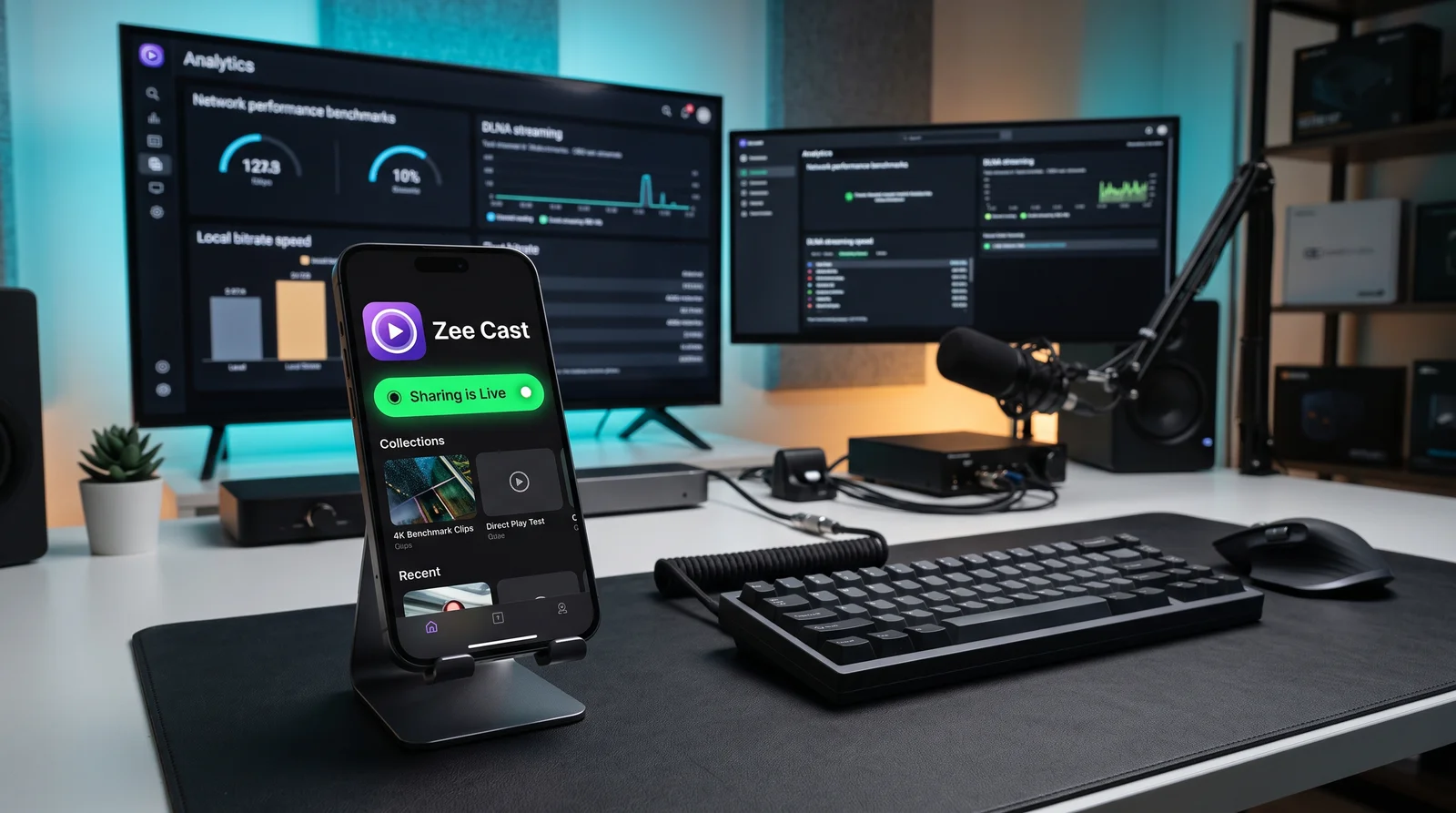
- Zee Cast eliminates cables entirely by transforming your phone into an on-demand, local UPnP/DLNA media server that smart TVs discover and direct-play natively over Wi-Fi or Personal Hotspot.
⚠️ The Universal USB Cable Frustration
Almost every smartphone owner has tried it: you want to show family vacation photos or watch a 4K home video on the living room big screen. You grab the USB-C or Lightning cable that came with your phone, plug one end into your phone, and plug the other end into the USB port on the back of your Samsung, LG, Sony, or Roku TV.
Nothing happens. The TV displays "Unsupported USB Device," "No Media Found," or simply begins charging your phone at an agonizingly slow rate. Why is a standard physical cable connection completely incapable of playing video from a modern smartphone?
The Core Architectural Conflict: UMS vs. MTP
To understand why plugging a phone into a TV fails, one must examine how operating systems interact with portable storage over Universal Serial Bus.
When a television manufacturer (such as Samsung, LG, Sony, TCL, or Hisense) builds a Smart TV, the firmware's media player subsystem is engineered to support USB Mass Storage (UMS), technically designated as the USB Mass Storage Class Bulk-Only Transport (BOT) protocol.
USB Mass Storage (UMS)
Designed for dumb storage devices: USB thumb drives, SD card readers, and external hard drives. The host device (the TV) is granted direct, raw sector-level block access (LBA - Logical Block Addressing) to the storage medium. The TV mounts the physical file system (typically FAT32, exFAT, or NTFS) directly into its own memory space.
- Protocol Level: Raw Block / Sector
- TV Support: 100% of Smart TVs
- Smartphone Use: Deprecated & Removed
Media Transfer Protocol (MTP)
Designed for complex multi-tasking computing devices. Instead of exposing raw physical disk sectors, MTP operates at the high-level file system abstraction layer. The host never interacts with storage blocks; it requests virtual file objects from an active software responder daemon running on the phone's CPU.
- Protocol Level: File Object Abstraction
- TV Support: < 1% (Unsupported)
- Smartphone Use: Universal (Android standard)
Why Smartphones Had to Abandon USB Mass Storage
In the early days of Android (Android 2.2 Froyo and 2.3 Gingerbread), phones featured dual partitions: a small internal flash partition for the operating system and apps, and a separate physical microSD card partition formatted as FAT32. When connected via USB, the Android kernel would unmount the microSD card from Android and pass exclusive raw block control to the host PC via UMS.
However, this architecture had severe architectural defects:
- Dual-Access Race Conditions: A file system like FAT32 or exFAT does not support concurrent write access by two independent operating system kernels. If both the phone and the TV tried to write to the file system simultaneously, disk metadata tables (FAT allocation tables or inode trees) would become irrevocably corrupted.
- App Eviction & System Instability: Whenever the phone unmounted the storage to give the TV access, all apps stored on that partition crashed, widgets disappeared, and ringtones were reset to defaults.
- Unified Encrypted Storage: Modern iOS and Android devices utilize unified, hardware-encrypted storage partitions formatted in advanced file systems: APFS (Apple File System) on iPhone, and ext4 or F2FS (Flash-Friendly File System) on Android. Televisions do not possess proprietary APFS or Linux F2FS file system drivers.
Starting with Android 4.0 Ice Cream Sandwich and finalized in Android 5.0, Google completely eliminated USB Mass Storage in favor of MTP. Apple has never supported UMS on any iPhone model since the original iPhone debuted in 2007.
Because TV SoC microcontrollers (manufactured by MediaTek, Novatek, or Realtek) are stripped-down embedded systems running lightweight kernels, manufacturers never bother licensing or compiling heavy MTP host software stacks. When you plug your phone in, the TV's USB controller queries the USB Device Class descriptor. Instead of reading Class 08h (Mass Storage), it receives a vendor-specific MTP/PTP class code. Finding no matching driver, the TV prints: "No Media Files Found" or "Unsupported Device."
The Operating System Security Lockdown: iOS & Android Sandboxes
Even if a television manufacturer engineered an MTP driver into its firmware, modern smartphone security safeguards make unassisted cable playback virtually impossible.
1. Apple iOS: USB Restricted Mode & Cryptographic Pairing
Plugging an iPhone into any unknown USB port triggers rigorous security protocols governed by Apple's Secure Enclave:
- USB Restricted Mode: First introduced in iOS 11.4.1 and strengthened in subsequent releases, iOS completely disables the hardware data transmission lines inside the Lightning or USB-C port if the device has been locked for more than one hour. The port physically rejects all data packets and accepts electrical power only.
- "Trust This Computer?" Cryptographic Handshake: When unlocked and connected to an active USB data host, iOS requires an explicit public-key infrastructure (PKI) exchange. The host must run Apple Mobile Device Service (AMDS) and exchange cryptographic certificates with iOS over the usbmuxd socket protocol. A television has no AMDS daemon, no keyboard, and no mechanism to exchange pairing keys. Without this trust certificate, iOS drops all communication.
- PTP Read Restrictions: Even when an iPhone is connected to an operating system that supports PTP (Picture Transfer Protocol), iOS only exposes a flattened DCIM directory containing photo thumbnails and pre-rendered video clips. It strictly prevents streaming access to cinematic spatial video, ProRes masters, or custom user albums.
2. Android: SELinux Policies and Charging-Only Defaults
Modern Android incorporates strict Google CTS (Compatibility Test Suite) requirements for USB peripheral connections:
- Default State: Charging Only: Whenever a USB cable is inserted into an Android phone, the Android USB HAL (Hardware Abstraction Layer) defaults to
connected_mode = CHARGE_ONLY. This protects users against "Juice Jacking" attacks at public charging kiosks. - SELinux Access Controls: Android's Security-Enhanced Linux kernel blocks unauthenticated peripheral processes from mounting internal media providers. Even if a user manually pulls down the notification shade and selects "File Transfer / Android Auto", the phone only initiates an MTP endpoint - which, as detailed above, the TV cannot read.
The Electrical Hazard: TV USB Port Power Limitations
Beyond protocol and security roadblocks, plugging a modern smartphone into a television USB port introduces a severe electrical bottleneck that degrades phone battery health.
| Connection Type / Specification | Voltage (V) | Amperage (A) | Maximum Wattage (W) | Smartphone Power Behavior |
|---|---|---|---|---|
| Standard TV USB 2.0 Port (White/Black) | 5.0 V | 0.5 A | 2.5 W | Severe Net Deficit: Phone discharges while plugged in; risks port shutdown. |
| High-Power TV USB 3.0 / HDD Port (Blue) | 5.0 V | 0.9 A – 1.0 A | 4.5 W – 5.0 W | Bare Minimum: Trickle charges when phone is idle; drains if screen or CPU is active. |
| Modern Smartphone Fast Charger (USB-PD) | 9.0 V – 20.0 V | 2.0 A – 3.0 A | 20 W – 65 W+ | Optimal: Powers full SoC workload while rapidly recharging battery. |
| Active 4K 60fps Playback Draw on Phone | 3.8 V (Battery) | 1.2 A – 2.5 A | 4.5 W – 9.5 W | Energy Demands: OLED display + GPU decoding + storage bus activity. |
As the table demonstrates, a standard TV USB port outputs a maximum of 2.5 Watts (500mA). When a smartphone is unlocked, decoding high-bitrate media, and powering a high-brightness display, its internal power consumption surges between 4.5W and 9.5W.
Because the television port cannot supply sufficient current, two problems occur:
- Negative Charging (Battery Drain): The phone must draw supplementary energy from its internal lithium-ion battery while plugged into the TV. The battery drains while being subjected to elevated heat from continuous discharge.
- TV Port Overcurrent Cutoff: If the phone's power management IC attempts to negotiate a higher current draw than 500mA, the TV's USB controller hardware polyfuse or electronic circuit breaker triggers an overcurrent safety cutoff, killing power entirely and popping up a TV warning: "USB Device Drawing Too Much Power."
The Myth of "USB-to-HDMI" Adapters: Why Dongles Fail
When a direct USB cable fails, many consumers turn to physical "USB-C to HDMI" or "Lightning to HDMI" dongles and adapter cables. While physical display cables can work under narrow circumstances, they introduce substantial technical compromises:
1. DisplayPort Alternate Mode (DP Alt Mode) Is Missing on Most Phones
A passive USB-C to HDMI cable requires that the phone's physical USB-C port wire high-speed differential pins directly to the GPU's display controller via DisplayPort Alternate Mode.
Surprisingly, many flagship and mid-range devices completely lack hardware DP Alt Mode support:
- Google Pixel Series: Google disabled DP Alt Mode on all Pixel phones from the Pixel 1 through the Pixel 7 Pro to encourage Google Chromecast adoption. Only the Pixel 8 and Pixel 9 introduced hardware display output (initially locked behind developer flags).
- Samsung Galaxy A-Series: Best-selling models like the Galaxy A14, A34, and A54 omit DP Alt Mode controllers to cut manufacturing costs; only the premium Galaxy S and Note series include it.
- Motorola, Xiaomi, and OnePlus Mid-Tier Devices: The vast majority utilize USB 2.0-speed Type-C connectors without display routing.
2. Apple Lightning Digital AV Adapter: The Secret H.264 Microcomputer
For older iPhones utilizing the Lightning connector, Apple's official $49 Lightning to HDMI adapter is not a passive cable. Because Lightning lacked sufficient high-speed pins for raw HDMI video, Apple engineered an entire ARM microcomputer into the adapter head.
When plugged in, iOS uses AirPlay to compress the screen contents into a lossy H.264 stream, sends the stream over serial data pins to the adapter's microcomputer, which decodes the stream and outputs it over HDMI. This results in noticeable compression banding, 1080p downscaling, severe input lag, and intense heat dissipation.
3. The Physical Leash and Aspect Ratio Distortion
Even when an HDMI adapter works, you are physically tethered to a 3-foot or 6-foot cable next to the television. You cannot sit comfortably on your couch, swipe through photos, or control playback without standing directly next to the TV panel.
Furthermore, HDMI adapters force 1:1 Screen Mirroring. Because modern smartphones feature tall aspect ratios (19.5:9 or 20:9) while televisions are 16:9, your videos and photos are framed by massive black letterbox pillars on all four sides of the TV screen.
The Elegant Engineering Fix: Local UPnP/DLNA Streaming
The fatal assumption behind USB cables and HDMI dongles is that your phone needs to physically "push" video pixels to the television screen.
In reality, modern Smart TVs - whether running Samsung Tizen, LG webOS, Sony Google TV, Roku OS, or Amazon Fire TV - are not passive dumb monitors. They are full-fledged computers equipped with high-performance quad-core media processors, dedicated hardware HEVC/H.264 decoders, 4K upscaling engines, and gigabit Wi-Fi or Ethernet interfaces.
Every Smart TV manufactured in the last fifteen years comes pre-installed with a standardized, vendor-neutral protocol stack: UPnP (Universal Plug and Play) / DLNA (Digital Living Network Alliance).
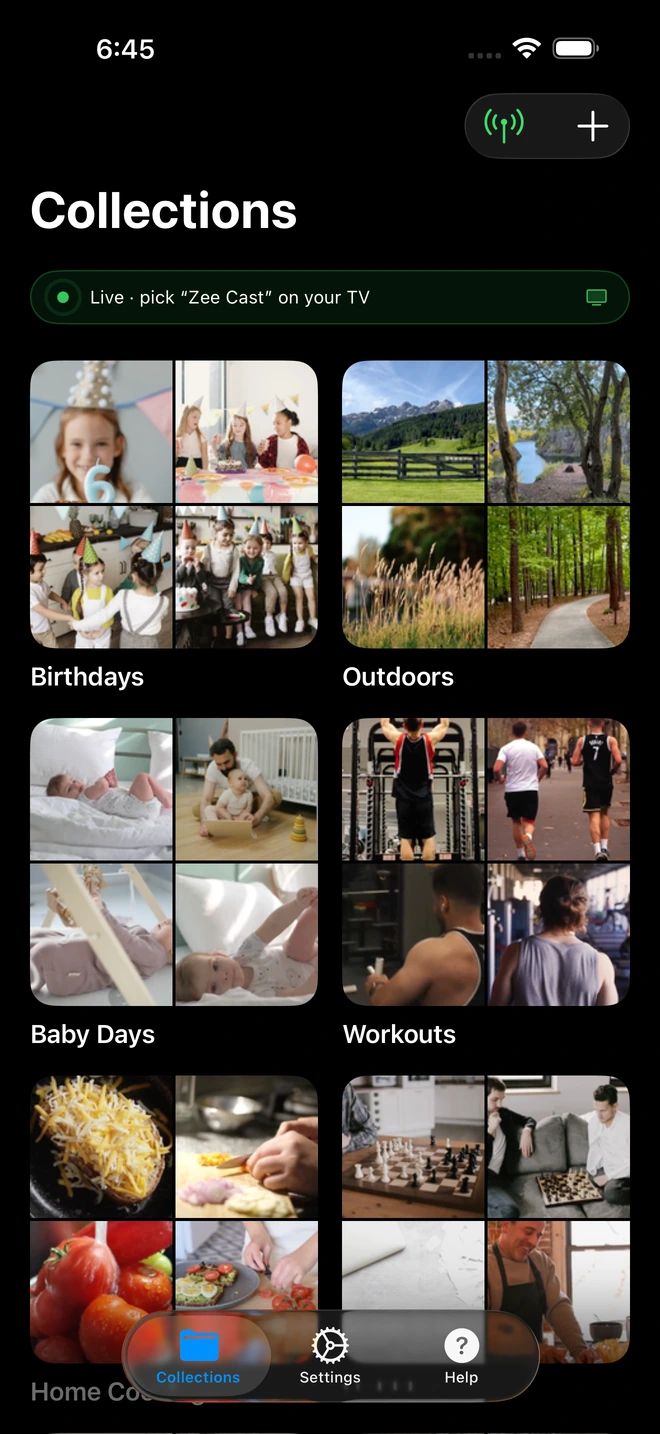
- 1Sharing is Live: TV detects Zee Cast under Connected Devices.
- 2Direct Play streams full-resolution photos & videos without mirroring.
How Zee Cast Turns the Phone into an On-Demand Server
Instead of fighting TV USB port limitations, Zee Cast transforms your iPhone or Android phone into an ultra-fast, standards-compliant UPnP/DLNA media server in software:
- Zero Cloud Infrastructure: Zee Cast creates an embedded, micro-HTTP server directly within the phone's memory. No files are uploaded to third-party cloud servers, and no internet bandwidth is consumed.
- Native Network Discovery via SSDP: When you tap "Turn on sharing", Zee Cast broadcasts multicast UDP packets using the Simple Service Discovery Protocol (SSDP). Your TV's operating system detects the server immediately and displays your phone as a recognized media source under its native inputs.
- Bit-Perfect Direct Play via HTTP Byte-Range: When you select a 4K 60fps video on your TV remote, the TV's hardware media engine connects directly to Zee Cast and streams the original container (MP4, MOV, HEVC) using standard HTTP 1.1
Range: bytes=X-Yrequests. - True Native Decoding: The television's onboard GPU decodes the video at native 4K resolution with full 10-bit color, Dolby Vision dynamic metadata, and uncompressed spatial audio. Your phone's CPU usage remains virtually zero (< 1%), generating zero heat and preserving battery life.
Comprehensive Technical Comparison: Cable vs. Wireless Matrix
The following matrix breaks down the technical parameters of every method used to connect a mobile device to a television display:
| Evaluation Vector | Direct USB Cable | USB-C to HDMI Adapter | Screen Mirroring (AirPlay / Miracast) | Zee Cast (Wireless DLNA) |
|---|---|---|---|---|
| Underlying Protocol | MTP / PTP / AFC | DisplayPort Alt Mode (HDMI TMDS) | AirPlay Mirror / Wi-Fi Display (WFD) | UPnP AV / DLNA (HTTP 1.1) |
| TV Hardware Compatibility | 0% (TVs reject MTP) | Requires specific TV HDMI ports | Varies (requires AirPlay 2 or Miracast) | 100% of Smart TVs (Samsung, LG, Sony, Roku, etc.) |
| Max Resolution & Bitrate | N/A (Playback fails) | Up to 4K 60fps (limits apply) | Compressed 1080p ~15–20 Mbps (lossy) | Uncompressed 4K 60fps >100+ Mbps (Direct Play) |
| Color Depth & HDR Support | None | Limited by adapter chipsets | Downsampled to 8-bit SDR | Full 10-Bit HDR10 & Dolby Vision Passthrough |
| Phone Freedom (Multitasking) | None (device locked) | 0% (Screen is mirrored) | 0% (Screen must remain on) | 100% Freedom: Lock phone, make calls, switch apps |
| Battery & Thermal Impact | Severe battery drain & heat | Heavy drain; phone gets hot | Heavy drain (25–35%/hr); GPU maxed | Minimal (< 2%/hr); phone stays completely cool |
| Notification Privacy | N/A | Private messages flash on TV screen | Personal notifications visible to all | 100% Private; only selected media files streamed |
| Physical Tethering | Tethered to 3–6ft cable | Tethered to TV back panel | Wireless (requires active home Wi-Fi) | Completely Wireless; works across entire room |
| Offline / Hotspot Capability | Fails completely | Works offline | Fails without active router routing | 100% Offline: Operates over phone's Personal Hotspot |
Step-by-Step: The 60-Second Wireless Fix with Zee Cast
Toss the useless USB cable back into your drawer. Here is how to play your smartphone photos and 4K videos on your Smart TV wirelessly in under sixty seconds:
- 1
Verify Network Connectivity
Ensure your smartphone and your Smart TV are connected to the same Wi-Fi router (preferably the 5 GHz band for high-bitrate 4K streaming). If you are traveling, camping, or staying at a hotel without Wi-Fi, simply turn on your smartphone's Personal Hotspot and connect your TV to your phone's hotspot.
- 2
Install Zee Cast on iOS or Android
Download Zee Cast from the App Store (for iPhone and iPad) or Google Play Store (for Android phones and tablets). Zee Cast is lightweight, contains zero ads, requires zero account registrations, and does not upload your files to any cloud server.
- 3
Create Your Media Collection
Launch Zee Cast and grant read permissions to your photo library. Tap Create Collection and select the vacation photos, home videos, or downloaded movie clips you wish to stream. You can curate specific albums so personal or private files remain completely hidden from the TV.
- 4
Tap "Turn on sharing"
Tap the large toggle switch to start sharing. Zee Cast immediately initializes its embedded HTTP daemon and sends standard SSDP discovery packets across your local network. On Android, a foreground service notification keeps sharing alive; on iOS, background audio management ensures continuous playback even if your iPhone screen locks.
- 5
Pick Up Your TV Remote and Press Play
On your TV screen, navigate to the native media player:
- Samsung Tizen TV: Press the Home button, go to Source or Connected Devices, and select Zee Cast.
- LG webOS TV: Open the Home Dashboard or launch the Media Player / SmartShare app. Select Zee Cast under Media Servers.
- Sony Bravia / Google TV: Open the Media Player app or install VLC for Android TV to browse local UPnP servers.
- Roku TV: Open the Roku Media Player channel and select Videos or Photos.
Browse your folders, select a video, and enjoy instantaneous, lag-free playback in original 4K HDR quality.
Advanced Troubleshooting: Common Wi-Fi & Network Obstacles
If you activate Zee Cast but your Smart TV does not immediately display the server, the issue is almost always a router security setting blocking local multicast traffic:
1. Disable Access Point (AP) Isolation
Many modern consumer routers and mesh systems (such as Eero, Google Nest Wi-Fi, and Netgear Orbi) feature an optional security toggle called AP Isolation (or Client Isolation). When enabled, the router prevents wireless devices from communicating with one another. Disable AP Isolation in your router's administrative dashboard so your phone can send SSDP discovery packets to your TV.
2. Avoid "Guest" Wi-Fi Networks
Guest Wi-Fi networks automatically enforce strict client isolation by design. Ensure both your phone and television are connected to your primary home network, not a guest SSID.
3. Bridge 2.4 GHz and 5 GHz Bands
If your television is connected to the 2.4 GHz band while your phone is connected to 5 GHz, poorly configured routers may drop multicast UDP traffic across the frequency boundary. Ensure your router has IGMP Snooping / Multicast Forwarding enabled, or temporarily connect both devices to the same frequency band.
💡 Pro Tip: Zero-Configuration Hotspot Mode
If your router's settings are locked by your ISP, you don't even need a router. Simply toggle on your smartphone's Personal Hotspot, connect your Smart TV to the hotspot's Wi-Fi network, and turn on sharing in Zee Cast. The phone's cellular hotspot stack bridges all local IP traffic seamlessly, enabling instant UPnP discovery with zero manual router configuration.
Frequently Asked Questions
Why does my TV say 'Unsupported Device' or 'No Media Files' when I plug my phone in with a USB cable?
Smart TVs are programmed to interact with USB Mass Storage Class (UMS) devices such as flash thumb drives and external hard drives. These devices expose their raw sector blocks (formatted as FAT32, exFAT, or NTFS) directly to the TV's operating system. Modern smartphones (both Android and iOS) do not support USB Mass Storage; they communicate using Media Transfer Protocol (MTP), Picture Transfer Protocol (PTP), or Apple Mobile Device Protocol. TV chipsets lack MTP host drivers, meaning the television cannot mount or read the smartphone's internal storage.
What is the difference between USB Mass Storage (UMS) and Media Transfer Protocol (MTP)?
USB Mass Storage grants the host device (the TV) raw, block-level control over the physical flash memory partition. If a TV had block-level access to a phone's internal memory while Android or iOS was actively running, both systems would simultaneously write to the file system, causing catastrophic data corruption and OS crashes. To prevent this, smartphones switched exclusively to MTP/PTP, which operates at the file object layer rather than the block layer. Because MTP requires complex software handshakes that smart TV firmware cannot execute, the TV simply treats the phone as an unmountable device.
Can I force my Android phone to act as a USB Mass Storage flash drive?
No. Modern Android versions (Android 5.0 through Android 15+) completely removed UMS kernel modules. Android uses unified ext4 or F2FS encrypted storage partitions managed by the Linux kernel and protected by SELinux access policies. There is no native setting or developer toggle to expose your Android internal storage as a raw USB Mass Storage block device.
Why does an iPhone only prompt 'Trust This Computer?' and still refuse to play videos on a TV?
When you plug an iPhone into a USB port, iOS initiates a cryptographic handshake requiring a trusted companion host capable of mutual certificate validation via Apple Mobile Device Service (AMDS). A Smart TV firmware lacks Apple's pairing daemon. Furthermore, iOS security features such as USB Restricted Mode automatically cut off all USB data transmission pins whenever the phone is locked, restricting the physical cable connection strictly to power delivery.
Why does my phone battery drain while connected to the TV's USB port?
The overwhelming majority of Smart TV USB ports are built to the baseline USB 2.0 specification, delivering only 5 Volts at 0.5 Amps (a meager 2.5 Watts of power). A modern smartphone actively decoding 4K HEVC video, powering high-brightness displays, and managing wireless radios consumes between 4W and 10W. Because the phone consumes far more wattage than the TV port supplies, your phone suffers a net battery deficit and quickly overheats.
Do USB-C to HDMI adapters or cables work, and why are they problematic?
USB-C to HDMI cables only work if your smartphone hardware specifically supports DisplayPort Alternate Mode (DP Alt Mode) over its USB-C port. Many popular phones - including the entire Google Pixel line prior to Pixel 8, budget Samsung Galaxy A-series phones, and many Motorola devices - completely omit DP Alt Mode hardware. Even when supported, HDMI cables tether you to within six feet of the television, prevent phone multitasking, mirror embarrassing notifications, and frequently trigger HDCP handshake black screens.
Why is a wireless UPnP/DLNA media server superior to physical cables?
UPnP/DLNA leverages the gigabit Wi-Fi hardware already integrated into your television and phone. Instead of piping raw display frames over an expensive cable, Zee Cast serves the original media files directly from the phone's flash storage via standard HTTP byte-range requests. Your TV's dedicated hardware video processor decodes the video natively at full bit-depth and 60fps, your phone's battery consumption remains under 2% per hour, and you can lock your phone or take phone calls without interrupting playback.
Will Zee Cast work if my Smart TV and phone have no internet connection or are on hotel Wi-Fi?
Yes, 100%. UPnP/DLNA operates strictly across the local area network (LAN) and never contacts cloud servers. If you are traveling, in a camper, or in a hotel with restrictive Wi-Fi client isolation, simply turn on your smartphone's Personal Hotspot, connect your Smart TV to the hotspot, and launch Zee Cast. The media streams locally across the private ad-hoc Wi-Fi link with zero mobile cellular data consumption.
Does streaming via Zee Cast compress my 4K 60fps videos or strip HDR color?
No. Unlike screen mirroring protocols (AirPlay Mirroring, Google Cast screen share, Miracast) which capture your screen and re-encode it into a lossy, 8-bit H.264 stream with washed-out colors and motion artifacts, Zee Cast is an uncompressed Direct Play media server. It serves the exact, bit-for-bit MP4, MOV, or HEVC file recorded by your camera sensor directly to the TV's hardware decoder, preserving 10-bit Dolby Vision, HDR10, and multi-channel audio.


