

Key takeaways
- The 'Video Plays but No Sound' glitch is rarely a broken speaker; it is overwhelmingly caused by unsupported audio codec bitstreams (DTS vs. AC3), Bluetooth audio hijacking, or container demuxing failures.
- Samsung stripped all DTS audio decoders from Smart TVs in 2018; LG removed them from 2020–2022 models. Files containing DTS audio will play crisp video with complete silence.
- iOS Screen Mirroring honors the physical Ring/Silent switch and Focus modes, frequently muting browser and in-app casting while video continues to play.
- Forcing your Smart TV audio output format from Bitstream / Passthrough to PCM forces the TV to decode multi-channel digital audio internally, resolving many silent speaker bugs.
- Zee Cast eliminates audio dropouts by serving standardized MP4/MOV containers with AAC-LC stereo, supported by 100% of TV hardware audio ASICs with zero desync and direct remote control.
🔇 The Silent Playback Dilemma
You initiate a cast, AirPlay session, screen mirror, or DLNA stream from your phone to your Smart TV. The television screen lights up, the 4K video frames glide across the display in glorious clarity - but the speakers are dead silent.
You reach for the TV remote and mash the volume button: the volume slider moves to 50, 70, 100, but not a whisper emerges. You check your phone's volume rocker - it's at maximum. What causes a video to play video smoothly while dropping the audio track completely?
Root Cause 1: Audio Codec Licensing & TV DSP Limitations
The most prevalent technical cause of silent video streaming is an architectural mismatch between the audio bitstream encoded inside the video container and the digital signal processing (DSP) hardware licenses present inside your television.
Every time a consumer electronics manufacturer manufactures a Smart TV, they must pay per-device patent licensing royalties to commercial audio standard consortiums:
Dolby Laboratories
Controls patents for Dolby Digital (AC-3), Dolby Digital Plus (E-AC-3), and Dolby Atmos. Because broadcast networks (ATSC, DVB) and streaming giants (Netflix, Disney+, Apple TV+, Prime Video) mandate Dolby bitstreams, television brands continue paying Dolby royalties.
- Standard Formats: AC-3 / E-AC-3 / Atmos
- TV Support: 99% of Smart TVs
- Streaming Adoption: Universal standard
DTS / Xperi Inc.
Controls patents for DTS Digital Surround (DTS Core 5.1), DTS-HD High Resolution, DTS-HD Master Audio, and DTS:X. Predominantly used on physical optical media (DVDs, Blu-ray, and 4K Ultra HD discs) and high-bitrate torrent rips.
- Standard Formats: DTS 5.1 / DTS-HD MA
- TV Support: Stripped by Samsung & LG
- Streaming Adoption: Near Zero in commercial OTT
The Great DTS Extinction: Why Samsung and LG Killed DTS
In 2018, Samsung made a calculated financial decision: to save millions of dollars in annual licensing fees, Samsung completely stripped hardware DTS decoders and DTS passthrough capabilities from every television manufactured from 2018 onward (starting with Tizen 4.0).
LG followed Samsung's lead two years later. Starting with the 2020 model lineup (LG CX OLED, webOS 5.0) through 2022 (LG C2 OLED, webOS 22), LG eliminated all DTS hardware decoding from their television chassis. (LG only reintroduced basic DTS bitstream passthrough on select 2023+ and 2024 models like the C3, G3, C4, and G4).
What happens when you cast a video with DTS audio to a Samsung or LG TV?
The television's hardware video decoder reads the H.264 or HEVC video stream and displays the picture flawlessly. However, when the media demuxer routes the audio stream to the TV's audio DSP chip, the DSP encounters an unrecognized audio format identifier (fourCC: dts , dtsh, or dtsl). Lacking licensed firmware microcode to unpack the DTS bitstream, the TV executes a safety drop: it discards the audio packets entirely.
The TV does not display an error message because the video stream is healthy. It simply plays silent video.
Comprehensive Audio Codec Compatibility Matrix Across TV Brands
The following matrix details native hardware audio decoder capabilities across every major Smart TV platform:
| Audio Codec / Format | Samsung Tizen (2018–2026) | LG webOS (2020–2022) | LG webOS (2023–2026) | Sony Google TV | Roku OS / Fire TV | Zee Cast Direct Play |
|---|---|---|---|---|---|---|
| AAC-LC (Stereo / 5.1) | Native Hardware | Native Hardware | Native Hardware | Native Hardware | Native Hardware | Universal 100% Direct Play |
| HE-AAC (v1 / v2) | Native Hardware | Native Hardware | Native Hardware | Native Hardware | Native Hardware | Native Direct Play |
| MP3 (MPEG-1 Layer 3) | Native Hardware | Native Hardware | Native Hardware | Native Hardware | Native Hardware | Native Direct Play |
| Linear PCM (WAV / AIFF) | Native Hardware | Native Hardware | Native Hardware | Native Hardware | Native Hardware | Bit-Perfect Passthrough |
| Dolby Digital (AC-3) | Native Hardware | Native Hardware | Native Hardware | Native Hardware | Native Hardware | Direct Play Supported |
| Dolby Digital Plus (E-AC-3) | Native Hardware | Native Hardware | Native Hardware | Native Hardware | Native Hardware | Direct Play Supported |
| DTS Digital Surround 5.1 | UNSUPPORTED (Silent) | UNSUPPORTED (Silent) | Passthrough Only (eARC) | Native Hardware | Passthrough Only | Clean AAC Containerized |
| DTS-HD Master Audio | UNSUPPORTED (Silent) | UNSUPPORTED (Silent) | Passthrough Only (eARC) | Native Hardware | UNSUPPORTED (Silent) | Clean AAC Containerized |
| Lossless FLAC (16/24-bit) | Native Hardware | Native Hardware | Native Hardware | Native Hardware | Native Hardware | Audiophile Bit-Perfect |
Root Cause 2: Mobile OS Audio Routing & Screen Mirroring Traps
When casting does not involve unsupported codecs like DTS, the culprit is almost always an operating system audio routing conflict on your mobile device.
1. The iPhone Physical Mute Switch Trap
On Apple iOS devices, screen mirroring via AirPlay captures the system audio bus. However, iOS divides audio into distinct session categories governed by AVAudioSession:
AVAudioSessionCategoryPlayback: Audio continues playing regardless of the physical Ring/Silent switch (used by Music, Podcasts, and dedicated video players).AVAudioSessionCategoryAmbient: Audio is muted whenever the user flips the physical Ring/Silent switch to silent, or when the screen locks (used by web browsers, social media video feeds, games).
If you mirror your iPhone screen to a Smart TV while your phone is set to Silent Mode (the red physical switch visible on older iPhones, or silent mode engaged via the Action Button on iPhone 15/16 Pro), any video played in Safari or social apps will transmit video frames to the TV while the audio stream is silenced by iOS.
2. Bluetooth Audio Peripheral Hijacking
Both iOS and Android prioritize active Bluetooth audio endpoints over Wi-Fi cast audio routes:
- If you have wireless earbuds (AirPods, Galaxy Buds, Pixel Buds) resting on your nightstand inside a loose charging case, your phone may maintain an active Bluetooth connection.
- When you cast or mirror video to your television, your phone sends the video pipeline to the TV over Wi-Fi, while keeping the primary audio routing pipe locked to the Bluetooth earbuds.
- Sound is playing - but it is blasting inside your closed earbud case rather than through your television speakers.
3. DRM Audio Blackouts (HDCP Protection)
If you attempt to cast or screen mirror video from protected commercial subscription apps (such as Netflix, Disney+, Amazon Prime Video, or HBO Max), the mobile operating system activates High-bandwidth Digital Content Protection (HDCP).
Screen mirroring and generic cast protocols lack authenticated end-to-end cryptographic DRM pipelines. In response, the video player either presents a totally black screen with audio, or cuts audio output completely to prevent pirated capture of the audio stream.
Root Cause 3: Matroska (.mkv) Container Demuxing Failures
Many downloaded personal media files, camera recordings from third-party camera apps, or drone captures are packaged in the Matroska (.mkv) container format.
Matroska is an extraordinarily flexible open-standard multimedia container capable of multiplexing an unlimited number of video, audio, picture, and subtitle tracks within a single file. However, Smart TV built-in media players are engineered around rigid, standardized container profiles:
- Multi-Track Ordering: If an MKV file contains multiple audio tracks (for instance, Audio Track 1 is a 7.1 DTS-HD commentary track in French, while Audio Track 2 is a stereo AAC English track), dumb TV media players often attempt to play Track 1 by default. Finding Track 1 unplayable, the TV halts audio playback entirely rather than evaluating Track 2.
- Header Compression Glitches: Modern MKV files often employ header removal compression or variable bit-rate Opus audio tracks. TV media chipsets lack software demuxers for Opus, resulting in dead silence.
- Missing protocolInfo Metadata: When generic DLNA server apps stream MKV files over the local network, they frequently fail to provide strict DLNA profile flags (
DLNA.ORG_PN). Without this metadata, the television cannot instruct its hardware demuxer on how to split the elementary streams.
How Zee Cast Guarantees 100% Audio Compatibility & Sync
To permanently resolve the "video plays but no audio" nightmare, Zee Cast was built with a specialized audio engineering pipeline designed specifically for television hardware decoders:
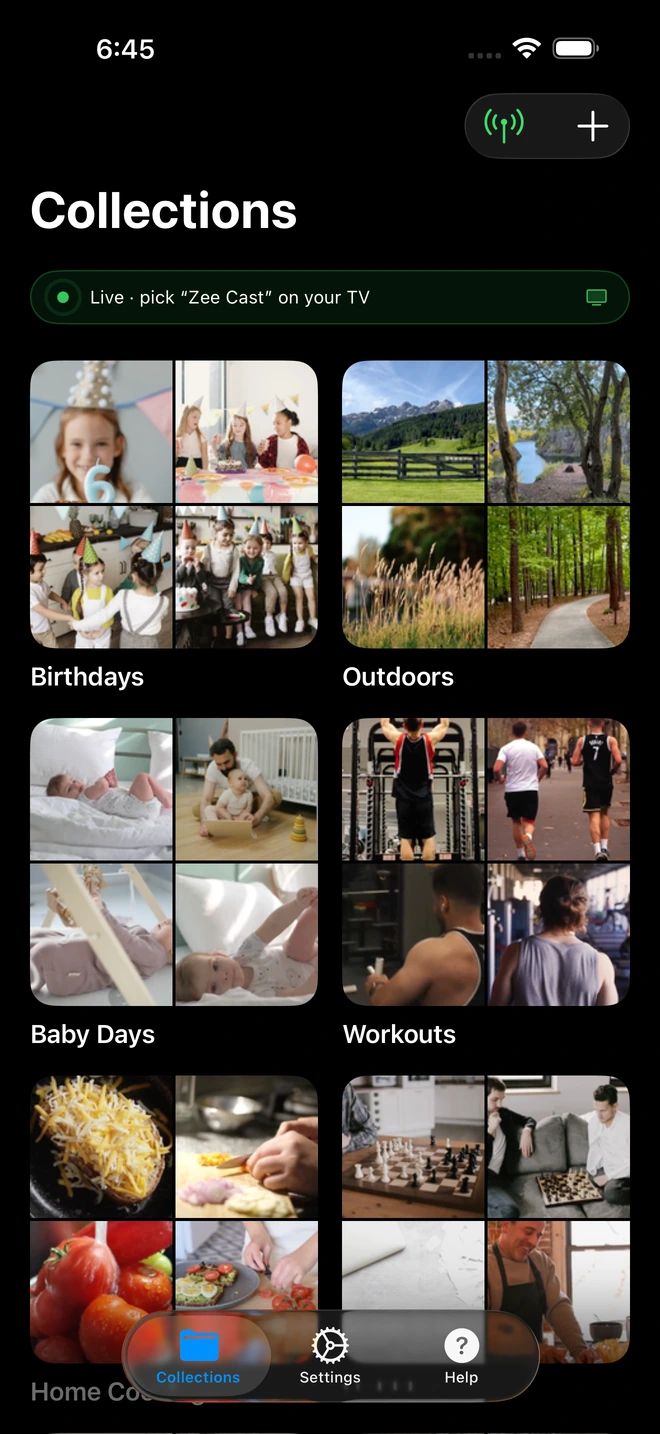
- 1Sharing is Live: TV detects Zee Cast under Connected Devices.
- 2Direct Play streams full-resolution photos & videos without mirroring.
1. Direct Play with Standardized AAC-LC Audio
When you record home videos on an iPhone or modern Android device, the native camera app encodes audio using AAC-LC (Advanced Audio Coding - Low Complexity) or Linear PCM:
- AAC-LC stereo at 44.1 kHz or 48 kHz is the single most universally supported audio codec in existence.
- Every single Smart TV, Blu-ray player, gaming console, and streaming stick manufactured in the last twenty years contains a dedicated hardware ASIC decoder for AAC-LC.
- Zee Cast preserves this untouched stream in its original MP4 / MOV container, ensuring that your TV's audio processor decodes the audio track natively without conversion artifacts or lag.
2. Sample-Accurate Presentation Time Stamps (PTS)
A major issue with screen mirroring and transcode-based casting apps is audio desynchronization (lip-sync drift). Because screen mirroring compresses display pixels and audio samples through separate software encoders, network jitter can cause audio to lag behind video by 200 to 500 milliseconds.
Zee Cast streams media via standard HTTP 1.1 byte-range requests. The television's internal media clock manages both the Presentation Time Stamps (PTS) and Decoding Time Stamps (DTS) directly on its motherboard, guaranteeing frame-accurate lip-sync synchronization for every video.
3. Native TV Remote Volume Control
Because Zee Cast delivers elementary audio streams directly to your television's digital audio processor, you retain full native volume control via your TV remote control, HDMI eARC soundbar, or high-end AV receiver. You never have to scramble to adjust phone volume rockers or deal with truncated digital gain.
Step-by-Step Diagnostic: How to Restore TV Audio in 5 Steps
If you are currently experiencing silent video playback while casting, execute this sequential diagnostic checklist to pinpoint and resolve the fault:
- 1
Inspect the Audio Codec with MediaInfo
Check the audio stream inside your video file using a free utility like MediaInfo or VLC Player (Tools > Codec Information). If the audio stream indicates DTS, TrueHD, or E-AC-3 (Dolby Digital Plus) and you are playing on a Samsung TV or older LG TV, the television hardware cannot decode the track natively.
- 2
Disconnect All Bluetooth Audio Devices
On your smartphone, swipe open the Control Center or Quick Settings panel. Tap the Bluetooth toggle to temporarily disable Bluetooth, or open your audio output selector and ensure audio is set to the phone speaker or target cast endpoint. Confirm that wireless earbuds inside cases are not quietly intercepting the stream.
- 3
Disengage Silent Mode / Physical Mute Switches
If casting from an iPhone, check the physical Ring/Silent switch on the side of the device (ensure no orange accent is showing) or verify that Silent Mode is turned off in the Action Button settings. Toggle off Do Not Disturb / Focus modes that may silence background audio sessions.
- 4
Force TV Sound Output to "PCM"
Grab your Smart TV remote and open Settings > Sound > Expert Settings (or Advanced Sound Settings):
- Find Digital Output Audio Format (or HDMI Audio Format).
- Change the setting from Bitstream or Passthrough to PCM.
- Forcing PCM forces the TV to decode multi-channel digital audio tracks internally into universal 2-channel stereo audio before routing to TV speakers or soundbars.
- 5
Switch to Zee Cast for Guaranteed Audio Playback
If your video still plays without sound over screen mirroring, switch to Zee Cast. Zee Cast bypasses screen mirroring audio session traps and streams your photos and camera videos directly via UPnP/DLNA in standardized MP4 containers with 100% compatible AAC-LC audio.
Advanced Audio Configurations: Soundbars, ARC & eARC Troubleshooting
If your Smart TV is connected to an external soundbar (Sonos Arc, Bose Smart Soundbar, Samsung Q-Series) or a home theater AV receiver via HDMI ARC/eARC or an optical TOSLINK cable, silent audio can occur even when the TV itself supports the codec:
1. The Optical Cable (TOSLINK) Bandwidth Wall
Optical audio cables lack sufficient bandwidth to carry uncompressed multi-channel audio:
- Optical TOSLINK can carry standard 2-channel uncompressed PCM or compressed 5.1 Dolby Digital (AC-3) and DTS.
- It cannot carry high-bitrate Dolby Digital Plus (E-AC-3), Dolby Atmos, or DTS-HD Master Audio.
- If your TV is set to send Bitstream over optical while playing an E-AC-3 video, the optical transmitter cannot package the data, resulting in total silence. Set your TV audio output to PCM when using optical cables.
2. HDMI eARC vs. HDMI ARC Handshake Mismatches
Standard HDMI ARC (Audio Return Channel) is limited to 1 Mbps bandwidth, whereas HDMI eARC (Enhanced Audio Return Channel) provides up to 37 Mbps bandwidth:
- If your TV supports eARC but your soundbar only supports ARC (or if you are using an older HDMI cable that lacks Ethernet channel wiring), high-bandwidth audio streams will fail to negotiate EDID handshakes.
- Inside your TV's audio settings, navigate to eARC Support and ensure it is set to Auto or On. If silence persists, temporarily toggle eARC to Off to force fallback to standard ARC or PCM stereo.
💡 Pro Tip: Audiophile FLAC and Lossless Streaming
Are you streaming high-resolution 24-bit FLAC audio to a premium home theater receiver? AirPlay and standard Bluetooth downsample audio to 16-bit 44.1 kHz or lossy SBC. Zee Cast supports bit-perfect 24-bit/192kHz FLAC streaming over local UPnP/DLNA, allowing your AV receiver's internal high-end DACs to decode studio master recordings at zero loss.
Frequently Asked Questions
Why does my video play smoothly while the audio is completely silent when casting to TV?
This almost always indicates an audio codec licensing mismatch or container demuxing failure. While modern Smart TVs support standard H.264 and HEVC video decoders, manufacturers must pay separate per-device licensing royalties to Dolby Laboratories and Xperi (DTS). If your video file contains a DTS audio track and your TV lacks a DTS hardware decoder (standard on all Samsung TVs made after 2018 and many LG models), the TV renders the video frames normally but silently drops the unsupported audio track.
Why did Samsung and LG remove DTS audio decoders from their Smart TVs?
Licensing royalties. To reduce per-unit manufacturing costs and push streaming services (which almost exclusively deliver audio in Dolby Digital Plus / E-AC-3 or AAC rather than DTS), Samsung stripped hardware DTS decoders from its entire Smart TV lineup starting with the 2018 model year (Tizen 4.0). LG followed suit in 2020, stripping DTS support across webOS models through 2022 before restoring select DTS passthrough on high-end 2023+ OLED displays. When a DTS audio stream reaches these TVs, the audio DSP cannot process the bitstream.
Why does screen mirroring or AirPlay have sound on my phone but no sound on the TV?
Screen mirroring redirects your phone's display buffer and audio output daemon. If your iPhone's physical Ring/Silent switch is switched to Silent (or Focus mode is silencing system sounds), iOS treats screen mirroring as ambient screen output and suppresses the audio stream unless the media app has explicitly declared an AVAudioSessionCategoryPlayback category. Furthermore, if your phone is paired to active Bluetooth earbuds (like AirPods or Galaxy Buds), the audio track is frequently routed to the Bluetooth earbuds while the video is mirrored to the TV.
Can an iPhone's physical silent switch cause casting to have no sound?
Yes. In iOS, screen mirroring (AirPlay Mirroring) mirrors the device's system state. If the physical silent switch is flipped to red (or silent mode is engaged via the Action Button), web browsers, social media video players, and apps using default audio sessions will route video to the TV while keeping audio muted. Toggling the silent switch off or using a dedicated DLNA server app like Zee Cast resolves this instantly.
What TV audio settings should I change to fix missing sound?
Navigate to your TV's Sound Settings: 1. Under 'Sound Out', verify the TV is outputting to 'TV Speaker' (or 'Optical / HDMI eARC' if you use a soundbar). 2. Navigate to 'Expert Settings' or 'Digital Audio Format' and change the format from 'Bitstream' or 'Passthrough' to 'PCM'. Forcing PCM prompts the TV to decode digital multi-channel audio internally rather than forwarding raw bitstreams to speakers that cannot unpack them.
What is the difference between PCM, Bitstream, and Auto in TV audio settings?
Bitstream sends the raw, undecoded compressed audio packets (e.g. AC-3, E-AC-3, DTS) directly across HDMI ARC or optical cables to an external AV receiver or soundbar for decoding. If your external audio hardware does not support the format, you hear dead silence. PCM (Pulse-Code Modulation) commands the television's internal DSP to unpack and decode the audio bitstream internally into uncompressed stereo audio before sending it to the speakers. 'Auto' allows the TV to negotiate capabilities via HDMI EDID handshakes.
Why do MKV (.mkv) files frequently lose audio when streamed to a Smart TV?
Matroska (MKV) is a container format that supports virtually any combination of video, audio, and subtitle streams, including Vorbis, Opus, 7.1 DTS-HD MA, and lossless TrueHD. TV media players generally feature limited MKV demuxers. If the MKV file features multiple audio tracks (e.g., Track 1 is an unsupported 7.1 DTS commentary track while Track 2 is stereo AAC), the TV often attempts to play Track 1, fails, and produces silent video rather than gracefully falling back to secondary tracks.
Does Zee Cast transcode or compress my audio when streaming to the TV?
No. Zee Cast streams your mobile media in clean MP4 and MOV containers with original AAC-LC and Linear PCM stereo audio. Because AAC-LC is the global standard for consumer video recording on both iOS and Android, virtually 100% of televisions manufactured over the past two decades feature hardware ASIC decoders for it. Zee Cast delivers the audio bit-for-bit without CPU re-encoding, preserving full dynamic range and zero latency.
How does Zee Cast maintain perfect lip-sync and audio synchronization?
Unlike screen mirroring protocols that capture video and audio via separate asynchronous software buffers (often causing lip-sync drift of 200ms–500ms over Wi-Fi), Zee Cast serves the media file over HTTP byte-range streaming. The television's onboard hardware media clock handles demuxing and synchronizes Presentation Time Stamps (PTS) and Decoding Time Stamps (DTS) internally, guaranteeing zero audio drift.


