
Key takeaways
- The 'Device Connected but No Files Found' error happens when SSDP discovery succeeds, but the SOAP ContentDirectory Browse response fails or is rejected.
- LG webOS employs a strict XML parser that silently aborts when DIDL-Lite metadata lacks required upnp:class tags, childCount attributes, or proper character escaping.
- LG Quick Start+ puts webOS into RAM sleep, often preserving corrupt or stale DLNA container caches across sessions.
- Zee Cast guarantees 100% webOS compliance with clean DIDL-Lite XML generation, proper container hierarchies, and automatic on-the-fly HEIC-to-JPEG conversion.
The Paradox: The TV Sees Your Phone, but the Folders Are Empty
You launch the Media Player or SmartShare app on your LG OLED or QNED TV. Under Connected Devices, your phone's media server appears with a green connected badge. You click on it with your LG Magic Remote, expecting to browse your photo albums or home video clips.
Instead, after a brief loading animation, your screen displays the frustrating error:
⚠️ LG webOS Notice: "No Files Found"
"There are no files that can be played in this folder. Please check your connected device and try again."
Why does this happen when your phone's media server is actively running and clearly visible on the television?
Understanding the UPnP Pipeline: Discovery vs. Content Directory
To understand why this error occurs, it is essential to look at the two distinct phases of the UPnP AV protocol:
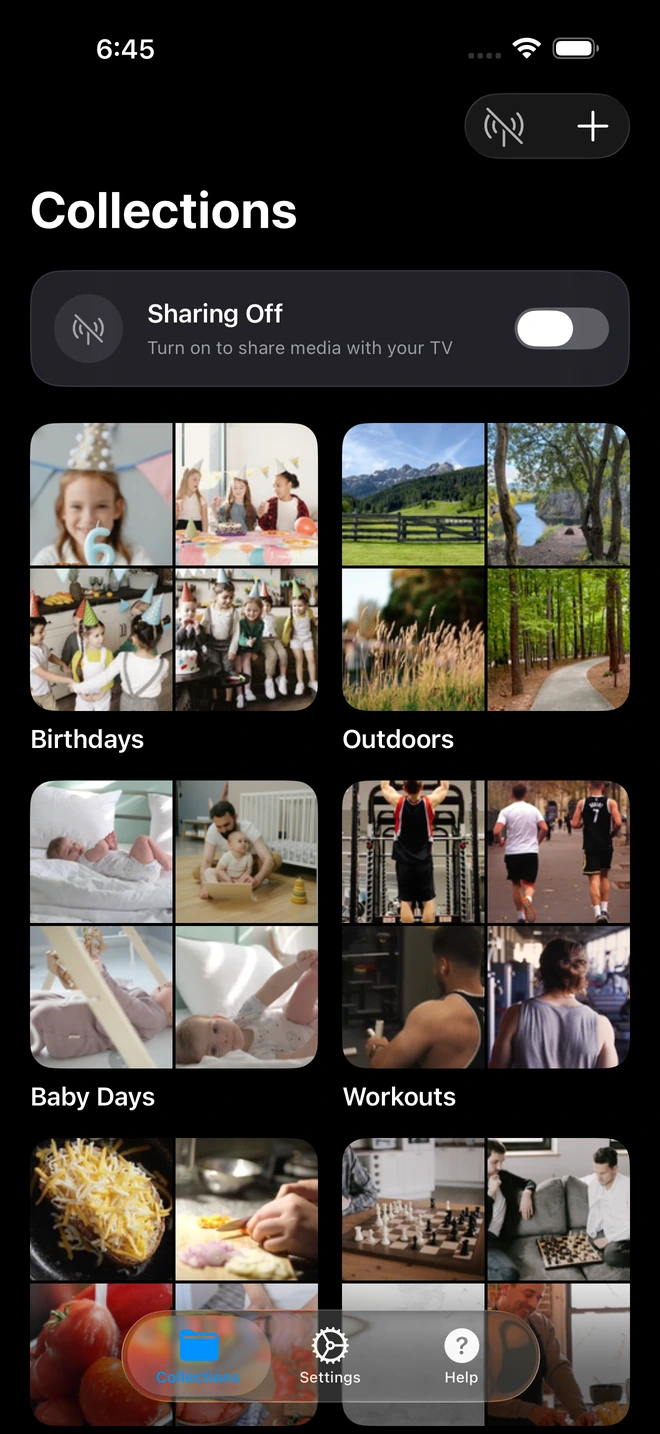
- 1Curated collections isolate shared media from your camera roll.
- Phase 1: Discovery (SSDP): Your phone broadcasts a UDP multicast announcement across the local network (
239.255.255.250:1900). Your LG TV hears this packet, learns your phone's IP address, and displays your server name in the Home Dashboard. Discovery has succeeded! - Phase 2: Content Directory Browse (SOAP/HTTP): When you click on the server icon, the TV issues an HTTP POST request to the server's
/ContentDirectory/controlendpoint executing a SOAPBrowseaction for Container ID0(root). The server must reply with an XML document formatted according to the DIDL-Lite specification.
If the server's response contains even a single syntax imperfection, a mismatched MIME type, or an unescaped character, the LG webOS XML parser silently aborts and declares: "No Files Found".
The 4 Technical Root Causes of "No Files Found" on LG TVs
1. Malformed DIDL-Lite XML & Missing upnp:class
LG webOS strictly validates the XML element structure inside the <DIDL-Lite> envelope:
- Every container must specify
id,parentID,restricted="1", and an integerchildCount. - Every video file must explicitly declare
<upnp:class>object.item.videoItem</upnp:class>. If a server provides a genericobject.item, the webOS video player filters it out. - Every photo must declare
<upnp:class>object.item.imageItem.photo</upnp:class>.
2. Unescaped XML Characters in File & Collection Names
If your vacation collection is named "Mom & Dad's 50th" or contains video files with symbols (<, >, &, "), a poorly coded media server will inject raw characters into the XML stream. The LG XML parser encounters an unexpected entity error, terminates parsing halfway through the list, and renders an empty screen.
3. The HEIC / HEIF Format Mismatch
Modern iPhones shoot photos exclusively in Apple's High Efficiency (HEIC) image container. Generic DLNA media servers simply serve the raw .heic file with image/heic MIME headers. Because LG webOS image hardware decoders only support JPEG and PNG, webOS hides the unsupported files completely.
4. Stale webOS Cache & Quick Start+ RAM State
LG's Quick Start+ feature maintains the television's operating system in a low-power suspended RAM state rather than completing a real shutdown. If a media server's IP address or container structure changed, webOS continues querying outdated container IDs cached in memory, yielding zero results.
5-Step Diagnostic & Resolution Checklist
Step 1: Check the Active Tab Filter in LG Media Player
Inside the LG Media Player app, inspect the top-right navigation tabs. webOS provides separate views for All, Photos, Videos, and Music. If the tab is set to "Photos" and your collection only contains 4K MP4/MOV clips, the folder will falsely show "No Files Found". Switch the filter to All or Videos.
Step 2: Disable Quick Start+ and Cold Reboot the TV
- On your LG remote, press the Gear icon (Settings) > All Settings.
- Navigate to General > Devices > TV Management (or System on newer webOS).
- Toggle Quick Start+ to OFF.
- Unplug the TV power cord from the wall outlet for 60 seconds to discharge internal capacitors and clear volatile memory.
- Plug the TV back in and power it on.
Step 3: Ensure Clean XML Escaping on the Media Server
If you are running a custom server or third-party tool, verify that all strings passed to the Content Directory are strictly sanitized using standard XML entity encoding:
&→&<→<>→>"→"
Step 4: Check Subnet and AP Isolation
Verify that your phone and LG TV are connected to the same Wi-Fi SSID. In your Wi-Fi router settings, confirm that AP Isolation or Guest Mode is disabled, allowing local devices to exchange bi-directional TCP data.
Step 5: Use Zee Cast for Guaranteed LG webOS Compatibility
Zee Cast was built and validated against every generation of LG webOS (from webOS 4.0 on vintage OLEDs through webOS 24 on current G4/C4 models):
- Byte-Exact DIDL-Lite Generation: Generates flawless XML envelopes with complete
upnp:class,res protocolInfo, andchildCountcompliance. - Automated HEIC → JPEG Conversion: Converts iPhone HEIC photos into pristine, high-resolution JPEGs on-the-fly, ensuring every photo opens instantly on LG TVs.
- Strict XML Sanitization: Automatically escapes all user-defined collection names and metadata, preventing parser crashes.
- Bit-Perfect Direct Play: Delivers raw 4K 60fps HEVC and Dolby Vision Profile 8.4 video bitstreams via standard HTTP Range requests with zero buffering.
Testing Your Setup with Zee Cast
- 1
Launch Zee Cast
Open Zee Cast on your iPhone or Android phone. Create a collection and select 5 photos and 1 video clip.
- 2
Tap 'Turn On Sharing'
Zee Cast begins serving clean, compliant DIDL-Lite containers over your local Wi-Fi.
- 3
Open Home Dashboard on LG TV
Select Zee Cast under Connected Devices. Click your collection - all files will appear instantaneously with full thumbnails and zero errors.
Frequently Asked Questions
Why does my LG TV show 'Device Connected' but says 'No Files Found' inside the folder?
This classic LG webOS glitch occurs when the TV discovers the DLNA server device via SSDP multicast, but fails during the SOAP UPnP ContentDirectory Browse action. Common causes include: malformed DIDL-Lite XML returned by the server, missing or invalid upnp:class metadata (e.g. object.item.videoItem), unsupported container hierarchies, unescaped XML characters in file names, or an active content filter on the TV (e.g. browsing the Photo tab for video files).
What is DIDL-Lite XML and why is LG webOS so strict about it?
DIDL-Lite (Digital Item Description Language) is the XML schema defined by UPnP AV standards to communicate file names, MIME types, resolutions, and streaming URLs. LG webOS uses a notoriously strict XML parser. If a media server omits required attributes (such as childCount on containers or protocolInfo on res elements), or fails to escape ampersands (&), the LG webOS XML parser silently aborts and reports 'No Files Found'.
How does LG Quick Start+ cause DLNA server errors?
When Quick Start+ is enabled, pressing the remote power button puts webOS into a low-power RAM sleep mode rather than executing a true operating system restart. Over time, webOS's internal DLNA cache holds onto expired SSDP device leases and stale container structures from previous network sessions, causing new folders to appear empty until a cold reboot is performed.
Does LG webOS support HEIC photos from iPhone over DLNA?
Historically, LG webOS image decoders only support JPEG, PNG, and select BMP formats; they reject raw Apple HEIC/HEIF files. Generic DLNA servers serve raw .heic files, causing LG TVs to hide them or throw 'Unrecognized File Format'. Zee Cast automatically converts HEIC images to high-resolution JPEG on-the-fly during serving, ensuring every photo renders instantly.
Why do some videos not appear in the LG TV Media Player video tab?
LG webOS categorizes media strictly based on the upnp:class metadata attribute provided in the DIDL-Lite response. If a server publishes a video using a generic object.item class rather than object.item.videoItem, LG webOS will completely exclude it from the video view.
How does Zee Cast guarantee compatibility with LG webOS TVs?
Zee Cast's embedded HTTP server was engineered and tested directly against LG webOS 4.x through webOS 24. Its SOAP ContentDirectory handler generates byte-exact DIDL-Lite envelopes with full XML character sanitization, valid container hierarchies rooted at '0', and compliant protocolInfo strings that match LG's hardware decoders.
Does Wi-Fi band steering or AP Isolation affect LG DLNA browsing?
Yes. If your router has AP Isolation or Client Isolation turned on, your phone and LG TV cannot exchange TCP packets. Similarly, poorly configured router band steering (putting the TV on 2.4 GHz and phone on 5 GHz without multicast forwarding) can cause discovery packets to succeed while HTTP Browse requests time out.
Can I stream 4K 60fps Dolby Vision videos to LG OLED using Zee Cast?
Yes. LG OLED TVs feature premier hardware decoders for HEVC 10-bit Dolby Vision. Once Zee Cast's collection is visible in the webOS Media Player, selecting a video initiates direct play with full 10-bit color and native Dolby Vision dynamic metadata.
Where do I find Zee Cast on LG webOS?
On modern LG TVs (webOS 6.0 through webOS 24), open the **Home Dashboard** and look under **Connected Devices / Media Servers**. On older webOS models, launch the **SmartShare** or **Media Player** app from the app ribbon.


