

 ⚡ At a Glance: Android TV & Google TV Specs ⚡ At a Glance: Android TV & Google TV Specs | |
|---|---|
| Target Platform & OS | Android TV 8.0–14+ / Google TV (Sony, TCL, Chromecast, Shield) |
| Protocol & Port | DLNA 1.5 / UPnP MediaServer, Port 8080 |
| Connection Type | Local Wi-Fi (5 GHz recommended) or Hotspot (0 MB Internet Data) |
| Transcoding | None (Direct Play original bitstream via MediaCodec / LibVLC) |
| Typical Setup Time | ~2 minutes (Install VLC for Android from Google Play Store) |
Quick 4-Step Walkthrough
Unlike some Smart TVs, Android TV and Google TV do not include a native DLNA receiver by default. Installing the free VLC for Android (or Nova Video Player / Kodi) from the Google Play Store enables instant DLNA streaming.
- 1
Install VLC from Play Store
Open Google Play Store on your Android TV, search for VLC for Android (or Nova Video Player / Kodi), and install it free.
- 2
Connect to the same Wi-Fi
Verify that your smartphone and your Android TV / Google TV device are on the exact same Wi-Fi network.
- 3
Turn on sharing in Zee Cast
Open Zee Cast on your phone, curate the media you want to display into collections, and tap Turn on sharing.
- 4
Select Zee Cast in VLC & Play
Launch VLC on TV, navigate to Browse > Local Network, click on Zee Cast, and start playing your media.
Android TV & Google TV · Menu NavigationOpen VLC for Android → Browse → Local Network → Select Zee Cast
Why Direct Streaming Beats Screen Casting
Screen casting to Android TV mirrors your device screen, creating video stutter and battery drain while blocking phone multitasking. Zee Cast lets your TV decode the raw media file directly:
- Complete Phone Freedom: Keep browsing, answering messages, or make phone calls while the TV plays uninterrupted.
- Original Media Quality: Stream 4K family videos and full-resolution photo albums without cloud compression.
- Dedicated TV Remote Navigation: Control playback seamlessly with your Android TV remote.
- Zero Cloud Uploads: Your media stays 100% inside your local home network.
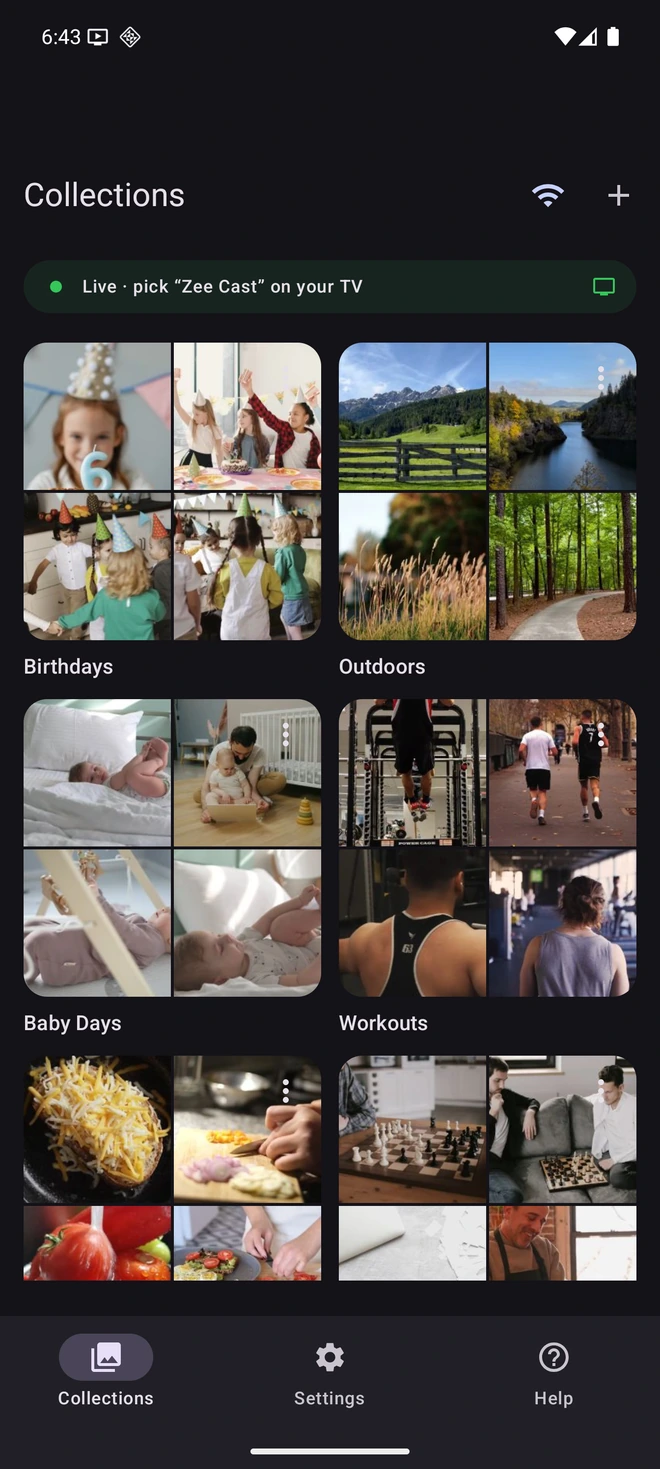
- 1Sharing is Live: Android TV discovers your phone instantly.
- 2Direct Play streams original bitstream without screen mirroring.
💡 Using Kodi on Android TV
If you use Kodi on Android TV, ensure UPnP is turned on: navigate to Settings > Services > UPnP/DLNA and enable 'Enable UPnP support'. Then go to Videos > Files > Add videos > Browse > UPnP devices to browse your Zee Cast collections.
Supported Android TV & Google TV Devices
Zee Cast works across all Android TV (v8 to v14+) and Google TV devices running VLC, Nova Video Player, or Kodi:
| Device Family | Supported OS Versions | Recommended Player | Features Supported |
|---|---|---|---|
| Sony Bravia & TCL Google TVs | Google TV (Android 11–14+) | VLC for Android / Nova | 4K 60fps HEVC, Dolby Vision passthrough |
| Chromecast with Google TV (4K & HD) | Google TV / Android 12+ | VLC for Android | Bit-perfect 4K, HDR10, Background playback |
| Streaming Boxes (Nvidia Shield, Xiaomi Mi Box) | Android TV 9–11+ | Kodi / VLC / Nova | Lossless audio (TrueHD, DTS-HD), 4K HEVC |
| Smart TVs (Philips, Hisense, Sharp Android TV) | Android TV 8–12+ | VLC for Android | Direct network playback, Full TV remote seek |
Official Android TV & Media Documentation References
For more technical details on Android TV apps and DLNA streaming, consult these official guides:
Frequently Asked Questions
Why doesn't Android TV support DLNA out of the box?
Google TV and Android TV are designed around Google Cast and cloud apps, so they do not include a pre-installed DLNA browser. Installing free apps like VLC for Android or Nova Video Player from Google Play adds native DLNA/UPnP support in seconds.
How do I stream to Android TV or Google TV without Google Cast screen mirroring?
Screen mirroring via Google Cast recompresses video frames and mirrors phone alerts on your TV. Instead, install VLC for Android from the Google Play Store. Launch Zee Cast on your phone, open VLC on your Android TV, and select Browse > Local Network > Zee Cast for bit-perfect 4K Direct Play with physical remote controls.
How do I fix video buffering and stuttering when streaming 4K to Android TV?
4K 60fps video recorded on modern smartphones requires 50–100 Mbps continuous bandwidth. Connect both your phone and your Android TV (or Chromecast with Google TV) to the 5 GHz Wi-Fi band, or use a wired USB-C Ethernet adapter on your streaming device. In VLC for Android TV, ensure 'Hardware Acceleration' is set to 'Automatic'.
Does VLC on Android TV support surround sound audio passthrough (AC-3, E-AC-3, DTS)?
Yes. In VLC for Android TV, navigate to Settings > Extra Settings > Audio > Audio output and choose 'AudioTrack (raw/passthrough)'. When streaming multi-channel video files from Zee Cast, VLC sends the untouched digital bitstream directly over HDMI eARC to your soundbar or AV receiver.
Can I use Kodi on Android TV to stream Zee Cast?
Yes. In Kodi on Android TV, navigate to Settings > Services > UPnP/DLNA and ensure 'Enable UPnP support' is On. Then go to Videos > Files > Add Videos > Browse and select UPnP devices to find Zee Cast.
Which Android TV and Google TV brands work with Zee Cast?
All devices running Android TV or Google TV, including Sony Bravia, TCL Google TVs, Philips, Hisense, Xiaomi Mi Box, Nvidia Shield TV, and Chromecast with Google TV.
Why does VLC on Android TV not see Zee Cast?
Check that both your phone and Android TV are connected to the exact same Wi-Fi router. In Zee Cast, ensure the toggle shows 'Sharing Active'. If your router has AP Isolation enabled, disable it to allow local device discovery.


