

 ⚡ At a Glance: Samsung Smart TV Specs ⚡ At a Glance: Samsung Smart TV Specs | |
|---|---|
| Target Platform & OS | Samsung Smart TVs (Tizen OS 2.4+ / 2016–2026+ & Orsay legacy) |
| Protocol & Port | DLNA 1.5 / UPnP MediaServer, Port 8080 (HTTP Range seek) |
| Connection Type | Local Wi-Fi (5 GHz recommended for 4K) or Hotspot (0 MB Internet Data) |
| Transcoding | None (Direct Play original bitstream; native JPEG conversion for HEIC) |
| Typical Setup Time | ~2 minutes (Zero TV app installation needed; native Smart Hub Sources) |
Key takeaways
- Samsung Smart TVs from 2016+ play DLNA/UPnP natively - no TV app, no Galaxy phone, no AirPlay required.
- Zee Cast serves the original 4K files over local Wi-Fi, so quality matches the camera roll and your phone stays free.
- When the TV cannot see Zee Cast, it is almost always a network problem: different Wi-Fi bands, AP isolation, or a guest network.
- The iOS build serves HEIC photos as JPEG so Tizen renders them without a conversion app.
Quick 4-Step Walkthrough
Samsung Smart TVs feature native Digital Living Network Alliance - the legacy guidelines for local media sharing, built on top of UPnP. Glossary →/Universal Plug and Play - the discovery and control protocol suite DLNA builds on. Glossary → media discovery inside the Smart Hub. You do not need to install an extra app or create a cloud account.
- 1
Connect to the same Wi-Fi
Make sure your iPhone or Android phone and your Samsung Smart TV are connected to the same home Wi-Fi network.
- 2
Turn on sharing in Zee Cast
Open Zee Cast, choose the photos and videos you want to share into a collection, and tap Turn on sharing.
- 3
Select Zee Cast on Samsung TV
Press Source or Home on your Samsung remote. Under Connected Devices or Sources, select Zee Cast.
Samsung Smart TV · Menu NavigationPress Source or Home → Connected Devices → Select Zee Cast
- 4
Browse & enjoy playback
Select your collection and press play. You can lock your phone or keep chatting - playback continues uninterrupted.
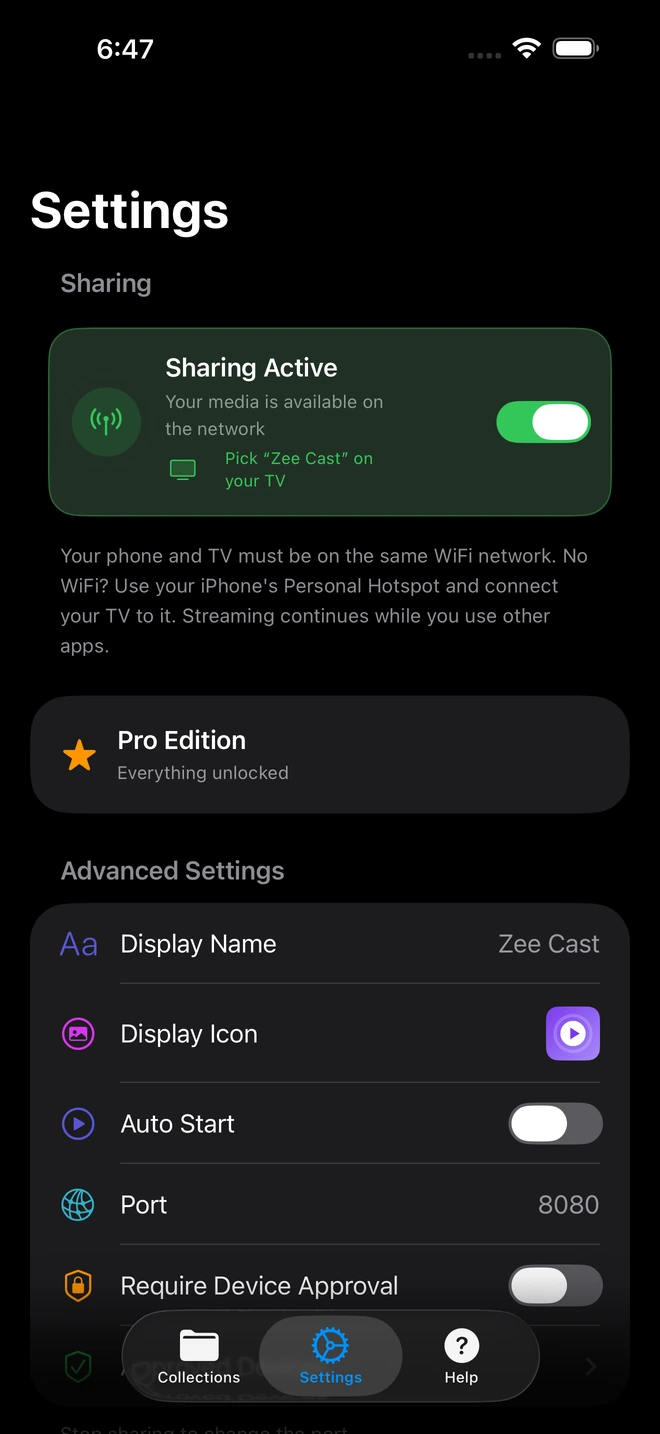
- 1Flip the sharing toggle once; the server starts immediately.
- 2The card confirms your media is live - now open Connected Devices on the TV.
Why Direct Streaming Beats Screen Mirroring
Traditional screen mirroring duplicates your phone screen onto your Samsung TV - draining battery rapidly, exposing private text messages, and stopping whenever you switch apps. Zee Cast works differently by serving files directly to your TV:
- No TV screen mirroring: Your phone remains 100% available for messages, calls, or browsing while the TV plays.
- Full-resolution 4K streaming: Videos and high-res photos stream directly over local Wi-Fi with no compression.
- Curated collections: Pick only the exact memories you want to share; your private camera roll stays private.
- Zero cloud accounts: Your personal media never leaves your living room network.
Photo Slideshows Without Smart View
Screen mirroring photos with Smart View or AirPlay forces your TV into your phone's tall portrait aspect ratio, creating black sidebars and downscaling image clarity. With Zee Cast:
- Original Resolution: Photos (JPEG, PNG, and HEIC) stream in native resolution so Samsung 4K and 8K panels render sharp detail.
- Natural 16:9 Slideshows: Landscape photos fill your TV screen edge-to-edge. Use your Samsung One Remote to glide through albums.
- Private Curated Albums: Only the specific photo collection you choose is visible on the TV.
💡 Pro Tip for Samsung Smart Hub Navigation
On Samsung TVs with the One Remote, press Home, scroll left to Connected Devices (or Source on older models), and select Zee Cast. If you use media apps like VLC or Plex on your Samsung TV, Zee Cast will also appear in their local network browser automatically.
Supported Samsung Smart TV Models & Tizen OS
Zee Cast communicates using standard UPnP ContentDirectory and AVTransport protocols supported across Samsung TV generations:
| TV Series | Tizen OS Versions | Supported Media | Connection Menu |
|---|---|---|---|
| Neo QLED & OLED (QN900, QN90, S95, S90) | Tizen 6.5 – 8.0+ | 4K / 8K HEVC, H.264, HDR10+, JPEG, HEIC | Connected Devices → Media Sources |
| The Frame & Lifestyle (The Serif, The Sero) | Tizen 4.0 – 8.0 | 4K 60fps Video, Uncompressed Photos | Art Mode / Connected Devices |
| Crystal UHD & QLED (DU8000, CU7000, Q80, Q60) | Tizen 3.0 – 7.0 | 4K / 1080p MP4, MOV, MKV, AAC Audio | Sources → USB & Media Servers |
| Legacy Smart Hub TVs (2016–2018 Orsay/Tizen 2.4) | Tizen 2.4+ | 1080p H.264, MP4, JPEG Photos | Source Button → DLNA Network Devices |
Interactive Compatibility Checker
Check Your TV & Device Compatibility
Select your smart TV model and phone to see instant connection instructions and supported formats.
Samsung Smart TV (Tizen OS) + iPhone / iPad
✓ Native DLNA SupportedOr jump directly to platform-specific setup guides:
Official Samsung & DLNA Documentation References
For more technical details on Samsung Smart TV media sharing, consult the official Samsung support guides:
Frequently Asked Questions
Do I need to install an extra app on my Samsung Smart TV?
No. Most Samsung Smart TVs (Tizen OS 2016+) have built-in DLNA/UPnP support in the native Source, Connected Devices, or Media Player menu. Zee Cast is detected automatically over your Wi-Fi network.
How do I cast photos to Samsung TV without Smart View or AirPlay?
Open Zee Cast, select your photos into a collection, and turn on sharing. On your Samsung TV remote, press Home or Source, open Connected Devices, and select Zee Cast. Your photos appear in clean albums that you can browse with your TV remote, preserving full 4K resolution without mirroring your phone screen.
Why does 4K 60fps video stutter or buffer on my Samsung TV?
High-frame-rate 4K 60fps videos filmed on modern smartphones feature bitrates exceeding 60–100 Mbps. If your Samsung TV is connected to a congested 2.4 GHz Wi-Fi band, packets can queue up and cause stuttering. Connect both your phone and Samsung TV to your router's 5 GHz Wi-Fi band (or connect the TV via wired Ethernet) to guarantee smooth, buffer-free Direct Play.
Does Samsung Smart TV support subtitles (.srt) when streaming via DLNA?
Yes. Samsung Smart TVs support embedded subtitle tracks within MP4 and MKV containers over DLNA. During playback, use your Samsung TV remote to access the on-screen playback control menu (gear/options icon) to turn subtitles on or off and switch between available subtitle languages.
Does Samsung TV play AC-3 (Dolby Digital) and AAC audio via DLNA, and what about DTS?
Samsung Smart TVs feature native hardware decoders for AAC, MP3, and Dolby Digital (AC-3 / E-AC-3). However, Samsung discontinued DTS audio licensing on all models released in 2018 and later. Personal videos recorded on iPhone and Android use standard AAC or Dolby audio, ensuring immediate playback with clear audio.
Why does my Samsung TV not show Zee Cast under Sources?
Ensure both your phone and Samsung TV are connected to the exact same Wi-Fi network (make sure one is not on 5 GHz and the other on a Guest network). Router AP Isolation should be disabled. Also confirm that Sharing is Active in Zee Cast.
Can I stream HEIC photos taken on iPhone to Samsung TV?
Yes. The iOS version of Zee Cast automatically serves high-quality JPEG compatibility streams for DLNA renderers, allowing Samsung TVs to render iPhone camera photos smoothly.
Do I need internet access to stream to my Samsung TV?
No. Media files travel directly from your phone to your TV over your local Wi-Fi router. Zee Cast does not use internet bandwidth or require cloud connectivity for local playback.
What video formats does Samsung TV support via DLNA?
Samsung Smart TVs natively support MP4, MOV, and MKV (H.264 / HEVC video with AAC or MP3 audio). Zee Cast serves original byte streams with HTTP Range seek support.
How do I stream personal photos and videos privately to TV (private to TV)?
Zee Cast streams directly over your local Wi-Fi network using UPnP/DLNA. No files are ever uploaded to cloud servers, no user accounts are created, and your phone screen is never mirrored - allowing you to browse privately while media plays cleanly on your Samsung TV.


