

 ⚡ At a Glance: Roku Specs ⚡ At a Glance: Roku Specs | |
|---|---|
| Target Platform & OS | Roku OS 9.0+ to Roku OS 14+ (Sticks, Express, Ultra, Roku TVs) |
| Protocol & Port | DLNA 1.5 / UPnP MediaServer, Port 8080 |
| Connection Type | Local Wi-Fi (2.4 / 5 GHz) or Hotspot (0 MB Internet Data) |
| Transcoding | None (Direct Play original bitstream to Roku decoders) |
| Typical Setup Time | ~2 minutes (Install free Roku Media Player channel) |
Key takeaways
- Roku Media Player is a free channel that discovers DLNA/UPnP servers automatically on the local network.
- Zee Cast shows up under Media Servers with your collections laid out exactly as in the app.
- Roku decodes H.264 and HEVC; Direct Play sends the original file so there is no mirroring stutter.
- The Roku and the phone must share one network - a guest SSID or AP isolation will hide the server.
Quick 4-Step Walkthrough
Roku Media Player automatically discovers Universal Plug and Play - the discovery and control protocol suite DLNA builds on. Glossary →/Digital Living Network Alliance - the legacy local-media-sharing guidelines that run on UPnP. Glossary → media servers on your local network without any complicated configuration or account setup.
- 1
Connect to same Wi-Fi
Verify that your phone (iOS or Android) and your Roku device are connected to the same Wi-Fi network.
- 2
Turn on sharing in Zee Cast
Open Zee Cast, organize your chosen media into collections, and tap Turn on sharing.
- 3
Open Roku Media Player
Launch the Roku Media Player channel from your Roku home screen (available free from the Channel Store).
Roku Media Player · Menu NavigationHome screen → Roku Media Player → Media Servers → Select Zee Cast
- 4
Select Zee Cast & Play
Choose All, Video, or Photo, select Zee Cast from the server list, and browse your collections.
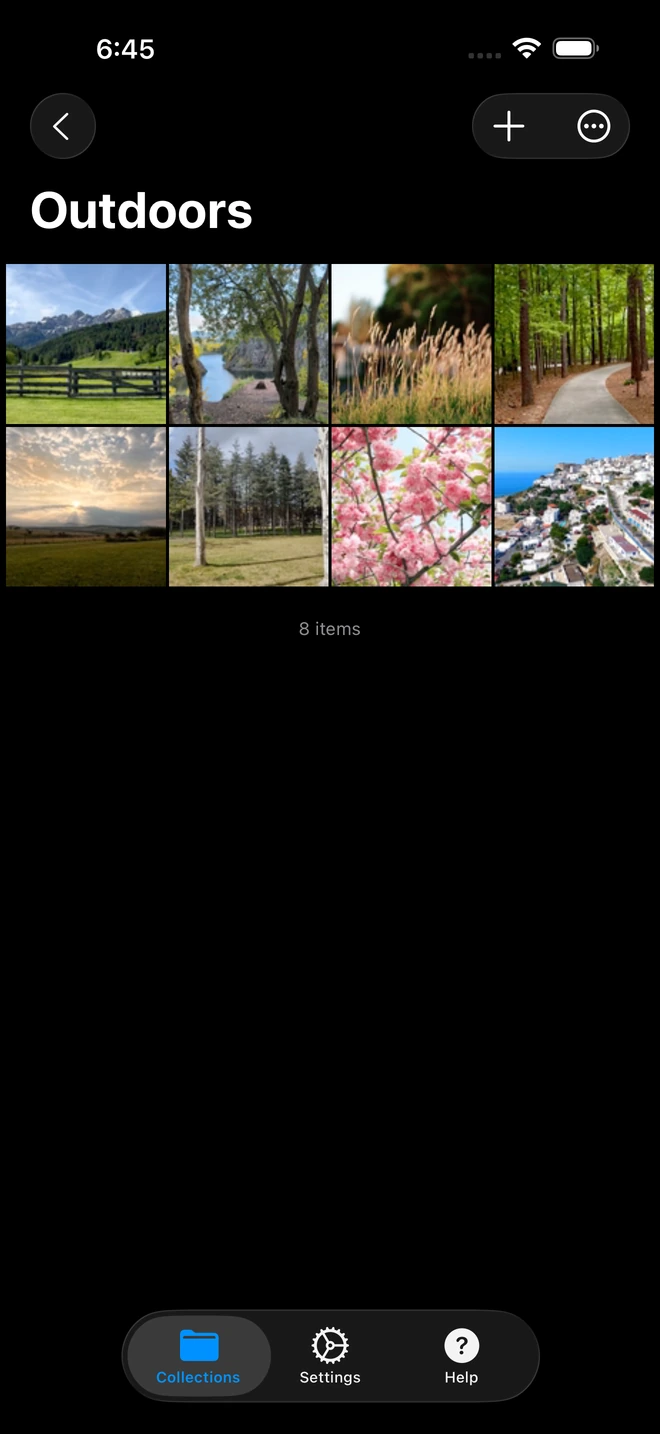
- 1Roku Media Player lists the collection's contents; the item count confirms nothing was transcoded or dropped.
Native Playback Without AirPlay Stutter
Screen mirroring to Roku often stutters and locks your phone screen. Zee Cast lets Roku decode your media directly over local Wi-Fi with dedicated media player controls:
- Full Roku remote control: Play, pause, fast forward, and rewind using your physical Roku remote.
- Multitask freely on phone: Keep texting, calling, or browsing while the video streams to Roku.
- One-button Favorite (*): Press the Star (*) button on your Roku remote to favorite Zee Cast for 1-click startup.
- Private & local: Zero cloud accounts, zero ads, and zero personal data leaving your home router.
💡 Pro Tip: Quick-Connect via Roku Remote Star (*) Button
Highlight Zee Cast on the Roku Media Player Media Device screen and press the Star (*) button on your Roku remote. This saves Zee Cast as a Favorite, allowing the app to open your phone's media library automatically upon launch.
Supported Roku Devices & Roku TV Brands
Zee Cast works with all Roku OS devices capable of running the official Roku Media Player app:
| Roku Hardware | Roku OS Version | App Channel | Supported Codecs |
|---|---|---|---|
| Roku TVs (TCL, Hisense, Sharp, Philips, Onn) | Roku OS 9.0 – 14+ | Roku Media Player | 4K HDR, HEVC, H.264, AAC Audio, Full remote nav |
| Roku Streaming Sticks (4K, 4K+, Express 4K) | Roku OS 9.0 – 14+ | Roku Media Player | Direct Wi-Fi stream, Dolby Vision / HDR10 |
| Roku Ultra & Streambar | Roku OS 9.0 – 14+ | Roku Media Player | Lossless audio, Optical / HDMI audio passthrough |
| Roku Express & Premiere (1080p) | Roku OS 8.0 – 14+ | Roku Media Player | 1080p MP4, MOV, MKV, Photo slideshows |
Interactive Compatibility Checker
Check Your TV & Device Compatibility
Select your smart TV model and phone to see instant connection instructions and supported formats.
Samsung Smart TV (Tizen OS) + iPhone / iPad
✓ Native DLNA SupportedOr jump directly to platform-specific setup guides:
Official Roku & DLNA Documentation References
For more technical details on Roku Media Player channels, USB/DLNA playback, and supported media formats, refer to the official Roku guides:
Frequently Asked Questions
Is the Roku Media Player channel free?
Yes. Roku Media Player is developed by Roku and is completely free to install from the Roku Streaming Channels store.
Can I favorite Zee Cast inside Roku Media Player?
Yes. When highlighting 'Zee Cast' on the Roku Media Player device screen, press the Star (*) button on your Roku remote. This sets Zee Cast as a favorite so it opens directly whenever you launch the player.
Why does Roku Media Player say 'File format not supported'?
Roku Media Player supports MP4, MOV, and MKV containers with H.264 or HEVC/H.265 video and AAC, MP3, or AC-3 (Dolby Digital) audio. If a video file uses legacy codecs (such as DivX, XviD, or raw AVI containers) or unsupported audio formats like DTS, Roku's hardware decoder cannot direct play it. Standard phone camera videos stream without issues.
How can I stop 4K video buffering or stuttering on a Roku Streaming Stick?
Roku Streaming Sticks placed directly behind a TV panel can suffer from radio-frequency interference and thermal throttling. Connect your Roku to the 5 GHz Wi-Fi band and use the free HDMI extender cable from Roku to move the stick away from the back of the television.
How do I turn on subtitles (.srt) in Roku Media Player?
During video playback in Roku Media Player, press the Star (*) button on your Roku remote, select 'Closed Captioning', and switch it to 'On'. Roku Media Player will automatically display embedded subtitle tracks or timed text on screen.
What Roku devices work with Zee Cast?
All Roku streaming devices, including Roku Streaming Stick 4K, Roku Express, Roku Ultra, Roku Streambar, and all Roku TV models (TCL, Hisense, Sharp, Philips, Onn).
Why is Roku Media Player not seeing Zee Cast?
Check that both your Roku and your phone are connected to the same Wi-Fi network (ensure one is not on a Guest network). In Zee Cast, ensure the toggle shows 'Sharing Active'. Exit and re-open the Roku Media Player channel to trigger a fresh SSDP network scan.


