
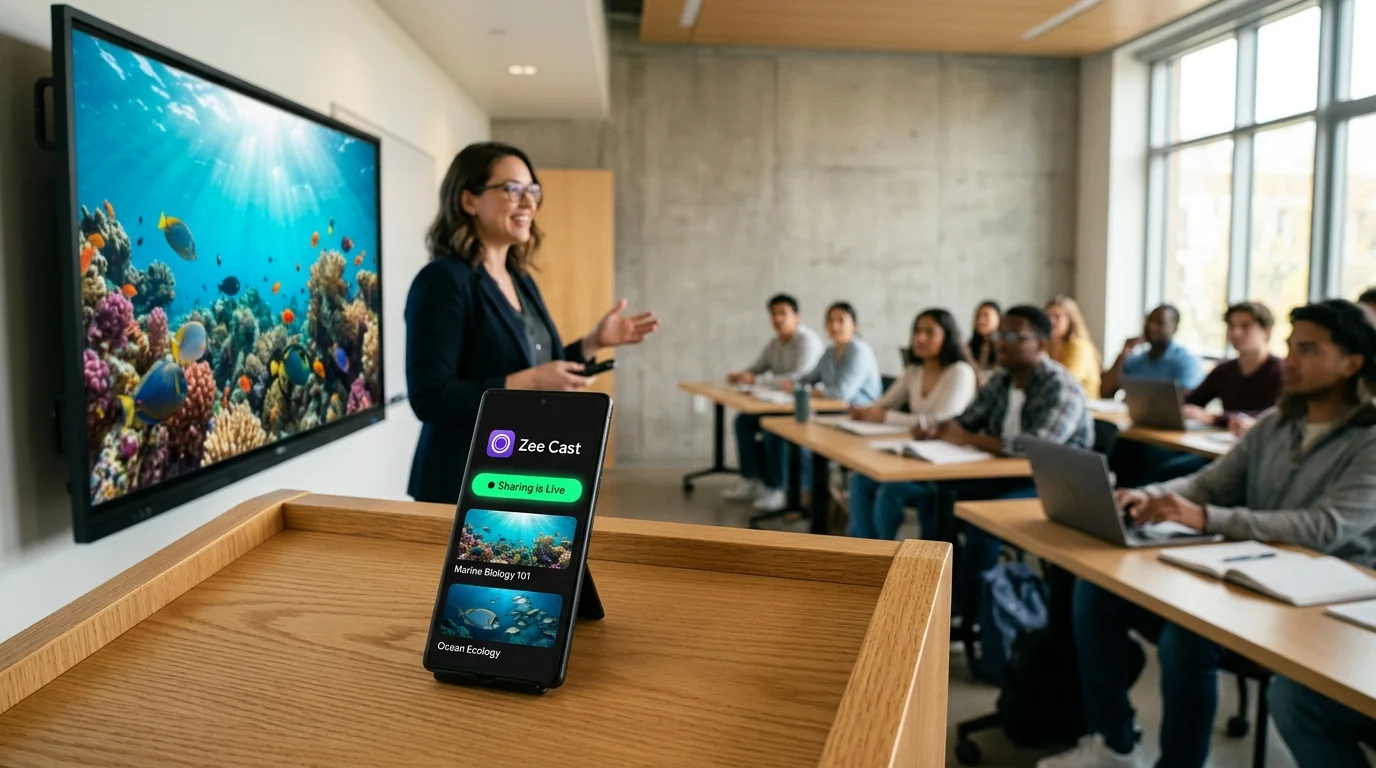
 ⚡ At a Glance: Classroom Safe Harbor Specs ⚡ At a Glance: Classroom Safe Harbor Specs | |
|---|---|
| Target Platform & OS | Classroom Smartboards (Promethean, SMART Board, ViewSonic, Clevertouch, Samsung, LG) |
| Protocol & Port | DLNA 1.5 Sandboxed MediaServer (Port 8080 HTTP Direct Play) |
| Connection Type | Classroom Local Wi-Fi or Isolated Teacher Hotspot |
| Transcoding | None (Direct Play original media file with phone screen locked) |
| Typical Setup Time | 60 seconds (Zero risk of personal alert or camera roll exposure) |
The Classroom Screen Mirroring Nightmare: When Personal Lives Go Public
Every educator who has ever used Apple AirPlay Screen Mirroring, Google Cast, or Miracast in a live classroom has experienced that familiar spike of adrenaline. You connect your smartphone to the 75-inch smartboard at the front of the room to share an educational video or science clip. In the middle of your lesson, a private banner notification flashes at the top of the screen:
- A personal text message from a partner or spouse discussing domestic chores or relationship issues.
- A medical clinic alert reminding you of an upcoming private prescription refill or appointment.
- A bank notification displaying a low account balance or paycheck deposit.
- An email alert from a parent containing sensitive behavioral notes about another student in the room.
Within half a second, thirty students have read the alert. Smartphones come out, screenshots are snapped, laughter erupts, and classroom management evaporates. In severe instances, an accidental notification slip can lead to parental complaints, union grievances, or administrative discipline.
⚠️ The Technical Flaw: Framebuffer Mirroring vs. Media Serving
The vulnerability is not human error; it is a fundamental architectural flaw in framebuffer screen mirroring. Protocols like AirPlay Mirroring and Miracast capture the exact pixels rendered by your phone's display GPU (the framebuffer) and stream that compressed desktop canvas to the TV.
Whatever appears on your glass appears on the wall. If you receive an alert, it appears on the wall. If you swipe home to open your photos app, your entire camera roll - including personal holiday photos, memes, and family memories - is broadcast to your students.
Legal & Regulatory Stakes: FERPA and Student Safeguarding
In addition to personal embarrassment, screen mirroring creates significant institutional liability under federal and state privacy statutes:
- FERPA (Family Educational Rights and Privacy Act): Prohibits the unauthorized disclosure of personally identifiable information (PII) from student education records. If a teacher receives an email alert concerning a student's 504 plan, IEP accommodation, or disciplinary reprimand while their screen is mirrored, a technical FERPA breach has occurred in full view of the class.
- COPPA & State Student Privacy Laws: Strict state statutes (such as California SOPPA or New York Education Law 2-D) require educational institutions to implement robust safeguards against the accidental exposure of student data.
- Educator Professional Standards: School district codes of conduct require teachers to maintain professional boundaries. An accidental glimpse of a private social media message or personal photo can trigger formal district investigations.
Why Focus Mode and "Do Not Disturb" Are False Safety Nets
Many teachers believe they can solve this problem by toggling Apple Focus Mode or Android Do Not Disturb before class. While this helps suppress standard notifications, it provides dangerously incomplete protection:
- Emergency Bypass Contacts: Family members or medical contacts marked with "Emergency Bypass" will still pierce through Focus Mode and display full banner notifications.
- System Alerts: Low battery warnings ("10% Battery Remaining"), Bluetooth disconnect alerts, and calendar reminders ignore Focus Mode entirely and take over the display.
- The Photo App Grid Problem: When you open your phone's native Photos app to select the instructional video, iOS and Android automatically show thumbnail previews of your entire camera roll. Students immediately see your recent pictures before you can tap the video.
- Human Forgetfulness: Teachers have dozens of responsibilities per period. Forgetting to re-engage Focus Mode just once is all it takes to trigger an incident.
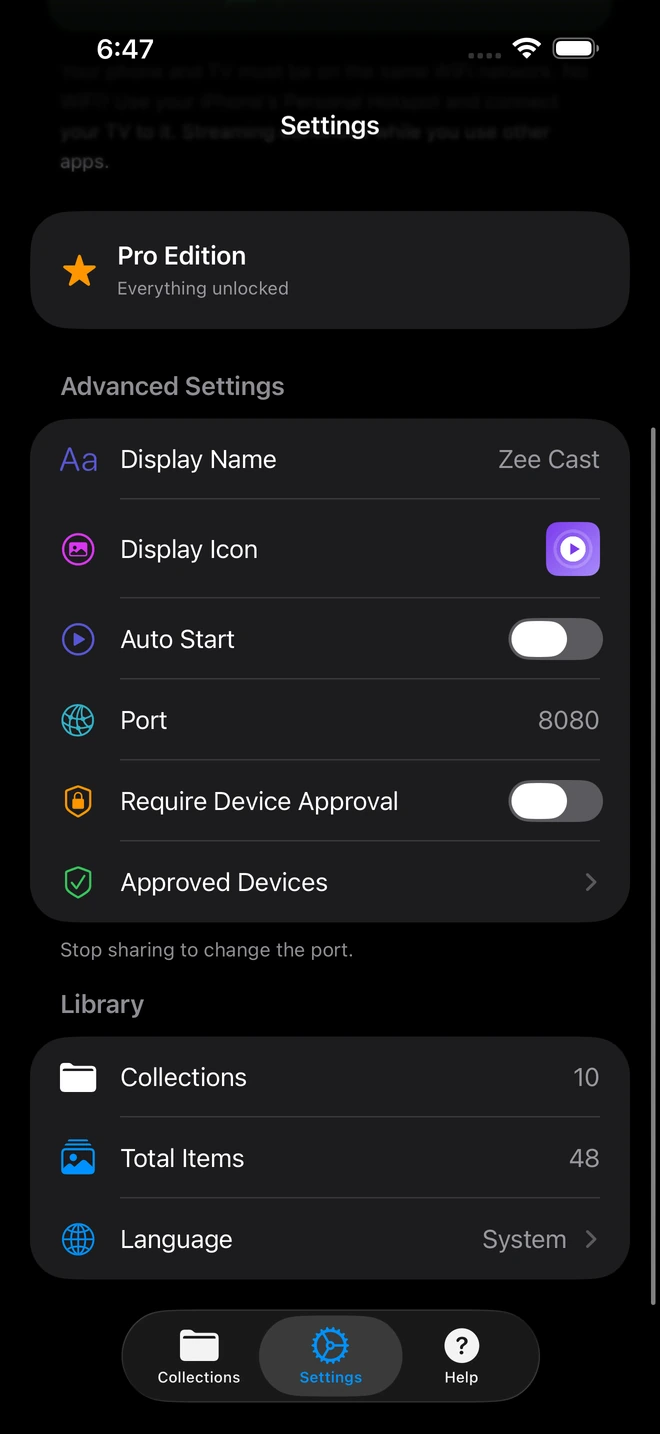
- 1Device Approval gates every connection request.
- 2Only approved screens can browse or stream selected media.
The Structural Solution: Sandboxed Curated Collections via Zee Cast
Zee Cast eliminates the privacy risk at the architectural level. Rather than mirroring your phone's display buffer, Zee Cast operates as a sandboxed UPnP/DLNA Media Server running locally on your phone.
When you share media through Zee Cast:
- Zero Framebuffer Exposure: The smartboard never sees your phone's operating system interface, lock screen, or app switcher. It only receives the direct digital bitstream of the specific video file being played.
- Curated Collection Sandbox: You build a custom collection (e.g., "Period 3 Cell Biology") containing only the two or three instructional videos for today's lesson. The smartboard's media browser can only see those specific files. Your camera roll, screenshots, and private albums are completely excluded from the server index.
- Total Screen Independence: Because the television pulls the video stream directly from your phone's background storage service, you can freely lock your phone screen, slip the phone into your pocket, or open teacher productivity apps without interrupting playback.
Privacy & Usability Comparison Matrix
Compare how different classroom display methods handle educator privacy and instructional workflow:
| Privacy & Workflow Feature | Screen Mirroring (AirPlay/Miracast) | Mirroring + Focus Mode | USB Flash Drive | Zee Cast (Curated DLNA) |
|---|---|---|---|---|
| Notification Popup Immunity | Zero (All alerts show) | Partial (Bypass alerts leak) | Complete (No phone connected) | 100% Immune (No mirror) |
| Camera Roll Isolation | Exposed during selection | Exposed during selection | Isolated | Isolated (Curated sandbox only) |
| FERPA Compliance Safety | High risk of student PII leaks | Moderate risk | Safe | Completely Safe Harbor |
| Phone Multitasking (Grading/Timer) | Impossible (Board mirrors screen) | Impossible (Board mirrors screen) | N/A | Full (Grade, attendance, timer) |
| Phone Battery & Thermals | Rapid drain, high heat | Rapid drain, high heat | Zero battery impact | Minimal (Screen off, low power) |
| Setup Time Between Classes | 1–2 minutes | 1–2 minutes | 5–10 minutes (PC copy) | < 30 seconds |
Real-World Classroom Workflow: Safe, Seamless Lesson Delivery
Step 1: Build Your Unit Collection Before School
Before first period begins, launch Zee Cast on your phone. Tap Collections > Create Collection and title it after your day's topic (e.g., "AP Bio - Cellular Respiration"). Select the laboratory videos or explanatory animations you plan to show. This creates a virtual barrier: only these files will ever be published over the local network.
Step 2: Start Sharing Over Classroom Wi-Fi or Hotspot
Tap Turn on sharing. Zee Cast spins up its local media service. Because Zee Cast requires zero cloud logins, student accounts, or tracking SDKs, no student or teacher data ever touches external servers.
Step 3: Select Zee Cast on the Smartboard
Using the smartboard remote or touch interface (Promethean ActivPanel, SMART Board iQ, ViewSonic ViewBoard, or an Apple TV / Google TV box), open the pre-installed Media Player or Photos & Videos application. Select Zee Cast from the discovered media servers list.
Step 4: Press Play and Multitask with Complete Peace of Mind
Select the lesson video and press play. As the 4K or 1080p video renders smoothly on the smartboard, your phone is completely free:
- Take Attendance: Open PowerSchool, Infinite Campus, or Skyward on your phone to submit attendance records without students watching you navigate the roster.
- Grade Assignments: Review student essay submissions in Google Classroom or Canvas.
- Run Classroom Timers: Open a full-screen stopwatch on your phone or tablet to manage small-group discussion rotations.
- Lock the Screen: Turn off your phone screen entirely and place the phone on your podium. The video plays without interruption.
💡 Pro-Tip: Unauthorized Student Cast Protection
In schools where students share the same Wi-Fi network, activate Device Approval in Zee Cast Settings. When your smartboard first connects, you tap "Allow" on your phone. If a mischievous student on a Chromebook tries to connect to your phone's media server, their connection is blocked instantly, preventing unauthorized access or unwanted media injection.
Summary: The Safe Harbor for Modern Educators
Educators carry enough classroom responsibilities without fearing the public exposure of their private notifications, personal photos, or confidential student records. By replacing hazardous framebuffer screen mirroring with Zee Cast's sandboxed direct play, you protect your professional boundaries, comply with student privacy laws, and deliver high-fidelity lesson media with effortless confidence.
Frequently Asked Questions
Why is traditional screen mirroring dangerous in a classroom setting?
Traditional screen mirroring (such as standard Apple AirPlay Mirroring, Google Cast Screen Mirror, or Samsung Smart View) duplicates your phone's entire graphic display buffer pixel-for-pixel onto the classroom smartboard. When you mirror your screen, any incoming SMS, iMessage, WhatsApp text, medical app notification, or social media alert flashes across the 75-inch smartboard in full view of thirty students. Even worse, swiping out of an app to locate a video inevitably exposes your private photo library and recent thumbnails.
Doesn't enabling 'Do Not Disturb' or 'Focus Mode' prevent notification popups?
While Apple Focus Mode and Android 'Do Not Disturb' suppress audible alerts and banner popups, they are notorious for failing at critical moments: high-priority alarms, urgent family bypass calls, calendar event popups, battery warnings ('Low Battery 10%'), and lock screen notifications can still punch through. More importantly, Focus Mode does nothing to protect your camera roll when you open your photo gallery app to select a video clip - your personal weekend pictures and private life remain completely visible on the smartboard.
How does Zee Cast guarantee that personal photos will never appear on the classroom board?
Zee Cast operates on a strict sandboxed curation model. Unlike generic DLNA servers that index your entire internal storage, Zee Cast only indexes media files that you explicitly assign to a custom collection. The smartboard's media browser only sees the curated items you selected. Your personal albums, hidden folders, screenshots, and camera roll remain invisible to the DLNA indexing protocol.
How does Zee Cast help teachers maintain compliance with FERPA and student privacy laws?
Under the Family Educational Rights and Privacy Act (FERPA), educators are legally obligated to protect student education records, including grades, behavioral notes, and IEP accommodations. When teachers use screen mirroring, opening a phone to check an email or note can inadvertently expose another student's confidential records to the entire class. By using Zee Cast Direct Play, your phone's display is never broadcast to the smartboard, completely eliminating accidental student record exposure.
Can I use my phone for other teaching tasks while a video is playing on the TV?
Yes! Because Zee Cast streams the media file in the background directly to the television's hardware decoder, your phone's interface is completely liberated. You can lock your phone, take attendance in PowerSchool, enter quiz grades in Canvas, track student participation, or run a stopwatch while the lesson video continues playing seamlessly on the board.
What happens if a student attempts to cast an inappropriate video from their phone during class?
When you use Zee Cast Pro's Device Approval feature, your phone enforces an active inbound firewall. Any external client on the school network attempting to connect to your media server triggers an instant approval prompt on your screen displaying their IP address. You can whitelist your specific classroom smartboard and block unauthorized student devices from discovering or interacting with your stream.
Does Zee Cast require school district IT software approval or admin rights?
No. Zee Cast installs directly from the App Store or Google Play Store onto your teacher device. Because it communicates using the open, universal UPnP/DLNA 1.5 standard - which is natively supported by virtually every smartboard and smart TV - it requires zero software installations, MDM profiles, or administrator privileges on the classroom display.
Will streaming through Zee Cast drain my phone battery during a long lecture?
No. Screen mirroring is computationally intensive because your phone's GPU must continuously capture, compress, and transmit 60 frames per second of your phone screen, causing the device to overheat and rapidly consume battery. Zee Cast simply serves the static media file over lightweight HTTP byte-range requests. Your phone's display can remain turned off, keeping your battery cool and conserving energy throughout the school day.
Does Zee Cast upload my lesson materials to an external cloud server?
Never. Zee Cast has no cloud backend, no remote servers, and requires no account creation. All media stays on your phone's local storage and streams directly across your local Wi-Fi or personal hotspot. Zero data leaves your room.


