
 ⚡ At a Glance: Kodi Media Center Specs ⚡ At a Glance: Kodi Media Center Specs | |
|---|---|
| Target Platform & OS | Kodi v19–v21+ (Android TV, Fire TV, Raspberry Pi, Windows, Mac, Linux, Xbox) |
| Protocol & Port | DLNA 1.5 / UPnP MediaServer, Port 8080 (HTTP Range) |
| Connection Type | Local Wi-Fi (5 GHz) or Wired Ethernet / Hotspot |
| Transcoding | None (Direct Play native hardware bitstream decoding) |
| Typical Setup Time | ~2 minutes (Settings → Services → UPnP / DLNA) |
Cinema-Grade Streaming with Kodi & Zee Cast
Kodi is renowned as the ultimate open-source home theater software, running on millions of Android TV boxes, Amazon Fire TV sticks, Raspberry Pi media centers, and HTPCs. It provides exceptional audio passthrough, frame-rate matching, and video rendering engines.
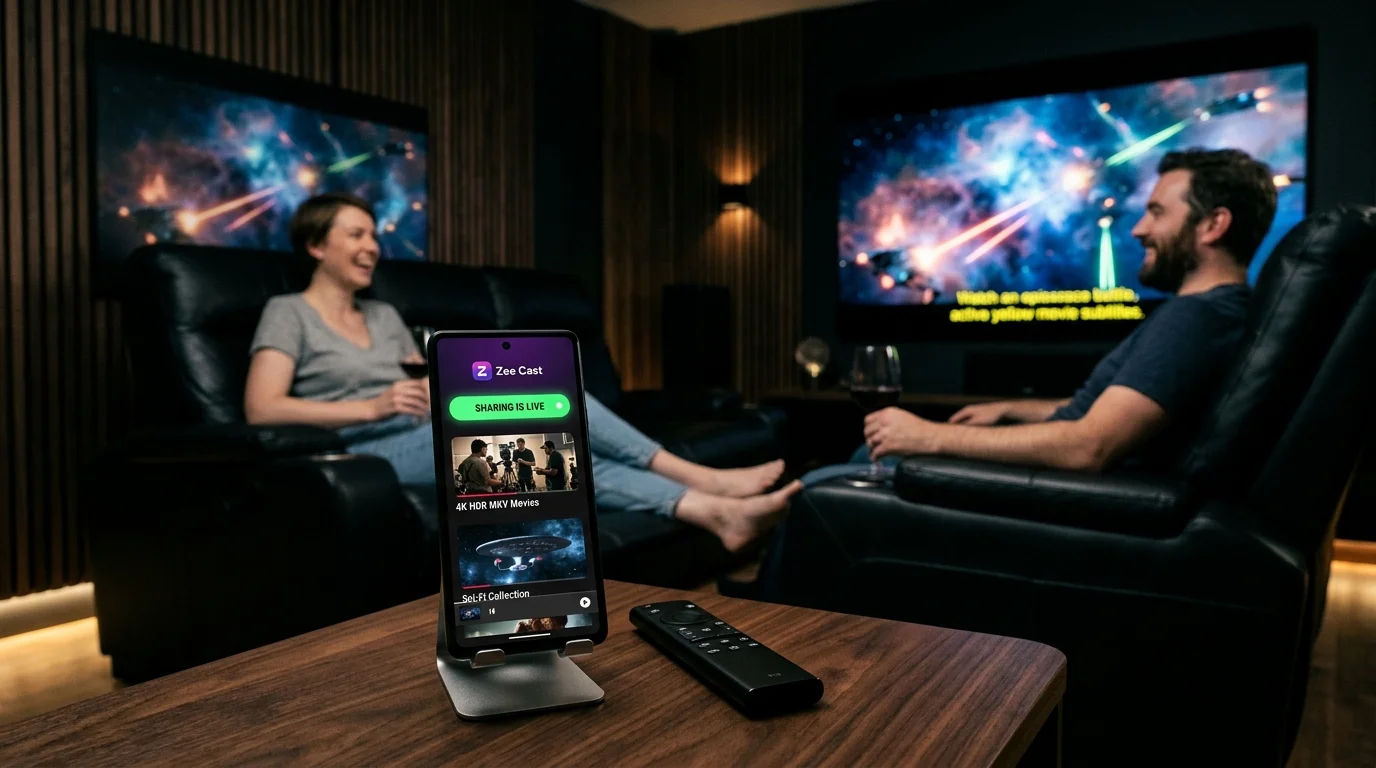
By pairing Kodi with Zee Cast on your iPhone or Android phone, you can stream your personal photo albums and recorded 4K 60fps HDR camera videos directly to your home theater without setting up complex SMB shares, NFS exports, or cloud storage accounts.
Quick 4-Step Walkthrough
Kodi includes built-in UPnP/DLNA client detection. Follow these steps to connect your phone to Kodi:
- 1
Connect to the Same Network
Ensure your smartphone and your device running Kodi are connected to the same local Wi-Fi router (5 GHz recommended) or wired switch.
- 2
Verify UPnP Support in Kodi
In Kodi, open Settings → Services → UPnP / DLNA and ensure that Enable UPnP support is turned ON.
- 3
Turn On Sharing in Zee Cast
Open Zee Cast on your phone, curate your photos or 4K videos into a collection, and tap Turn on sharing.
- 4
Add Zee Cast as a Video Source
In Kodi, navigate to Videos → Files → Add videos → Browse → UPnP Devices. Select Zee Cast from the list to start streaming your collections.
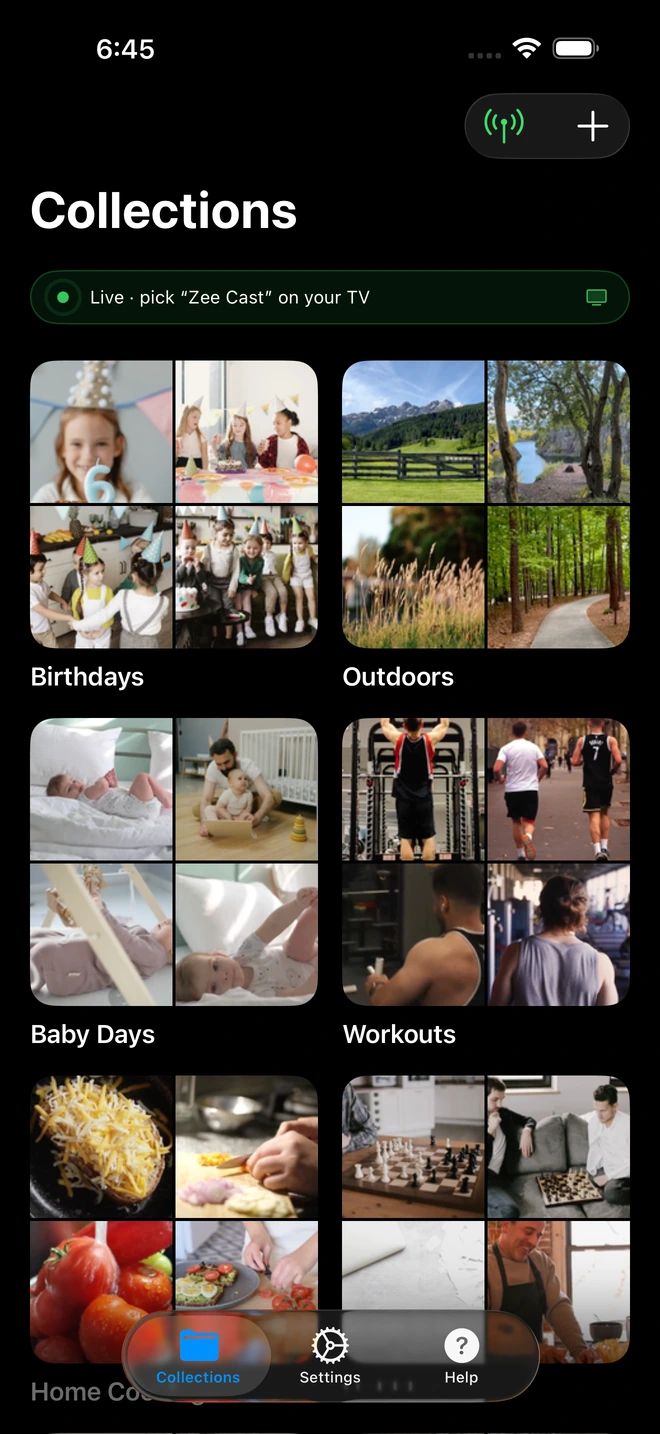
- 1Server is live - instantly discoverable on TV.
High-Bitrate 4K Buffer Optimization
Kodi allows fine-grained control over network pre-buffering. If you are streaming heavy 4K HDR videos over Wi-Fi:
- In modern Kodi versions (v21 Omega / v20 Nexus), go to Settings → Services → Caching.
- Set buffer mode to All network filesystems.
- Increase memory cache size to 100 MB or higher. This enables Kodi to pre-load minutes of video into RAM directly from Zee Cast, eliminating playback pauses during intense camera panning scenes.
Frequently Asked Questions
Does Kodi have native UPnP/DLNA client support?
Yes. Kodi includes full native support for UPnP/DLNA Client and Control Point discovery under Settings > Services > UPnP / DLNA. Once enabled, Kodi automatically browses media servers like Zee Cast without requiring third-party add-ons.
Can Kodi play 4K HDR10 and Dolby Vision files served by Zee Cast?
Yes. Because Zee Cast serves original, uncompressed byte streams via HTTP Byte-Range requests, Kodi delegates the video decoding directly to your hardware's video engine (such as MediaCodec on Android TV or VideoToolbox on macOS), preserving full 10-bit HDR and wide color gamut.
How do I configure Kodi buffer cache to prevent stuttering on 4K files?
In Kodi Settings > System > Audio/Video (or via advancedsettings.xml on older versions), ensure your buffer mode is set to buffer all network filesystems and increase the memory size to at least 100 MB on devices with 2GB+ RAM. This guarantees continuous, stutter-free playback even over wireless networks.
Does Kodi support subtitles and multi-channel audio over DLNA?
Yes. Kodi supports full bitstream audio passthrough for Dolby Atmos, TrueHD, DTS:X, and DTS-HD Master Audio to connected AV receivers. Embedded and external (.srt) subtitles can be toggled on-the-fly during playback.
Why does Zee Cast not show up under UPnP Devices in Kodi?
Check that 'Enable UPnP support' is enabled under Kodi Settings > Services > UPnP / DLNA. Ensure both your phone and Kodi device are connected to the same Wi-Fi band and that router AP isolation is turned off. Toggle sharing off and on in Zee Cast to trigger a new SSDP broadcast.


