
 ⚡ At a Glance: Firecore Infuse Specs ⚡ At a Glance: Firecore Infuse Specs | |
|---|---|
| Target Platform & OS | Apple TV (tvOS 14–18+), macOS, iPadOS, visionOS (Infuse 7/8+) |
| Protocol & Port | DLNA 1.5 / UPnP MediaServer, Port 8080 |
| Connection Type | Local Wi-Fi (5 GHz) or Ethernet / Hotspot (0 MB Internet Data) |
| Transcoding | None (Direct Play Dolby Vision 8.4, HDR10+, Dolby Atmos) |
| Typical Setup Time | ~1 minute (Settings > Add Files > Available Shares) |
Quick 4-Step Walkthrough
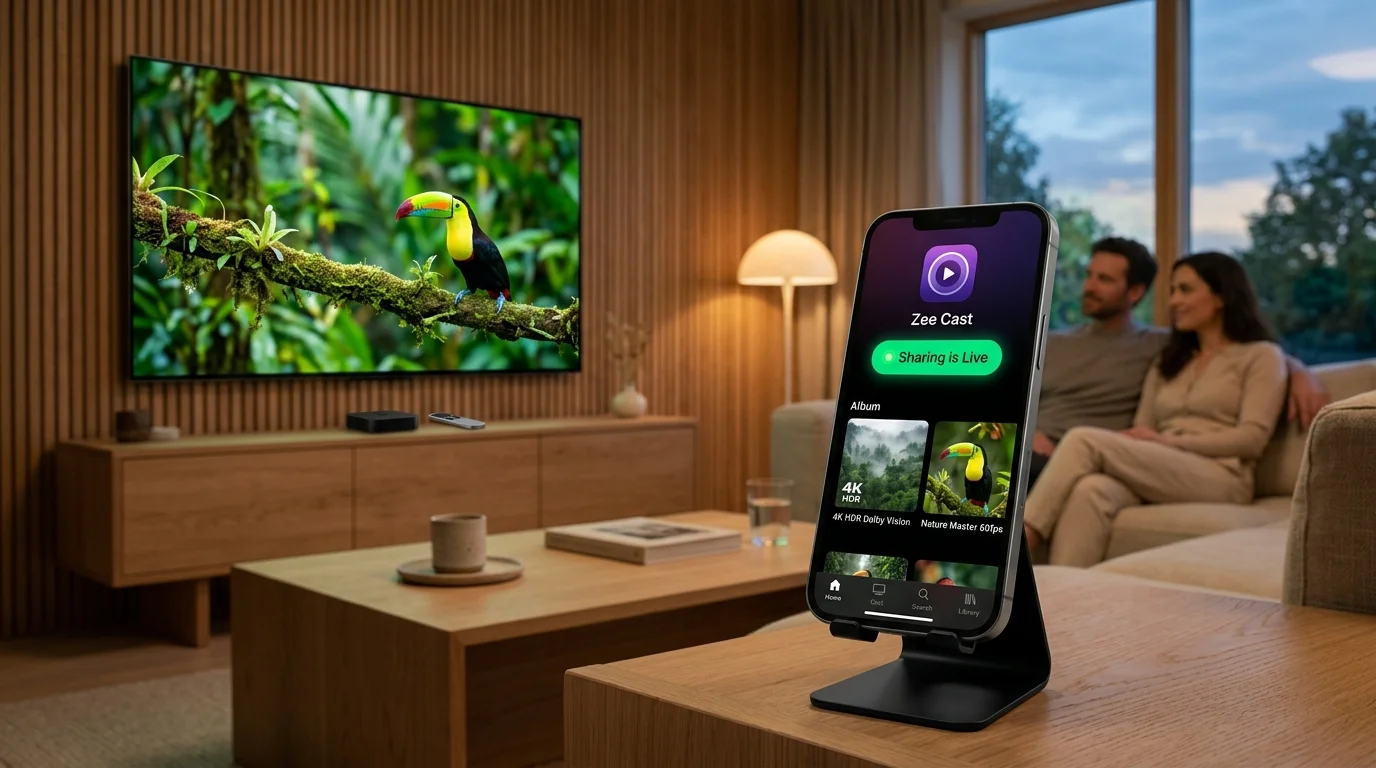
Infuse automatically scans your local network for UPnP/DLNA media servers. Connecting Zee Cast gives you native Apple TV 4K playback with cinema audio and HDR.
- 1
Connect to same Wi-Fi
Make sure your mobile phone and your Apple TV or Mac are connected to the same local Wi-Fi router.
- 2
Turn on sharing in Zee Cast
Open Zee Cast on your phone, group your chosen media into collections, and tap Turn on sharing.
- 3
Open Infuse > Add Files
Launch Infuse on Apple TV or Mac, click Settings (gear icon), select Add Files (or Shares), and look under Available Shares.
Firecore Infuse · Menu NavigationSettings → Add Files → Available Shares → Select Zee Cast
- 4
Select Zee Cast & Play
Select Zee Cast from the UPnP list, browse your collections, and experience smooth 4K HDR playback.
Cinema-Grade Playback Without AirPlay Compression
While AirPlay transcodes and compresses high-bitrate video, Infuse connects directly to Zee Cast as a native local stream:
- Hardware-accelerated 4K HDR: Full Dolby Vision, HDR10+, and original ProRes/HEVC playback on Apple TV 4K.
- Spatial & Surround Audio: Direct passthrough for Dolby Atmos, Dolby Digital 5.1, and lossless audio tracks.
- Apple TV Remote Scrubbing: Fluid frame-accurate scrubbing with the Siri Remote touch surface.
- Multi-device support: One Zee Cast server shares media simultaneously to Infuse across Mac, iPad, and Apple TV.
💡 Pro Tip: Bookmark as a Favorite in Infuse
In Infuse, after selecting Zee Cast from Available Shares, press and hold (or right-click) the collection folder and select 'Add to Favorites'. This pins your phone's collection directly to your Infuse Home screen for 1-tap playback.
⚡ Optimizing Infuse Streaming Cache for 4K Playback
If you experience buffering while streaming high-bitrate 4K 60fps or HDR videos from your phone to Infuse on Apple TV, open Infuse Settings → Playback → Streaming Cache and switch from Memory Only to Auto or Disk (on Apple TV with 64GB/128GB storage). This pre-buffers several minutes of video locally over Wi-Fi, preventing stutter even on crowded home networks.
Supported Infuse Platforms
Zee Cast communicates using standard UPnP ContentDirectory protocols supported by all versions of Infuse:
| Apple Platform | OS Version | Audio / Video Features | Cache Storage |
|---|---|---|---|
| Apple TV 4K & HD | tvOS 14 – 18+ | Dolby Atmos, Dolby Vision Profile 8.4, 4K 60fps | Flash disk cache & memory buffer |
| Mac (macOS) | macOS 12 – 15+ | Metal GPU rendering, Pro Display XDR HDR | Local SSD caching |
| iPad & Vision Pro | iPadOS / visionOS | Liquid Retina XDR, Spatial Video playback | High-speed unified memory buffer |
Official Firecore Infuse Documentation References
For more technical details on Infuse local network sharing and playback, consult the official Firecore resources:
Frequently Asked Questions
Does Infuse support UPnP/DLNA shares?
Yes. Firecore Infuse automatically detects UPnP/DLNA media servers under Settings > Add Files > Available Shares. You can browse Zee Cast collections directly and bookmark them as Favorites.
How do I stream media to Infuse on Apple TV (tvOS) via DLNA?
Turn on sharing in Zee Cast on your iPhone or Android. Open Infuse on Apple TV, navigate to Settings > Add Files > Available Shares, and tap Zee Cast. You can stream full-bitrate 4K HDR10 and Dolby Vision videos directly with zero cloud uploads or desktop servers.
How to use Infuse on Apple TV without a Mac or PC server?
Zee Cast turns your phone into an active UPnP/DLNA media server. Rather than running a power-hungry Mac, PC, or NAS 24/7, your Apple TV connects directly to Zee Cast over local Wi-Fi to access your media library on demand.
Does Infuse support iPhone 4K Dolby Vision Profile 8.4 and HDR10+ over DLNA?
Yes. iPhone HDR videos record in Dolby Vision Profile 8.4 (HLG base). Because Zee Cast serves original byte streams without transcoding, Infuse decodes the full 10-bit Dolby Vision metadata natively using Apple TV's hardware processor, preserving HDR highlights and wide color gamut on your TV panel.
How do subtitles (.srt) and multi-channel audio tracks work in Infuse?
Infuse provides industry-leading container support. When streaming from Zee Cast, swipe down on your Siri Remote during playback to access Audio & Subtitles. Infuse automatically parses embedded SRT, SSA/ASS, and PGS subtitle tracks, and outputs Dolby Atmos (E-AC-3), Dolby TrueHD, and DTS-HD MA directly to your audio receiver.
How can I stop 4K buffering or frame drops in Infuse on Apple TV?
In Infuse, open Settings > Playback > Streaming Cache and change the setting from 'Memory Only' to 'Auto' or 'Disk'. This enables Infuse to pre-buffer minutes of 4K video ahead on your Apple TV storage over 5 GHz Wi-Fi, eliminating micro-stutters during high-bitrate scenes.
Why use Zee Cast with Infuse instead of AirPlay?
AirPlay compresses high-bitrate video and locks your phone screen. Infuse streams original high-bitrate 4K HDR files directly from Zee Cast with full hardware decoding on Apple TV while your phone stays completely free.
What platforms can run Infuse?
Infuse is available on Apple TV (tvOS), Mac (macOS), iPhone (iOS), iPad (iPadOS), and Apple Vision Pro (visionOS).
Is Infuse available on Samsung TV, LG webOS, or Roku?
No. Firecore Infuse is exclusively built for Apple platforms (Apple TV, Mac, iOS). If you have a Samsung Tizen TV, LG webOS TV, or Roku, you do not need Infuse: use your TV's built-in Media Player or install VLC/Nova Player to browse and stream from Zee Cast over DLNA with identical lossless quality.


