

Key takeaways
- Screen mirroring decodes your phone's framebuffer to 1080p SDR and re-encodes it at ~12 Mbps - that is the quality loss.
- DLNA Direct Play sends the original HEVC file and lets the TV's own decoder render full 4K HDR.
- A single 4K HDR stream needs only about 15–25 Mbps; stutter is usually congestion, not raw bandwidth.
- HTTP byte-range seeking is why scrubbing and fast-forward feel instant on the TV.
Why AirPlay Screen Mirroring Destroys Your 4K HDR Video Quality
You bought a smartphone with one of the most advanced camera systems on Earth, and a 4K OLED or Mini-LED Smart TV to display it. So why does your video look soft, banded, and washed out when you mirror it to the living room?
Since the iPhone 12 Pro, Apple has equipped iOS devices with the ability to shoot 4K at 60fps (and up to 120fps on iPhone 16 Pro) in 10-bit A dynamic HDR format with per-scene metadata. iPhone records it as Profile 8.4 with an HLG base layer. Glossary → Profile 8.4. Similarly, top Android devices (Samsung Galaxy S23/S24/S25 Ultra, Google Pixel 8/9 Pro) capture 4K 60fps in HDR10+ using High Efficiency Video Coding - roughly 50% more efficient than H.264; hardware decode is common on 2016+ TVs. Glossary → with wide Rec. 2020 color gamuts and bitrates peaking over 100 Mbps.
When you attempt to display these videos using standard AirPlay Screen Mirroring, Smart View, or Google Cast Screen Mirroring, the following real-time degradation pipeline occurs:
⚠️ The Screen Mirroring Bottleneck
Screen mirroring does not stream your video file. It grabs your phone's screen buffer 60 times per second, renders UI composites, downscales the resolution to 1080p, strips 10-bit HDR dynamic metadata, re-encodes the frames with an ultra-fast lossy compressor at ~12 Mbps, and broadcasts it over an RTSP/RTP stream. You lose 75% of your pixels and 85% of your bitrate.
- Resolution Downscaled from 4K (3840×2160) to 1080p (1920×1080): The AirPlay mirroring protocol negotiates a virtual display buffer capped at 1080p SDR for low wireless latency. Your 8.3-megapixel video is downsampled to 2.07 megapixels before it even leaves your phone.
- HDR & Wide Color Gamut Stripped to 8-bit SDR: Because the phone's operating system UI is composited in sRGB / Rec. 709, the 10-bit Rec. 2020 color space (1.07 billion colors) is truncated to 8-bit (16.7 million colors). Beautiful blue skies, sunsets, and dark gradients break into noticeable digital color banding (contouring).
- Bitrate Crushed by 80–90%: Your camera recorded crisp 60–100 Mbps video. Screen mirroring re-encodes the stream in real-time at 10–18 Mbps to avoid Wi-Fi buffer bloat, causing macroblocking and loss of fine texture in motion.
- Phone Overheating & Battery Drain: Your phone's SoC is forced to decode the camera file, render the screen, encode a live video stream, and broadcast Wi-Fi packets simultaneously. The phone quickly heats up past 40°C, throttles performance, and drains 20–35% of its battery in an hour.
Screen Mirroring vs. Direct-Play DLNA Architecture
Understanding the fundamental difference between live framebuffer re-encoding and bit-perfect byte-range streaming:

How UPnP/DLNA Delivers Lossless Bit-for-Bit Fidelity
When you activate Zee Cast on your phone, it launches an ultra-lightweight, embedded UPnP AV / DLNA media server. Zee Cast implements the UPnP Content Directory Service (CDS) and HTTP/1.1 An HTTP feature that lets a client request only the bytes it needs, enabling instant start and scrubbing without downloading the whole file. Glossary → streaming specifications (RFC 7233 / RFC 9110).
Instead of touching or transcoding your files, Zee Cast acts as a high-speed local web server directly connected to your phone's media storage. When your Smart TV (Samsung, LG, Roku, Fire TV, or Apple TV via Infuse) browses Zee Cast and taps play:
- Raw File Handshake: The TV requests the media file container (MP4/MOV) over your local Wi-Fi.
- Byte-Range Random Access: The TV issues HTTP
Range: bytes=0-1048575headers to read the MP4moovatom and index tables instantly. - Bitstream Direct-Play: The untouched HEVC Main 10 video stream, containing all NAL units, Dolby Vision Profile 8.4 RPU (Reference Processing Unit) metadata, and uncompressed audio tracks, is transmitted bit-for-bit to the TV.
- TV Hardware Acceleration: Your TV's dedicated picture processor (e.g., LG α9 AI Processor, Samsung Neural Quantum Processor, or Apple A15 Bionic) decodes the video directly in hardware and applies native OLED tone-mapping with full 10-bit wide color depth.
Direct UPnP Streaming vs. Screen Mirroring Protocols
A side-by-side engineering comparison across resolution, dynamic range, color depth, and system overhead:
| Technical Parameter | Zee Cast (DLNA Direct-Play) | Apple AirPlay 2 (Mirroring) | Google Cast (Screen Mirror) |
|---|---|---|---|
| Delivered Resolution | Native 4K (3840×2160) up to 120fps | Downscaled to 1080p (1920×1080) | Downscaled to 1080p (1920×1080) |
| Stream Bitrate | 100% Original Bitrate (45–120+ Mbps) | Compressed to 10–18 Mbps | Compressed to 8–14 Mbps |
| Dynamic Range & HDR | Dolby Vision Profile 8.4 / HDR10+ Active | Converted / Clipped to 8-bit SDR | Converted / Clipped to 8-bit SDR |
| Color Space & Depth | 10-bit Rec. 2020 (1.07 Billion Colors) | 8-bit Rec. 709 (16.7 Million Colors) | 8-bit Rec. 709 (16.7 Million Colors) |
| Video Re-encoding | Zero (Bit-perfect pass-through) | Real-time lossy hardware re-encode | Real-time lossy hardware re-encode |
| Seeking & Scrubbing | Instant HTTP Byte-Range Seeking | Laggy RTSP keyframe resynchronization | Laggy frame buffer refresh |
| Phone Multitasking | Full freedom (Lock phone, call, text) | Phone screen tied up; actions disrupt TV | Phone screen tied up during screen cast |
| Notification Privacy | 100% Private (0 alerts broadcast to TV) | Messages & notifications pop up on TV | Private notifications mirror to TV |
| Battery & Thermal Impact | < 2% battery/hr, phone stays cool (<30°C) | 20–35% battery/hr, phone overheats (>42°C) | 15–30% battery/hr, high thermal load |
| Internet Requirement | 0 KB Internet (100% Local Wi-Fi / Hotspot) | 100% Local LAN | Often requires cloud ping / Google account |
How to Stream 4K Dolby Vision Videos to Any Smart TV
Setting up bit-perfect local streaming with Zee Cast takes less than two minutes:
- 1
Connect to the Same Wi-Fi Network
Ensure your iPhone or Android phone and your Smart TV are connected to the same local Wi-Fi router (preferably the 5 GHz or Wi-Fi 6 band for maximum throughput).
- 2
Add 4K Media to Zee Cast
Open Zee Cast, create a new collection (e.g., "Summer Vacation 4K"), and choose your favorite 4K 60fps and Dolby Vision videos from your photo library.
- 3
Toggle 'Turn on sharing'
Tap the sharing switch in Zee Cast. The app immediately activates its background UPnP server and broadcasts discovery beacons via SSDP.
- 4
Browse from Your TV Remote
Pick up your Smart TV remote, navigate to Connected Devices or Media Player, and select Zee Cast.
- 5
Enjoy Lossless Playback
Select your collection, hit play, and watch the TV's native Dolby Vision or HDR notification activate in the corner of your screen!
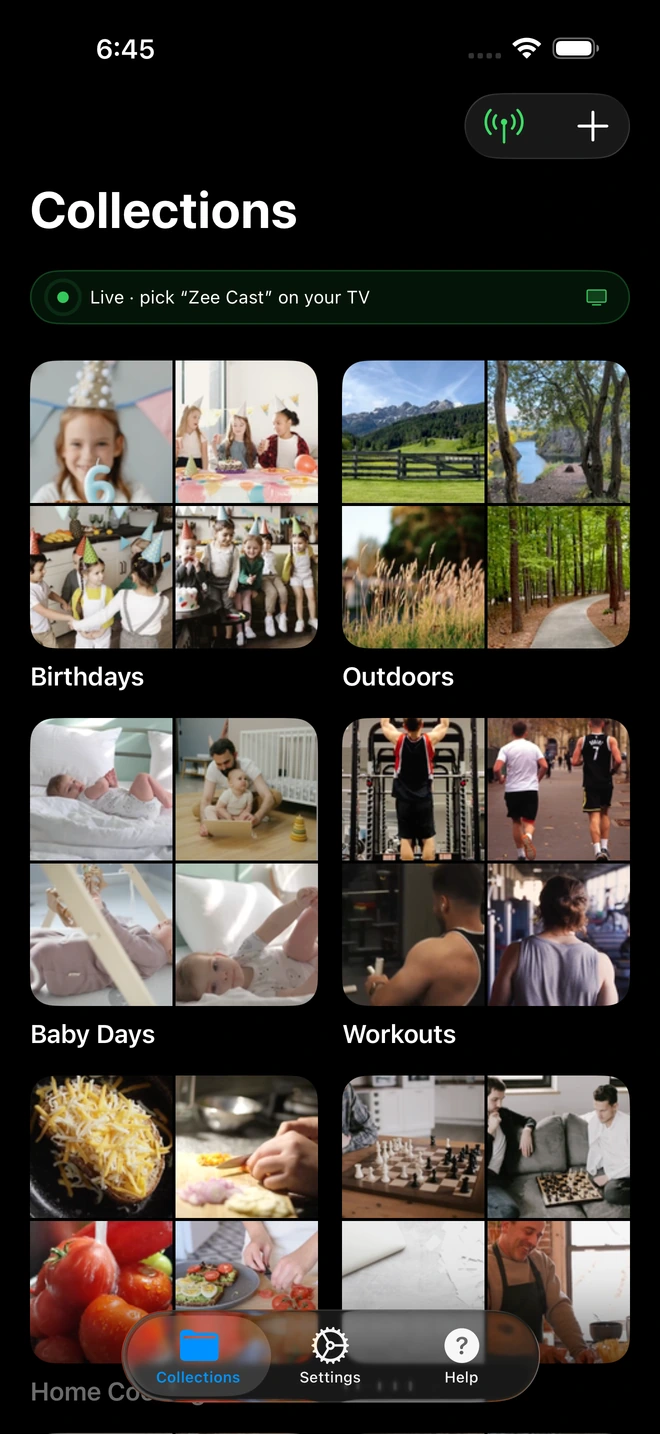
- 1Sharing live means the original HEVC/H.265 files are now offered to the TV - no re-encode step exists.
Optimizing Playback on Samsung, LG, Roku, Fire TV & Apple TV
Every major smart TV platform includes native DLNA rendering or free high-performance player apps:
Samsung Smart TV (2016–2026)
Samsung Smart TVs feature built-in DLNA discovery directly in the Tizen OS source menu. No extra app installation is required.
How to Play: Press the Source or Home button on your Samsung remote > Navigate to Connected Devices > Select Zee Cast > Browse your 4K HDR collections.
HDR Tip: In Samsung Settings, ensure Input Signal Plus or HDMI UHD Color is enabled, and set Picture Mode to Filmmaker Mode for true color accuracy.
LG OLED & QNED TVs
LG webOS includes a native DLNA media client with class-leading Dolby Vision Profile 8.4 and HLG hardware decoding.
How to Play: Open the Home Dashboard or launch the built-in Photos & Videos / Media Player app > Select Zee Cast under Media Servers > Choose your 4K Dolby Vision video.
HDR Tip: When playing iPhone 4K HDR files, look for the official Dolby Vision or HLG HDR badge appearing in the top right corner of your LG OLED screen.
Roku TVs & Streaming Sticks
Roku devices support UPnP/DLNA media streaming natively through the official, free Roku Media Player channel.
How to Play: Open Roku Media Player (free in the Roku Channel Store) > Select Videos > Choose Zee Cast from the server list > Play original 4K HEVC videos.
HDR Tip: 4K-capable Roku devices (Roku Ultra, Streaming Stick 4K, Roku Plus Series) will automatically trigger native HDR10 or Dolby Vision mode.
Fire TV & Fire TV Stick 4K
Fire TV devices can stream directly via native DLNA detection or using popular media players like VLC for Fire TV or Nova Video Player.
How to Play: Install VLC (free on Amazon Appstore) > Navigate to Browsing > Local Network > Select Zee Cast > Stream full-bitrate 4K 60fps files.
HDR Tip: On Fire TV Stick 4K Max, enable Match Original Frame Rate in Display Settings for cinematic 24p/60p smoothness without pulldown judder.
Apple TV 4K with Infuse
For the ultimate cinema experience on Apple TV, pair Zee Cast with Firecore Infuse or VLC for Apple TV.
How to Play: Open Infuse on your Apple TV 4K > Go to Settings > Add Files / Shares > Select Zee Cast from Available Shares > Play with hardware Dolby Vision decoding.
HDR Tip: Infuse leverages Apple TV's A15/A12 Bionic hardware to render iPhone Dolby Vision Profile 8.4 and Spatial Audio tracks with zero conversion.
5 Tips for Flawless 4K 60fps & Dolby Vision Playback
💡 1. Prioritize 5 GHz or Wi-Fi 6 Networks
Raw 4K 60fps HDR video can require burst transfer speeds of 80 to 140 Mbps during complex, high-motion scenes. While older 2.4 GHz Wi-Fi easily suffers from interference, 5 GHz and Wi-Fi 6 provide hundreds of megabits of clean local throughput for instantaneous playback.
💡 2. Verify iPhone High Efficiency Camera Settings
To ensure your iPhone records in true 10-bit Dolby Vision, navigate to Settings > Camera > Formats and ensure High Efficiency is selected (HEVC). Then tap Record Video and confirm that HDR Video is toggled ON.
💡 3. Disable Router AP Isolation
For your Smart TV to discover Zee Cast on your phone, both devices must be able to communicate over the local subnet. If your TV does not see your phone, check your Wi-Fi router settings and make sure AP Isolation, Client Isolation, or Guest Mode is disabled.
💡 4. Use Filmmaker Mode or Cinema Home on Your TV
Switch your TV's picture preset to Filmmaker Mode, Cinema, or Dolby Vision Cinema Home to see the exact dynamic range, natural skin tones, and color grading intended by your phone's camera sensor.
💡 5. Lock Your Phone and Relax
Unlike screen mirroring, Zee Cast runs efficiently in the background. Once playback begins on your TV, you can lock your iPhone or Android phone, put it in your pocket, make calls, or send messages with zero interruption to TV playback.
Technical Standards & Engineering References
- Apple Developer: Capturing High Dynamic Range (HDR) Video & Dolby Vision 8.4
- ITU-R Recommendation BT.2100: Image Parameter Values for High Dynamic Range Television (PQ & HLG)
- Dolby Laboratories: Dolby Vision Profiles and Levels Specification
- IETF RFC 7233 / RFC 9110: HTTP/1.1 Range Requests & Partial Content
- Open Connectivity Foundation: UPnP AV Architecture & ContentDirectory Service
Frequently Asked Questions
Why does AirPlay screen mirroring ruin 4K HDR video quality?
AirPlay Screen Mirroring does not transmit the actual video file. Instead, it captures the phone's GPU framebuffer 60 times per second, downscales it to 1080p SDR, compresses the video stream to ~12-15 Mbps, and strips 10-bit Rec. 2020 color data and Dolby Vision dynamic metadata. This results in heavy compression artifacts, color banding, and dull contrast.
How does UPnP/DLNA deliver 100% original quality without re-encoding?
UPnP/DLNA acts as a direct file server (HTTP/1.1 with byte-range requests). Your phone transmits the raw HEVC/H.265 bitstream directly across the local network without touching a single pixel. Your Smart TV's dedicated AI video processor performs the hardware decoding, rendering the full 3840x2160 resolution and 10-bit Dolby Vision/HDR10+ metadata directly on the OLED/Mini-LED panel.
Does my Samsung, LG, or Roku TV support iPhone Dolby Vision Profile 8.4?
Yes. iPhones record HDR video using Dolby Vision Profile 8.4, which features an HLG (Hybrid Log-Gamma, ITU-R BT.2100) base layer. TVs with native Dolby Vision support (such as LG OLEDs and Roku 4K models) decode the full dynamic Dolby Vision RPU metadata. HDR10/HLG-only TVs (such as Samsung Neo QLEDs) automatically decode the 10-bit HLG HDR base layer seamlessly with full wide color gamut.
Can I lock my phone or use other apps while 4K videos are playing on the TV?
Yes. Because Zee Cast operates as a decoupled background media server rather than a screen mirror, you can turn off your screen, take phone calls, record new photos, or browse social media without interrupting or stuttering the 4K playback on your TV.
Does local 4K streaming consume broadband internet data?
No. Zee Cast transfers video packets strictly across your local Wi-Fi router via TCP/IP sockets. It consumes 0 KB of internet data and works even if your external internet connection is completely offline.
What is the difference between HTTP Byte-Range requests and live streaming?
In live streaming (like RTSP or HLS live), the client must receive frames sequentially in real time. In DLNA byte-range streaming (HTTP Range Requests, RFC 7233), your TV can request any arbitrary byte offset in the video container. This enables instant scrubbing, fast-forwarding, rewinding, and seamless chapter jumping with zero buffering delays.


