

 ⚡ At a Glance: LG Smart TV Specs ⚡ At a Glance: LG Smart TV Specs | |
|---|---|
| Target Platform & OS | LG Smart TVs (webOS 3.0+ to webOS 24+, 2016–2026+) |
| Protocol & Port | DLNA 1.5 / UPnP MediaServer, Port 8080 (HTTP Byte-Range) |
| Connection Type | Local Wi-Fi (5 GHz recommended) or Hotspot (0 MB Internet Data) |
| Transcoding | None (Direct Play original bitstream via LG Alpha processor) |
| Typical Setup Time | ~2 minutes (Built-in Photo & Video / Home Dashboard client) |
Key takeaways
- webOS has a native Photo & Video client with DLNA/UPnP support, so no LG app install is needed.
- Zee Cast appears in Home Dashboard under Storage, alongside USB drives - pick it and browse your collections.
- LG OLED panels decode Dolby Vision and HDR10; Direct Play keeps the original bitstream intact.
- If webOS cannot find the server, the usual culprits are AP isolation and the 'Quick Start+' deep-sleep setting.
Quick 4-Step Walkthrough
LG webOS features built-in Digital Living Network Alliance - the legacy local-media-sharing guidelines built on UPnP. Glossary →/Universal Plug and Play - the discovery and control protocol suite DLNA builds on. Glossary → detection. Zee Cast appears automatically as a connected media storage device alongside local USB drives.
- 1
Join the same Wi-Fi
Verify that your phone (iOS or Android) and your LG Smart TV are connected to the same home Wi-Fi router.
- 2
Turn on sharing in Zee Cast
Open Zee Cast, choose which videos, photos, or audio items belong in your collections, and tap Turn on sharing.
- 3
Open Photo & Video on LG TV
On your LG Magic Remote, press Home and open the Photo & Video app (or Media Player / Home Dashboard).
LG Smart TV · Menu NavigationPress Home → Home Dashboard (or Photo & Video) → Select Zee Cast under Storage
- 4
Select Zee Cast & Play
Select Zee Cast from the list of connected storage devices, browse your collections, and press play.
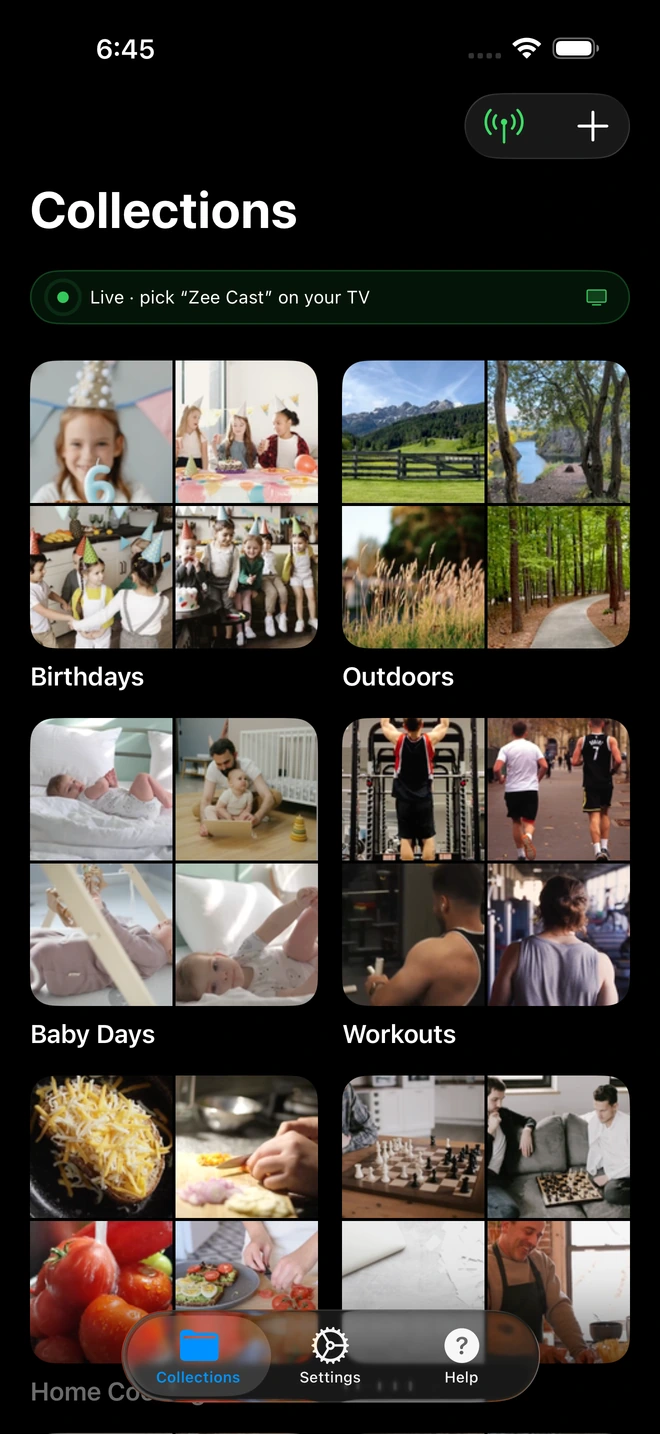
- 1The green banner means the server is live and discoverable on your network.
Why Zee Cast on LG OLED & QNED
Screen mirroring streams compressed video of your phone screen, causing frame drops, black pillarboxes, and heavy battery drain. Zee Cast streams original media files directly to the LG TV alpha processor for hardware-accelerated playback:
- LG OLED slideshows: Display full-resolution photography on your OLED display with deep contrast and zero phone screen burn-in.
- Multitask freely: Use your phone for social media, calls, or games while the video plays on the LG TV.
- No TV app needed: Uses the LG Photo & Video media player already installed on your TV.
- Privacy by default: Incoming messages and notifications never show up on the living room screen.
💡 Pro Tip for LG Magic Remote Users
Press the Input or Home Dashboard button on your LG Magic Remote to see all connected devices. Zee Cast will appear with a dedicated media server icon. If you prefer third-party players, Zee Cast also connects seamlessly to VLC for webOS or Plex.
Supported LG Smart TV Models & webOS Versions
Zee Cast is fully compliant with DLNA/UPnP guidelines supported across all modern LG webOS generations:
| LG TV Lineup | webOS Generation | Supported Media Formats | Location in TV Menu |
|---|---|---|---|
| LG OLED Series (G4, G3, C4, C3, B4, B3) | webOS 24, 23, 22, 6.0 | 4K 60fps HEVC / H.264, Dolby Vision, Uncompressed Photos | Home Dashboard → Storage Devices |
| LG QNED & NanoCell (QNED90, QNED85, NANO90) | webOS 5.0 – 24 | 4K MP4, MOV, MKV, AAC / MP3 Audio | Photo & Video App → Media Servers |
| LG 4K UHD & StanbyME (UT80, UR9000, StanbyME) | webOS 4.5 – 24 | 1080p & 4K Videos, JPEG, PNG, HEIC Slideshows | Media Player / Connected Devices |
Interactive Compatibility Checker
Check Your TV & Device Compatibility
Select your smart TV model and phone to see instant connection instructions and supported formats.
Samsung Smart TV (Tizen OS) + iPhone / iPad
✓ Native DLNA SupportedOr jump directly to platform-specific setup guides:
Official LG Electronics & DLNA Documentation References
For more technical details on LG webOS connected device sharing and media formats, review the official LG documentation:
Frequently Asked Questions
Do I need the LG ThinQ app to use Zee Cast?
No. Zee Cast uses standard DLNA/UPnP protocols. LG webOS discovers Zee Cast automatically in the built-in Photo & Video app or Home Dashboard without needing LG ThinQ or an account.
Why is Zee Cast better than AirPlay or Screen Share on LG TV?
AirPlay and Screen Share mirror your phone screen, preventing you from using other apps and draining battery rapidly. Zee Cast runs as a background media server, so you can lock your phone or text while your LG TV plays your videos.
How do I prevent 4K video buffering or stuttering on LG webOS?
High-bitrate 4K HDR phone videos require continuous throughput of 50–85 Mbps. If your LG TV is on a 2.4 GHz Wi-Fi network, radio interference can cause buffering. Connect both your phone and LG TV to your router's 5 GHz band, or plug the TV into Ethernet, to ensure smooth Direct Play streaming.
Can LG Smart TVs display subtitles (.srt) when streaming from Zee Cast?
Yes. The LG Photo & Video app and webOS Media Player support embedded subtitle tracks in MP4 and MKV video containers. When playing a video, use your LG Magic Remote to click the Subtitles icon on the on-screen playback bar to enable subtitles and select your preferred language track.
Why does my LG TV show 'Audio format not supported' on certain files?
LG Smart TVs released between 2020 and 2022 (webOS 5.0 through webOS 22) do not include DTS audio decoding licenses. Videos recorded directly on iPhone and Android use standard AAC or Dolby Digital (AC-3 / E-AC-3) audio, which play natively with crystal-clear sound.
Which LG TV models are supported?
All LG Smart TVs running webOS (including LG OLED, QNED, NanoCell, and 4K UHD models) support DLNA media server discovery natively.
Why does Zee Cast not appear in the LG Photo & Video app?
Confirm that both your LG TV and phone are connected to the exact same Wi-Fi network. If you use a dual-band router (2.4 GHz / 5 GHz), make sure your router allows communication between bands (disable AP Isolation). In Zee Cast, ensure the toggle shows 'Sharing Active'.
Does LG TV support playing iPhone videos and audio?
Yes. LG Smart TVs natively play MP4/MOV videos with H.264 and HEVC codecs, as well as MP3, AAC, and WAV audio streams served by Zee Cast.


