

 ⚡ At a Glance: VLC Media Player Specs ⚡ At a Glance: VLC Media Player Specs | |
|---|---|
| Target Platform & OS | Windows 10/11, macOS 12–15+, tvOS, Android TV, Linux (VLC 3.0+) |
| Protocol & Port | DLNA 1.5 / UPnP MediaServer, Port 8080 (HTTP Byte-Range) |
| Connection Type | Local Wi-Fi or Ethernet / Hotspot (0 MB Internet Data) |
| Transcoding | None (Direct Play original bitstream; LibVLC hardware decoding) |
| Typical Setup Time | ~1 minute (Playlist > Local Network > Universal Plug'n'Play) |
Quick 4-Step Walkthrough
VLC includes a built-in UPnP/DLNA discovery browser under Local Network, allowing you to access collections directly without copying or moving files.
- 1
Connect to same Wi-Fi
Verify that your phone and your computer or TV running VLC are on the same Wi-Fi or Ethernet network.
- 2
Turn on sharing in Zee Cast
Open Zee Cast on your phone, group your chosen media into collections, and tap Turn on sharing.
- 3
Open Local Network in VLC
Desktop (PC/Mac): Open Playlist (Ctrl+L / Cmd+Option+L) > Local Network > Universal Plug'n'Play.
TV / Mobile: Click Browse > Local Network.VLC Media Player · Menu NavigationPlaylist (Ctrl+L / Cmd+Option+L) → Local Network → Universal Plug'n'Play → Select Zee Cast
- 4
Select Zee Cast & Play
Double-click Zee Cast from the server list, choose your collection, and enjoy instant playback.
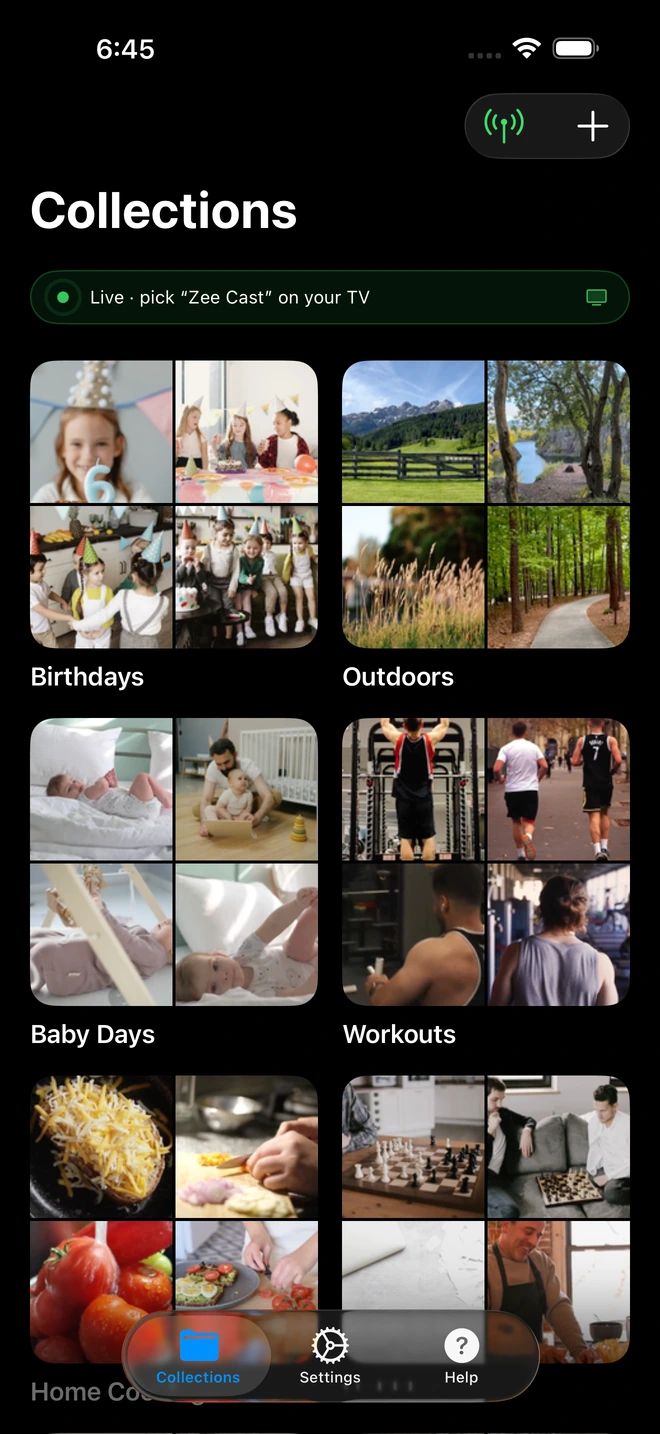
- 1Server is live - instantly discoverable on TV.
Universal Compatibility With Any Codec
VLC is the world's most versatile open-source media player. Pairing it with Zee Cast gives you total format flexibility across all screens:
- Plays Any Format: Smooth playback of MP4, MOV, MKV, AVI, and audio files (MP3, M4A/AAC, WAV).
- Byte-range HTTP Streaming: Fast seek and scrub controls powered by Zee Cast Range requests.
- No File Transfers: Stream 50GB+ 4K vacation video libraries without filling up your laptop storage.
- Private & Offline: All streaming occurs locally within your Wi-Fi router with zero cloud uploads.
💡 Pro Tip: Quick Access Shortcut in VLC Desktop
In VLC on Windows or Mac, press Ctrl + L (or Cmd + Option + L on Mac) to open the Playlist window. In the left panel, click Universal Plug'n'Play under Local Network to see all active Zee Cast servers.
Supported VLC Platforms
Zee Cast communicates using standard DLNA/UPnP ContentDirectory protocols supported by VLC across all major operating systems:
| Platform | VLC Version | Discovery Navigation | Special Capabilities |
|---|---|---|---|
| Windows (10/11) | VLC 3.0+ | Playlist (Ctrl+L) → Universal Plug'n'Play | Direct Direct3D11 hardware decoding |
| macOS (Apple Silicon & Intel) | VLC 3.0+ | Playlist (Cmd+Opt+L) → Universal Plug'n'Play | Metal-accelerated 4K/8K playback |
| Apple TV (tvOS) | VLC for Apple TV | Local Network tab | Full Siri Remote navigation & chapters |
| Android TV & Google TV | VLC for Android | Browse → Local Network | Direct hardware decoding, passthrough audio |
Official VideoLAN Documentation References
For more technical details on VLC Media Player network features and UPnP discovery, check the official VideoLAN documentation:
Frequently Asked Questions
Does VLC discover Zee Cast automatically?
Yes. VLC includes a built-in Universal Plug'n'Play (UPnP) discovery client under Local Network that automatically detects Zee Cast when both devices are on the same Wi-Fi network.
How do I stream iPhone photos and videos to VLC via DLNA?
Install Zee Cast on your iPhone, select your photos or 4K videos into a collection, and tap 'Turn on sharing'. Open VLC on your PC, Mac, or smart TV, navigate to Local Network > Universal Plug'n'Play, and select Zee Cast. Your media streams instantly without iTunes, AirPlay compression, or cables.
How to connect VLC to a local network media server?
In VLC desktop (Windows/macOS), open the Playlist view (Ctrl+L on Windows, Cmd+Option+L on Mac). In the left sidebar under 'Local Network', click 'Universal Plug'n'Play'. VLC sends an SSDP M-SEARCH query across your local subnet and immediately lists active DLNA servers including Zee Cast.
How do I open a network stream in VLC on Mac (Open Network Stream)?
On macOS, press Cmd + N (or go to File > Open Network...). While Universal Plug'n'Play under the Playlist sidebar auto-discovers Zee Cast, you can also paste direct stream URLs (e.g., http://phone-ip:8080/media/1) directly into 'Open Network Stream' to play any video immediately without browsing directories.
Why does Zee Cast not show up under Universal Plug'n'Play in VLC on Windows or Mac?
VLC discovers media servers using UDP multicast on port 1900 (SSDP). On Windows, verify your network profile is set to 'Private' and that Windows Defender Firewall allows VLC for private networks. On macOS, ensure VLC has local network access under System Settings > Privacy & Security > Local Network. Then toggle sharing off and on in Zee Cast to trigger a new SSDP broadcast.
How do I enable subtitles (.srt) and switch audio tracks in VLC during a DLNA stream?
While streaming a video from Zee Cast in VLC, right-click the video window (or press 'V' on desktop) to select embedded subtitles or manually add an external .srt file. To switch audio tracks (e.g., between stereo AAC and AC-3 5.1 surround sound), go to Audio > Audio Track or press 'B'.
How can I fix video stuttering when streaming large 4K 60fps files to VLC over Wi-Fi?
In VLC, open Preferences (Tools > Preferences, set 'Show settings' to All), navigate to Input / Codecs, scroll down to Advanced, and increase 'Network caching (ms)' from 1000 ms to 3000 ms. Additionally, confirm that 'Hardware-accelerated decoding' is set to 'Automatic' (Direct3D11 on Windows, VideoToolbox on macOS).
Can VLC play all video codecs served by Zee Cast?
Yes. VLC includes built-in decoders for almost every video and audio format, including H.264, HEVC/H.265, ProRes, MP4, MOV, MKV, AVI, MP3, AAC, and WAV.
Does VLC support video scrubbing with Zee Cast?
Yes. Zee Cast fully implements HTTP Range requests, allowing VLC to jump to any point in large 4K video files instantaneously.
Can VLC stream local network media to a smart TV?
Yes. If you run VLC on Android TV, Google TV, or Apple TV (tvOS), navigate to Browse > Local Network to play media served by Zee Cast directly on your television. Alternatively, VLC on desktop can stream to Chromecast devices under Playback > Renderer.
What makes Zee Cast a lightweight VLC streaming server?
Unlike heavy desktop software like Plex or Jellyfin that requires 24/7 server hardware and transcoding, Zee Cast runs directly on your iPhone or Android phone as a battery-efficient UPnP server. It serves original bitstream files using HTTP Range requests directly to VLC with zero cloud storage.


