
 ⚡ At a Glance: Xbox Media Player / VLC Specs ⚡ At a Glance: Xbox Media Player / VLC Specs | |
|---|---|
| Target Platform & OS | Xbox Series X, Xbox Series S, Xbox One, Xbox One X |
| Protocol & Port | DLNA 1.5 / UPnP MediaServer, Port 8080 (HTTP Range) |
| Connection Type | Local Wi-Fi (5 GHz) or Wired Ethernet / Hotspot |
| Transcoding | None (Direct Play native 4K HDR, HEVC, H.264 bitstream) |
| Typical Setup Time | ~2 minutes (Free Media Player or VLC from Microsoft Store) |
Turn Your Xbox into a Lossless 4K Media Hub
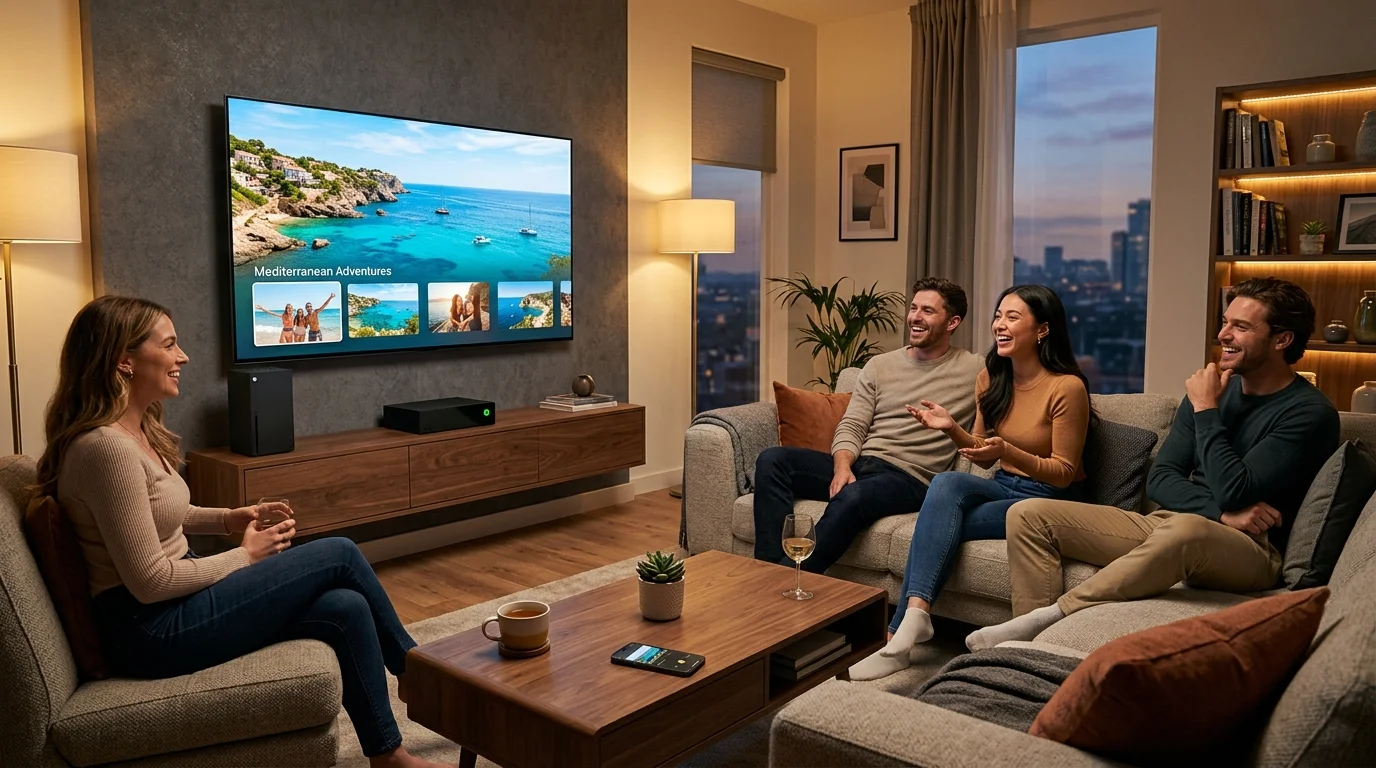
Whether your Xbox console is connected to an OLED living room TV or an ultra-fast gaming monitor, it is one of the most powerful hardware decoders in your house. Rather than fussing with external hard drives or struggling with laggy screen mirroring, you can turn your smartphone into an instant local UPnP media server with Zee Cast.
Zee Cast streams original 4K HDR camera recordings, vacation photo slideshows, and personal music collections directly to your Xbox with zero cloud uploads or third-party tracking.
Quick 4-Step Walkthrough
Follow this simple setup to enjoy immediate direct playback on your Xbox:
- 1
Connect to the Same Wi-Fi
Ensure your smartphone and Xbox console are connected to the same home Wi-Fi network (5 GHz band recommended) or router switch.
- 2
Turn On Sharing in Zee Cast
Open Zee Cast on your phone, curate the photos or 4K videos you want to play into a collection, and tap Turn on sharing.
- 3
Open Xbox Media Player
Press the Xbox button on your controller, navigate to My Games & Apps → Apps, and open Media Player. (If not installed, search for "Media Player" in the Microsoft Store for a free 1-click download).
- 4
Select Zee Cast & Play
Zee Cast will immediately appear under the list of available DLNA servers. Select your collection and hit play with zero buffering.
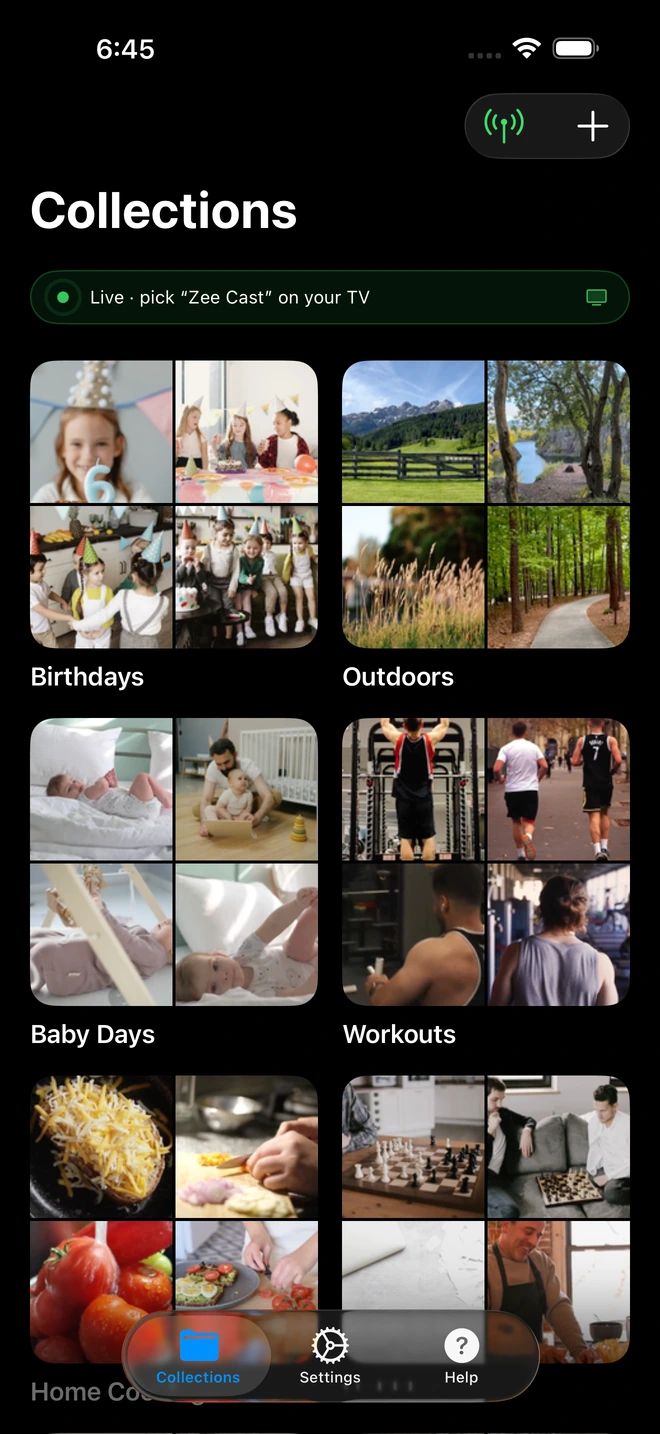
- 1Server is live - instantly discoverable on Xbox.
Custom Audio While Gaming
Like background Spotify or Apple Music, the Xbox Media Player integrates directly with the Xbox OS audio mixer. You can stream personal audio collections hosted in Zee Cast while playing games, controlling track skips and volume levels directly from the Xbox Guide overlay.
Frequently Asked Questions
Does Xbox Series X and Series S support DLNA streaming?
Yes. Microsoft includes full UPnP/DLNA 1.5 client support in the official Xbox Media Player app (available free in the Microsoft Store on Xbox). It automatically detects local DLNA servers like Zee Cast across your local Wi-Fi.
Does Xbox support HEVC (H.265) and 4K HDR playback over DLNA?
Yes. Xbox Series X and Series S have robust hardware decoders capable of 4K 60fps and 120fps video decoding, including HEVC/H.265 and 10-bit HDR video recorded on modern iPhone and flagship Android phones.
Can I use VLC or Kodi on Xbox instead of Microsoft Media Player?
Yes. Both VLC for Xbox and Kodi are available directly from the Microsoft Store on Xbox. If you prefer advanced audio passthrough (Dolby Atmos, DTS-HD MA) or custom subtitle rendering, VLC or Kodi will browse Zee Cast with full format support.
Can I stream music from Zee Cast while playing games on Xbox?
Yes. The Xbox Media Player supports background audio playback. Start playing your music collection in Media Player, press the Xbox guide button on your controller, and jump into your favorite game. You can control playback directly from the Xbox Guide menu.
Why is Zee Cast not appearing in the Xbox Media Player list?
Ensure both devices are on the exact same Wi-Fi SSID and that AP Isolation / Client Isolation is disabled on your home router. Also confirm that Sharing is Active in the Zee Cast app on your phone.


