
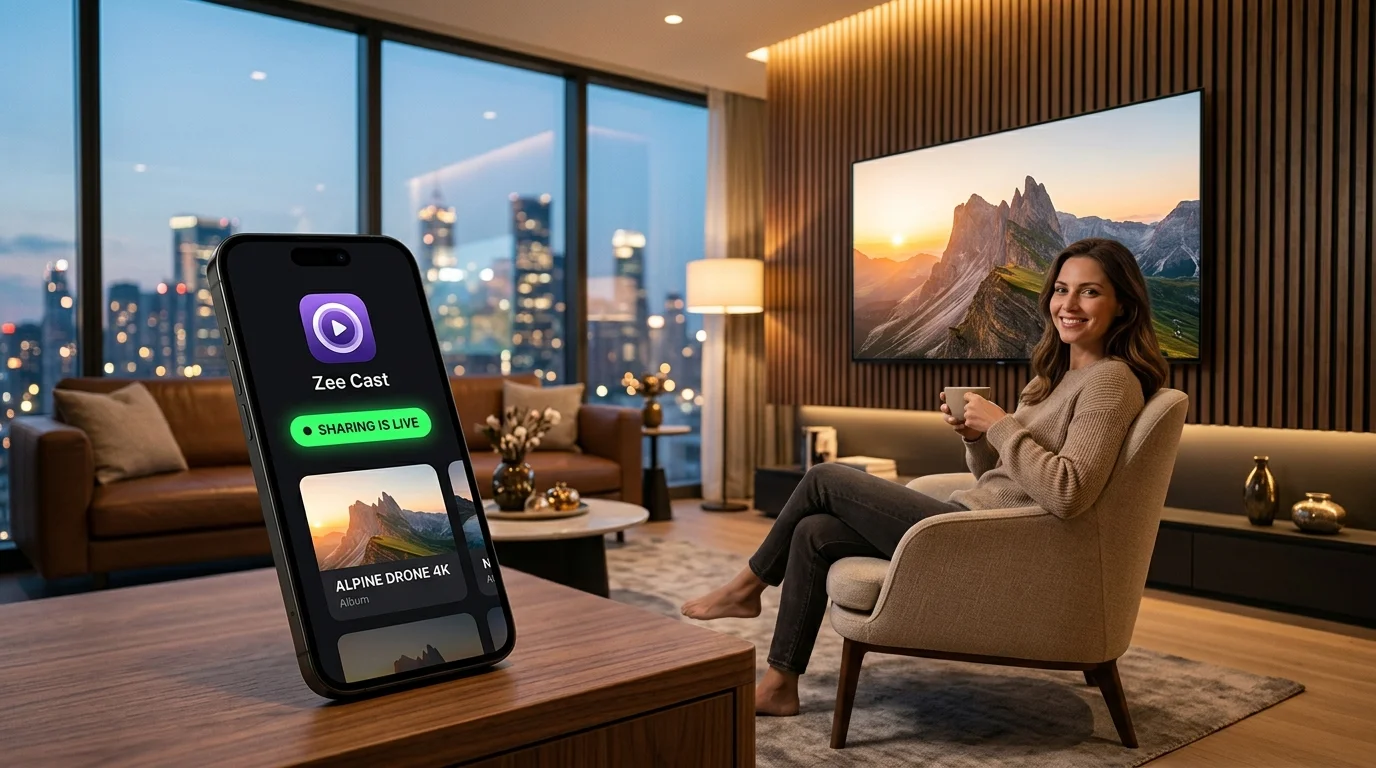
You arrive at your hotel room after an unforgettable day of travel, ready to relive your 4K video clips and photos on the big screen. But when you tap "AirPlay" or "Cast", your phone searches endlessly and finds nothing. Here is why hotel Wi-Fi blocks casting - and how to stream bit-perfect 4K media using your phone's Personal Hotspot with 0 KB of mobile data used.
Why Casting Fails on Hotel & Rental Wi-Fi
Understanding the enterprise security layers inside hotel hospitality networks explains why traditional screen mirroring and cloud casting hit a brick wall:
1. AP Client Isolation
Hotels and public resorts use commercial access points (Cisco Meraki, Aruba, Ruckus) configured with Access Point (AP) Client Isolation (IEEE 802.11 Station Isolation). This prevents guests from seeing or accessing other guests' laptops and phones. As a side effect, your smartphone cannot send a single packet directly to the Smart TV hanging on your room wall, even though both connect to the same hotel Wi-Fi SSID.
2. Multicast & SSDP Dropping
Streaming protocols like DLNA/UPnP and AirPlay rely on UDP multicast broadcasts to discover playback devices. Zee Cast uses SSDP (239.255.255.250:1900) and AirPlay uses mDNS Bonjour (224.0.0.251:5353). Hotel network controllers automatically drop all local multicast packets to prevent network broadcast storms, making your media server completely invisible to the TV.
3. Captive Portals & Splash Pages
Hotel networks require entering a room number and guest surname on a web splash page before granting network access. Most hotel Smart TVs and streaming dongles lack a functional web browser to authenticate these portals, preventing them from connecting to the local subnet.
The Solution: Private Local Hotspot LAN
When you turn on your smartphone's Personal Hotspot or Mobile Hotspot, your phone creates its own private, isolated Wi-Fi network:
- Zero AP Isolation: Your phone and the Smart TV are on an unrestricted, private local subnet.
- Full Multicast Discovery: SSDP discovery packets (UDP 1900) travel freely between phone and TV.
- No Captive Portals: You never have to deal with hotel splash screens or timed session timeouts.
- Maximum Privacy: No other hotel guest on the public Wi-Fi can see your server or intercept your media streams.
⚡ The #1 Travel Myth: "Will Hotspot Streaming Burn My Cellular Data Plan?"
The answer is NO! When your Smart TV streams personal photos and 4K videos from Zee Cast over your phone's hotspot, the media file data stays 100% on the local Wi-Fi radio interface between the two devices. The raw bytes move directly from your phone's flash storage across the local Wi-Fi antenna into the TV's hardware decoder. Zero bits travel over the cellular carrier uplink, consuming 0 MB of your mobile data allotment!

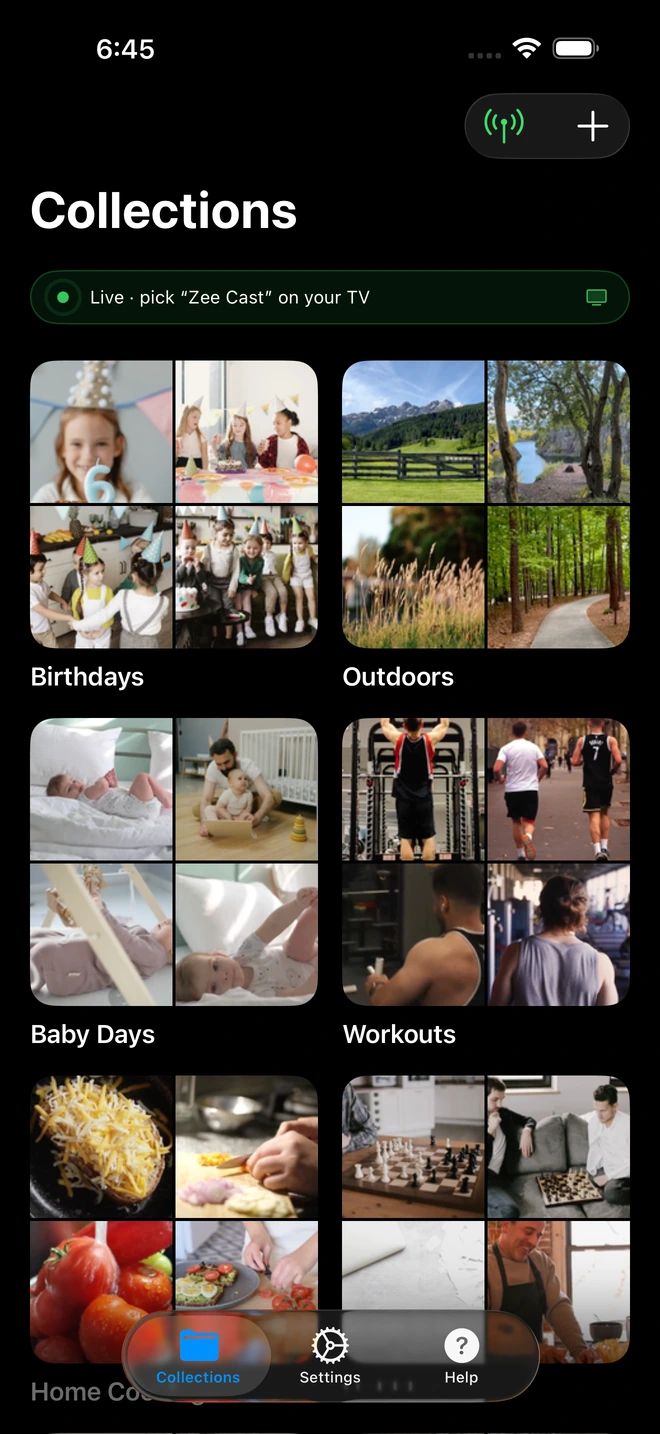
- 1Sharing is Live: Hotel TV connects to your hotspot and plays with 0 MB data used.
Comparing Travel Streaming Methods
See how smartphone hotspot streaming with Zee Cast compares against hotel Wi-Fi, travel routers, and physical HDMI dongles:
| Travel Streaming Metric | Phone Hotspot + Zee Cast | Hotel Wi-Fi (Direct) | Pocket Travel Router | HDMI Cable Adapter |
|---|---|---|---|---|
| Bypasses AP Isolation | Yes (100% Guaranteed) | No (Blocked by Hotel AP) | Yes (Private WISP LAN) | Yes (Direct Wire) |
| Cellular Data Usage | 0 KB (Pure Local Wi-Fi) | 0 KB (Uses Hotel WAN) | 0 KB (Local LAN) | 0 KB (Wired) |
| No Extra Hardware | Yes (Just Phone & TV) | Yes | No (Requires $50+ Router) | No (Requires $50 Dongle) |
| Bit-Perfect 4K 60fps | Yes (Hardware Decoded) | Fails / Stutters | Yes | Depends on adapter chip |
| Phone Freedom | 100% Free (Lock screen / Call) | Blocked during mirroring | 100% Free | Tethered to TV / Screen On |
| Setup Time | < 60 seconds | Fails | 2–3 minutes | 1 minute (cables across room) |
Step-by-Step Hotspot Setup Walkthrough
Follow these five simple steps to turn any hotel or Airbnb TV into your private cinema:
- 1
Turn on Personal Hotspot
On iPhone: Go to Settings > Personal Hotspot, toggle ON Allow Others to Join. Turn ON Maximize Compatibility.
On Android: Go to Settings > Hotspot & tethering > Wi-Fi hotspot and turn ON. - 2
Connect TV to Hotspot Wi-Fi
Using the hotel TV remote, open Settings > Network > Wi-Fi. Select your phone's hotspot name from the wireless list and enter your hotspot password.
- 3
Launch Zee Cast on Phone
Open Zee Cast on your iPhone or Android. Select your travel photos and 4K vacation clips into a collection, then tap Turn on sharing.
- 4
Open TV Media Player
On the TV, press Source or open the native media app (e.g. Samsung Connected Devices, LG Photo & Video, Roku Media Player, or VLC) and choose Zee Cast.
- 5
Enjoy 4K Playback Freely
Browse your vacation albums on screen. You can lock your phone screen, answer text messages, or plan tomorrow's itinerary while the movie plays flawlessly on TV.
💡 iPhone Pro Tip: Always Turn On "Maximize Compatibility"
Modern iPhones (iPhone 12 and newer) broadcast Personal Hotspots on the 5 GHz Wi-Fi band by default. However, many hotel Smart TVs, budget Airbnb TVs, and older Roku streaming sticks only have 2.4 GHz Wi-Fi network cards. If the hotel TV cannot see your iPhone hotspot, go to Settings > Personal Hotspot and turn ON "Maximize Compatibility". This forces your iPhone to broadcast on 2.4 GHz so any television can find and connect to it immediately.
Finding Zee Cast on Popular Hotel Smart TVs
| TV Brand / Platform | How to Access Zee Cast | Supported App |
|---|---|---|
| Samsung Smart TVs (Tizen) | Press Source or Home → Connected Devices or Sources. | Built-in Samsung Media Player |
| LG Smart TVs (webOS) | Press Home → Photo & Video app or Home Dashboard → Storage. | Built-in LG Photo & Video |
| Roku TV & Sticks | Launch Roku Media Player channel → Select Videos or Photos. | Roku Media Player |
| Fire TV & Android TV | Open VLC for Fire or VLC for Android → Local Network. | VLC Media Player (Free) |
Technical References & Standards
For more technical documentation on mobile tethering and Wi-Fi architecture, consult these resources:
Frequently Asked Questions
Why do AirPlay, Chromecast, and casting fail on hotel Wi-Fi networks?
Hotel Wi-Fi networks enforce Access Point (AP) Client Isolation. This enterprise security feature creates virtual barriers between connected devices, preventing your smartphone and the hotel Smart TV from discovering or talking to each other. Furthermore, hotel routers block SSDP and mDNS multicast packets and require captive portal logins that smart TVs cannot complete.
Does streaming 4K videos from my phone to TV over Personal Hotspot consume my cellular data?
No. When your TV connects to your phone's hotspot and plays media via Zee Cast (DLNA), all video and photo data is routed entirely over the local Wi-Fi radio interface (LAN) between the phone and TV. The data never travels out to the cellular carrier network or internet WAN. The video stream consumes 0 KB of mobile data.
What should I do if the hotel Smart TV cannot find my iPhone's hotspot?
On your iPhone, go to Settings > Personal Hotspot and turn ON 'Maximize Compatibility'. Modern iPhones broadcast hotspot networks on 5 GHz by default. Older hotel Smart TVs only have 2.4 GHz Wi-Fi hardware. Enabling 'Maximize Compatibility' forces the iPhone to broadcast on 2.4 GHz so older TVs can connect immediately.
How do I bypass captive portals and splash login pages on hotel TVs?
By connecting both your phone and hotel Smart TV to your phone's Personal Hotspot (or a portable travel router), you create a private local LAN that completely bypasses the hotel's public network and captive portal splash page. Local UPnP/DLNA streaming works seamlessly without any login screens.
Can other hotel guests see my photos or connect to my phone when using Zee Cast?
No. Your phone's Personal Hotspot is encrypted with WPA2/WPA3 and only devices with your private hotspot password can join. Furthermore, Zee Cast includes a Pro feature called 'Device Approval' that alerts you and blocks any new device from accessing your media until you tap 'Allow' on your phone.


