
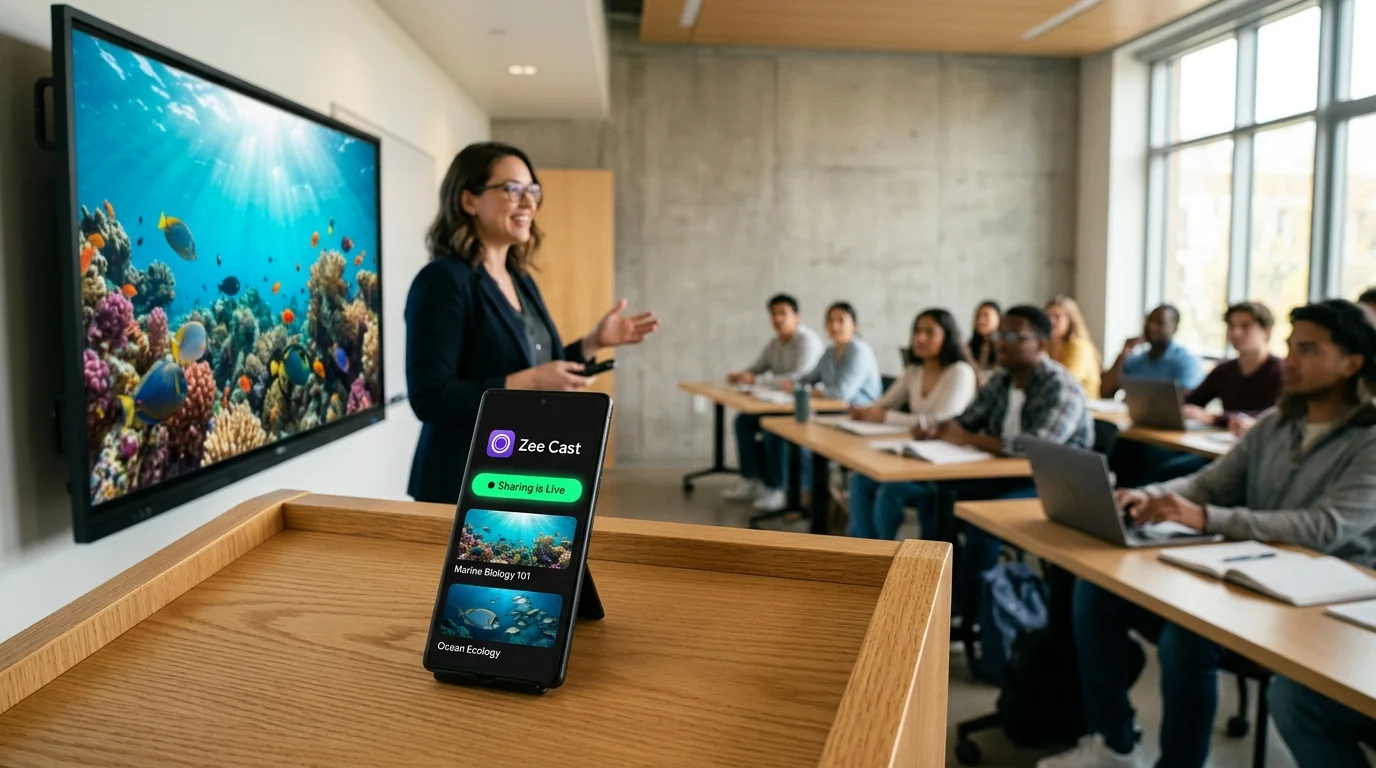
 ⚡ At a Glance: Promethean ActivPanel Specs ⚡ At a Glance: Promethean ActivPanel Specs | |
|---|---|
| Target Platform & OS | Promethean ActivPanel 9, ActivPanel 9 Premium & Elements Series (Titanium, Cobalt, Nickel) |
| Protocol & Port | UPnP / DLNA MediaServer 1.5 (Port 8080 HTTP Byte-Range) |
| Connection Type | School LAN (5 GHz) or Teacher Phone Hotspot (0 MB Cellular Data) |
| Transcoding | None (Direct Play native MP4, H.264, H.265/HEVC to panel GPU) |
| Typical Setup Time | Under 90 seconds (Zero IT helpdesk tickets or software sideloading) |
The Classroom Dilemma: Enterprise School Wi-Fi vs. Smartboard Streaming
Across primary, secondary, and higher education classrooms, the Promethean ActivPanel represents the undisputed centerpiece of modern instructional delivery. Whether your school district deploys the cutting-edge ActivPanel 9 or the ubiquitous Elements Series (Titanium, Cobalt, Nickel), these 65-inch to 86-inch 4K interactive flat panels are designed to engage visual and kinesthetic learners with dynamic digital curricula.
Yet, every teacher knows the daily frustration that occurs the moment you attempt to share a 3-minute laboratory demonstration, a historical documentary excerpt, or a student project recorded on your smartphone. You open Promethean's pre-installed Screen Share utility, wait for the 6-digit panel code, enter it on your phone, and watch in exasperation as the connection times out, buffers endlessly, or drops frames down to a jerky slide show.
⚠️ Why School District Networks Sabotage Screen Mirroring
School district networks are engineered for strict regulatory compliance (CIPA) and high-density security, not peer-to-peer multimedia entertainment. Three enterprise network architectures actively break conventional casting:
- WPA2/WPA3 Enterprise 802.1X Authentication: Requires individual RADIUS credentials (PEAP/MSCHAPv2), placing student devices, teacher phones, and classroom panels into isolated Virtual Local Area Networks (VLANs).
- Access Point (AP) Client Isolation: Meraki, Aruba, and Ruckus access points intentionally drop Layer 2 broadcasts and peer-to-peer packets, suppressing the mDNS (Bonjour) and SSDP discovery beacons required by AirPlay and Miracast.
- Deep Packet Inspection & Cloud Firewalls: Content filtering appliances (Lightspeed Systems, Fortinet, Zscaler) inspect and frequently block the external STUN, TURN, and WebSocket ports used by Promethean Screen Share cloud relay servers.
Requesting a permanent IT firewall exception or an unsegmented VLAN ticket from the district technology coordinator can take weeks - and is frequently denied on strict cybersecurity grounds. Fortunately, educators do not need to fight district network policy. By deploying Zee Cast, teachers can leverage the ActivPanel's high-performance native media decoding hardware directly, ensuring zero-latency instructional playback without touching IT network settings.
Understanding ActivPanel OS: The Onboard Multimedia Powerhouse
A common misconception among educators is that an interactive display is merely a passive computer monitor requiring a tethered laptop or an external Apple TV. In reality, Promethean ActivPanels run ActivPanel OS, an optimized Android-based operating system powered by dedicated multi-core system-on-chip (SoC) hardware with integrated GPU video decoders.
The ActivPanel's hardware silicon includes native decoders for:
- H.264 / AVC: Hardware-accelerated decoding up to 4K @ 60fps with zero CPU overhead.
- H.265 / HEVC: Full support for high-efficiency mobile video captured by modern iPhones and Samsung Galaxy flagships.
- AAC & MP3 Audio: Crystal-clear stereo output delivered directly through the ActivPanel's integrated 15W front-facing soundbar.
When teachers rely on cloud-relayed screen mirroring, they force their phone to compress its entire display into a low-bitrate video stream, transmit it over congested Wi-Fi, and decode it through a software layer on the panel. In contrast, Zee Cast uses DLNA Direct Play: your phone serves the pristine, uncompressed video file directly to the ActivPanel's hardware media engine over standard HTTP byte-range requests.
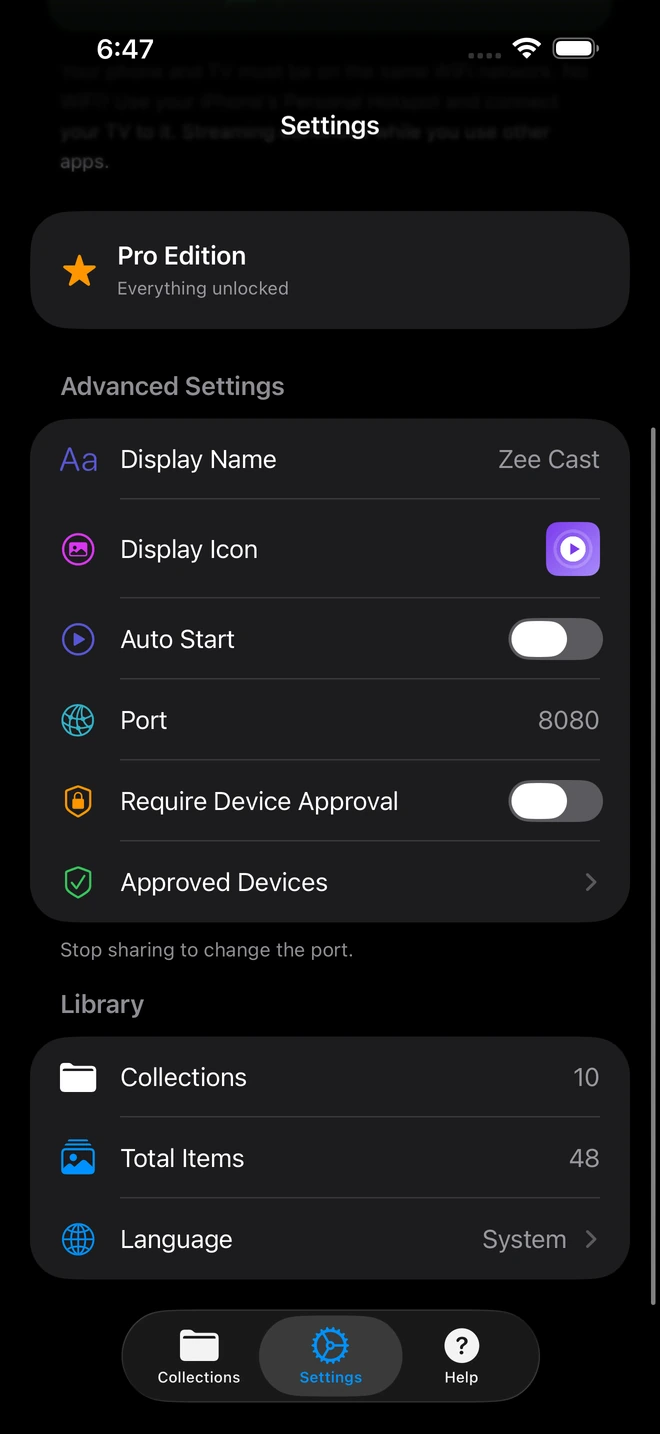
- 1Device Approval gates every connection request.
- 2Only approved screens can browse or stream selected media.
Direct Play vs. Screen Share vs. Miracast vs. USB Drives
Educators have tried numerous workarounds to display mobile videos in class. The table below illustrates why native DLNA Direct Play via Zee Cast outperforms legacy classroom methods:
| Capability | Promethean Screen Share | Miracast / AirPlay | USB Flash Drive | Zee Cast (Direct Play) |
|---|---|---|---|---|
| Works on 802.1X Enterprise Wi-Fi | Requires open cloud ports | Blocked by AP Isolation | Offline physical media | Yes (Direct LAN or Hotspot) |
| Video Frame Rate & Clarity | Compressed, 20–30fps lag | 30fps, frequent artifacts | Pristine 4K original | Pristine 4K 60fps Native Bitstream |
| Teacher Phone Screen Privacy | Full mirror (Alerts visible) | Full mirror (Alerts visible) | N/A (No phone used) | 100% Private (Screen can lock) |
| Multitasking During Playback | Impossible (Board mirrors phone) | Impossible (Board mirrors phone) | N/A | Full (Grade, take attendance, timer) |
| Setup Time Before Class | 2–4 minutes (Pairing PIN) | 1–2 minutes (Discovery fail) | 5–10 minutes (PC transfer) | < 30 seconds (Instant tap) |
| Device Unauthorized Cast Protection | Student PIN guessing | Basic PIN prompt | Physical security only | Per-IP Device Approval Firewall |
Step-by-Step Classroom Workflow
Method 1: Permissive School Wi-Fi (Unified Subnet)
If your school district places both teacher mobile devices and Promethean smartboards on the same educational subnet without client isolation:
- 1
Launch Zee Cast and Create a Lesson Collection
Open Zee Cast on your phone. Tap Collections > Add Collection. Give it a distinct title (e.g., "Period 2 Biology Lab") and select only the instructional clips you need. This guarantees that your weekend camera roll photos and family videos are never accessible from the smartboard.
- 2
Turn On Sharing
Tap the prominent Turn on sharing button on the home tab. Zee Cast initiates its UPnP media service and provides a local port status (default port 8080).
- 3
Open ActivPanel Media Player or Chromium
Walk to the ActivPanel. From the Unified Menu, open the Locker, then launch the pre-installed Media Player or Chromium. Your phone appears as a discovered DLNA source. Tap your collection, select the video, and tap Play.
Method 2: Restrictive Enterprise Wi-Fi (The Zero-Data Hotspot Solution)
In high-security districts where Meraki or Aruba access points completely block inter-device communication:
💡 Pro-Tip for Educators: Zero Cellular Data Consumption
You do not need to burn your personal mobile phone plan's hotspot allotment. When you activate your phone's Personal Hotspot and connect the ActivPanel's Wi-Fi to your phone, Zee Cast transfers media packets across local 5 GHz Wi-Fi frequencies directly to the panel. Because the video is stored locally on your device, 0 megabytes of cellular data are billed by your mobile carrier.
- 1
Enable Phone Hotspot & Connect ActivPanel
Turn on Personal Hotspot in your phone settings. On the Promethean ActivPanel, tap Unified Menu > Settings > Network & Internet > Wi-Fi and connect to your phone's hotspot network.
- 2
Start Sharing in Zee Cast
Launch Zee Cast and tap Turn on sharing. Note the simple IP address displayed on your screen (for example,
http://172.20.10.1:8080). - 3
Browse and Play on ActivPanel
Open the ActivPanel Chromium browser or Media Player. Enter the address or select Zee Cast from the local devices list. Your curated lesson videos launch instantly in native 4K clarity.
Teacher Safeguarding: Protecting Personal Privacy & FERPA Data
In an era of intense classroom scrutiny, nothing is more terrifying for an educator than an errant push notification or personal text popping up on an 86-inch interactive display in front of thirty eighth-graders.
Traditional screen mirroring mirrors your phone's entire framebuffer. When you receive a text message from a family member, an email alert regarding an IEP evaluation, or a calendar reminder, it is broadcast to the entire room. Furthermore, if you open your device photo gallery to locate a diagram, the entire gallery grid is exposed to students.
Zee Cast solves this structural privacy hazard through strict structural isolation:
- Curated Collections Sandbox: Only the explicit video files you add to a collection are visible to the DLNA server. Your device camera roll, screenshots, and private photo albums remain completely hidden.
- Zero Notification Leakage: Because the ActivPanel is pulling a raw media bitstream rather than mirroring your screen, incoming WhatsApp messages, SMS notifications, and phone calls never appear on the board.
- Screen Independence: Once playback begins on the ActivPanel, you can lock your phone screen, pocket the phone, or freely open your gradebook app, Google Classroom, or an online countdown timer.
Multi-Room Security: Preventing Student Screen Hijacking
A persistent disruption in modern schools is unauthorized casting. Students often discover that smartboards broadcast open discovery beacons, allowing mischievous pupils in neighboring classrooms or hallways to cast inappropriate memes or disrupt exams.
Zee Cast addresses classroom security through its Per-IP Device Approval Firewall. When this feature is active:
- Any client attempting to connect to your phone's media server must request authorization.
- A non-intrusive alert prompts on your phone: "Device at 192.168.1.114 is requesting media access. Allow or Deny?"
- You tap Allow for your classroom's ActivPanel. Its IP address is permanently whitelisted.
- Any other unauthorized student phone or Chromebook attempting to snoop on your lesson media is rejected instantly at the socket layer.
Technical Specifications & File Compatibility
Promethean ActivPanel hardware excels at rendering standards-compliant container formats. To ensure seamless playback:
- Container: MP4, M4V, MOV, MKV.
- Video Codecs: H.264 (AVC Baseline, Main, High Profiles) and H.265 (HEVC Main Profile up to 4K 60fps).
- Audio Codecs: AAC-LC, MP3, PCM stereo audio.
- Network Protocol: Standard HTTP 1.1 with
Range: bytes=header support, allowing instantaneous scrubbing and fast-forwarding directly from the ActivPanel remote or on-screen touch scrubber.
📋 Ready to Modernize Your Classroom Video Delivery?
Say goodbye to spinning loading indicators, expired 6-digit screen share PIN codes, and embarrassing notification slips. Install Zee Cast on your phone today and experience instant, private, high-fidelity instructional video streaming on your Promethean ActivPanel.
Frequently Asked Questions
Why does Promethean Screen Share constantly fail or lag on school Wi-Fi?
Promethean Screen Share relies on an external cloud signaling server to match 6-digit panel codes and maintain a live screen-mirroring websocket. District IT firewalls (such as Fortinet, Palo Alto, Lightspeed Systems, or Zscaler) frequently block these external STUN/TURN relay ports or throttle real-time UDP streams. Furthermore, live screen mirroring re-encodes your entire mobile screen on the fly, creating severe stuttering, 2–4 second latency, and battery drain. Zee Cast bypasses cloud signaling entirely by serving files over local HTTP byte-range requests directly across the local subnet.
What is AP Client Isolation and how does Zee Cast overcome it in schools?
Access Point (AP) Client Isolation is a network security policy enforced by school district network administrators on 802.1X enterprise Wi-Fi networks (Cisco Meraki, Aruba, Ruckus). It prevents devices connected to the same wireless access point from communicating with each other, blocking mDNS (Bonjour) and SSDP discovery packets. When AP client isolation is active, teachers can switch their Promethean panel Wi-Fi to their phone's Personal Hotspot. Zee Cast streams locally between phone and panel over Wi-Fi without routing through the school firewall and without consuming any mobile data.
Does streaming from my phone to Promethean ActivPanel consume mobile cellular data?
No. Zee Cast acts as a local Layer 2/Layer 3 UPnP media server. When your Promethean ActivPanel connects to your phone's Personal Hotspot or classroom router, all video bytes travel over local Wi-Fi electromagnetic waves directly between the phone antenna and the panel antenna. Zero kilobytes of cellular carrier data are consumed.
Can students or other teachers hijack my smartboard stream while I'm presenting?
No. With Zee Cast Pro's Device Approval firewall, your phone maintains a strict gatekeeper mechanism. When any device requests access to your media index, a confirmation prompt appears on your phone screen showing the client's IP address. You can whitelist your specific ActivPanel and immediately reject all other connection attempts from nearby student Chromebooks or classroom iPads.
Which Promethean ActivPanel models support Zee Cast direct playback?
Every modern Promethean panel running ActivPanel OS supports Zee Cast, including ActivPanel 9, ActivPanel 9 Premium, and the entire Elements Series (Titanium, Cobalt, Nickel). Because ActivPanel OS is built upon Android (AOSP), its native media framework and onboard Chromium browser support standard H.264, H.265/HEVC, MP4, and AAC media streams natively.
Can I lock my phone screen or take attendance while the video is playing on the ActivPanel?
Yes! This is one of the most critical advantages of Zee Cast over screen mirroring. Because Zee Cast streams the media file directly to the smartboard rather than mirroring your display framebuffer, your phone remains completely independent. You can lock your phone screen, run an attendance app, review student IEP accommodations, or write lesson notes while the video plays continuously on the smartboard.
Do I need administrative permissions or IT approval to install Zee Cast?
No administrative approval or school board IT tickets are required. Zee Cast installs from the standard Apple App Store or Google Play Store onto your mobile device. Because it communicates using standard HTTP and UPnP protocols, it requires zero custom software, root access, or APK sideloading on the Promethean ActivPanel.
How does Zee Cast protect student and teacher privacy under FERPA and COPPA?
Zee Cast is engineered on a zero-cloud, zero-tracking philosophy. No user accounts are created, no telemetry is uploaded to remote servers, and no student identifiers are processed. Media is served strictly from local storage to the local display. Furthermore, because you curate specific collections rather than mirroring your entire phone screen, personal text notifications, personal photos, and sensitive student records never appear on the classroom smartboard.
Can I use an Apple TV or HDMI dongle instead?
While hardware dongles work, they introduce significant friction: they occupy one of the panel's HDMI ports, require power bricks, frequently lose remote controls, and demand district IT network registration for their MAC addresses. Zee Cast requires zero physical dongles, cables, or adapters, turning the hardware already installed in your classroom into a responsive display.


