
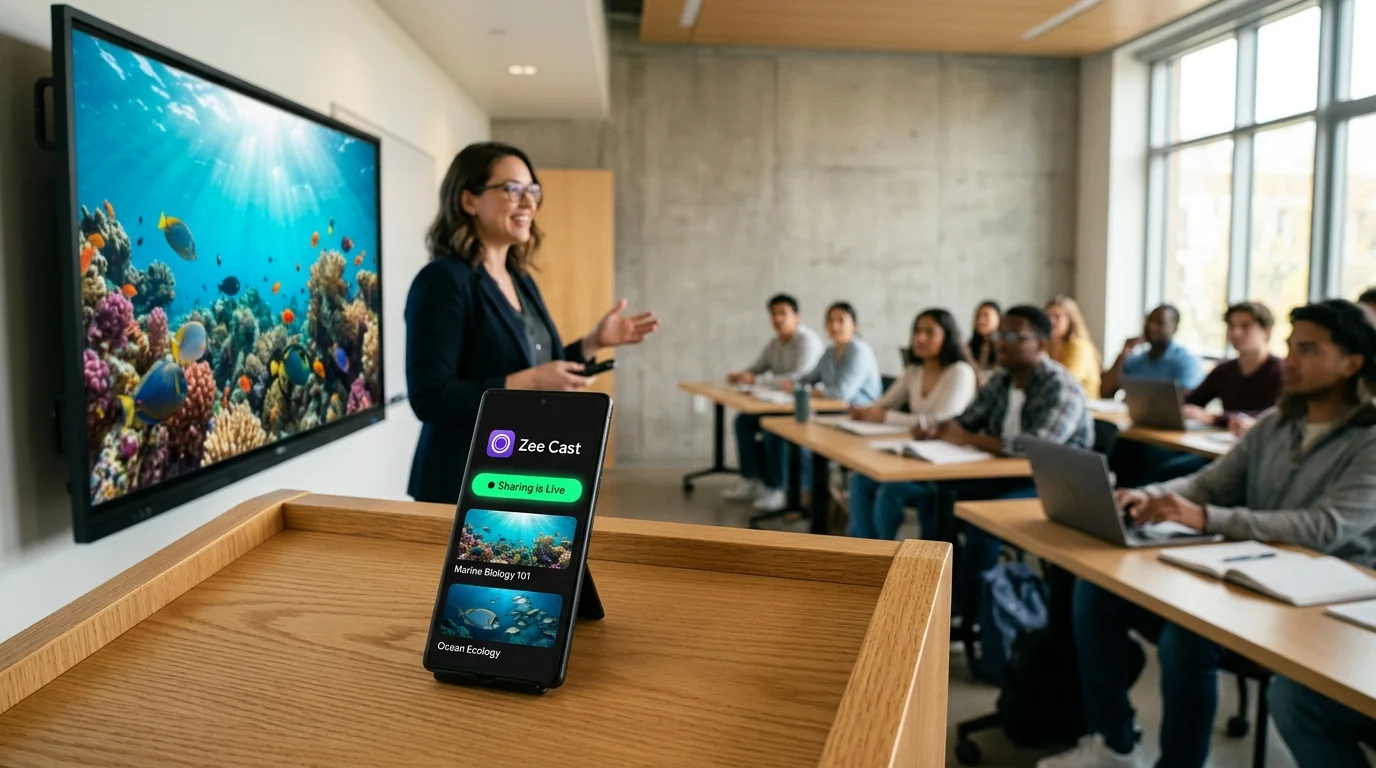
 ⚡ At a Glance: ViewSonic ViewBoard Specs ⚡ At a Glance: ViewSonic ViewBoard Specs | |
|---|---|
| Target Platform & OS | ViewSonic ViewBoard Interactive Flat Panels (IFP50 Series, IFP52 Series, IFP62 Series: 55\ |
| Protocol & Port | UPnP / DLNA MediaServer (Port 8080 HTTP Direct Play) |
| Connection Type | School Local Wi-Fi or Teacher Phone Hotspot (0 MB Data Usage) |
| Transcoding | None (Direct Play native 4K/1080p H.264/HEVC to ViewBoard GPU) |
| Typical Setup Time | Under 60 seconds (No vCast pairing codes or software installations) |
The ViewSonic Classroom Reality: Interactive Power vs. Casting Friction
The ViewSonic ViewBoard (notably the IFP50 and IFP52 series spanning 55-inch to 86-inch 4K panels) has become one of the most widely adopted interactive displays in modern education. Equipped with ultra-fine 40-point touch sensors, dual front-facing speakers, and native ViewBoard OS (powered by Android), these displays provide an exceptional canvas for collaborative instruction, digital whiteboarding, and multimedia lesson delivery.
However, when educators attempt to cast instructional video from their smartphone or tablet to the ViewBoard, the experience frequently derails. ViewSonic promotes its proprietary casting suite, vCast (vCastSender for mobile devices and vCastReceiver on the display). While vCast promises wireless convenience, in real-world school classrooms it is notoriously plagued by:
- 6-Digit PIN Pairing Fatigue: Teachers must locate the floating vCast window on the board, open the vCastSender app on their phone, and key in an ephemeral 6-digit pairing code that regularly expires or fails to handshake.
- Severe Frame Drops and Stutter: Because vCast real-time encodes the phone screen, high-framerate instructional videos (such as physics demonstrations, sports science replays, or biological animations) drop from 60fps to a jerky 20–25fps.
- Audio-Video Desynchronization: Latency between the compressed video stream and the separate audio stream often results in distracting "lip-flap" delays of half a second or more.
- Cloud Relay Failures on District Networks: In school districts where firewalls block vCast's external signaling servers, vCastSender simply hangs indefinitely on the connection screen.
⚠️ The Technical Problem with vCastSender Encoding
vCast functions by running a live screen-recorder on your phone. Your mobile processor must continuously capture the phone's framebuffer, re-encode it in software, packetize it, and transmit it over Wi-Fi. This process stresses your phone's processor, causes thermal throttling, rapidly drains battery, and compresses pristine 4K video into a blurry, low-bitrate approximation.
The Native DLNA Alternative: Unlocking the ViewBoard's Hardware GPU
Few teachers realize that every ViewSonic ViewBoard already contains an enterprise-grade, hardware-accelerated UPnP/DLNA Media Engine built directly into its native operating system.
When you deploy Zee Cast, you bypass vCastSender and cloud signaling servers entirely. Instead of live-encoding your screen, your phone acts as a lightweight local DLNA media server:
- Direct Hardware Pull: The ViewSonic ViewBoard's dedicated Mali or Immortalis graphics processor pulls the raw video file directly from your phone over local HTTP byte-range requests.
- True 60fps 4K Clarity: Because the video file is decoded natively by the ViewBoard's silicon, there is zero compression artifacting, zero frame dropping, and zero audio latency.
- Annotation Compatibility: You can still use the physical ViewSonic stylus or floating annotation tools to draw notes, pause frames, and capture clips directly into myViewBoard Whiteboard while the video plays.
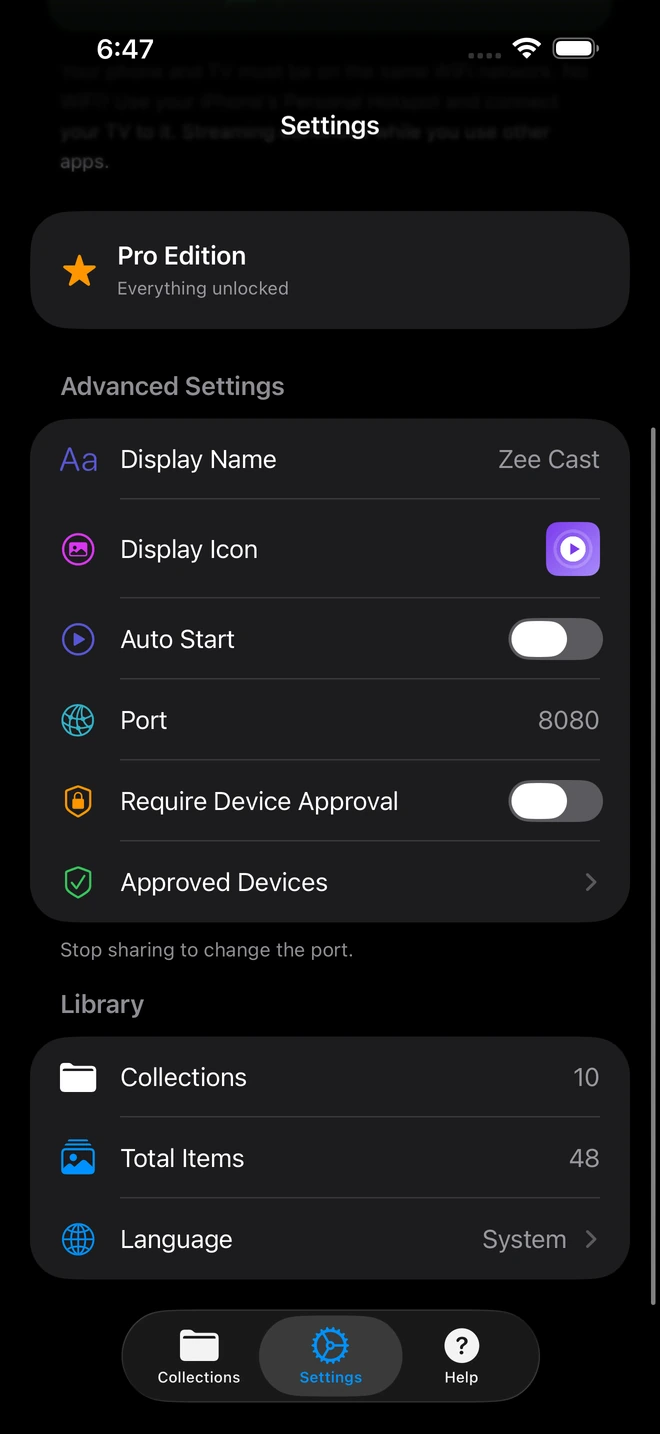
- 1Device Approval gates every connection request.
- 2Only approved screens can browse or stream selected media.
Feature Comparison: ViewSonic vCast vs. Zee Cast Direct Play
See how native DLNA Direct Play compares against traditional smartboard casting methods:
| Capability | ViewSonic vCast (vCastSender) | Standard Miracast / AirPlay | USB Flash Drive | Zee Cast (DLNA Direct Play) |
|---|---|---|---|---|
| Pairing PIN Codes Required | Yes (6-digit dynamic code) | Sometimes (AirPlay PIN) | None | Zero Pairing Codes (Instant Discovery) |
| Video Frame Rate & Smoothness | Jerky 20–30fps, dropped frames | 30fps, frequent artifacting | Pristine 60fps | Silky-Smooth 60fps 4K Native |
| Audio-Video Synchronization | Frequent 200–500ms drift | Occasional drift | Perfect sync | Perfect Bitstream Audio Sync |
| Teacher Phone Privacy | Mirrors whole screen (Alerts visible) | Mirrors whole screen | Isolated | 100% Private (Curated sandbox only) |
| Phone Multitasking During Play | Impossible (Board mirrors phone) | Impossible | N/A | Full (Grade, take attendance, timer) |
| Works on Restricted School LAN | Often blocked by cloud firewall | Blocked by AP client isolation | Yes (Physical media) | Yes (Direct LAN or Zero-Data Hotspot) |
Step-by-Step Setup Guide on ViewSonic ViewBoard
Step 1: Create a Curated Lesson Collection in Zee Cast
Launch Zee Cast on your phone. Tap Collections > Add Collection. Name it after your class subject (e.g., "Period 4 Environmental Science"). Add only the video demonstrations or visual case studies you intend to present. Your personal camera roll and private photos remain completely inaccessible.
Step 2: Start Sharing Over Local Wi-Fi or Personal Hotspot
Tap Turn on sharing. Zee Cast spins up its local media service.
💡 Pro-Tip for School Wi-Fi Isolation
If your district's enterprise network enforces client isolation and hides devices from one another, simply enable your phone's Personal Hotspot and connect the ViewSonic ViewBoard to your phone's Wi-Fi network. Because the media is stored locally on your device, 0 megabytes of mobile cellular data are consumed during playback!
Step 3: Browse Zee Cast on the ViewBoard
Walk to the ViewSonic ViewBoard:
- 1
Open the Folders or Media Player App
From the ViewBoard home screen dock or the side toolbar, tap the Folders icon (the built-in file manager) or the native Media Player.
- 2
Select Network / Media Servers
In the left navigation drawer, tap Network or DLNA Devices. Zee Cast will appear immediately as a discovered media server.
- 3
Launch Full-Screen Video Playback
Tap your lesson collection, choose your video file, and tap play. The video launches instantly in full 4K clarity.
Teacher Safeguarding & Multitasking on ViewBoard
When you stream using Zee Cast, you gain two massive classroom advantages over vCast screen mirroring:
- Zero Notification Disasters: Incoming text messages, personal reminders, or confidential student alerts never pop up on the ViewBoard. The board only receives the video bitstream.
- Simultaneous Phone Multitasking: Once playback begins on the ViewBoard, you can lock your phone screen, slip it in your pocket, or open teacher productivity apps (PowerSchool, Google Classroom, Canvas, or an online countdown timer) without interrupting the lesson video.
- On-Screen Whiteboard Annotation: At any point during playback, tap the ViewSonic side toolbar pen icon to freeze the video frame, annotate directly with your digital stylus, and save the marked-up frame directly into your myViewBoard lesson canvas.
Summary: The Superior Way to Teach with ViewBoard
By replacing frustrating vCast pairing codes and choppy screen mirroring with Zee Cast DLNA Direct Play, teachers unlock the full 4K 60fps power of their ViewSonic ViewBoard. Enjoy instant setup, pristine video quality, total notification privacy, and complete freedom to multitask during every lesson.
Frequently Asked Questions
Why does ViewSonic vCast suffer from severe stutter, audio lag, and dropped frames?
ViewSonic vCast (the combination of vCastSender on your phone and vCastReceiver on the panel) works by real-time software screen recording. Your phone's processor must continually capture every frame on its screen, compress it into an H.264 video stream, transmit it over congested school Wi-Fi, and decode it on the ViewBoard. This real-time encoding pipeline introduces significant latency (often 200–500ms), drops frame rates from 60fps down to 24fps or lower, and causes audio to fall visibly out of sync with video. Zee Cast eliminates this bottleneck by serving the original, pre-encoded video file directly to the ViewBoard's hardware video decoder via DLNA Direct Play.
Do I need to enter a 6-digit PIN code every time I stream with Zee Cast?
No! ViewSonic vCast forces teachers and students to locate and enter an ever-changing 6-digit pairing code, which frequently times out or fails when school cloud firewalls block vCast relay servers. Zee Cast relies on standard local UPnP discovery. Once sharing is active, the ViewBoard detects your phone immediately on the local network - zero pairing codes, zero pin numbers, and zero login accounts required.
Which ViewSonic ViewBoard models support Zee Cast direct playback?
Zee Cast is compatible with the entire ViewSonic ViewBoard interactive flat panel family, including the ViewBoard IFP50 series (IFP5550, IFP6550, IFP7550, IFP8650), the IFP52 series, the IFP62 series, and the ViewBoard 43" desktop collaborative displays. Because ViewBoard OS is built on Android (AOSP), its native media framework and file manager include comprehensive hardware decoders for standard DLNA media streams.
Can I use the ViewSonic annotation pen on top of the video while Zee Cast plays?
Yes! Because the video is decoded directly by the ViewBoard's native media player within ViewBoard OS, you can tap the floating ViewSonic sidebar tool at any moment to summon the annotation pen. You can draw arrows, highlight key anatomical features, pause the video, and take instant screenshots directly into the myViewBoard digital whiteboard.
Does streaming from phone to ViewSonic ViewBoard consume mobile data?
No. When connected over school Wi-Fi or your phone's personal hotspot, Zee Cast streams strictly over local Wi-Fi radio frequencies (LAN) directly between your phone and the ViewBoard. It consumes exactly 0 megabytes of cellular mobile data, even when streaming high-bitrate 4K 60fps video files.
Can students in the classroom see my personal text messages or photos?
Never. With vCast or standard screen mirroring, any incoming text alert, WhatsApp notification, or photo app thumbnail is mirrored onto the 75-inch ViewBoard in front of the entire class. Zee Cast only shares the specific educational video files you assign to your curated collection. Your phone's screen remains completely private, and you can even lock the phone screen while the video plays on the board.
What should I do if my school's Wi-Fi blocks discovery between my phone and the ViewBoard?
Many school district networks enforce enterprise AP client isolation, preventing devices from communicating directly. The simplest and fastest workaround is to enable Personal Hotspot on your phone, then go to the ViewBoard's Wi-Fi settings and connect to your phone's hotspot. Zee Cast will stream locally with zero data usage, completely bypassing the school district firewall.
Can unauthorized students cast unwanted media to my ViewSonic board?
With Zee Cast Pro's Device Approval firewall, your phone enforces an active whitelist. If another device on the network attempts to connect to your media server, you receive an immediate alert on your phone displaying their IP address. You can whitelist your ViewBoard and immediately block any unauthorized student devices.
What video formats and audio codecs are recommended for ViewSonic displays?
ViewSonic ViewBoards feature powerful hardware decoders that support MP4, MOV, and MKV containers with H.264 (AVC) and H.265 (HEVC) video codecs and AAC or MP3 audio. These formats play instantly in native 4K UHD resolution with buttery 60fps smoothness and rich stereo sound through the ViewBoard's integrated speakers.


