
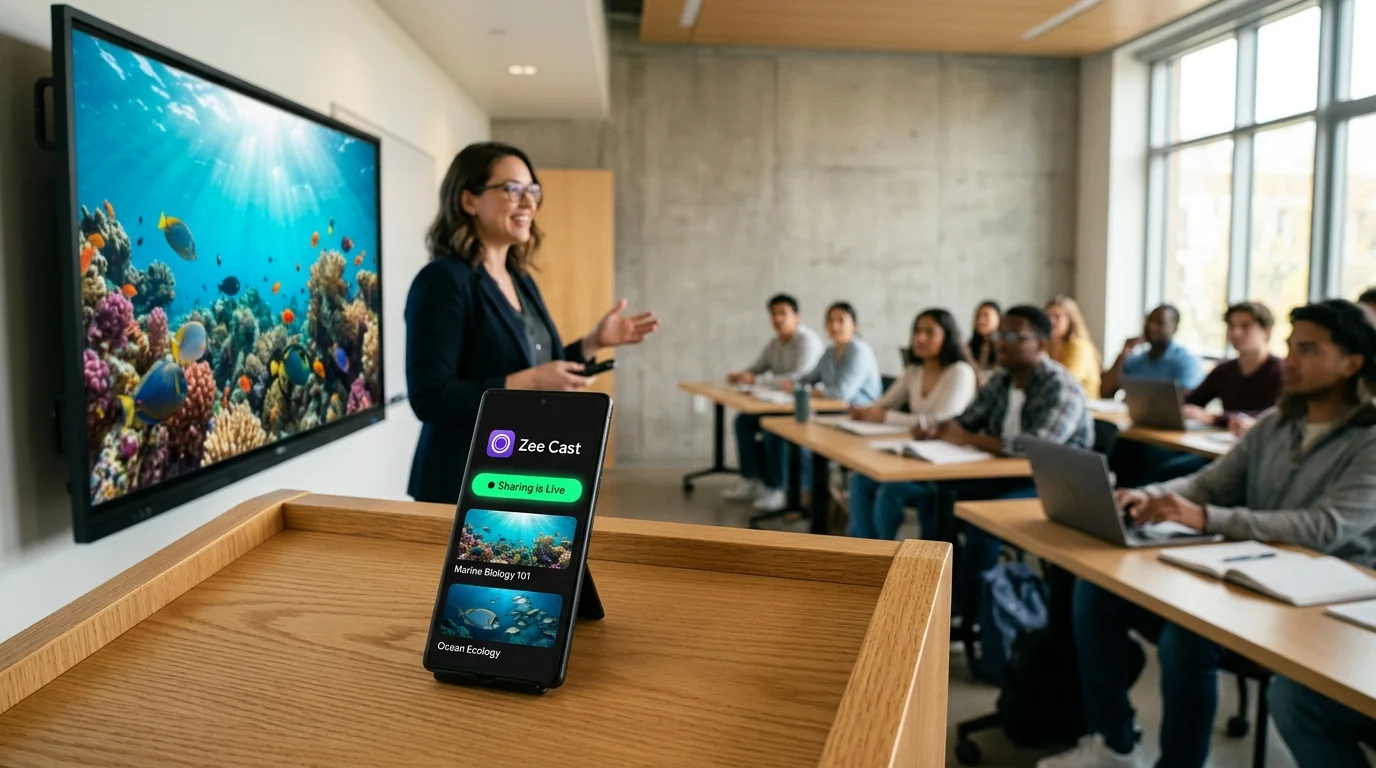
 ⚡ At a Glance: Academy Multi-Room Displays Specs ⚡ At a Glance: Academy Multi-Room Displays Specs | |
|---|---|
| Target Platform & OS | Tutoring Center Multi-Room Displays (Samsung Tizen, LG webOS, Sony Google TV, Roku TV) |
| Protocol & Port | UPnP / DLNA 1.5 with Per-IP Device Approval Firewall (Port 8080) |
| Connection Type | Shared Academy Wi-Fi (0 MB Internet Bandwidth Used) |
| Transcoding | None (Direct Play native 4K/1080p lesson videos to TV hardware) |
| Typical Setup Time | 60 seconds (Instant per-room authorization and anti-hijack lock) |
The Multi-Room Dilemma in Commercial Tutoring Centers
Modern tutoring centers, test prep academies (SAT, ACT, MCAT, LSAT), and STEM learning franchises rely heavily on wall-mounted smart TVs. Across six to twelve compact classrooms, instructors use 55-inch to 65-inch displays to walk students through complex calculus derivations, chemistry equilibrium equations, and timed reading comprehension breakdowns.
However, tutoring centers operate under a unique network architecture that creates constant operational chaos: a single shared commercial Wi-Fi network serving administrative staff, half a dozen instructors, and dozens of tech-savvy high school or college students simultaneously.
On a shared Wi-Fi network, traditional casting solutions (such as Google Chromecast, Apple AirPlay, or unmanaged Miracast) introduce severe operational vulnerabilities:
- Student Screen Hijacking: Mischievous students taking a mock exam or waiting for their session can easily tap the "Cast" icon in YouTube, TikTok, or Photos and broadcast inappropriate videos or memes directly onto the classroom TV in the middle of a class.
- Cross-Room Instructor Collisions: When an instructor in Room 102 attempts to cast a physics explanation, the casting sheet lists five identical "Samsung 65\" TV" entries. Tapping the wrong entry instantly overrides the television in Room 104, disrupting a timed practice diagnostic exam.
- Accidental Leakage of Master Answer Keys: If an instructor uses screen mirroring to display a problem breakdown, an accidental notification or gallery swipe can instantly expose official answer keys, scoring rubrics, or upcoming exam questions to students.
⚠️ Why Traditional IT Solutions Fail Small Academies
Enterprise IT consultants typically advise tutoring center owners to install expensive managed switches, deploy separate physical access points per room, and configure Virtual Local Area Networks (VLANs) with 802.1X enterprise authentication. For an independent learning center or franchise owner, this represents thousands of dollars in hardware, cabling, and ongoing network support contracts.
The Architectural Solution: Zee Cast with Per-IP Device Approval
Zee Cast Pro solves the multi-room problem directly at the application and socket layer, requiring zero expensive network redesigns or managed hardware.
Instead of broadcasting an open casting receiver to the entire building, Zee Cast turns the instructor's device into an authoritative, secure UPnP/DLNA Media Server equipped with a built-in Per-IP Device Approval Firewall:
- The instructor creates a sandboxed collection containing only the lesson's problem breakdown clips.
- When the classroom smart TV queries the instructor's phone, Zee Cast intercepts the request.
- The instructor receives an immediate, non-intrusive prompt: "Device at 192.168.1.145 (Room 102 TV) requests access. Allow or Deny?"
- The instructor taps Allow. The room TV is whitelisted.
- Any connection attempt from a student smartphone, tablet, or neighboring room is automatically rejected at the TCP socket layer.
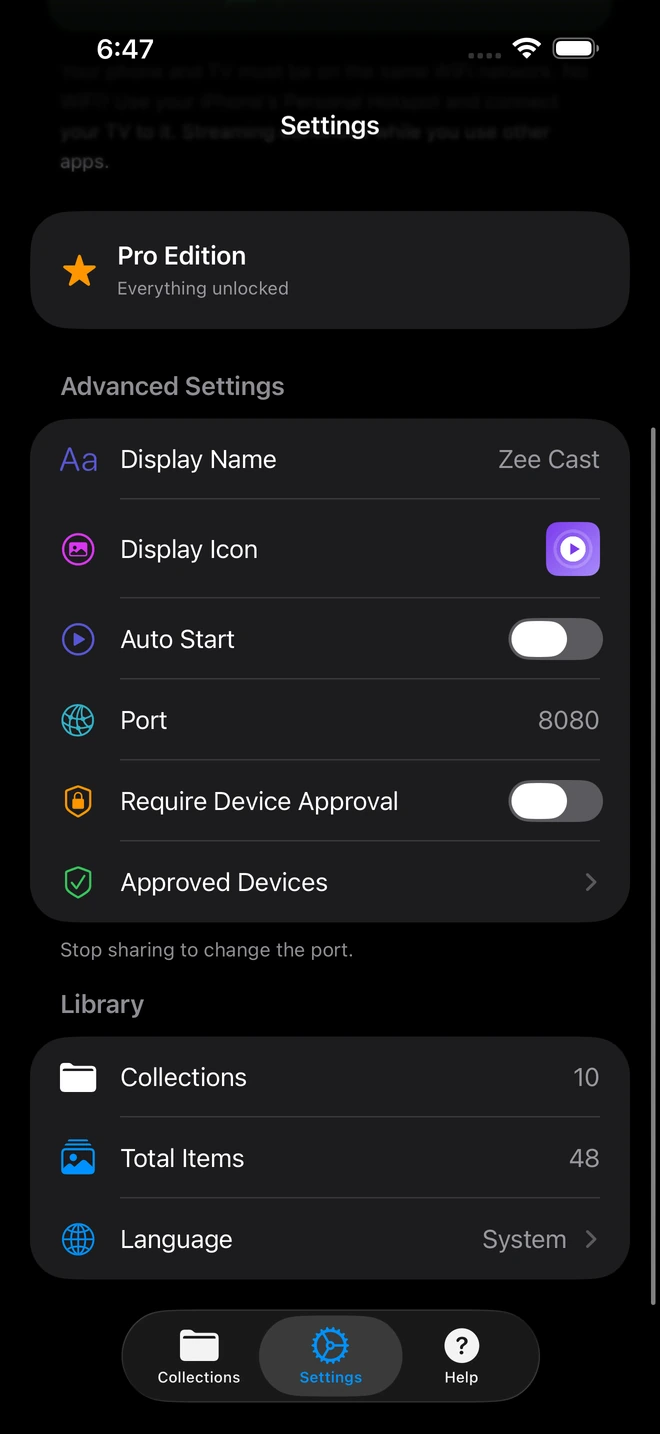
- 1Device Approval gates every connection request.
- 2Only approved screens can browse or stream selected media.
Multi-Room Streaming Method Comparison
Evaluate how Zee Cast with Device Approval compares against traditional learning center presentation methods:
| Capability | Open Chromecast / AirPlay | PIN-Based Screen Mirroring | Physical HDMI Wall Cabling | Zee Cast (Device Approval DLNA) |
|---|---|---|---|---|
| Protection Against Student Hijacking | Zero (Anyone can cast) | Weak (PIN visible on TV) | High (Requires physical cable) | Complete (Per-IP Firewall whitelist) |
| Cross-Room Collision Prevention | Frequent (Identical TV names) | Frequent | Complete | Complete (Only authorized TV links) |
| Master Answer Key Isolation | Zero (Screen is mirrored) | Zero (Screen is mirrored) | Zero (Screen is mirrored) | 100% Isolated (Curated sandbox) |
| Instructor Phone Multitasking | Impossible | Impossible | Locked to podium | Full (Grade, check keys, timer) |
| Infrastructure Setup Cost | \$30–\$50 per room dongles | Included with TVs | \$500–\$1,500 cabling per room | \$0 (Uses existing Wi-Fi & TVs) |
| Internet Bandwidth Impact | Consumes shared WAN bandwidth | Consumes local CPU | Zero bandwidth | 0 MB Internet Bandwidth Used |
Step-by-Step Instructor Workflow
1. Prepare Lesson Modules and Protect Answer Keys
Before students enter your classroom, launch Zee Cast on your phone or tablet. Tap Collections > Add Collection. Name it clearly (e.g., SAT Prep Room 102 - Reading Passage 2 Video Analysis).
Add only the designated instructional walkthrough videos. Your digital scoring rubrics, master answer keys, and personal photo gallery remain safely segregated in your phone's private storage.
2. Activate Device Approval Firewall
In Zee Cast Settings, ensure Device Approval is enabled. This ensures no device on the academy's shared Wi-Fi network can connect to your media server without your explicit one-tap authorization.
3. Connect Your Room Display
- 1
Turn On Sharing in Zee Cast
Tap Turn on sharing on the home tab. Your phone begins serving the curated collection over local Wi-Fi.
- 2
Select Zee Cast on the Room TV
Using the TV remote, open the Media Player (or Samsung Home Dashboard, LG SmartShare, Roku Media Player) and select Zee Cast.
- 3
Authorize Your TV on Your Phone
A permission prompt appears on your phone screen displaying the TV's IP address. Tap Allow. The room TV is now authorized, and all other devices are blocked.
- 4
Press Play and Teach with Confidence
The lesson video renders in crisp 4K or 1080p resolution. You can freely lock your phone screen or consult confidential teacher guides while the video plays.
💡 Pro-Tip for Center Directors: Zero Internet Strain
During peak afternoon and weekend hours, dozens of tutoring students take computerized practice exams (such as the Digital SAT or ACT) that require steady internet bandwidth. Because Zee Cast streams strictly over local Wi-Fi (LAN) without touching the public internet, multiple classrooms can stream heavy 4K video files simultaneously with zero impact on online test-taking speeds.
Summary: Secure, Professional Multi-Room Instructional Media
Tutoring centers and test prep academies cannot afford classroom disruptions, accidental cross-room casting, or compromised exam materials. By deploying Zee Cast Pro with Device Approval, academy directors and instructors ensure bulletproof presentation security, protect student focus, and elevate the educational standard of every classroom.
Frequently Asked Questions
Why is screen hijacking such a severe problem in commercial tutoring centers?
Most tutoring centers, learning academies, and test prep franchises operate on a single shared commercial Wi-Fi network across five to fifteen adjacent classrooms. Standard consumer casting protocols like Google Cast (Chromecast) and Apple AirPlay broadcast open discovery beacons to every connected device on the Wi-Fi. In high school test-prep environments, tech-savvy students can easily tap 'Cast' on their personal phones and accidentally or maliciously broadcast memes, YouTube videos, or personal media onto the smart TV in the middle of a serious mock SAT exam or lecture.
How does accidental cross-room casting happen between instructors?
When multiple classrooms feature identical smart TVs (for example, five 65-inch Samsung 4K TVs named 'Samsung 7 Series'), instructors pulling down their phone's casting menu frequently tap the wrong display name. An instructor in Room 102 attempting to stream a chemistry problem might accidentally override the smart TV in Room 104 where another teacher is administering a timed diagnostic test, causing chaotic classroom disruptions.
How does Zee Cast's Device Approval firewall prevent unauthorized student casting?
Unlike open casting systems where any device can push content to a screen, Zee Cast is an authoritative pull-based media server with an integrated Per-IP Device Approval Firewall. When you turn on sharing with Device Approval active, only the specific smart TV whose IP address you approve on your phone can browse and stream your collections. If a student's phone attempts to probe your server or access your files, your phone immediately blocks the connection at the socket layer.
Can students access proprietary curriculum or digital answer keys through the TV?
Never. With Zee Cast, media access is strictly sandboxed by collection. You choose only the exact instructional video clips or solution walkthroughs you want published for that period. Your private documents, grading rubrics, master answer keys, and device photo library are completely excluded from the DLNA server catalog and are invisible to the TV.
Can an instructor use their phone to grade papers while the video plays on the TV?
Yes! Because Zee Cast streams the media file in the background directly to the television's hardware decoder rather than mirroring the phone screen, your mobile device remains completely liberated. Instructors can grade student diagnostic exams, consult answer keys in a private app, or manage classroom timers without the class seeing their screen.
Do we need to configure complex VLANs or separate Wi-Fi routers for each room?
No. While enterprise VLAN segmentation is the traditional IT recommendation, it is expensive and requires complex managed network switches that small tutoring centers and franchise owners cannot afford. Zee Cast provides software-level security and per-IP isolation directly on your phone and display, allowing all rooms to operate safely on a single, affordable Wi-Fi network.
Does Zee Cast require internet bandwidth or cloud servers?
No. Zee Cast streams strictly over your local Wi-Fi router (LAN) using standard UPnP/DLNA protocols. Zero kilobytes of external internet bandwidth are used. Even during peak hours when dozens of students are taking online mock tests on laptops, video streaming on classroom TVs will never buffer, stutter, or slow down your center's internet connection.
What TV brands are supported in tutoring center classrooms?
Zee Cast is compatible with all major commercial and consumer smart TV operating systems, including Samsung Tizen, LG webOS, Sony and TCL Google TV / Android TV, Hisense VIDAA, and Roku TVs. All of these platforms feature native media players that discover Zee Cast effortlessly.
Can we use Zee Cast to display looping digital signage in the reception area?
Yes! Zee Cast Pro supports continuous looping playback. A receptionist or administrator can stream promotional academy reels, tutor profiles, or student achievement reels continuously to the lobby television from an office tablet or phone without needing expensive digital signage subscriptions.


