
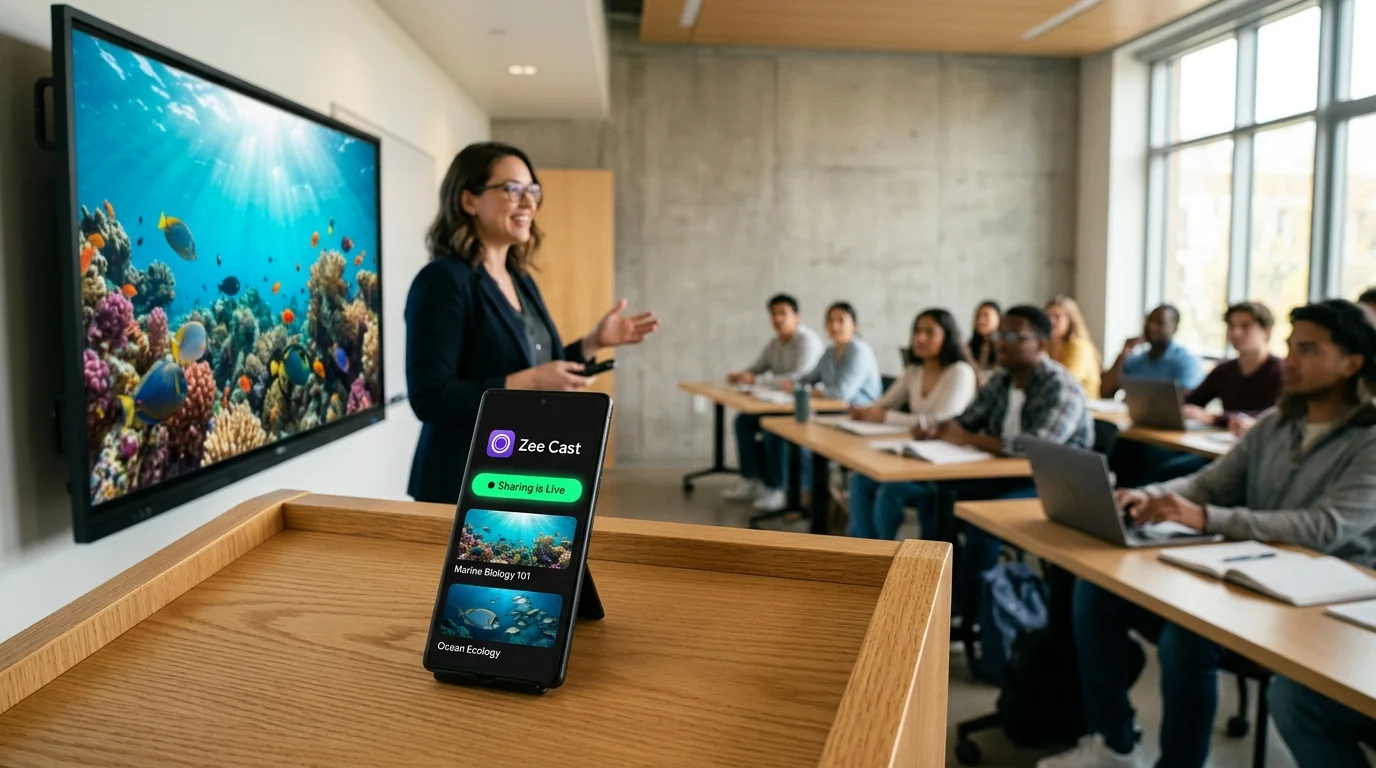
 ⚡ At a Glance: Boardroom Displays Specs ⚡ At a Glance: Boardroom Displays Specs | |
|---|---|
| Target Platform & OS | Executive Boardroom Smart TVs (Samsung, LG, Sony, Sharp, Philips, TCL, Hisense) |
| Protocol & Port | DLNA 1.5 / UPnP MediaServer (Port 8080 HTTP Direct Play) |
| Connection Type | Trainer Phone Hotspot (Completely Offline, 0 MB Cellular Data) |
| Transcoding | None (Direct Play native 4K/1080p video bitstreams to TV hardware) |
| Typical Setup Time | Under 60 seconds (Zero guest Wi-Fi passwords or IT tickets needed) |
The Corporate Facilitator's Pre-Workshop Crisis
As a corporate trainer, executive leadership facilitator, or keynote workshop leader, the first twenty minutes after arriving at a client's corporate headquarters determine the tone of your entire engagement. You have been brought in to teach high-stakes communication, agile leadership, or enterprise change management to twenty senior directors.
You enter the executive boardroom. In the center of the mahogany conference table sits a presentation console; mounted on the wall is an impressive 85-inch 4K commercial display. You have three high-impact multimedia case studies, customer interview reels, and roleplay simulations stored on your device that you need to showcase throughout the day.
Then, the familiar corporate IT friction strikes:
- The Captive Portal Trap: The client's "Guest Wi-Fi" requires an employee sponsor code, an SMS verification PIN that never arrives due to poor basement cell reception, or an IT ticket submitted five days in advance.
- Client AP Isolation: Even when you connect your laptop or phone to the guest network, the client's Cisco Meraki enterprise firewall strictly blocks peer-to-peer traffic, preventing screen casting or device discovery.
- The Dongle Disaster: You packed USB-C to HDMI adapters, but the conference table's HDMI cable is recessed into a locked floor box or permanently wired into a proprietary video switcher that refuses to handshake with your phone.
- USB Port Lockdown: You consider plugging a flash drive into the TV or room PC, only to discover the organization's cybersecurity policy enforces strict Data Loss Prevention (DLP) that physically disables external USB drives.
⚠️ The High Cost of IT Setup Delays
Nothing erodes professional credibility faster than standing before senior leadership while waiting for an internal IT technician to unlock guest Wi-Fi ports. Workshop facilitators need a self-contained, completely sovereign media delivery mechanism that operates independently of the host facility's network infrastructure.
The Sovereign Solution: Zero-Data Hotspot Streaming via Zee Cast
The engineering secret to frictionless boardroom video delivery is establishing your own micro-local network using your mobile phone's Personal Hotspot combined with Zee Cast's local DLNA media server.
By enabling your phone's Wi-Fi hotspot and connecting the boardroom's smart display to that hotspot, you create a private, high-speed, local 5 GHz wireless bridge directly between your phone and the television. You bypass the client's corporate firewall, content filters, captive portals, and IT helpdesk entirely.
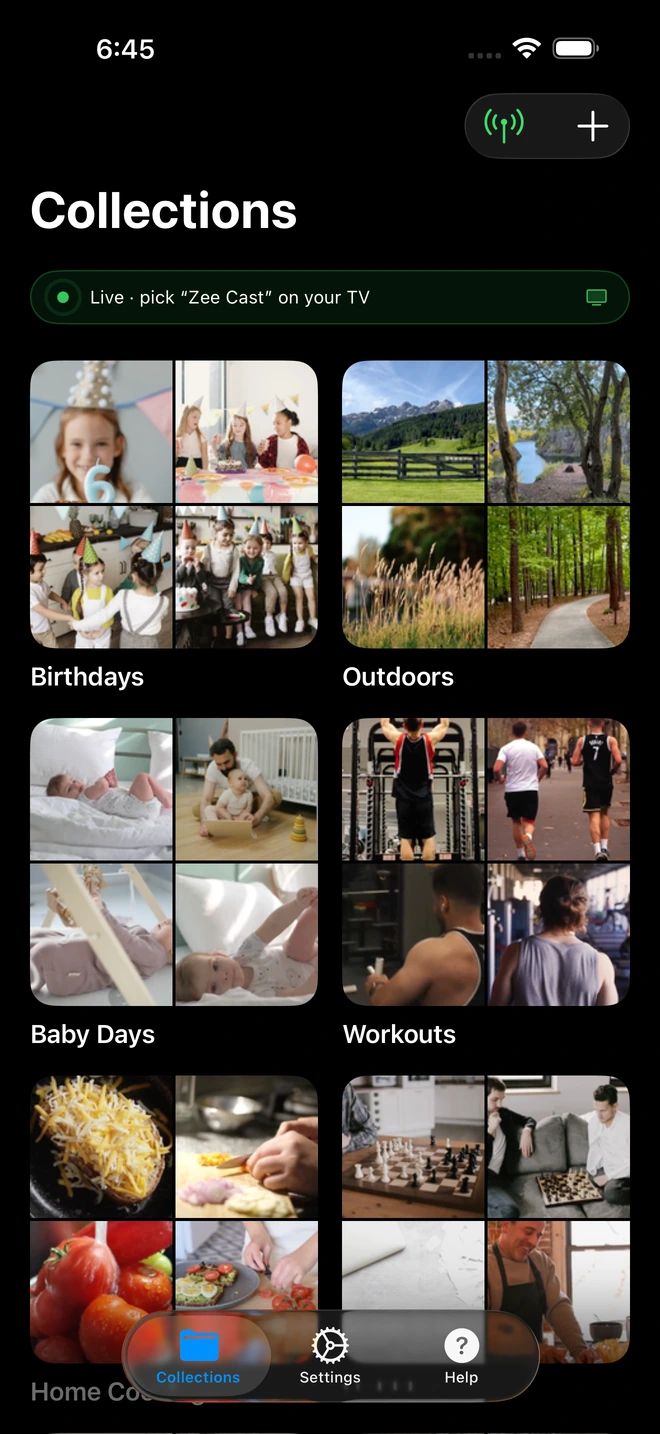
- 1Sharing is Live: TV detects Zee Cast under Connected Devices.
- 2Direct Play streams full-resolution photos & videos without mirroring.
Why Hotspot Streaming Consumes Exactly 0 MB of Cellular Data
A frequent concern among corporate facilitators is mobile data consumption: "If I connect an 85-inch 4K television to my mobile hotspot, won't it drain my monthly cellular data plan in thirty minutes?"
The answer is an unequivocal no. Understanding this requires distinguishing between internet transit and local network routing:
💡 Local LAN vs. Cellular WAN Data Transit
Your cellular mobile data plan is only metered when network packets traverse your mobile carrier's cellular base stations to reach the public internet (WAN). When you stream a video using Zee Cast, the video file is stored entirely on your phone's solid-state flash memory.
The media packets travel strictly over local Wi-Fi radio frequencies (LAN) from your phone's Wi-Fi chip directly to the TV's Wi-Fi receiver. The cellular modem is never engaged. In fact, Zee Cast functions with identical speed even if you toggle cellular data off or operate inside a subterranean concrete vault with zero cell service.
Method Comparison for Corporate Workshop Delivery
Evaluate how Zee Cast Hotspot Streaming compares against standard enterprise presentation methods:
| Capability | Client Corporate Guest Wi-Fi | HDMI Dongles & Adapters | Corporate USB Flash Drive | Zee Cast (Hotspot Direct Play) |
|---|---|---|---|---|
| Corporate IT Approval Required | Yes (Captive portal, sponsor PIN) | No (If port physically accessible) | Yes (Frequently blocked by DLP) | Zero IT Involvement |
| Cellular Data Consumption | N/A (Uses building Wi-Fi) | 0 MB (Physical cable) | 0 MB | Exactly 0 MB Data Consumed |
| Facilitator Phone Multitasking | Varies | Locked to podium cable | N/A (No phone used) | Full (Speaker notes, timers, email) |
| Notification Popup Risk | High (If mirroring screen) | High (If mirroring screen) | None | Zero Risk (Direct video file play) |
| Video Playback Quality | Throttled by guest bandwidth | Direct HDMI quality | Direct TV playback | Pristine 4K 60fps Native Bitstream |
| Room Mobility | Limited by signal | Tethered to 3-foot cable | Fixed at TV screen | Unrestricted Wireless Mobility |
Step-by-Step Boardroom Facilitator Workflow
1. Preparation: Curate Training Modules in Advance
Prior to traveling to your client's office, launch Zee Cast on your phone. Tap Collections > Add Collection. Organize your workshop videos into clear chronological modules:
Module 1 - Morning Icebreaker & Customer VoiceModule 2 - Case Study: Rapid Crisis Response (4K Reel)Module 3 - Executive Simulation Roleplay Prompts
By sandboxing these files into Zee Cast collections, you ensure that personal media and unrelated files are never published over the network.
2. Boardroom Setup: Establish the Local Hotspot
When you enter the conference room:
- 1
Turn On Personal Hotspot
Enable Personal Hotspot in your phone settings. Ensure 5 GHz Wi-Fi is preferred for optimal streaming throughput.
- 2
Connect the Boardroom TV
Using the TV remote, navigate to Settings > Network > Wi-Fi Connection. Select your phone's hotspot name and enter your password. The TV connects immediately.
- 3
Start Sharing in Zee Cast
Open Zee Cast and tap Turn on sharing. Your phone is now actively serving your curated video collections over the private local link.
- 4
Browse and Launch from the TV
Open the TV's native Media Player (or Samsung Home Dashboard, LG SmartShare, Sony Media Player). Select Zee Cast, choose your training module, and press Play.
Multi-Tasking Excellence: Facilitating While Media Plays
One of the greatest operational advantages of Zee Cast over cable-tethered laptops or traditional screen mirroring is complete phone multitasking.
Because the television is pulling the raw video file and decoding it via its own internal graphics chip:
- Review Facilitator Prompts: You can open your session notes, discussion questions, or debrief rubric on your phone while the participants watch the case study video.
- Manage Session Timekeeping: Keep a discreet countdown timer active on your phone screen so you know precisely when to pause and initiate group breakouts.
- Maintain Professional Boundaries: You never have to worry about incoming client Slack messages, personal text alerts, or email banners popping up on the 85-inch display in front of the executive committee.
- Walk the Room Freely: Untethered from the conference table's HDMI cable, you can move around the room, observe team dynamics, and position yourself strategically for the upcoming discussion debrief.
Summary: Flawless Professional Delivery, Every Time
Executive trainers are judged not only on the depth of their curriculum, but also on the seamless polish of their technology delivery. By pairing your mobile device with Zee Cast's offline hotspot streaming, you eliminate guest Wi-Fi bottlenecks, bypass corporate IT bureaucracy, and guarantee flawless, high-definition training media playback in any boardroom worldwide.
Frequently Asked Questions
Why is streaming over a client's corporate guest Wi-Fi so notoriously unreliable?
Enterprise corporate networks are strictly secured by cybersecurity appliances (such as Cisco ISE, Palo Alto Networks, and Fortinet). Guest Wi-Fi networks typically enforce captive portal splash screens (requiring SMS OTP verification or sponsor approval), time-out after 60 minutes, enforce aggressive peer-to-peer (AP client) isolation, and throttle streaming video traffic. These security policies deliberately block local discovery protocols like mDNS and SSDP, making it impossible for your phone to discover or stream to the boardroom television over their guest network.
Will streaming 4K video over my phone's Personal Hotspot exhaust my cellular data plan?
No. This is one of the most significant technical advantages of local DLNA streaming. When your phone acts as a Wi-Fi hotspot and the boardroom TV connects to it, an isolated local area network (LAN) is established. Because your training videos are saved directly on your phone's local internal storage, video data travels strictly over local 5 GHz Wi-Fi radio waves between the phone's wireless chip and the TV's wireless receiver. Zero bits of cellular carrier data are consumed, regardless of whether you stream for 20 minutes or 8 hours.
Why can't I just bring a USB thumb drive with my workshop videos?
Many Fortune 500 corporations, financial institutions, defense contractors, and healthcare facilities enforce strict Data Loss Prevention (DLP) endpoint security. Their conference room displays or connected PC presentation hubs frequently have physical USB ports disabled in the firmware or security policies that flag unrecognized flash drives as potential malware threats. Furthermore, navigating modern TV file systems with an unfamiliar remote control in front of senior executives is slow and unprofessional.
Can I lock my phone screen or review my facilitator notes while the video plays?
Yes! Zee Cast streams the media file directly to the television's hardware decoder in the background. Because it is not mirroring your phone's display screen, you can freely switch apps on your phone to review your slide notes, monitor your session schedule, or answer a client's urgent email without interrupting the video playing on the boardroom TV.
Do I need to ask the client's internal IT department for permission or assistance?
Zero IT involvement is required. By connecting the boardroom TV directly to your phone's offline personal hotspot, you bypass the client's corporate network entirely. You do not need guest credentials, MAC address whitelisting, firewall exceptions, or temporary administrator accounts.
What smart TV operating systems in conference rooms work with Zee Cast?
Zee Cast is compatible with virtually every modern commercial and consumer smart display, including Samsung Smart TVs (Tizen OS), LG commercial and consumer displays (webOS), Sony and Philips Google TVs (Android TV), TCL, Hisense (VIDAA), and Roku TVs. All of these operating systems feature native UPnP/DLNA media players that require zero third-party software installation.
What happens if a participant in the boardroom connects to my hotspot?
With Zee Cast Pro's Device Approval firewall, your phone acts as an active gatekeeper. When any device on the network requests access to your media index, a prompt appears on your phone screen displaying the client's IP address. You can tap 'Allow' for the boardroom TV and 'Deny' for any other device, ensuring your workshop materials and media collections remain private and protected.
Does Zee Cast require an active internet connection to start streaming?
No. Zee Cast requires zero internet connectivity. It functions entirely offline. Whether you are in a windowless subterranean boardroom, an offshore facility, or a rural corporate retreat with zero cellular reception, your hotspot establishes an offline local Wi-Fi network and streams your media flawlessly.
What video formats and codecs are supported for corporate training media?
Zee Cast streams standard MP4, MOV, and MKV containers encoded in H.264 (AVC) or H.265 (HEVC) with AAC or MP3 audio. These formats are universally supported by hardware video processors across all modern commercial displays, ensuring crisp 1080p and 4K playback at 60 frames per second.


