
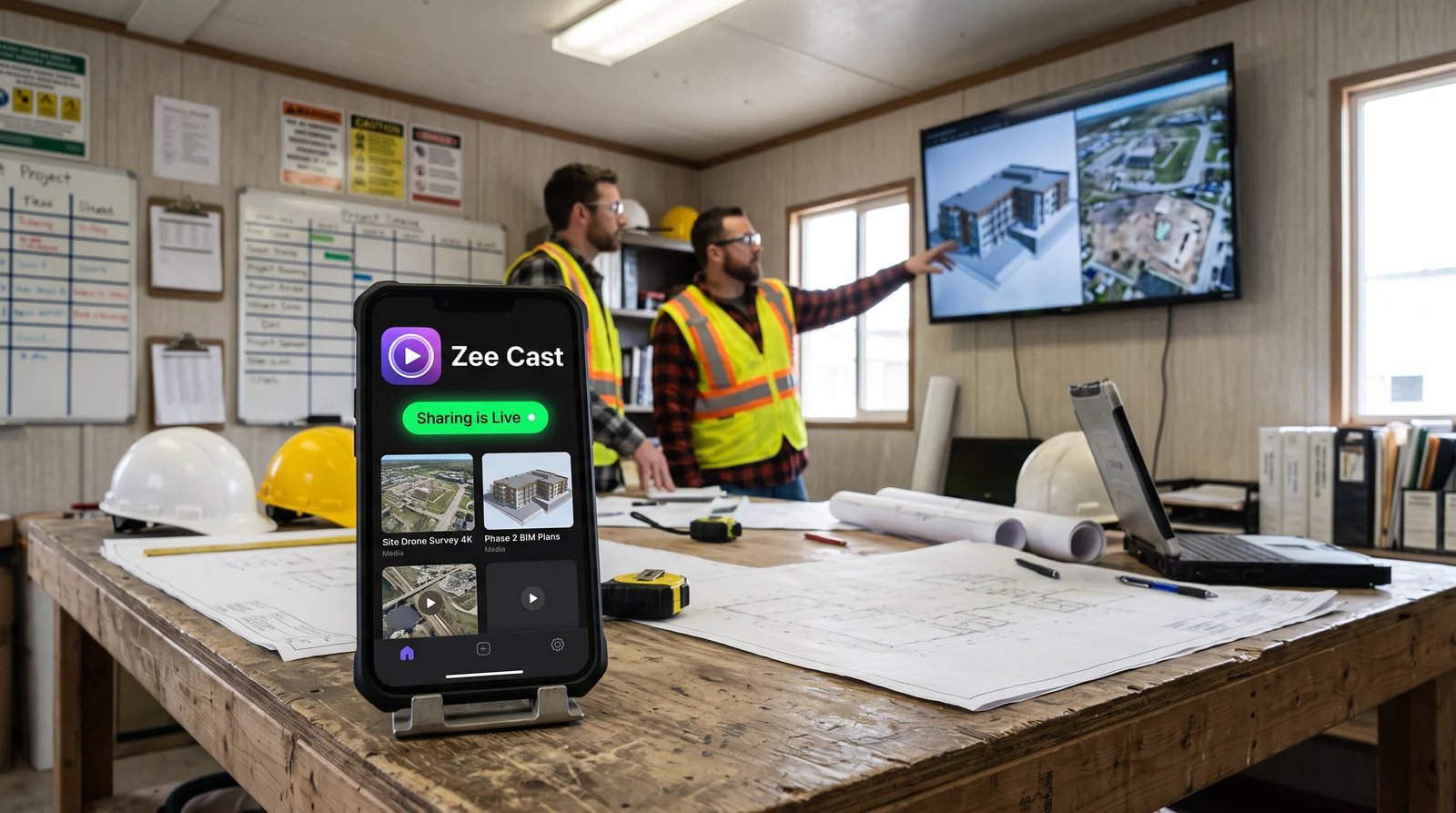
 ⚡ At a Glance: Field Safety Displays Specs ⚡ At a Glance: Field Safety Displays Specs | |
|---|---|
| Target Platform & OS | Job-Site Trailer Smart TVs (Samsung, LG, TCL, Hisense, Roku, Portable Commercial Monitors) |
| Protocol & Port | DLNA 1.5 / UPnP MediaServer (Port 8080 HTTP Direct Play) |
| Connection Type | Trainer Phone Hotspot (Completely Offline, 0 MB Cellular Data) |
| Transcoding | None (Direct Play native 1080p/4K OSHA reels to TV hardware) |
| Typical Setup Time | Under 60 seconds (Zero broadband or cellular data quota needed) |
The Field Reality: Mandatory Safety Training on Zero-Bandwidth Jobsites
For Environmental Health and Safety (EHS) officers, construction superintendents, and industrial compliance trainers, the morning Toolbox Talk is a non-negotiable operational milestone. Across heavy civil construction projects, manufacturing plants, utility substations, mining operations, and oil and gas facilities, OSHA regulations and company safety standards mandate daily or weekly safety briefings before work commences.
Whether reviewing trench collapse hazards, Lockout/Tagout (LOTO) procedures, crane lift zones, or fall protection harnesses, instructional video is proven to dramatically increase hazard recognition and retain worker engagement. In response, general contractors regularly mount 55-inch to 65-inch commercial smart TVs inside field job trailers, safety shacks, and mobile briefing units.
However, delivering high-definition safety videos to these trailer monitors routinely collides with harsh job-site realities:
- Zero Broadband Infrastructure: Construction jobsites in early excavation or civil phases lack fiber, cable, or terrestrial internet connectivity.
- Expensive Mobile Hotspot Limits: Safety officers rely on company-provided smartphones or portable MiFi routers with strict hotspot data caps (often 15 GB to 30 GB per month). Streaming 1080p and 4K compliance videos from YouTube or cloud portals burns through these quotas in days, resulting in aggressive carrier throttling down to 128 kbps.
- Unreliable Remote Cellular Signals: Out on utility rights-of-way, solar farms, or steel-framed industrial buildings, cellular signals fluctuate wildly. A 5-minute safety video that buffers, freezes, or drops out in front of thirty tradespeople destroys meeting momentum and wastes costly crew hours.
- Dust and Broken USB Ports: Flash drives are easily lost, and television USB ports on job sites frequently fail due to exposure to airborne gypsum, concrete dust, and vibration.
⚠️ The True Cost of Cloud Video Streaming in the Field
Streaming a single 15-minute 1080p video from the cloud consumes approximately 500 MB to 1 GB of cellular data. In 4K, that climbs to 2.5 GB. Over twenty working days a month, streaming cloud video during daily safety briefings consumes 20 GB to 50 GB of carrier data - exceeding most enterprise mobile plan allowances and triggering punitive overage charges or severe speed throttling.
The Engineering Breakthrough: Layer 2 Local Hotspot Streaming via Zee Cast
Zee Cast solves the job-site connectivity problem through an ingenious application of local networking principles.
By turning your smartphone into an offline UPnP/DLNA Media Server and connecting the job-site TV to your phone's Personal Hotspot, you create a dedicated high-speed local wireless network (LAN) inside the trailer.
Because your safety videos are stored directly in your phone's internal memory:
- Strictly 0 MB Cellular Data: Video packets travel exclusively over local Wi-Fi electromagnetic frequencies directly between your phone's wireless antenna and the TV's Wi-Fi card. Zero data packets travel to cellular cell towers or the public internet.
- 100% Offline Autonomy: Zee Cast functions with identical speed even if your phone has zero cellular bars, is in Airplane Mode (with Wi-Fi active), or is operating inside a subterranean concrete bunker.
- Instant, Buffer-Free Playback: Because there is zero internet latency, 4K and 1080p videos launch instantly with zero buffering, stutter, or dropped frames.
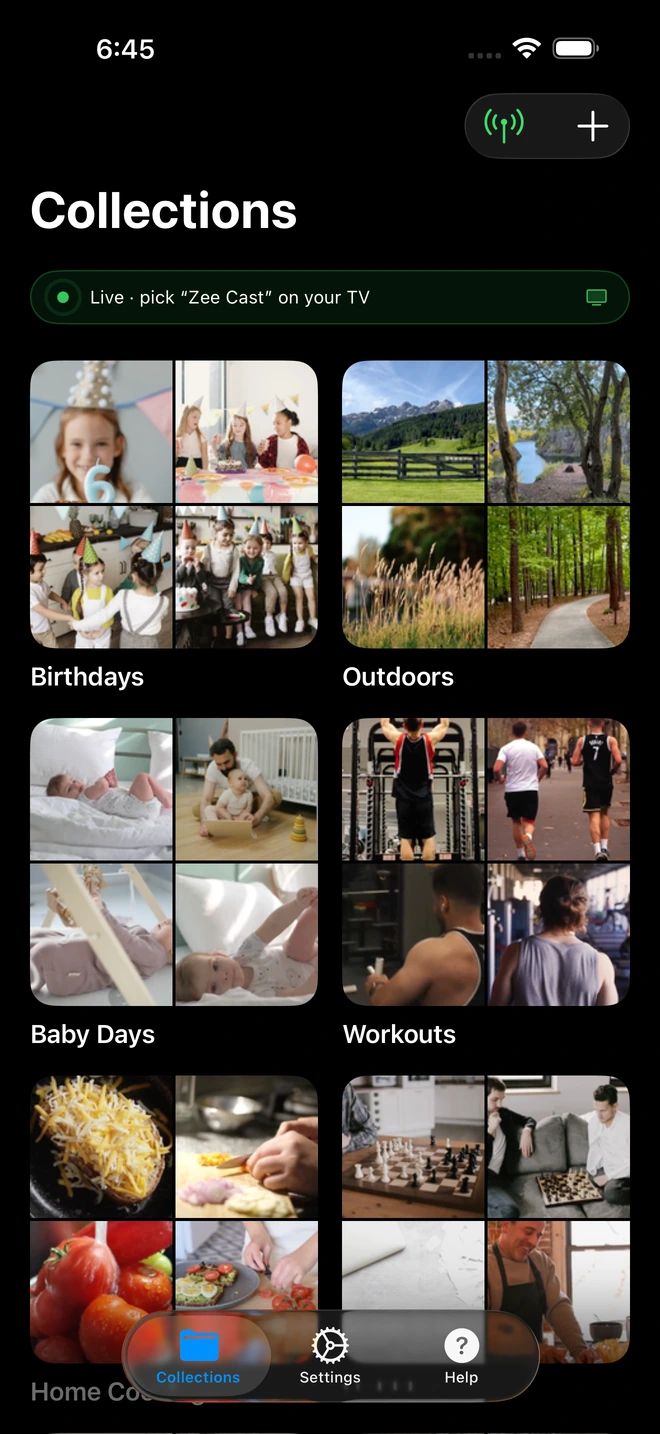
- 1Sharing is Live: TV detects Zee Cast under Connected Devices.
- 2Direct Play streams full-resolution photos & videos without mirroring.
Job-Site Presentation Method Comparison
See how Zee Cast Hotspot Streaming compares against standard job-site safety briefing methods:
| Capability | Cloud Streaming (YouTube/Cloud) | USB Flash Drive | Laptop Tethered via HDMI | Zee Cast (Hotspot Direct Play) |
|---|---|---|---|---|
| Carrier Cellular Data Consumed | 20–50 GB / month (Severe caps) | 0 MB | 0 MB (If files offline) | Exactly 0 MB Data Consumed |
| Works in Zero-Cell-Signal Zones | No (Requires strong signal) | Yes | Yes | 100% Offline (Zero Signal Needed) |
| Durability in Dusty Trailers | N/A | Poor (Broken/clogged USB ports) | Delicate (Dust in laptop fans) | Wireless (No physical ports used) |
| Safety Trainer Multitasking | Varies | N/A | Laptop locked to presentation | Full (Log attendance, checklists) |
| Notification Popup Protection | Poor (If mirroring screen) | Complete | Poor (Desktop notifications) | 100% Private (No alerts on TV) |
| Setup Time Before Morning Meeting | 2–4 minutes (Buffering) | 2–3 minutes (Clunky TV remote) | 3–5 minutes (Boot, cable, adapter) | < 30 seconds |
Step-by-Step EHS Field Workflow
1. Pre-Load Monthly Safety Topics at Head Office
Before deploying to the field, download your monthly safety modules while connected to office Wi-Fi. In Zee Cast, tap Collections > Add Collection and organize your briefing videos into clear modules:
Week 1: Trenching & Excavation Competent Person GuideWeek 2: Heavy Equipment Blind Spots & Spotter ProtocolWeek 3: Electrical Safety & Arc Flash Precautions
2. Establish the Job-Site Hotspot Link
- 1
Enable Personal Hotspot
Turn on Personal Hotspot on your mobile device. Ensure 5 GHz Wi-Fi is active for optimal transmission speed.
- 2
Connect the Trailer TV
Using the TV remote, navigate to Settings > Network > Wi-Fi and connect to your phone's hotspot. The TV connects immediately.
- 3
Start Sharing in Zee Cast
Launch Zee Cast on your phone and tap Turn on sharing. Your phone is now actively serving your safety modules locally.
- 4
Launch Briefing from the TV
Open the TV's native Media Player (or Samsung Home Dashboard, LG SmartShare, Roku Media Player) and select Zee Cast. Choose your safety module and press Play.
EHS Officer Efficiency: Multitasking While Safety Media Plays
During a 15-minute morning toolbox talk, the safety officer's time is precious. Because Zee Cast streams the media file directly to the TV's internal processor in the background:
- Log Worker Attendance: Open Procore, SafetyCulture (iAuditor), or HammerTech on your phone to check off attending craft workers without interrupting the video on screen.
- Review Today's Work Permits: Consult hot work permits, confined space entry logs, or JSA (Job Safety Analysis) forms on your phone while the crew watches the demonstration.
- Maintain Full Communication Privacy: Incoming emails from project managers, text messages, or phone calls remain private on your mobile device; they never flash across the job trailer display.
Summary: Reliable Safety Briefings Anywhere, Anytime
Industrial safety meetings cannot be compromised by buffering video, broken USB ports, or exhausted mobile data caps. By pairing your mobile device with Zee Cast's 0 MB data hotspot streaming, EHS professionals and field superintendents ensure high-impact, professional, and reliable safety briefings across every job site.
Frequently Asked Questions
How does streaming over a mobile hotspot consume 0 MB of cellular carrier data?
Cellular data quotas are metered strictly when internet packets travel through your mobile carrier's cellular cell towers to the external internet (WAN). When you enable your phone's Personal Hotspot and connect a job-site TV to it, your phone creates a local wireless local area network (LAN). Because your safety training videos are stored directly in your phone's internal storage, Zee Cast transmits the video packets strictly over local Wi-Fi radio waves directly between the phone and the TV. The cellular network is never touched, consuming exactly 0 KB of carrier data.
Does Zee Cast work in remote areas with zero cell phone service or bars?
Yes! Zee Cast requires zero cellular reception and zero internet connectivity. Whether you are in a subterranean tunnel, a rural pipeline right-of-way, an offshore oil platform, or a concrete basement with 'No Service', your phone's Wi-Fi hotspot chip still broadcasts a local Wi-Fi network that the trailer TV connects to. Your offline videos stream with flawless 4K speed.
Why not just stream safety videos directly from YouTube or company cloud portals?
Streaming high-definition 1080p or 4K video from YouTube, Vimeo, or company cloud portals in the field rapidly exhausts mobile hotspot limits. A 20-minute 4K video streamed over cellular consumes 2 to 4 GB of carrier data; with daily morning briefings, an EHS manager will exhaust a 15 GB or 30 GB monthly data plan in less than a week, triggering carrier throttling down to an unusable 128 kbps. Moreover, remote jobsites frequently have spotty 3G/LTE connections that cause endless buffering in front of impatient crews.
Why is Zee Cast superior to using a USB flash drive in a construction trailer?
While USB drives are offline, job-site trailers are harsh environments: USB ports on trailer TVs frequently break, become clogged with drywall or concrete dust, or fail to read newer video codecs. Furthermore, modern TV file managers are cumbersome to navigate using tiny plastic remotes. With Zee Cast, safety officers curate clean, labeled collections on their phone and launch them effortlessly.
Can I lock my phone screen or take safety inspection notes while the video plays?
Yes! Zee Cast is not a screen-mirroring tool; it serves the raw video file in the background directly to the television's hardware decoder. You can lock your phone screen, pocket the device, or open your field auditing app (such as Procore, SafetyCulture / iAuditor, or HammerTech) to log worker sign-in rosters while the video plays continuously on the screen.
Will field crew members see my personal notifications or messages on the TV?
Never. With Zee Cast Direct Play, personal text messages, emergency phone calls, safety director emails, and WhatsApp alerts remain strictly on your phone. The television receives only the specific safety video file you selected. Your personal life and device camera roll remain 100% private.
Can unauthorized workers or subcontractors cast unwanted media to the trailer TV?
With Zee Cast Pro's Device Approval firewall, your phone enforces an active inbound whitelist. When any device attempts to connect to your media server, you receive an immediate alert on your phone displaying their IP address. You tap 'Allow' for the job-site TV and 'Deny' for any other device, preventing unauthorized access.
What television brands and portable displays are supported in field trailers?
Zee Cast is compatible with virtually all smart TVs and portable monitors found in job trailers, including Samsung Tizen, LG webOS, TCL, Hisense (VIDAA / Android TV), Sony, and Roku TVs, as well as HDMI streaming sticks (Fire TV, Google TV, Apple TV) running native media players.
Can we loop safety reminders continuously throughout the workday?
Yes! Using the trailer TV media player's loop/repeat function, you can set short 30-second hazard reminders, PPE requirements, or evacuation maps to loop continuously all day in the trailer break room without consuming a single byte of internet data.


