
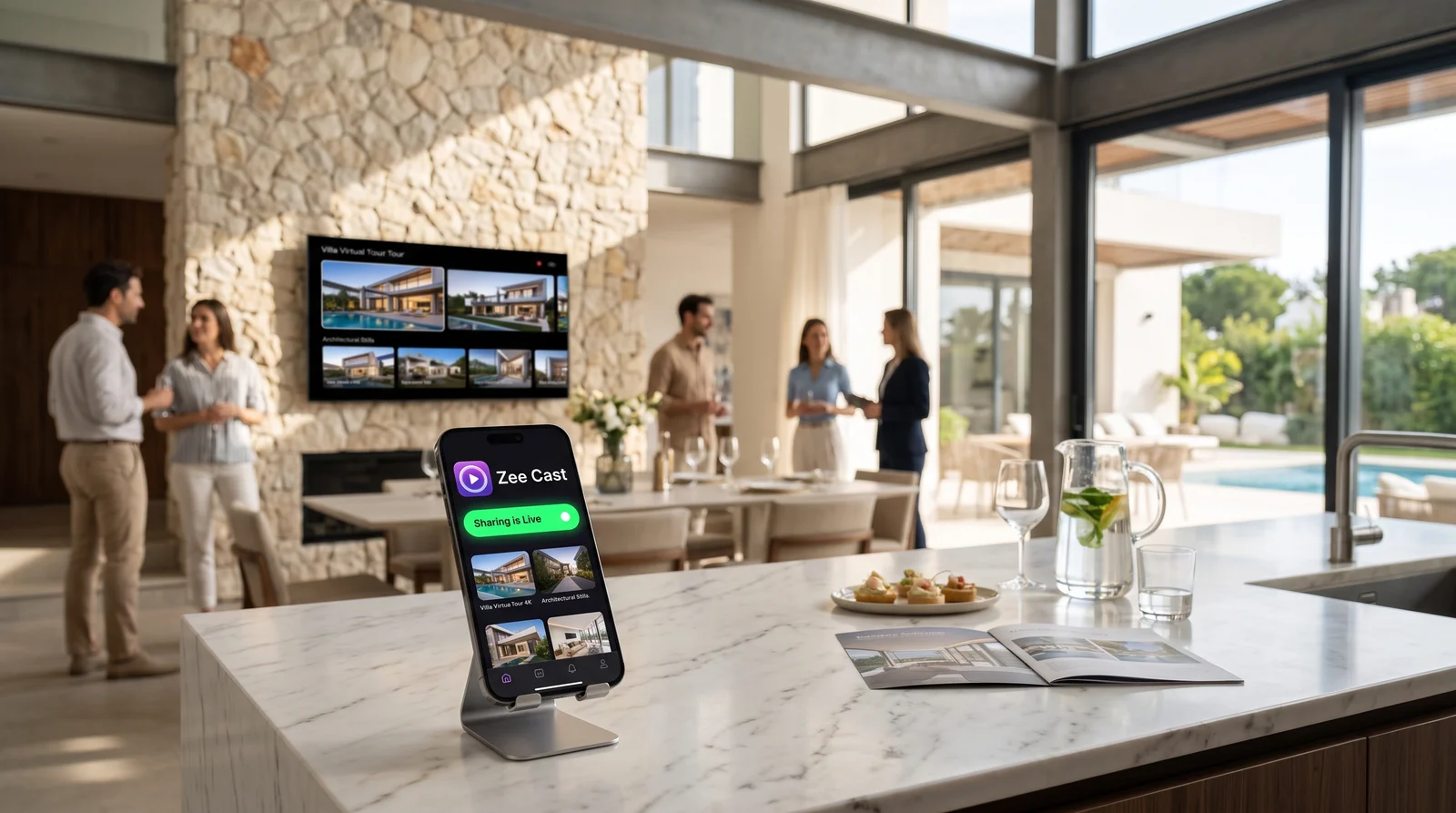
 ⚡ At a Glance: Showroom Display Firewall Specs ⚡ At a Glance: Showroom Display Firewall Specs | |
|---|---|
| Target Platform & OS | Retail Showrooms & Auto Dealership Smart TVs (Samsung, LG, Sony, Phillips) |
| Protocol & Port | DLNA 1.5 MediaServer with Per-IP Device Approval Firewall (Port 8080) |
| Connection Type | Showroom Local Wi-Fi (VLAN or Flat Network with Hardware Isolation) |
| Transcoding | None (Direct Play original brand demo reels to TV hardware decoder) |
| Typical Setup Time | < 2 minutes (Toggle Device Approval, click 'Allow' for showroom TV IP) |
The Showroom Nightmare: The Vulnerability of Public Smart Displays
Modern automotive dealerships, flagship fashion boutiques, luxury appliance galleries, and electronics retail floors rely heavily on large-format 4K smart TVs. Mounted prominently in customer lounges, sales consultation booths, and entrance atriums, these 75-inch and 85-inch displays continuously showcase high-production-value brand reels, vehicle walkarounds, craftsmanship documentaries, and promotional pricing.
To provide a hospitable customer experience, virtually every modern showroom provides high-speed complimentary guest Wi-Fi. But this convenience harbors a glaring security flaw:
The Hijacking Threat: When a consumer smart TV is connected to the same local network subnet as visiting shoppers, consumer casting protocols - such as Apple AirPlay 2, Google Cast, and DIAL - broadcast the television's identity across the entire room. Anyone with a smartphone can swipe into their Control Center or open YouTube, tap the cast icon, and blast unauthorized video content across your main showroom display.
Incidents across retail dealerships are surprisingly frequent and commercially devastating:
- Rival Brand Pranks: A mischievous competitor or savvy shopper walking through a Mercedes-Benz showroom casts a BMW commercial onto the 85-inch atrium display during a busy Saturday sales rush.
- Offensive Content & Viral Pranks: Bored teenagers waiting in customer service lounges broadcast explicit internet memes or loud shock videos, creating severe brand liability and offending families.
- PIN Code Disruption: Even when administrators set an AirPlay PIN, random casting attempts trigger intrusive pop-up dialog boxes ("AirPlay Passcode: 4892") that freeze the screen and interrupt crucial marketing reels during client negotiations.
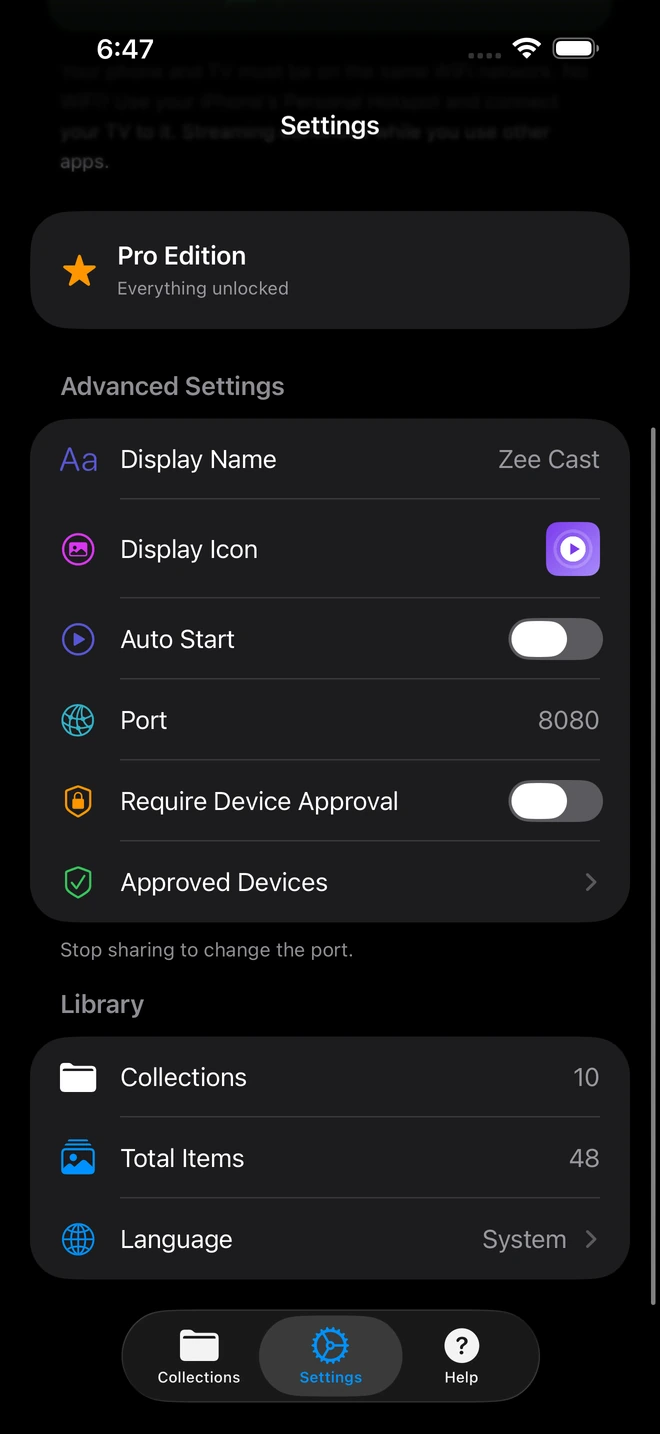
- 1Device Approval gates every connection request.
- 2Only approved screens can browse or stream selected media.
Why Traditional Television Security Controls Fall Short
Store managers and IT coordinators have attempted various band-aids to secure showroom screens, with disappointing results:
| Security Approach | Implementation Friction | Vulnerability to Pranks | Operational Impact |
|---|---|---|---|
| Consumer AirPlay PIN | Low (Built into TV OS) | High (PIN dialog freezes screen when shoppers probe) | Interrupts brand reels; ruins sales atmosphere |
| VLAN Network Segmentation | High (Requires managed enterprise switches & IT) | Medium (Staff often bridge networks accidentally) | Sales reps cannot easily connect tablets to TVs |
| Physical HDMI Thumb Sticks | Low (Commercial USB drives) | Low (No network connection) | Cannot update videos remotely; players crash frequently |
| Zee Cast Device Approval Firewall | Zero IT overhead (< 2 min setup) | Zero Vulnerability (Unapproved IPs blocked) | Smooth, uninterrupted 4K brand playback all day |
The Architecture of Zee Cast Device Approval
To completely eliminate display hijacking while maintaining effortless wireless media playback, Zee Cast Pro introduces an enterprise-grade security mechanism: Per-IP Device Approval.
Rather than relying on vulnerable push-casting protocols that accept incoming video commands from anyone on the network, Zee Cast functions as a high-performance pull-based DLNA MediaServer with a hardened request firewall:
- Socket Interception: When any device on the network sends an HTTP request to Zee Cast's streaming port (TCP port 8080), the socket connection is immediately suspended in the app's networking layer (utilizing a thread-blocking
DispatchSemaphoreon iOS orCountDownLatchon Android). - IP Whitelist Validation: Zee Cast queries its internal security store (
approved_devices_v1.json). If the requesting device's IP address matches a previously verified showroom television, the socket opens instantly and media is served. - Active Gatekeeper Alert: If an unknown device (e.g., a customer's iPhone running a network scanner or DLNA probe) contacts the port, Zee Cast halts the request and triggers an immediate alert on the store manager's tablet. Unapproved requests receive an immediate
403 Forbiddenresponse or silent socket termination.
Step-by-Step Implementation: Locking Down Your Showroom Displays
Step 1: Shut Down Push-Cast Receivers on Showroom TVs
Using the television's physical remote control, permanently disable consumer push broadcasting:
- Samsung Tizen TVs: Open Settings > General > Apple AirPlay Settings and toggle AirPlay to Off. In Network Settings, ensure Device Connection Manager is set to require access permission.
- LG webOS TVs: Open the Home Dashboard, select the AirPlay tile, press AirPlay and HomeKit Settings, and turn AirPlay Off.
- Sony Bravia / Android TVs: Open Settings > Apps > System Apps, locate Chromecast built-in, and select Disable.
Result: Rogue customers scanning for casting targets from YouTube, TikTok, or Control Center will find zero available screens.
Step 2: Install Zee Cast on the Showroom Media Hub
Install Zee Cast on a designated store device (e.g., an iPad Mini at the reception desk, a wall-mounted management tablet, or a sales manager's phone). Open Zee Cast, upgrade to Zee Cast Pro, and navigate to the Settings tab. Toggle Device Approval to ON.
Step 3: Whitelist the Showroom TV IP Address
Create a collection named "Showroom 4K Brand Reel" containing your latest vehicle walkarounds, trim packages, and high-definition marketing videos. Tap Turn on sharing.
On the showroom TV remote, launch the pre-installed media browser (e.g., Samsung Connected Devices or LG Photo & Video) and select Zee Cast.
A security notification immediately pops up on your management tablet: "Device Connection Request from 192.168.1.105 (Samsung QLED 85)". Tap Allow. That display is now permanently authenticated in approved_devices_v1.json.
Step 4: Continuous, Uninterrupted Brand Playback
Press Play on the television remote and activate repeat mode. The television now streams directly from Zee Cast's local server in full 4K 60fps HDR. If any curious shopper attempts to scan your network or connect to the port, they are met with a brick wall. Your showroom displays remain 100% professional, pristine, and secure all day.
Frequently Asked Questions
Why are showroom floor smart TVs frequently hijacked by customers?
Car dealerships, luxury boutiques, fitness clubs, and electronics retailers routinely provide open guest Wi-Fi for their customers. Simultaneously, showroom smart TVs are connected to this same local subnet so sales reps can demonstrate features. Because modern consumer televisions ship with Apple AirPlay 2, Google Cast, and DIAL protocols enabled by default, any customer with an iPhone or Android phone on the showroom Wi-Fi can see the 85-inch display in their YouTube or Control Center menu and broadcast videos, prank reels, or offensive clips with a single tap.
Why don't standard TV AirPlay PIN codes solve this problem effectively?
While Apple AirPlay allows setting an on-screen PIN code, this causes severe operational friction on a retail floor. Every time a bored teenager or malicious passerby attempts to cast to the TV, a massive 4-digit PIN dialog box interrupts your official marketing reel and freezes on the screen. Even worse, if staff share the PIN or if it is accidentally displayed during a sale, anyone in the showroom can subsequently commandeer the screen without notice.
How does Zee Cast Pro's 'Device Approval' security engine work technically?
Zee Cast Pro implements a strict per-IP authorization firewall at the HTTP socket handler layer. When an external client issues an SSDP M-SEARCH or HTTP GET request to port 8080, the request thread is halted (using DispatchSemaphore on iOS or CountDownLatch on Android). The IP address is checked against approved_devices_v1.json. If unrecognized, Zee Cast triggers an instant push notification on the administrator's phone: 'Allow' or 'Deny'. Unapproved clients receive an immediate HTTP 403 Forbidden or socket termination, preventing rogue devices from discovering or interacting with the media stream.
Can rogue devices inject competitor advertisements into our showroom screens?
Not when using Zee Cast with AirPlay disabled. By shutting off public push protocols (AirPlay and Google Cast) and routing all display media through Zee Cast's pull-based DLNA server, the TV only accepts video streams requested by its own hardware media client from an authorized local server. External customer phones have zero architectural mechanism to push media onto the screen.
What happens if a customer scans the local network using a Wi-Fi packet analyzer?
Even if a tech-savvy customer runs network diagnostic tools like Fing or Nmap on the showroom Wi-Fi, Zee Cast's Device Approval firewall silently drops unauthorized requests from unrecognized IP addresses. The server will not return DIDL-Lite XML metadata or CDS directory listings to unauthorized IPs, keeping your internal brand reels and assets completely shielded.
Can showroom sales reps still easily switch between vehicle demos and trim options?
Yes. Authorized staff can either manage media playback directly using the TV's physical remote control or use the designated showroom tablet running Zee Cast to switch collections. The lockdown only prevents unauthorized customer devices from hijacking the feed; internal operational flexibility is fully preserved.
Does the Device Approval whitelist survive app restarts and power cycles?
Yes. Whitelisted IP addresses and MAC associations are permanently persisted in approved_devices_v1.json on the host device's local filesystem. Once you approve the showroom's primary TV display, it remains authorized across app updates, tablet restarts, and store power cycles.
Can I manage multiple showroom displays from a single Zee Cast device?
Yes. Zee Cast can simultaneously serve multiple approved smart TVs across your showroom floor (e.g., reception lounge, customer waiting area, and sales consultation pods). Each television can be independently authorized by IP and stream the same or different media collections from the host device.
What is the best network configuration for a commercial retail showroom?
The gold-standard security configuration is network segmentation: place customer guest devices on a separate VLAN with client isolation enabled, while reserving showroom smart TVs and staff tablets on a dedicated internal Wi-Fi SSID. However, in environments where network infrastructure is unmanaged or simple, Zee Cast's built-in Device Approval firewall provides rock-solid application-layer security regardless of network architecture.


