
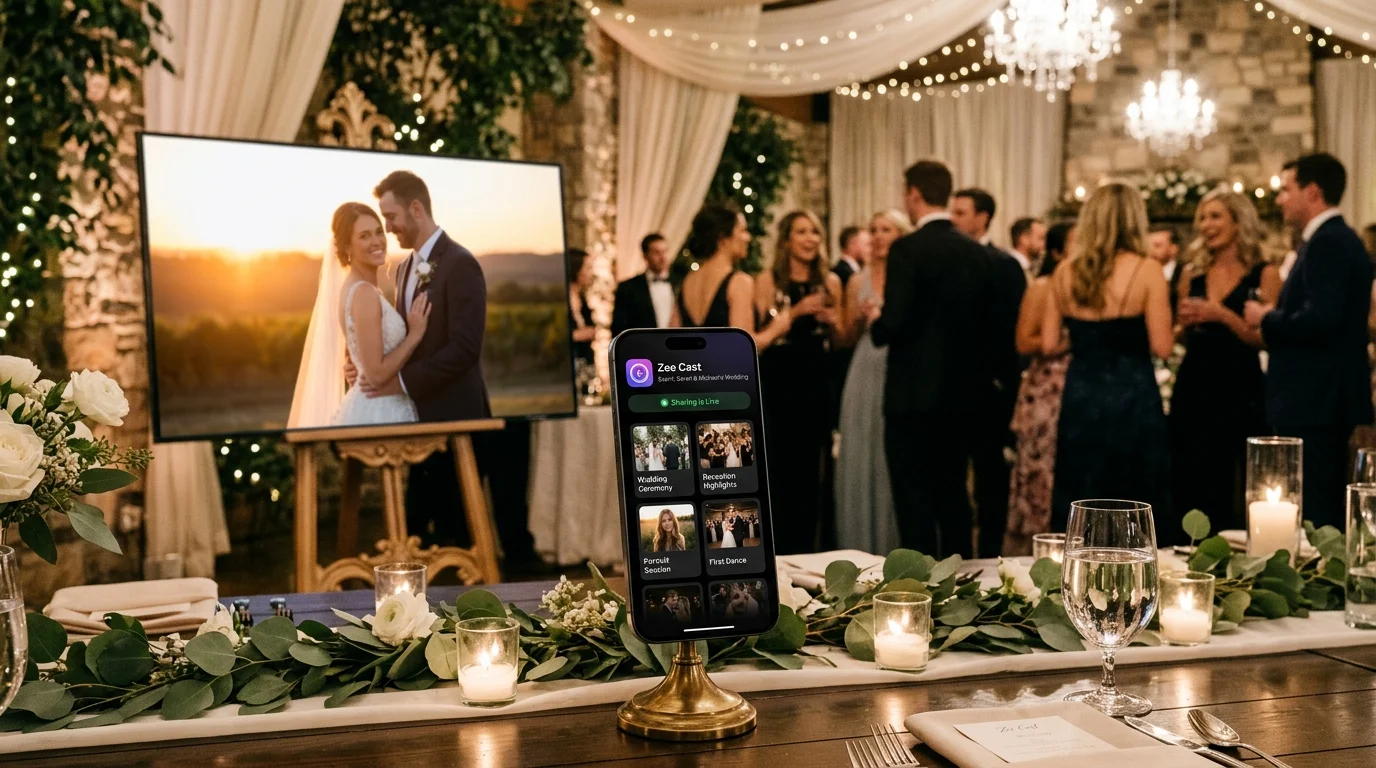
 ⚡ At a Glance: Circle Time Displays Specs ⚡ At a Glance: Circle Time Displays Specs | |
|---|---|
| Target Platform & OS | Preschool & Daycare Smartboards (SMART Board, Promethean, ViewSonic, Apple TV, Google TV) |
| Protocol & Port | UPnP / DLNA 1.5 Background MediaServer (Port 8080 Direct Play) |
| Connection Type | Classroom Wi-Fi or TA Phone Hotspot (0 MB Internet Data) |
| Transcoding | None (Direct Play native MP4/MOV high-res storybooks to smartboard) |
| Typical Setup Time | 30 seconds (Uninterrupted video while teacher freely uses phone) |
The Reality of Early Childhood Education: Constant Multitasking
In a preschool, nursery, or daycare classroom, Circle Time is the foundational anchor of the daily schedule. Between 9:00 AM and 9:45 AM, fifteen to twenty toddlers and four-year-olds gather on the colorful classroom rug for morning greetings, weather observation, phonics songs, and visual storybook readings on the classroom's 65-inch or 75-inch smartboard.
For preschool teaching assistants (TAs) and lead early childhood educators, Circle Time is also the single most demanding logistical period of the morning. While the children are engaged with an educational movement video or animated rhyming book, educators are legally required to perform critical operational duties:
- Attendance & Ratio Headcounts: Logging student check-ins on childcare management platforms such as Brightwheel, Procare, Tadpoles, or HiMama.
- Allergy & Medical Tracking: Verifying morning snack dietary restrictions and administering scheduled medications.
- Parent Engagement & Portfolios: Capturing documentary milestone photographs of children completing fine-motor activities or participating in circle songs.
- Administrative Messaging: Communicating with the front office regarding pickup changes, emergency parent messages, or nurse visits.
- Classroom Timekeeping: Running visual timers to signal impending transitions to centers or outdoor recess.
⚠️ The Screen Mirroring Breakdown in Early Childhood Rooms
When early childhood educators attempt to run circle time using standard screen mirroring (such as Apple AirPlay Mirroring or Google Cast), the entire system breaks down the moment they try to do their job:
- The App-Switch Cutoff: The moment a teacher switches to Brightwheel to log attendance or opens the camera to snap a photo, the sing-along video immediately vanishes from the smartboard. Toddler attention evaporates within three seconds, leading to chaos on the rug.
- Accidental Camera Roll Exposure: When swiping through the gallery to find the next song, the teacher's personal weekend photos or photos of other children (who may have photo-opt-out privacy restrictions) flash across the 75-inch board.
- Private Notification Leaks: Text messages from family members, doctor's appointment reminders, or urgent staff notifications pop up directly on the big screen in front of teaching aids and visiting parents.
The Engineering Solution: Background DLNA Direct Play via Zee Cast
Zee Cast solves the early childhood multitasking crisis by completely decoupling video playback from the teacher's phone screen.
Instead of mirroring your phone's display buffer, Zee Cast operates as a lightweight, sandboxed background UPnP/DLNA media server:
- Continuous Background Playback: The smartboard pulls the circle time video directly from your phone's storage. You can switch apps, log diaper times, send messages, or even turn your phone screen completely off without the song stopping for a fraction of a second.
- Full Camera Freedom: Open your phone's native camera app and snap high-resolution learning portfolio pictures while the sing-along video plays smoothly on the big screen.
- Sandboxed Curated Playlists: You curate only the exact nursery rhymes, movement songs, and educational animations needed for circle time. Your personal photo library and student portfolio shots remain completely hidden from the TV.
- Zero Notification Intrusion: Incoming texts, calls, and app alerts stay strictly on your phone in your pocket; they never appear on the classroom display.
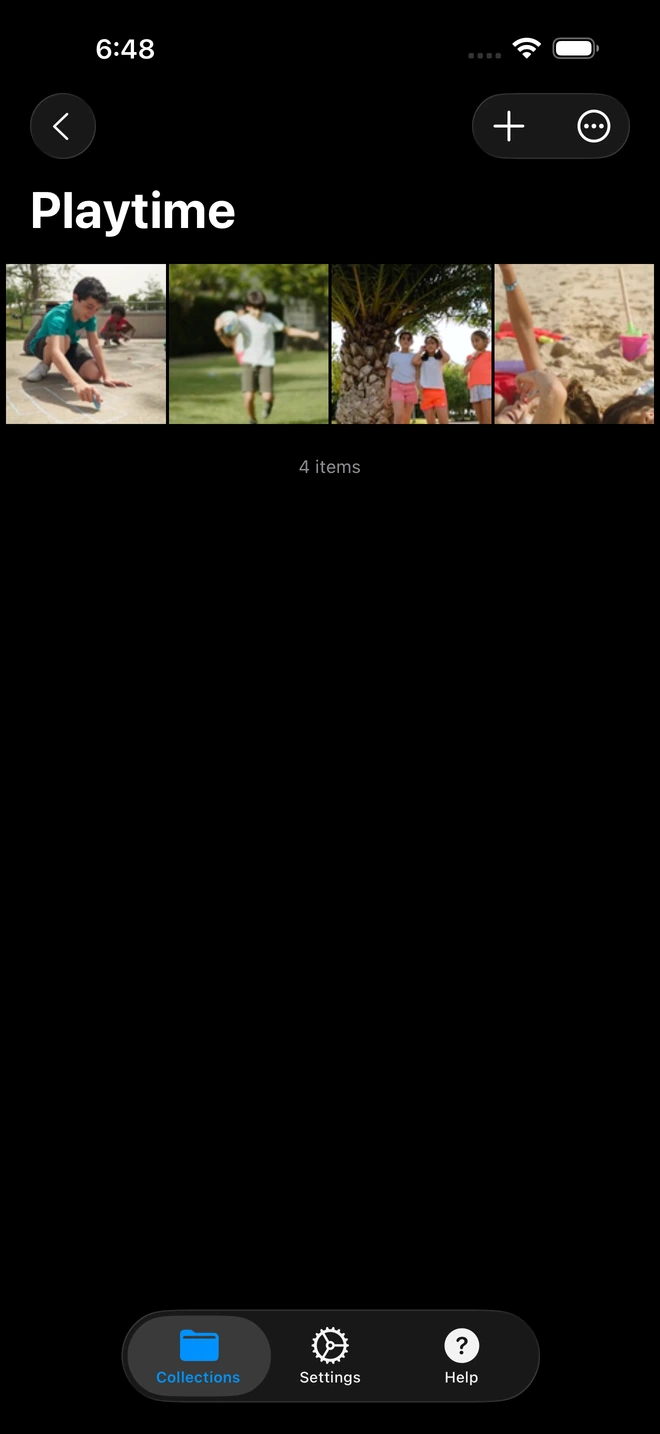
- 1Only selected preschool videos are visible on the smartboard.
Preschool Media Delivery Comparison Matrix
See how Zee Cast background streaming compares to other common early childhood audio-video methods:
| Capability | Screen Mirroring (AirPlay/Cast) | Bluetooth Speaker Only | Old CD / DVD Player | Zee Cast (Background DLNA) |
|---|---|---|---|---|
| High-Def Visuals on Smartboard | Yes (Choppy 30fps) | No (Audio only) | Standard Def 480p | Pristine 1080p / 4K 60fps |
| Phone Free for Attendance / Brightwheel | No (Cuts video immediately) | Yes (Audio continues) | Yes (No phone used) | 100% Free to Multitask |
| Take Portfolio Photos with Phone Camera | No (Interrupts TV stream) | Yes | Yes | Full Camera Access (Zero Glitch) |
| Notification Popup Protection | Zero (Alerts show on board) | Complete | Complete | 100% Private (No alerts on TV) |
| Private Photo Roll Protected | No (Gallery exposed) | N/A | Complete | Completely Sandboxed |
| Phone Battery & Thermals | High heat, rapid drain | Moderate battery | N/A | Low power (Screen can sleep) |
Step-by-Step Preschool Circle Time Workflow
Step 1: Build Your Morning Song Routine in Zee Cast
Before children arrive, open Zee Cast on your phone. Tap Collections > Add Collection and title it Morning Circle Time - Week 6. Add the morning welcome song, days of the week animation, phonics rhyme, and clean-up transition video.
Step 2: Start Sharing Over Classroom Wi-Fi
Tap Turn on sharing. Zee Cast begins its lightweight background media service. If your daycare's Wi-Fi network has strict guest isolation, simply turn on your phone's Personal Hotspot and connect the smartboard to it (local streaming consumes 0 MB of cellular data).
Step 3: Launch Playback on the Smartboard
- 1
Open Media Player on Smartboard
Using the smartboard remote or touch menu (Promethean, SMART Board, ViewSonic, Apple TV, or Google TV), open the native Media Player or Files app.
- 2
Select Zee Cast
Tap Zee Cast from the discovered media devices list, navigate to your
Morning Circle Timecollection, and tap Play on the opening song. - 3
Multitask Freely with Your Phone
While the children sing and dance along with the 75-inch smartboard, switch to Brightwheel to log attendance, review dietary allergy notes, or snap milestone photos with your camera. The video on the board never stutters or drops!
💡 Pro-Tip: Quiet Naptime Looping
During afternoon rest time, use Zee Cast to stream high-definition soothing nature loops (such as gentle rainfall, underwater sea turtles, or soft forest animations) with ambient classical lullabies. Set the smartboard media player to repeat, lock your phone, and let the relaxing media guide children smoothly into naptime.
Summary: Seamless Technology for Caring Classrooms
Early childhood educators deserve digital tools that adapt to the reality of dynamic nursery and preschool environments. By switching to Zee Cast background streaming, teaching assistants and preschool teachers can deliver engaging, high-resolution multimedia circle times while retaining complete freedom to manage classroom safety, documentation, and care routines.
Frequently Asked Questions
Why does screen mirroring fail early childhood educators during circle time?
Screen mirroring (like Apple AirPlay Mirroring or Google Cast Screen Mirror) creates a rigid 1-to-1 duplicate of your phone screen on the classroom smartboard. In a fast-paced preschool room, educators must constantly multitask: logging diaper changes, marking snack allergies, recording attendance in Brightwheel or Procare, and snapping milestone photos for parent portfolios. With screen mirroring, the second you switch away from the video to check an app or snap a photo, the children's song instantly cuts out, causing toddler distraction and room meltdowns.
Can I take photos of students while the circle time video is playing on the smartboard?
Yes! Because Zee Cast streams the video file directly to the smartboard's hardware decoder over the local network, your phone's camera, screen, and operating system are completely independent. You can open your phone's camera app to photograph children engaged in block building or sensory play, and the sing-along video will continue playing seamlessly on the smartboard without a stutter.
Can parents or students see my personal text messages on the smartboard?
Never. With Zee Cast Direct Play, incoming SMS notifications, WhatsApp messages, emergency family phone calls, and private alerts never appear on the smartboard. The television is only pulling the raw video file that you curated. Your mobile screen and notifications remain 100% private.
How does Zee Cast help early childhood educators comply with COPPA and privacy laws?
Early childhood centers must exercise extreme caution regarding children's personal identifiable information and photo documentation. With screen mirroring, opening your device's photo gallery to locate an educational clip risks exposing photos of other children whose parents may have opted out of photo sharing. With Zee Cast, only the explicitly selected educational media clips are indexed into your collection; your private photo library and children's portfolio pictures remain completely inaccessible to the smartboard.
Does Zee Cast require internet bandwidth or Wi-Fi data?
No. Zee Cast streams strictly across your classroom's local Wi-Fi or phone hotspot. Zero internet data is consumed. If your daycare center has slow or unreliable broadband, your circle time videos will still play in flawless 4K or 1080p without buffering or dropped connections.
Can I lock my phone screen to save battery while the song is playing?
Yes! Once you initiate playback on the smartboard, you can turn off your phone screen and place the phone in your pocket or on your teacher shelf. Zee Cast continues serving the media in the background, keeping your phone cool and preserving battery life throughout the school day.
What smartboards and displays work with Zee Cast in preschool classrooms?
Zee Cast works seamlessly with all popular early childhood smartboards and TVs, including SMART Board with iQ, Promethean ActivPanel, ViewSonic ViewBoard, Apple TV (via VLC), Chromecast with Google TV, Amazon Fire TV, and native smart TVs from Samsung and LG.
Can I set videos to loop continuously during free-play or quiet rest time?
Yes. By using the smartboard's native media player repeat/loop control, you can loop relaxing nature scenes, classical lullabies, or phonics movement reels continuously without needing to touch your phone.
Do I need technical skills or IT permissions to set up Zee Cast?
None at all. Zee Cast installs directly onto your smartphone from the App Store or Google Play Store. It uses open, standard DLNA technology that is already built into your classroom display, requiring no complicated settings, cables, or IT department tickets.


