
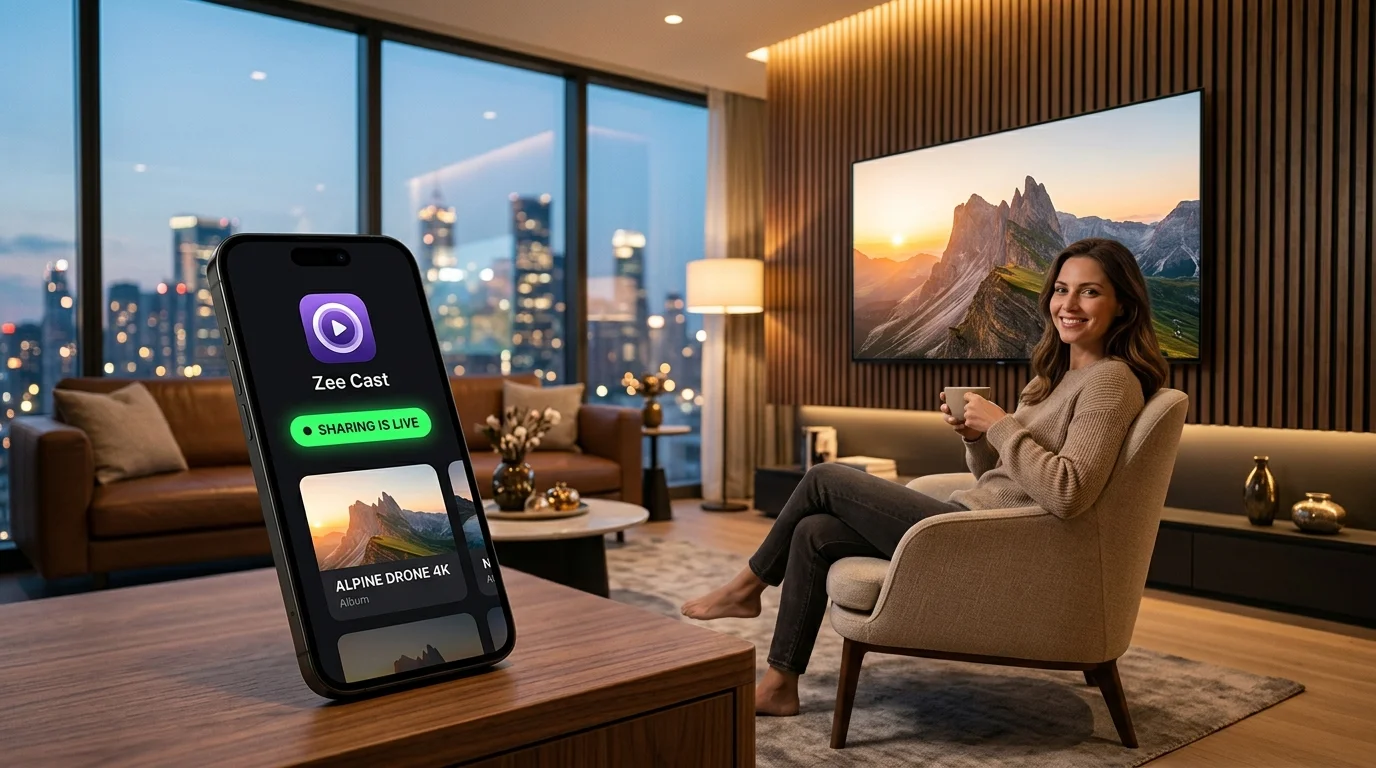
Turned on your local media server (like Zee Cast, Plex, or a NAS) but your LG OLED, QNED, or NanoCell TV shows "No Devices Found" in Home Dashboard or Photo & Video? Discover the network-level fixes for SSDP multicast packet drops, LG Quick Start+ socket freezes, and router AP isolation.
LG webOS DLNA Failure Triage Matrix
Identify your specific failure symptom to jump directly to the verified engineering fix:
| Observed Symptom | Underlying Root Cause | Affected Models | Immediate Fix |
|---|---|---|---|
| Server Never Appears | SSDP Multicast packets dropped across Wi-Fi bands or blocked by AP Isolation | All webOS versions | Disable AP Isolation and enable IGMP Snooping in router admin (Step 4). |
| Appeared Yesterday, Gone Today | LG Quick Start+ kernel sleep leaked multicast socket descriptors | webOS 4.5 – webOS 24 (OLED/QNED) | Disable Quick Start+ in TV General settings and cold-reboot (Step 2). |
| Server Appears, Endless Spinner | HTTP port blocked or Zee Cast Device Approval prompt waiting | All webOS versions | Check your phone screen and tap Allow on the approval alert (Step 6). |
| TV on Ethernet Can't Find Phone | Wired LAN and Wireless LAN isolated into separate broadcast subnets | LG TVs with RJ45 hardwire | Ensure router bridges LAN and Wi-Fi to the same /24 subnet (Step 7). |
| Server Appears on Roku, Not LG | LG Home Dashboard cache stale; missing active M-SEARCH probe | webOS 6.0, 22, 23, 24 | Tap Home Dashboard 3-dots (⋮) and select Refresh Device List (Step 1). |
7 Steps to Restore LG TV DLNA Discovery
Follow these systematic diagnostic steps to resolve discovery and streaming roadblocks between your phone and your LG webOS Smart TV:
- 1
Force an Active SSDP M-SEARCH Discovery Refresh
Unlike some media players that poll continuously, LG webOS relies heavily on cached discovery lists. If your phone started sharing after your TV booted, webOS may not have heard the initial UPnP
NOTIFYbroadcast.- webOS 22, 23 & 24 (2022–2026 OLED/QNED/NanoCell): Press the Home button on your Magic Remote > Select Home Hub (or Home Dashboard) > Click the three vertical dots (⋮) in the top-right corner > Select Edit / Refresh Device List.
- webOS 5.0 & 6.0 (2020–2021 CX, C1, G1 Series): Press the Input button on the remote > Select Home Dashboard > Click the Refresh Icon (↻) at the top right of the screen.
- webOS 4.0 & 4.5 (2018–2019 C8, C9 Series): Launch the native Photo & Video or SmartShare app > Navigate to Connected Devices > Select Scan / Refresh.
- 2
Disable LG "Quick Start+" to Clear Network Kernel Stalls
LG's Quick Start+ feature puts the television into a low-power RAM suspend state instead of a cold shutdown. While this speeds up boot times to under 2 seconds, it creates a notorious network bug: after several days of uptime, the underlying webOS Linux kernel drops its IGMP Multicast Group Memberships (specifically
239.255.255.250). The TV stops hearing all SSDP broadcasts from local media servers.- Press the Settings (Gear) button on your Magic Remote and select All Settings.
- Navigate to General > Devices > TV Management (on webOS 5.0 and older: General > Quick Start+).
- Toggle Quick Start+ to OFF.
- Perform a cold reboot: Hold the Power button on the Magic Remote for 5 seconds until the LG webOS boot logo appears, OR turn the TV off, unplug the power cord from the wall outlet for 60 seconds, and plug it back in.
💡 Why This Solves 80% of Discovery Issues
A cold reboot forces the LG webOS network daemon to re-initialize its network interfaces, flush stale ARP caches, and re-bind UDP listening sockets to port 1900.
- 3
Bridge 2.4 GHz and 5 GHz Wi-Fi Bands
Most modern Wi-Fi routers broadcast two frequency bands: 2.4 GHz and 5 GHz. If your phone is connected to 5 GHz while your LG TV is connected to 2.4 GHz, many home routers fail to bridge UDP multicast packets across the two internal wireless radios.
- Connect both to the same band: On your phone and LG TV, verify that both are connected to the exact same Wi-Fi SSID.
- Disable Band Steering Glitches: If your router uses a single combined SSID with "Smart Connect", temporarily separate the SSIDs into distinct 2.4 GHz and 5 GHz names.
- Avoid Guest Wi-Fi Networks: Never connect either device to a "Guest Network" which enables client isolation by default.
- 4
Disable Router AP Isolation & Enable IGMP Snooping
Routers equipped with security features such as AP Isolation prevent wireless devices on the same Wi-Fi network from communicating with each other. Furthermore, without IGMP Snooping, routers often drop UDP multicast packets to save wireless airtime.
- Open a web browser and navigate to your router admin panel (typically
192.168.1.1or192.168.0.1). - Navigate to Wireless Settings > Advanced Wireless.
- Locate AP Isolation / Client Isolation and set it to Disabled (OFF).
- Locate IGMP Snooping / Multicast Enhancement and set it to Enabled (ON).
- Locate UPnP (Universal Plug and Play) in LAN settings and ensure it is Enabled.
- Save and reboot the router.
- Open a web browser and navigate to your router admin panel (typically
- 5
Verify Phone Local Network Permissions & Disable VPNs
Both iOS and Android enforce strict privacy rules that can block local media server broadcasts:
- iOS: Open Settings > Privacy & Security > Local Network. Ensure Zee Cast is toggled ON.
- Disconnect VPNs: Disconnect any active VPN apps (NordVPN, ExpressVPN, etc.) on your phone which tunnel traffic away from your local subnet.
- Android Battery Optimization: In Settings > Apps > Zee Cast > Battery, select Unrestricted so the OS doesn't sleep background sharing.
- 6
Check Zee Cast Server Status & Device Approval
Verify these key application settings in Zee Cast:
- Sharing Toggle: Ensure the main screen displays Sharing Active.
- Device Approval Prompt: If you have Device Approval enabled in Pro settings, check your phone screen when the TV connects and tap Allow.
- HTTP Port: In Zee Cast Settings, check the HTTP port (default is
8080). If another app uses 8080, switch it to8088and restart sharing. - Server Display Name: Ensure your server has an identifiable name so you can spot it immediately in LG Home Dashboard.
- 7
Verify Dual-Interface Routing (Ethernet TV vs Wi-Fi Phone)
If your LG TV is hardwired via Ethernet (RJ45) while your phone is on Wi-Fi, verify that both devices share the same IP subnet:
- LG TV: Check Settings > Network > Wired Connection for IP (e.g.,
192.168.1.45). - Phone: Check Wi-Fi settings for IP (e.g.,
192.168.1.18). - The first three blocks of numbers (e.g.
192.168.1.xxx) must match. If they don't, your router isolates wired and wireless traffic into separate VLANs. Connect the TV to Wi-Fi to resolve.
- LG TV: Check Settings > Network > Wired Connection for IP (e.g.,
How LG webOS Discovers DLNA Media Servers
UPnP AV (DLNA) relies on the Simple Service Discovery Protocol (SSDP) operating over UDP multicast address 239.255.255.250 on port 1900:
- Passive Discovery (NOTIFY): When you tap "Turn on sharing" in Zee Cast, the app broadcasts an
ssdp:aliveNOTIFY packet announcing its MediaServer UUID and device description endpoint (http://[PHONE_IP]:8080/description.xml). - Active Discovery (M-SEARCH): When you open Home Dashboard or Photo & Video on LG webOS, the TV broadcasts an
M-SEARCHquery across the local subnet asking all active media servers to reply.
M-SEARCH * HTTP/1.1
HOST: 239.255.255.250:1900
MAN: "ssdp:discover"
MX: 3
ST: urn:schemas-upnp-org:device:MediaServer:1
USER-AGENT: LG-webOS/7.3.0 UPnP/1.0 DLNADOC/1.50
LG webOS Interface Evolution: Where to Find DLNA
| webOS Version & Years | LG TV Models | DLNA Entry Point / UI Location | Key Feature / Behavior |
|---|---|---|---|
| webOS 24 (2024–2026) | LG OLED C4, G4, B4, QNED90T, UT80 | Home Hub > Storage Devices & Media Player | Quick Card integration; webOS Re:New multi-year updates. |
| webOS 23 (2023) | LG OLED C3, G3, B3, QNED85, UR90 | Home Hub > Connected Devices & Photo & Video | Redesigned Quick Cards; manual refresh in top-right 3-dots. |
| webOS 22 (2022) | LG OLED C2, G2, B2, A2, QNED90, UQ80 | Home Dashboard > Inputs & Storage | Year-based naming adopted; multi-user profile switcher. |
| webOS 6.0 (2021) | LG OLED C1, G1, B1, A1, NANO90, UP80 | Home Dashboard (via Input key) | First full-screen dashboard; dedicated refresh button. |
| webOS 4.0 – 5.0 (2018–2020) | LG OLED C8, C9, CX, GX, BX, UM/UN Series | Photo & Video App & Home Dashboard | Classic bottom launcher bar; SmartShare compatibility. |
Technical Standards & Official References
Frequently Asked Questions
Why did my LG TV suddenly stop seeing my DLNA media server?
The most common culprit is LG's 'Quick Start+' feature. When Quick Start+ is enabled, the TV never truly powers down - it suspends its operating system into RAM. Over time, the internal Linux network stack drops its IGMP multicast socket subscriptions (239.255.255.250:1900), stopping SSDP discovery. Disabling Quick Start+ and doing a full cold reboot restores the network stack.
Where is DLNA located on newer LG webOS TVs (webOS 6.0, 22, 23, and 24)?
On webOS 6.0 through webOS 24, DLNA servers appear in the 'Home Dashboard' (also called 'Home Hub' on webOS 23/24) under the 'Connected Devices' / 'Storage' section, or inside the native 'Photo & Video' / 'Media Player' application.
Can my LG TV discover Zee Cast if the TV is on Ethernet and my phone is on Wi-Fi?
Yes, provided your router does not isolate wired and wireless network segments. As long as both interfaces share the same IP subnet (e.g., 192.168.1.xxx) and IGMP Snooping is enabled on the router, SSDP multicast discovery packets will pass seamlessly between Ethernet and Wi-Fi.
Do I need to install the LG ThinQ app or create an LG account for DLNA?
No. DLNA / UPnP is an open, local networking standard built directly into LG webOS. You do not need the LG ThinQ app, an LG account, or active internet access to stream local photos and videos using Zee Cast.
Why does the server show up, but the TV gives an error when opening a folder?
This occurs when: (1) Zee Cast's 'Device Approval' security feature is waiting for you to tap 'Allow' on your phone, (2) iOS revoked Local Network permission, or (3) your phone entered deep background sleep due to aggressive battery saver settings. Open Zee Cast, confirm the approval prompt, and verify sharing is active.
What router settings block DLNA discovery on LG TVs?
The primary router settings that break DLNA are AP Isolation (Client Isolation), disabled IGMP Snooping, disabled Multicast Forwarding, and Guest Wi-Fi networks. Guest Wi-Fi networks block all local inter-device communication by design.


