
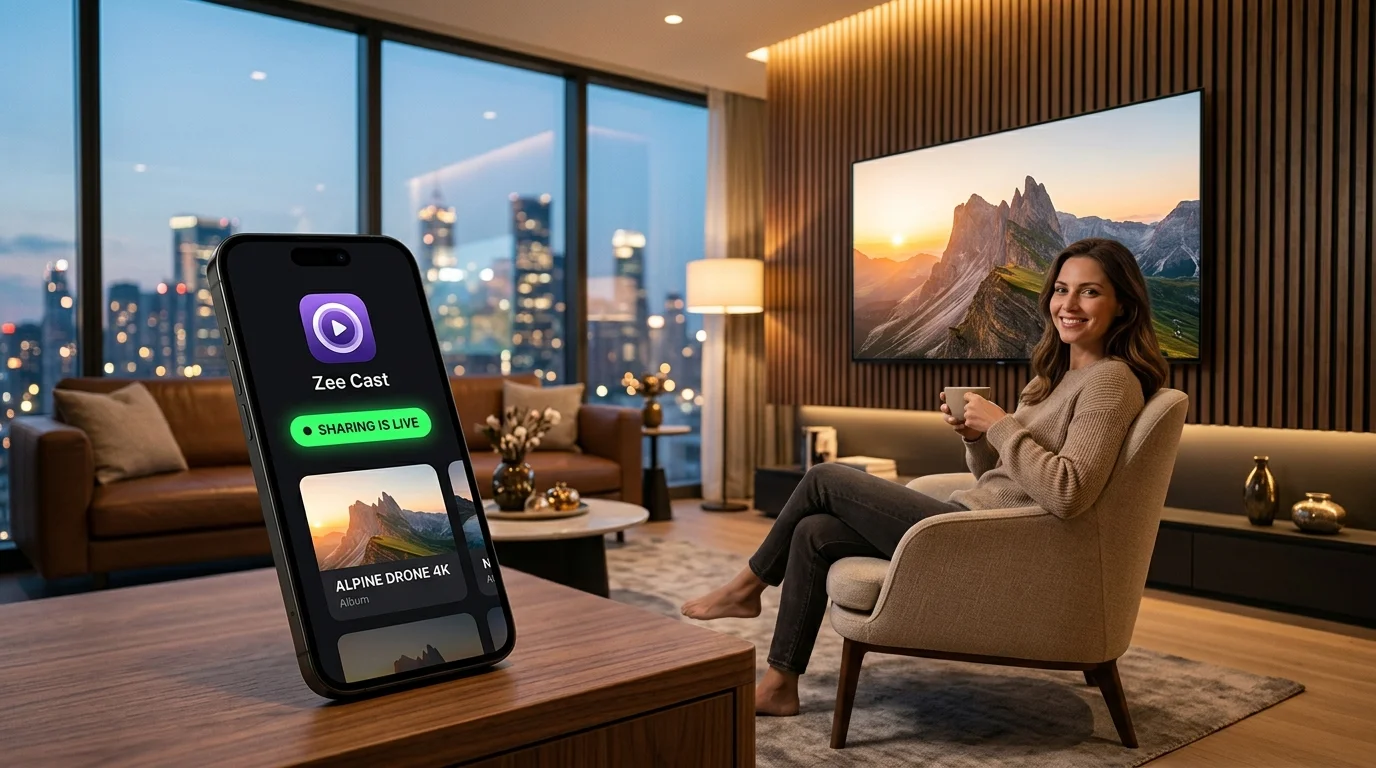
You opened your mobile media server, turned on sharing, grabbed your TV remote, and navigated to Connected Devices - only to find an empty screen. Why does a Smart TV fail to detect a DLNA media server that is sitting just five feet away on the coffee table?
Unlike cloud streaming services that route through third-party servers over the internet, DLNA / UPnP is a purely local network protocol. While this guarantees 100% privacy and uncompressed 4K bitrates, it also means discovery depends entirely on your local Wi-Fi router's ability to handle multicast traffic.
In this comprehensive engineering diagnostic guide, we demystify the exact technical root causes behind missing DLNA media servers across Samsung, LG, Sony, Roku, and Fire TV devices - and provide step-by-step instructions to fix them permanently.
⚠️ Smart TV Alert: Seeing "Unfortunately, eDLNA has stopped"?
On many Android TVs (TCL, Philips, RCA, Changhong), the TV's native discovery daemon crashes with an "eDLNA has stopped" pop-up error. If your TV displays this dialog when scanning for media servers, follow our step-by-step repair guide on How to Fix 'eDLNA has stopped' Error on Smart TVs.
How DLNA Discovery Works Under the Hood (SSDP)
To understand why your TV cannot find your phone, it helps to understand how UPnP/DLNA discovery works at the packet level:
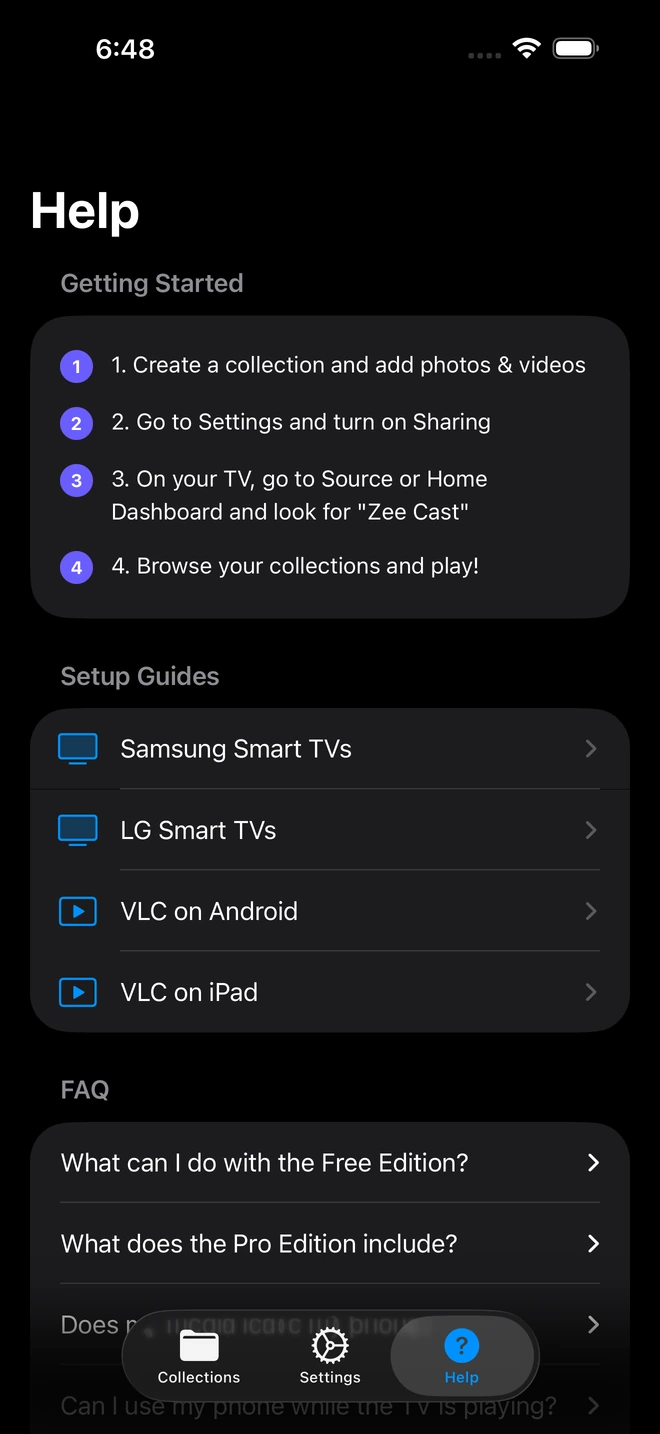
- 1Instant network status and diagnostic guidance built into the app.
When you start sharing in a DLNA server like Zee Cast, the app broadcasts SSDP (Simple Service Discovery Protocol) NOTIFY UDP packets to the reserved local multicast address 239.255.255.250 on port 1900. Concurrently, when you open the media menu on your Smart TV, the TV broadcasts an M-SEARCH query to that same multicast group asking: "Are there any MediaServer devices on this network?"
If any router configuration, switch feature, or phone security setting drops these UDP 1900 multicast packets, your TV and phone become digitally blind to one another - even though both have full internet access.
The 6 Technical Root Causes (and How to Fix Each)
1. Router AP Isolation / Client Isolation
The Problem: AP (Access Point) Isolation - also known as Client Isolation or Station Isolation - is a security feature frequently enabled on guest Wi-Fi networks and ISP combo-gateways. It prevents wireless devices on the same Wi-Fi network from communicating with one another. Your phone can talk to the internet, and your TV can talk to the internet, but your phone cannot send a single packet to your TV.
The Fix:
- Log into your router administration dashboard (typically
192.168.1.1or192.168.0.1in your web browser). - Navigate to Wireless Settings > Advanced Wireless (or Professional).
- Look for "AP Isolation", "Client Isolation", or "Station Isolation" and toggle it DISABLED.
- Save settings and reboot the router.
2. Dual-Band Router Isolation (5 GHz vs. 2.4 GHz)
The Problem: Modern Wi-Fi routers broadcast two distinct wireless frequency bands: 2.4 GHz (longer range, lower speed) and 5 GHz (shorter range, ultra-high speed). Many smartphones connect to 5 GHz for speed, while budget Smart TVs or streaming sticks connect to 2.4 GHz. On some routers (especially older Netgear, D-Link, or ISP-provided gateways), the router fails to bridge UDP multicast traffic between the 2.4 GHz and 5 GHz wireless radios.
The Fix:
- Ensure both your smartphone and your Smart TV are connected to the exact same Wi-Fi SSID and band (preferably 5 GHz for smooth 4K streaming).
- If your router combines both bands under a single SSID with "Smart Connect" or "Band Steering", verify that "Bridge Multicast between Bands" is enabled in router settings.
3. IGMP Snooping & Multicast Filtering
The Problem: Because multicast packets are broadcast to multiple clients, unmanaged Wi-Fi routers can experience network congestion (known as "multicast flooding"). To prevent this, routers incorporate IGMP Snooping. If IGMP Snooping is disabled or misconfigured, the router may discard all UDP 1900 packets to "save" wireless airtime, entirely killing SSDP discovery.
The Fix:
- In your router admin panel, navigate to LAN > IPTV or Advanced Wireless Settings.
- Locate "IGMP Snooping" and set it to ENABLED.
- Locate "Multicast Forwarding" or "Enable Multicast Routing" and set it to ENABLED.
- If there is a setting called "Filter Multicast" or "Block Multicast", ensure it is DISABLED.
4. Subnet Mismatch & Mesh Wi-Fi Double-NAT
The Problem: In homes with Mesh Wi-Fi systems (such as Eero, Google Nest Wifi, TP-Link Deco, or Netgear Orbi) plugged into an existing ISP modem/router, a common architectural error is Double-NAT. If your phone is connected to the ISP modem's Wi-Fi (e.g. subnet 192.168.1.xxx) and the TV is connected to the mesh Wi-Fi node (e.g. subnet 192.168.68.xxx), they reside on different local subnets. SSDP multicast discovery packets have a Time-To-Live (TTL) of 1 to 4 hops and cannot cross subnet boundaries.
The Fix:
- Check the IP address in your phone's Wi-Fi settings and compare it with the IP address in your Smart TV's Network Status menu.
- Both devices must share the same first three numbers (e.g. both start with
192.168.1.). - Configure your mesh Wi-Fi system to operate in "Bridge Mode" / "Access Point (AP) Mode" so that all devices receive IP addresses from a single central DHCP server.
5. Smart TV "Quick Start" / Standby Network Socket Freeze
The Problem: Modern smart TVs rarely turn off when you press the power button on the remote; instead, they enter a suspended sleep state (marketed as Samsung Instant On, LG Quick Start+, Sony Bravia Fast Start, or Roku Fast TV Start). Over days or weeks of continuous standby, the TV's underlying Linux operating system frequently drops its multicast IGMP group memberships. The TV stops listening on UDP 1900.
The Fix: Perform a true cold reboot to restart the TV's network subsystem:
- Samsung TV: Hold the power button on your Samsung One Remote for 5–7 seconds until the TV turns off and the Samsung boot logo appears on screen.
- LG webOS TV: Go to Settings > General > Devices > TV Management and toggle Quick Start+ OFF, then turn off the TV and unplug it from the wall for 60 seconds.
- Sony Bravia / Android TV: Hold the remote power button for 5 seconds and select Restart.
- Roku TV: Go to Settings > System > Power > System Restart.
6. VPN Tunnels, Proxies, and iOS Local Network Permission
The Problem: If your smartphone is running a VPN (such as NordVPN, ExpressVPN, Surfshark, or a corporate WireGuard profile), the operating system routes all network traffic through an encrypted virtual tunnel interface. This virtual interface drops local multicast traffic, isolating your phone from the local living room network. Additionally, on Apple devices running iOS 14 through iOS 18+, Apple introduced a strict Local Network Privacy permission toggle.
The Fix:
- Disconnect VPN: Disconnect any active VPN tunnel or configure the VPN app's "Split Tunneling / Allow Local LAN Access" setting.
- Check iOS Permissions: On your iPhone, open Settings > Privacy & Security > Local Network. Ensure that the toggle for Zee Cast is turned ON.
- Turn Off Private Relay: If using iCloud Private Relay or third-party DNS proxies, temporarily disable them to verify local network routing.
Symptom-to-Solution Diagnostic Matrix
Use this rapid diagnostic reference table to match your exact symptoms with the most likely solution:
| Observed Symptom | Underlying Root Cause | Actionable Solution |
|---|---|---|
| Server never appears anywhere on TV | AP Isolation, Guest Wi-Fi, or missing iOS Local Network permission | Move both devices off Guest Wi-Fi; disable AP Isolation in router admin panel; enable iOS Local Network permission. |
| Server was working yesterday, but gone today | Smart TV network socket freeze (Quick Start / Instant On) | Cold-reboot your TV (unplug power cable for 60 seconds) to force a fresh IGMP multicast socket registration. |
| TV sees server name, but folders spin or show empty | Device Approval prompt waiting, or background app sleep | Unlock your phone, open Zee Cast, and tap "Allow" on the Device Approval banner. Verify sharing is active. |
| VLC on computer sees server, but TV does not | Router drops multicast across Wi-Fi-to-Ethernet bridge | Enable IGMP Snooping and Multicast Forwarding on router. Connect both devices to the same 5 GHz Wi-Fi band. |
| Phone is on 5 GHz, TV is on 2.4 GHz | Router fails to bridge multicast between dual bands | Connect TV to 5 GHz Wi-Fi, or enable "Multicast Routing Between Bands" in router wireless settings. |
| Works on Phone Hotspot, fails on home router | Router firewall, AP isolation, or Double-NAT mesh nodes | Your router is actively blocking local UDP 1900 multicast packets. Check router IGMP and isolation settings. |
Router Configuration Quick Reference for Major Brands
Here is where to find the essential multicast and isolation settings on popular router brands:
🌐 ASUS Routers (Asuswrt)
Go to Wireless > Professional. Set "Set AP Isolated" to No. Set "Enable IGMP Snooping" to Enabled. Under LAN > IPTV, set "Enable Multicast Routing" to Enabled.
📶 TP-Link Routers (Archer / Deco)
In Archer web UI: Advanced > Network > IPTV/VLAN. Enable IGMP Snooping and IGMP Proxy. In Deco app: More > Advanced, enable "Fast Roaming" and set Operation Mode to Access Point if connected behind an ISP modem.
🦅 Netgear (Nighthawk / Orbi)
Go to Advanced > Setup > Wireless Setup. Uncheck "Wireless Isolation". Under Advanced > Advanced Setup > WAN Setup, ensure "Disable IGMP Proxying" is UNCHECKED (meaning IGMP Proxying remains enabled).
📦 Eero / Google Nest Wifi
Eero and Google Wifi automatically manage multicast, but can create a Double-NAT if plugged into an existing router. In the Eero app, go to Settings > Network settings > DHCP & NAT and switch to Bridge Mode.
💡 The 10-Second Sanity Test: Use Personal Hotspot
If you want to quickly prove whether the issue is caused by your home Wi-Fi router, perform this instant test: turn on Personal Hotspot on your phone, connect your Smart TV to your phone's hotspot Wi-Fi, open Zee Cast, and turn on sharing. If Zee Cast appears on your TV immediately, your phone and Zee Cast are functioning perfectly - the problem is 100% caused by your home router's multicast or isolation settings!
Frequently Asked Questions
Why does YouTube or Netflix casting work on my TV, but my DLNA media server is not showing up?
YouTube and Netflix do not use local SSDP multicast discovery. Instead, they use DIAL (Discovery and Launch) or cloud pairing protocols where the TV connects to a remote Google or Netflix server over the internet. When you cast YouTube from your phone, the phone communicates with Google's cloud server, which then messages your TV over an established internet web socket. DLNA, by contrast, is 100% local: it relies on UDP multicast packets (239.255.255.250:1900) sent directly across your home router. If your router blocks multicast traffic, DLNA discovery fails even while internet streaming apps work perfectly.
How do I know if my router has AP Isolation (Client Isolation) enabled?
If AP Isolation is enabled, devices on your Wi-Fi cannot see or ping each other. A quick test: download a free network scanner app (like Fing or Net Analyzer) on your phone while connected to Wi-Fi. If the scan only finds your phone and the router, but cannot see your Smart TV, laptop, or smart speakers, AP Isolation is active and must be disabled in your router settings.
Can my TV discover the media server if the TV is connected by Ethernet cable and the phone is on Wi-Fi?
Yes, in most home setups. The Ethernet ports and Wi-Fi radios on a standard home router form a single bridged local network (e.g. 192.168.1.x). However, if your router has 'Multicast Isolation' or 'WLAN-to-LAN Multicast Filter' enabled, SSDP multicast packets sent over Wi-Fi will not cross over to the wired Ethernet ports. Enabling 'IGMP Snooping' and 'Multicast Forwarding' in your router settings resolves this bridge issue.
Why does Zee Cast show up in VLC on my laptop, but not on my Samsung or LG Smart TV?
Smart TVs typically cache network device states aggressively. Features like Samsung 'Instant On' or LG 'Quick Start+' put the TV into a low-power standby mode rather than performing a true Linux OS reboot. Over time, the TV's internal multicast socket listener expires. Doing a cold reboot (unplugging the TV for 60 seconds) forces the TV to open a fresh multicast listening socket on UDP 1900.
How do I force my Smart TV to search for new DLNA media servers?
On Samsung TVs, open the Smart Hub, navigate to 'Connected Devices', and click the refresh icon (or switch to TV inputs and back). On LG webOS, open 'Home Dashboard', click the three dots in the top right corner, and select 'Edit / Refresh'. On Roku, exit and relaunch 'Roku Media Player'. On Fire TV or Android TV, pull down to refresh or restart VLC.
What is the difference between UPnP and DLNA discovery?
UPnP (Universal Plug and Play) is the underlying networking protocol suite that defines device discovery, device description XML, and SOAP remote control via SSDP (Simple Service Discovery Protocol). DLNA (Digital Living Network Alliance) is a set of guidelines built on top of UPnP that standardizes media formats (MPEG-4, JPEG, LPCM), HTTP byte-range streaming, and playback profiles. In practice, a DLNA server uses UPnP SSDP on port 1900 to announce itself to smart TVs.
Does Zee Cast require opening any ports on my router's firewall or port forwarding?
No! Never open router ports or enable port forwarding for a local media server. Port forwarding is only for exposing devices to the public internet (which would be a major security hazard). Zee Cast operates strictly inside your private home network (LAN). All communications between your phone and your Smart TV happen behind your router's firewall.


