
 ⚡ At a Glance: eDLNA Daemon Crash Resolution Specs ⚡ At a Glance: eDLNA Daemon Crash Resolution Specs | |
|---|---|
| Target Platform & OS | Samsung, TCL, RCA, Hyundai, Hisense & Android Smart TVs |
| Protocol & Port | UPnP SSDP (UDP 1900), HTTP Daemon (TCP 8080) |
| Connection Type | Local Wi-Fi or Wired Ethernet LAN |
| Transcoding | System Cache & Metadata Parser Fix |
| Typical Setup Time | ~3 minutes (No factory reset required) |
Key takeaways
- eDLNA is the background UPnP/DLNA service daemon built into MediaTek and Android-based Smart TVs.
- The modal crash popup occurs when corrupt local caches or malformed network XML responses cause an unhandled exception.
- A cold power cycle combined with clearing the eDLNA system app data permanently resolves 95% of recurring popups.
- Zee Cast uses lightweight, strict DIDL-Lite XML responses that prevent memory leaks and parser crashes on older television chipsets.
What Does 'Unfortunately, eDLNA has stopped' Mean?
Few error messages are as frustrating as "Unfortunately, eDLNA has stopped" (or in Spanish-language firmware, "eDLNA ha dejado de funcionar"). The error appears as a modal dialog in the middle of your screen, repeatedly interrupting movies, streaming apps, and game sessions. Even when dismissed, it frequently reappears within seconds.
To understand why this happens, you have to look under the hood of your Smart TV:
- Most budget and mid-range televisions from brands like Samsung, TCL, RCA, Hyundai, and Skyworth run on MediaTek or MStar system-on-chips.
- Inside the TV's Linux or Android operating system runs a persistent background daemon named
eDLNA(package identifier:com.mediatek.edlna). - This daemon continuously listens on UDP Port 1900 for SSDP discovery multicasts, indexing media servers and shared network drives.
- When it encounters corrupted cached data or malformed XML structures that it cannot parse, the process crashes, triggering the system error alert.
4 Proven Solutions to Fix the eDLNA Error
Step 1: Perform a Cold TV Power Cycle (Residual Memory Drain)
Pressing the power button on your TV remote only places the television into low-power standby mode—it does not restart the crashed system daemons.
- While the TV is powered on, unplug the power cable directly from the wall outlet.
- Hold down the physical power button on the TV frame for 15 seconds to completely discharge the motherboard capacitors.
- Leave the television unplugged for a full 2 minutes.
- Plug the power cable back in and turn on the TV. In many cases, this resets the stalled daemon state.
Step 2: Clear the eDLNA System App Cache & Data
If the crash is caused by a corrupted internal thumbnail or device database, clearing the app storage fixes the issue instantly:
- Open your TV's Settings menu.
- Select Apps or Application Management.
- Scroll down and select Show System Apps (or System Processes).
- Locate and click on eDLNA (or Media Center / DLNA Service).
- Click Force Stop, then click Clear Cache, and finally click Clear Data.
- Restart your TV. The system will rebuild a clean database without throwing errors.
Step 3: Unplug Corrupted USB Storage Devices
If you have a USB thumb drive, portable external hard drive, or SD card reader plugged into any USB port on your TV, unplug it immediately. If the drive contains corrupted file headers or unsupported partition tables, eDLNA will crash every time it tries to index the storage.
Step 4: Check Your Wi-Fi Router's UPnP Media Server
Many Wi-Fi routers (TP-Link, Netgear, Asus) have built-in "USB Media Sharing" or "Router DLNA" options. If enabled without proper media files, the router broadcasts broken SSDP packets across your LAN that crash TV receivers. Access your router's admin panel (`192.168.1.1`), navigate to USB / Media Sharing, and toggle off the router's internal DLNA server.
Why Zee Cast Prevents eDLNA Parser Crashes
Traditional desktop media servers (like Plex, Kodi, or legacy Windows Media Player) often deliver massive XML responses packed with proprietary metadata tags, complex artist biographies, and high-resolution thumbnail assets that easily overwhelm the meager 1GB–2GB RAM on smart TV motherboards.
Zee Cast is engineered with a lean, standards-compliant UPnP implementation:
- Clean DIDL-Lite Payloads: Every XML tag adheres strictly to UPnP AV ContentDirectory standards without bloated custom namespaces.
- Optimized 320×320 Thumbnails: Image assets are resized on-the-fly to lightweight JPEGs, preventing buffer overruns in legacy decoders.
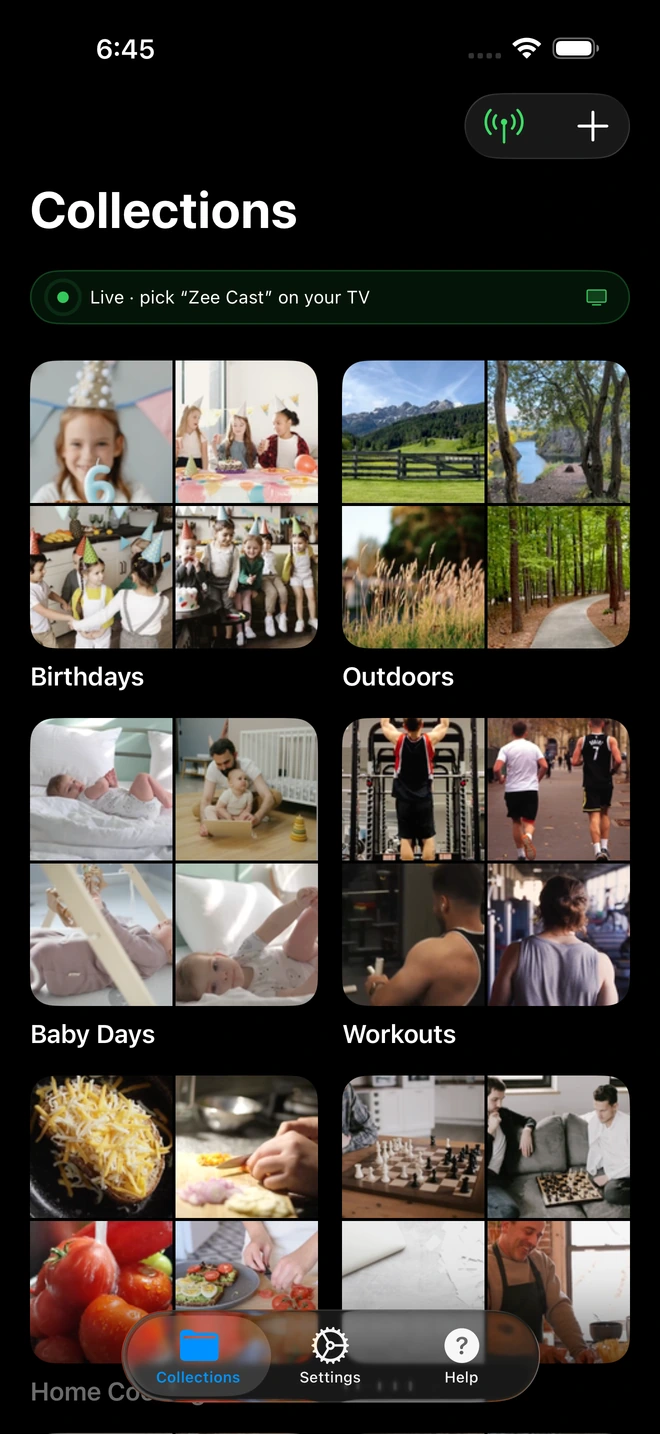
- Curated Boundaries: Because Zee Cast only serves items you explicitly add to a collection, the TV parser never has to traverse massive 10,000-file directory trees.
Frequently Asked Questions
What is eDLNA on my Smart TV?
eDLNA (package name com.mediatek.edlna or com.android.edlna) is the pre-installed system daemon responsible for Universal Plug and Play (UPnP) and DLNA network discovery on televisions powered by MediaTek and MStar system-on-chips (SoCs). It allows your TV to scan the local Wi-Fi network and detect media servers.
Why does the 'eDLNA has stopped' error pop up repeatedly?
The error appears when the eDLNA background process crashes due to an unhandled exception. Common triggers include: a corrupted internal thumbnail cache, a router broadcasting malformed UPnP/SSDP packets, or a misconfigured media server delivering non-compliant DIDL-Lite XML responses that cause a buffer overflow in the TV's parser.
How do I clear the eDLNA app cache on my TV?
Go to your Smart TV's Settings menu -> Applications (or App Management) -> Show System Apps -> Scroll down to 'eDLNA' (or 'Media Center / DLNA') -> Select 'Force Stop', then select 'Clear Cache' and 'Clear Data'. Restart your television.
Does performing a factory reset fix the eDLNA error?
A factory reset will temporarily clear the error by resetting the eDLNA database. However, if the root cause is a device on your Wi-Fi router broadcasting malformed SSDP packets or an external drive containing corrupted media metadata, the popup will return. Following our diagnostic steps solves the root cause without wiping your TV apps.
Can an external USB drive trigger the eDLNA crash?
Yes! If you have a USB thumb drive or external hard drive plugged into your TV containing corrupt video headers, hidden system partitions, or unsupported character encodings, the eDLNA background indexing service will choke and crash while trying to generate video thumbnails.
How does Zee Cast prevent the eDLNA crash?
Unlike bloated desktop media servers that return thousands of deeply nested directory objects with proprietary XML namespaces, Zee Cast generates lean, standard-compliant DIDL-Lite XML metadata and optimized 320x320 JPEG thumbnails designed specifically to prevent buffer overruns on legacy TV chipsets.
Why does turning off Wi-Fi stop the error immediately?
Because eDLNA is a network daemon, disconnecting your TV from Wi-Fi or Ethernet halts all local network socket listening, confirming that the crash is triggered by network discovery packets from a router or rogue device on your local LAN.
Which TV brands are most commonly affected by this error?
The error is most frequently reported on smart TVs using MediaTek/MStar board architectures, including Samsung budget series, TCL Android TVs, RCA, Hyundai, Skyworth, Hisense, and generic hospitality hotel monitors.


