
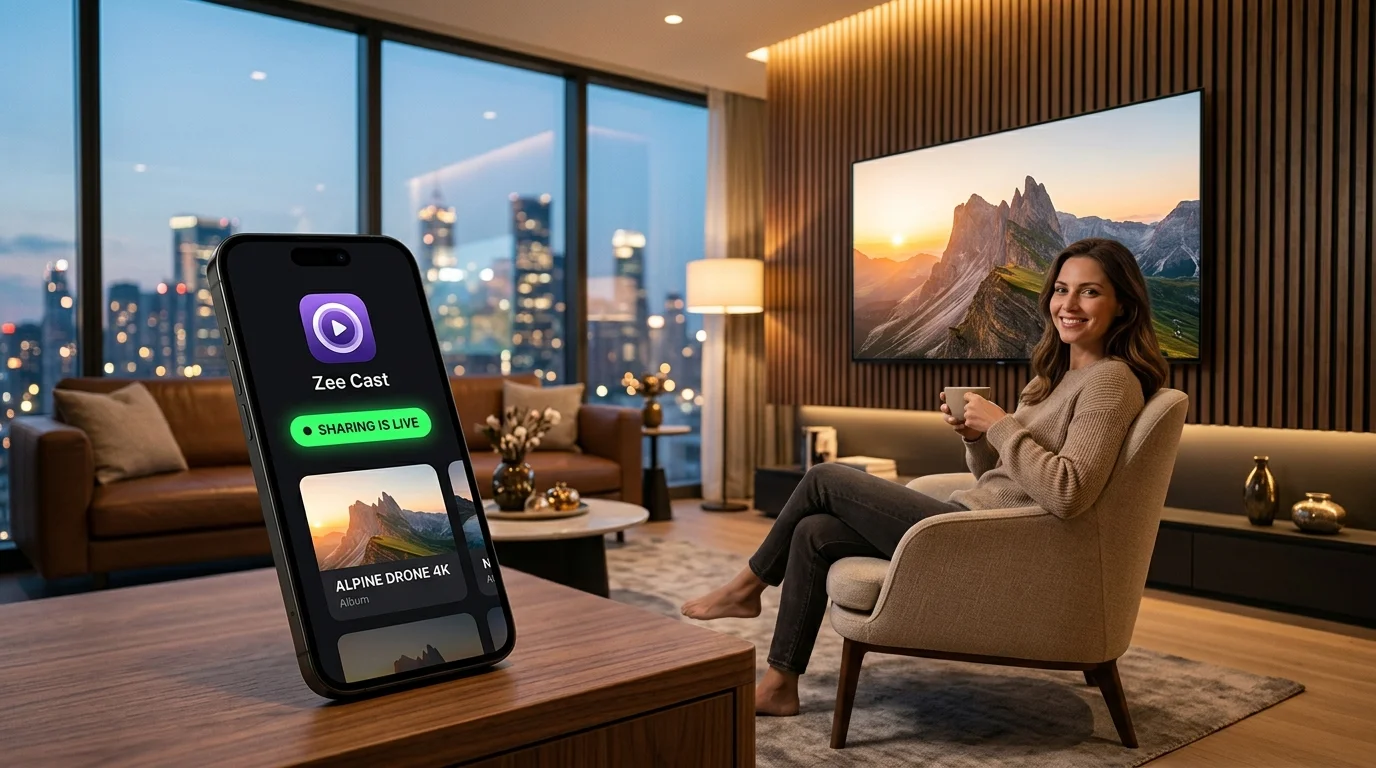
Key takeaways
- Zee Cast runs a real UPnP/DLNA server in Kotlin on the phone - no Chromecast dongle, PC or cloud account.
- Android keeps sharing alive in the background via a media-playback foreground service, so you can lock the phone.
- The TV discovers Zee Cast over SSDP and plays the original files, including HEVC and HDR10+ video.
- Guest Wi-Fi and AP isolation are the usual reasons a TV cannot see the server.
⚡ Quick Answer: How to Turn Android into a DLNA Media Server
To stream your Android photos and 4K videos to any Smart TV without Chromecast, cables, or PC hardware:1. Install Zee Cast for Android from Google Play.2. Add camera roll photos and videos to a collection.3. Tap "Turn on sharing" to start local Simple Service Discovery Protocol - the multicast UDP layer UPnP uses so a TV can find the server automatically. Glossary → discovery and HTTP streaming.4. On your TV (Samsung, LG, Roku, Fire TV), open Connected Devices or Media Player and select Zee Cast for original-quality 4K playback.
Most Android users assume that casting media to a TV requires a Chromecast dongle, Google Home setup, or leaving a noisy desktop PC running Plex 24 hours a day. With Zee Cast, you can transform any Android smartphone or tablet into a high-performance, private UPnP/DLNA media server in one tap.
Why Local DLNA Beats Chromecast Screen Mirroring on Android
While Android includes native Google Cast support, screen mirroring was designed for presentations and slide decks - not high-fidelity personal media streaming:
| Feature / Vector | Zee Cast (Local DLNA) | Chromecast Screen Mirroring | Desktop Plex / NAS Server |
|---|---|---|---|
| Playback Quality | Bit-perfect 4K 60fps HDR (Direct Play) | Compressed 1080p with frame drops and motion judder | 4K Direct Play (or heavy CPU transcoding) |
| Battery & Thermal Impact | < 2% battery/hr; phone stays cool | 25%–40% battery/hr; phone overheats from continuous GPU capture | 0% phone battery (runs on power-hungry PC) |
| Notification Privacy | 100% Private; only selected files are served | Private WhatsApp, bank, and text alerts pop up on TV screen | Private (requires cloud account login) |
| Phone Multitasking | Full freedom; lock screen, make calls, browse web | Locked; whatever is on your phone screen is shown on TV | Full freedom |
| Offline & Hotspot Use | 100% Offline; works on Portable Hotspot (0 MB data) | Requires active internet connection and Google Play Services | Complex offline setup; requires local DNS / tokens |
Step-by-Step: Turning Android into a DLNA Server
- 1
Install Zee Cast on Android
Download Zee Cast from Google Play. Built specifically for modern Android using Material 3 Expressive, Zee Cast requires zero cloud logins, tracking SDKs, or invasive background telemetry.
- 2
Create Visual Media Collections
Tap + Create Collection and choose photos and videos from your Android gallery or file manager. Zee Cast references your files in-place without duplicating storage or moving items to hidden directories.
- 3
Turn On Sharing & Background Playback
Tap the primary Turn on sharing switch. Zee Cast launches an embedded lightweight HTTP server and broadcasts SSDP discovery announcements over your local Wi-Fi.
A persistent mediaPlayback foreground service keeps the server alive, ensuring seamless playback when you lock your phone or switch to other apps.
- 4
Browse and Play on Your Smart TV
Turn on your TV (Samsung Tizen, LG webOS, Roku, Fire TV, or Sony Android TV). Open Connected Devices, Source, or the native Media Player app.
Select Zee Cast from the discovered DLNA servers. Use your TV remote to navigate your albums and enjoy original 4K HDR playback on the big screen.
- 5
Protect Your Privacy with Device Approval
Sharing Wi-Fi with roommates, colleagues, or neighbors? In Zee Cast Settings, enable Device Approval.
When an unfamiliar TV or client attempts to browse your media, Zee Cast holds the request and alerts you with the device IP address. Tap Allow or Deny to ensure only approved screens access your photos.
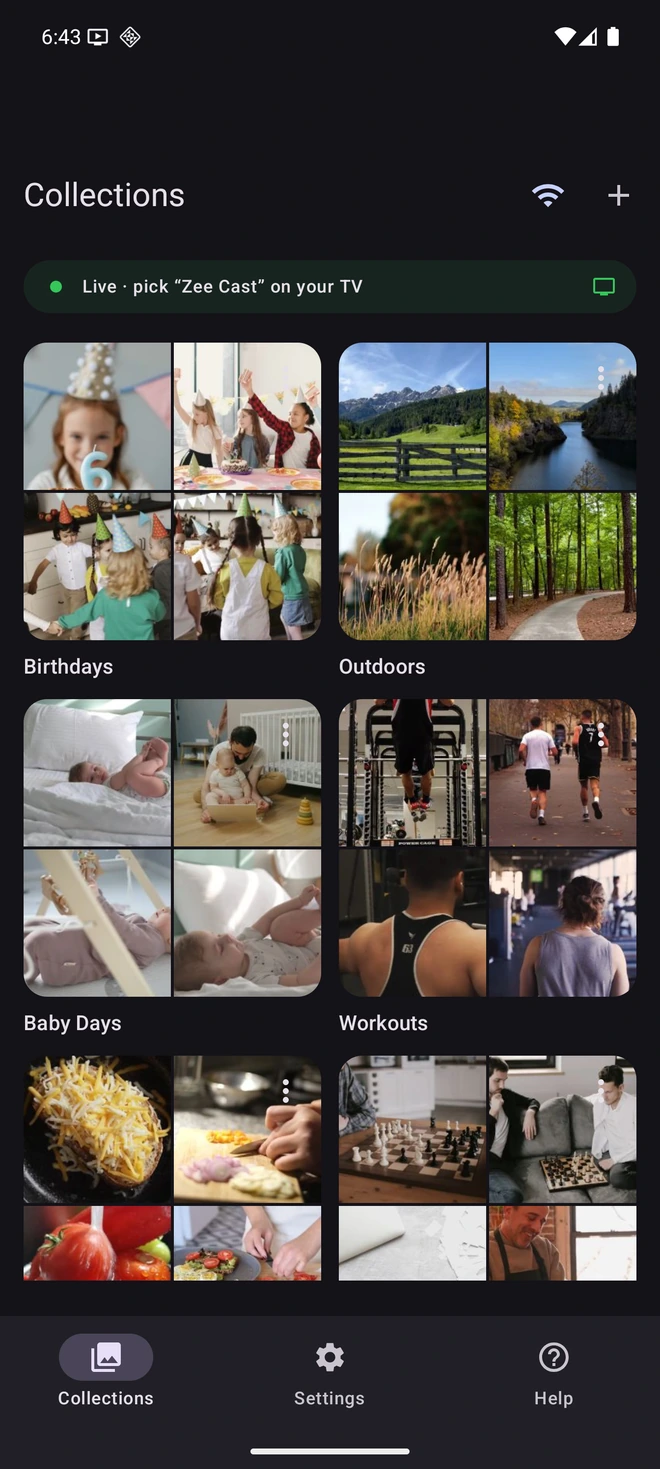
- 1The green live banner confirms the Kotlin server is advertising over SSDP and ready for the TV.
How the Android Media Server Engine Works
Zee Cast implements the universal UPnP AV and DLNA 1.5 MediaServer standards directly in Kotlin:
- SSDP Multicast Discovery: Periodically sends
M-SEARCHresponses andNOTIFYpackets across239.255.255.250:1900so smart TVs discover the phone within seconds of connection. - DIDL-Lite XML Metadata: Implements the ContentDirectory service (CDS)
BrowseDirectChildrenSOAP action, translating your Android collections into standard DIDL-Lite XML items readable by any TV remote browser. - HTTP Range-Request Streaming: Media is served over an embedded HTTP server supporting RFC 7233 byte-range requests. When you seek or scrub through a 4K 60fps video on your TV remote, the TV requests the exact byte slice instantly with zero transcode delay.
- Android Foreground Service: Backed by a high-priority
mediaPlaybackservice type, Zee Cast prevents aggressive Android battery managers (Samsung One UI App Sleep, Xiaomi MIUI battery saver) from terminating your streaming session.
Zee Cast vs LocalCast & BubbleUPnP on Android
If you search Google Play for DLNA servers on Android, you will commonly encounter apps like LocalCast and BubbleUPnP. Here is why Zee Cast offers a cleaner, higher-performance experience:
- 100% Ad-Free Living Room Experience: LocalCast's free tier is notorious for full-screen interstitial video ads, banner ads, and tracking SDKs that interrupt your playback. Zee Cast is completely ad-free - zero banners, zero popups. See our full LocalCast vs Zee Cast comparison.
- Modern Material 3 Expressive Design: While BubbleUPnP retains a cluttered, complex interface with dozens of obscure network tabs, Zee Cast is built from scratch with Google's latest Material 3 Expressive guidelines for 1-tap simplicity.
- Selective Privacy with Device Approval: Legacy Android DLNA apps expose your entire camera roll or storage drive to anyone on your local Wi-Fi. Zee Cast lets you curate specific media collections, and our optional per-IP Device Approval feature prompts you before any unknown smart TV is allowed to connect.
Related Guides & Official References
- Best LocalCast Alternative (No Ads & Private DLNA)
- Top BubbleUPnP Alternative for iOS & Android
- How to Turn Your iPhone into a DLNA Media Server
- How to Stream to Android TV & Google TV
- How to Stream to Samsung Smart TV
- Troubleshooting: TV Cannot Discover DLNA Server
- Android Developers: Foreground Service Types & Media Playback Policies
Frequently Asked Questions
How does turning an Android phone into a DLNA server differ from Chromecast / Google Cast?
Chromecast and Google Cast screen mirroring constantly re-encode your phone screen into a compressed 1080p video stream, causing noticeable lag, heavy battery consumption, and exposing private notifications on your TV. Zee Cast acts as a DLNA Digital Media Server (DMS). It serves the original file bytes directly to your smart TV's dedicated hardware decoder, delivering lossless 4K 60fps quality with zero phone battery drain.
Does the media server keep running if I lock my Android phone or switch apps?
Yes. Zee Cast utilizes an Android mediaPlayback foreground service with a persistent status notification. This prevents the Android OS power manager from killing the HTTP daemon when your screen is locked, when you make phone calls, or when multitasking in other apps.
Can I use an Android DLNA server without home Wi-Fi or when traveling?
Yes! DLNA operates purely over local IP networking. You can enable your Android phone's Portable Wi-Fi Hotspot, connect your Smart TV or laptop to that hotspot, and stream your media completely offline with 0 MB of mobile data usage.
What Smart TVs and devices can connect to an Android DLNA server?
Virtually any modern DLNA/UPnP client can connect instantly, including Samsung Smart TVs (Tizen OS), LG Smart TVs (webOS), Roku TV & Streaming Sticks, Amazon Fire TV, Sony BRAVIA & Android TV / Google TV, PlayStation 5 / 4, Xbox Series X / One, and media players like VLC and Kodi.
Why is an Android DLNA server better than running Plex or a 24/7 NAS?
A dedicated Plex server or NAS requires leaving a PC running 24/7 (drawing 40W–100W of electricity), complex port forwarding, account registrations, and manual file transfers. An on-demand Android media server runs only when you want to watch something, consumes 0W idle power, and accesses your newest camera roll videos instantly.
Are my photos and videos uploaded to the cloud or third-party servers?
No. Zee Cast operates 100% locally on your home Wi-Fi network. Media files are streamed directly from your Android phone's flash memory to your TV via standard HTTP byte-range requests. Zero cloud servers, zero tracking, and zero account sign-ups.
Why choose Zee Cast over LocalCast or BubbleUPnP on Android?
Unlike LocalCast, which displays intrusive full-screen and banner ads in its free tier, Zee Cast is 100% ad-free. Furthermore, while BubbleUPnP features a complex legacy interface with numerous confusing tabs, Zee Cast offers a modern Material 3 Expressive UI, 1-tap sharing, background foreground service persistence, and per-IP Device Approval to keep your personal media private.


