
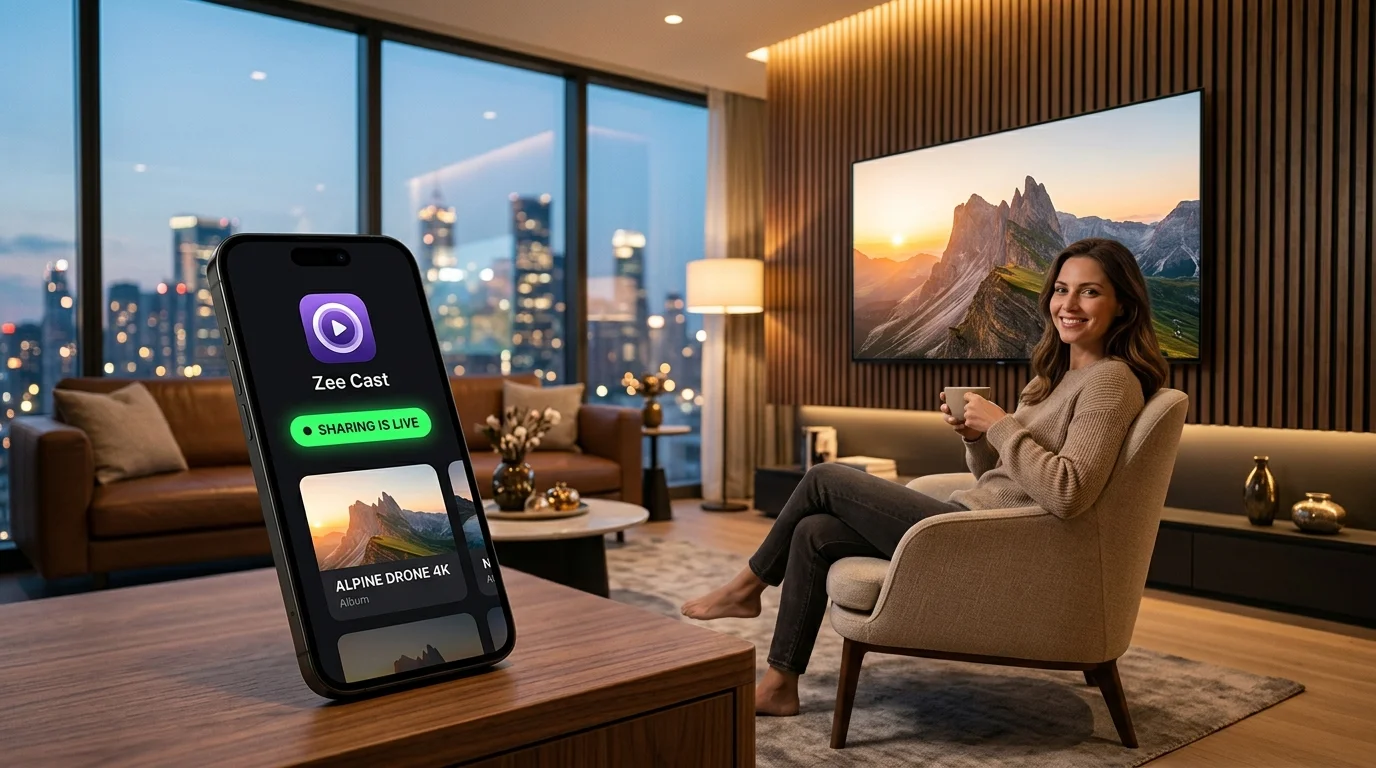
⚡ Quick Answer: How to Turn Your iPhone into a DLNA Media Server
To stream camera roll photos and 4K videos directly from iPhone to any Smart TV without Apple TV, cables, or 24/7 PC hardware:1. Install a native DLNA server app like Zee Cast on iOS.2. Select photos and 4K videos into a collection.3. Tap "Turn on sharing" to activate local SSDP discovery and background HTTP streaming.4. On your Samsung, LG, Roku, or Fire TV, select Zee Cast from the Source or Media Player menu to browse and stream bit-perfect media with zero transcoding lag.
You don't need a noisy 24/7 desktop computer, dedicated NAS rack, or monthly cloud subscriptions to stream family photos and 4K vacation videos to your living room TV. Learn how to transform your iPhone or iPad into an on-demand, private UPnP/DLNA media server in one tap.
Mobile-First Server vs Traditional 24/7 Desktop/NAS
For decades, home streaming required keeping a power-hungry PC or Network Attached Storage (NAS) running around the clock. Here is how modern mobile UPnP architecture replaces dedicated servers with zero idle waste:
| Comparison Vector | On-Demand iPhone Server (Zee Cast) | Traditional 24/7 Desktop / NAS (Plex / Synology) |
|---|---|---|
| Power & Idle Cost | 0W idle - runs only when viewing; zero electricity waste | 40W–100W continuous draw ($70–$200+/year) |
| Hardware Investment | $0 extra - leverages your existing iPhone / iPad | $300–$1,200+ for NAS enclosure, PC tower, and drives |
| Setup & Maintenance | 1-Tap Instant - select media and tap Turn on sharing | Hours of configuration: RAID, port forwarding, Docker |
| Cloud & Subscriptions | Zero Subscriptions - 100% free local UPnP engine | Plex Pass subscriptions, cloud relay, remote auth |
| Privacy & Data Exposure | 100% Private - zero cloud accounts, local Wi-Fi only | Cloud authentication servers, remote indexing risks |
| Media Freshness | Instant Access - newly shot 4K videos are available right away | Requires manual syncing, uploading, or backing up to NAS first |
| Acoustic & Thermal | Completely silent and cool - flash memory reads | Spinning drive chatter, exhaust fans, ambient heat |
| Portability & Travel | Works anywhere - hotel Wi-Fi, camper vans, offline Hotspot | Stationary hardware tied to home broadband; offline inaccessible |
The Mobile-First Media Server
Your iPhone already contains the world's most powerful mobile processor, ultra-fast NVMe flash storage, and the camera that captured your memories. Running an embedded HTTP daemon directly on iOS eliminates intermediary file copying, cloud sync lag, and continuous power consumption.
- Runtime Model: On-Demand Event Loop
- Idle Power Draw: 0 Watts (Off when done)
- Storage Bus: Apple NVMe (Up to 3,000 MB/s)
The Dedicated Desktop / NAS Rig
Designed for multi-user enterprise file serving, home NAS boxes and Plex media servers keep spinning magnetic disks and x86 power supplies running 24 hours a day, 365 days a year - even when nobody is home or streaming media.
- Runtime Model: Continuous Daemon
- Idle Power Draw: 40–100 Watts Continuous
- Storage Bus: SATA III Spinning Disks
How to Set Up Your iPhone DLNA Server in 5 Simple Steps
Turning your iPhone into a full-featured UPnP Digital Media Server takes less than two minutes:
- 1
Organize Curated Media Collections
Launch Zee Cast on your iPhone. Tap New Collection and select the photos and videos you wish to share (e.g., "Family Vacation 2026" or "Birthday Highlights").
Zee Cast references items directly from your Apple Photos library without duplicating storage or moving files out of your camera roll.
- 2
Turn On Sharing & Background Mode
On the main Sharing screen, tap Turn on sharing. Zee Cast starts its embedded HTTP daemon and initializes SSDP multicast announcements across your local Wi-Fi subnet.
Zee Cast manages background audio and task scheduling so playback continues even when you lock your iPhone screen or switch to other apps.
- 3
Browse & Stream from Your Smart TV
Turn on your Smart TV (Samsung, LG, Roku, Fire TV, Sony, or Apple TV running Infuse/VLC). Open the Source, Connected Devices, or Media Player application.
Your TV automatically detects your iPhone under its DLNA server list. Select it to browse collections and enjoy bit-perfect 4K direct playback using your TV remote.
- 4
Personalize Server Display Name & Icon
Want your TV to display "Living Room iPhone" or "Family Media Hub"? Navigate to the Settings tab in Zee Cast. You can customize the server display name and set a custom server icon.
Your Smart TV renders this custom name and icon directly in its Source menu via the standard UPnP
/description.xmland/icon.pngendpoints. - 5
Enable Device Access Control (Privacy)
Connected to a shared apartment, dorm, or office Wi-Fi network? In Zee Cast Settings, toggle on Device Approval.
When an unfamiliar TV or client attempts to browse your collections, Zee Cast pauses the HTTP request and displays an instant permission modal on your iPhone with the client IP address. Tap Allow or Deny.
Why Legacy iOS DLNA Apps (ARKmc, TV Assist, mconnect) Fall Short in 2026
If you search online forums or Reddit for an iPhone DLNA server, you will often encounter legacy recommendations like ARKmc, TV Assist, or generic UPnP controller apps. Here is why those legacy tools fail on modern iOS devices:
| Key Metric | Zee Cast (Modern iOS) | Legacy Apps (ARKmc, TV Assist, mconnect) |
|---|---|---|
| iOS Compatibility | Full 64-bit iOS 17 / 18 / 26 support with modern Swift architecture | Abandoned or unmaintained; crashes under modern memory sandboxing |
| Background Execution | Uninterrupted streaming via silent audio daemon & background scheduler | Killed by iOS within 30 seconds of screen lock or app switching |
| 4K HDR / HEVC Handling | Bit-perfect Direct Play via native HTTP Range requests | Forces CPU transcoding to 720p/1080p, causing overheating and buffer stutter |
| Device Access Security | Per-IP Device Approval blocks unauthorized clients on shared Wi-Fi | Unrestricted broadcast - anyone on the Wi-Fi can view all shared files |
How Mobile UPnP Server Technology Operates on iOS
1. SSDP Discovery & DIDL-Lite XML Metadata
When you tap "Turn on sharing", Zee Cast broadcasts NOTIFY UDP packets to the standardized UPnP multicast address 239.255.255.250:1900 via the Simple Service Discovery Protocol (SSDP). These packets advertise your iPhone's unique UUID and point Smart TVs to the device description document at http://[iPhone-IP]:[Port]/description.xml.
When your TV opens a collection, it sends a SOAP XML RPC request to the ContentDirectory service endpoint. Zee Cast responds with standard DIDL-Lite XML containing item titles, MIME types, durations, resolutions, and direct media streaming URLs.
💡 Pure Hardware Direct Play: The Key to Zero Battery Drain
Unlike AirPlay screen mirroring - which forces your iPhone's GPU to compress and re-encode the entire screen at 60fps - Zee Cast acts as a pure file server. When your 4K TV plays a video, it sends HTTP Range: bytes=start-end requests. Your iPhone simply reads raw bytes from flash storage and sends them over Wi-Fi. The TV's dedicated hardware decoder processes the video, keeping your phone cool and using less than 1% CPU.
2. Complete Notification Privacy & Multitasking Freedom
One of the biggest pain points of streaming from an iPhone to a living room TV is screen mirroring privacy leaks. When using AirPlay Mirroring, every private notification, incoming WhatsApp call, and bank alert appears on the TV screen in front of family and friends.
- Zero Screen Mirroring: Only the specific videos and photos in your active collections are accessible to the TV. Your phone screen is completely decoupled.
- Unrestricted Multitasking: You can take phone calls, browse Safari, respond to emails, or lock your iPhone completely while the TV plays uninterrupted.
- Zero Cloud Intermediaries: File streaming occurs 100% inside your local router subnet. No bytes are sent to Apple, Google, or third-party cloud servers.
3. iOS Background Execution Architecture
iOS strictly manages background apps to conserve power. Traditional server apps often get terminated within 30 seconds of locking the screen. Zee Cast overcomes this with a robust background architecture:
- Silent Audio Session Management: Maintains an active background audio category so the iOS kernel keeps network sockets open during playback.
- BGTaskScheduler Integration: Periodically refreshes network state and renews SSDP multicast advertisements to prevent TV connection drops.
- Automated Session Auto-Stop: Automatically shuts down server sockets after extended inactivity to ensure zero phantom battery drain when you are finished watching.
Technical Standards & Official References
- Open Connectivity Foundation: UPnP Device Architecture & ContentDirectory Service
- Apple Developer: BackgroundTasks Framework & Background Execution Modes
- IETF RFC 7233: HTTP/1.1 Range Requests and Partial Content Delivery
- Samsung Tizen Smart TV Developer Guide: DLNA & UPnP AV Client Specifications
- LG webOS TV Developer: SmartShare & DLNA Media Playback Architecture
Frequently Asked Questions
Why is an iPhone DLNA server better than running a 24/7 PC or NAS server?
A 24/7 desktop or NAS server continuously draws 40W–100W of electricity, costs hundreds of dollars in upfront hardware, produces noise and heat, and requires constant OS/software maintenance. An on-demand iPhone media server runs only when you want to watch something, consumes 0W idle power when turned off, and accesses your newest photos and 4K videos instantly without manual file transfers.
Does streaming media from iPhone via DLNA upload my files to the cloud?
No. Zee Cast operates 100% locally on your home Wi-Fi network. Media files are streamed directly from your iPhone's flash memory to your TV's hardware decoder via standard HTTP byte-range requests. Zero cloud servers, zero account sign-ups, and zero tracking.
Will the media server keep running if I lock my iPhone or switch apps?
Yes. Zee Cast utilizes background audio session management and background task scheduling to keep the local HTTP server alive while your iPhone is locked or while you use other apps like WhatsApp, Mail, or Safari.
What Smart TVs and media players can connect to an iPhone DLNA server?
Any device that supports UPnP AV/DLNA client discovery can connect immediately, including Samsung Smart TVs (Tizen OS), LG Smart TVs (webOS), Roku TV & Streaming Sticks (Roku Media Player), Amazon Fire TV, Android TV / Google TV, Sony BRAVIA, VLC Media Player, and Infuse for Apple TV.
How does Device Access Control protect my privacy on shared Wi-Fi?
When Device Approval is enabled, any newly discovered TV or media client attempting to browse your ContentDirectory is put on hold while an approval prompt appears on your iPhone. You can review the client IP address and tap Allow or Deny, preventing roommates, guests, or neighbors from browsing private photos.
Can I use an iPhone DLNA server while traveling or without home internet?
Yes. DLNA operates purely at the local IP layer (SSDP multicast and HTTP/1.1). You can turn on your iPhone's Personal Hotspot, connect your TV or laptop to it, and stream all your media completely offline without using mobile data.


