
 ⚡ At a Glance: Gym Audio/Video Split Server Specs ⚡ At a Glance: Gym Audio/Video Split Server Specs | |
|---|---|
| Target Platform & OS | Gym Smart TVs (Samsung Tizen, LG webOS, Sony Google TV, Fire TV, Roku) |
| Protocol & Port | DLNA 1.5 MediaServer (Port 8080) + Bluetooth A2DP Audio |
| Connection Type | Studio Wi-Fi (5 GHz) or Phone Personal Hotspot (0 MB Cellular Data) |
| Transcoding | None (Direct Play Silent MP4/H.264/HEVC Video Loop to TV) |
| Typical Setup Time | ~90 seconds (Turn on once per coaching session) |
The Group Fitness Audio Dilemma: Why AirPlay Hijacks Your Studio PA
In high-intensity interval training (HIIT), CrossFit, boxing, and boutique group fitness studios, the environment hinges on two visual and auditory pillars: relentless, high-tempo music driving member effort, and clear visual exercise demonstrations looping on wall-mounted smart monitors so members never stall on movement mechanics.
When instructors try to coordinate both from a single smartphone using conventional screen mirroring - such as Apple AirPlay Mirroring, Google Cast display mirroring, or Samsung Smart View - they slam directly into an operating system architectural barrier: master audio hijacking.
The Screen Mirroring Audio Trap
Screen mirroring treats your phone display and audio system as an inseparable monolithic package. As soon as you mirror your screen to show a burpee or snatch demonstration on the gym TV, iOS and Android automatically hijack the master audio output away from your studio's Bluetooth mixer and redirect it to the television's weak internal speakers. The gym PA goes dead, the playlist halts, and class momentum evaporates.
Instructors are forced into terrible workarounds: carrying two separate mobile devices (one for music, one for video), plugging bulky USB flash drives into inaccessible TV ports mounted twelve feet high, or enduring clunky wired HDMI cables stretched across gym turf where athletes drop barbells.
The Architectural Solution: UPnP/DLNA Media Server vs. Screen Mirroring
The key to running flawless fitness studios from a single smartphone lies in separating the audio playback pipeline from the video distribution pipeline.
When you use Zee Cast, your smartphone does not mirror its screen or play the video locally. Instead, Zee Cast acts as a local UPnP/DLNA Digital Media Server (DMS) directly within your device's memory. When the gym smart TV plays an exercise loop, it pulls the raw video stream across the local network via HTTP byte-range requests and decodes it using the television's own internal hardware engine.
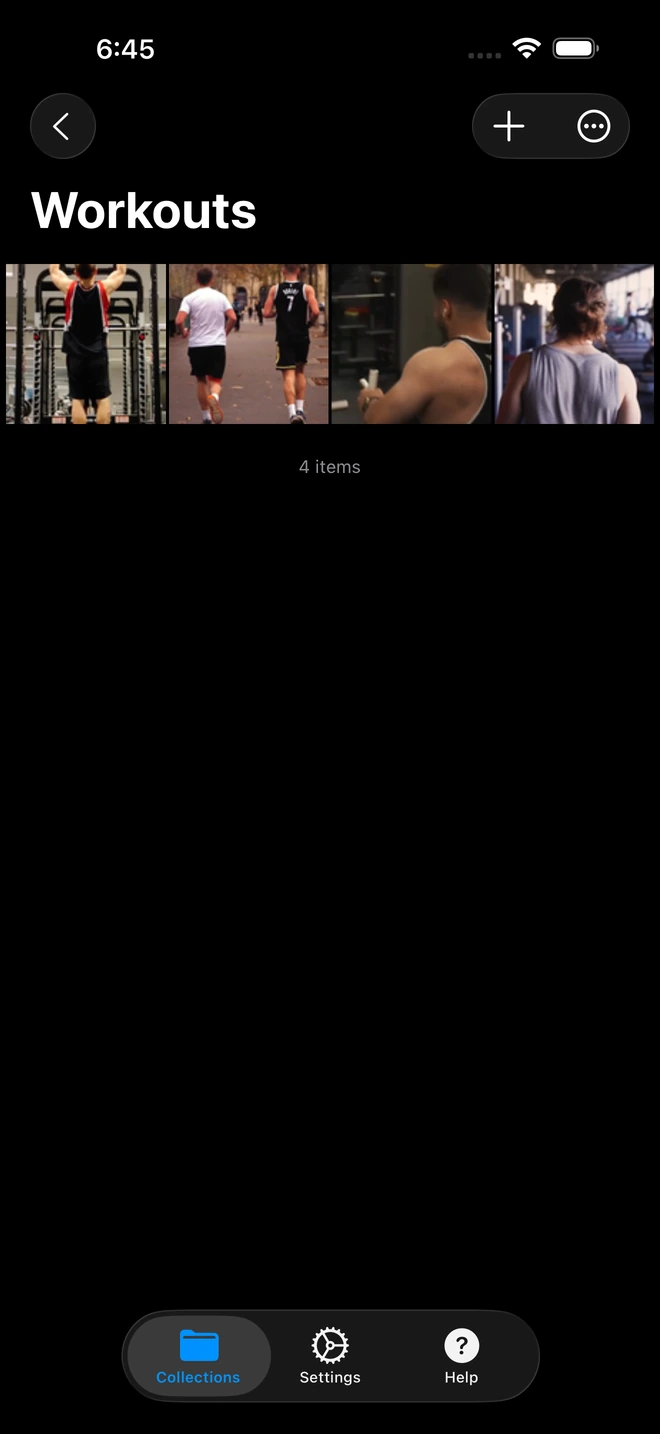
- 1Workout loops stream directly to TV without interrupting background audio.
Because your phone is merely acting as a passive local network server rather than an active video player:
- Bluetooth Audio Stays Locked: Your Spotify, Apple Music, or DJ mix continues streaming uninterrupted to your Bluetooth studio receiver, commercial soundboard, or PA amplifiers.
- Zero Notification Leaks: Text messages, private phone calls, WhatsApp group chats, and bank notifications never flash across the wall-mounted gym TV in front of twenty paying members.
- Independent Phone Multitasking: You can open timer apps, log member reps in your coaching dashboard, adjust Spotify volume, or lock your phone screen without stuttering the TV's visual loop.
- Zero Battery Burnout: Screen mirroring forces your phone's GPU to encode 60fps display buffers in real time, causing phones to overheat and throttle. Zee Cast direct play consumes negligible CPU and battery.
Technical Comparison: Gym Video & Audio Delivery Methods
| Feature / Capability | Screen Mirroring (AirPlay / Miracast) | USB Flash Drive | Zee Cast (DLNA Direct Play) |
|---|---|---|---|
| Simultaneous Bluetooth Music | ❌ Hijacks audio to TV speakers | ✅ Music plays from phone | ✅ Fully independent Bluetooth PA audio |
| Notification Privacy | ❌ Texts & calls flash on TV | ✅ Completely isolated | ✅ 100% private phone screen |
| Daily Workout Updates | Instant from phone | ❌ Requires laptop & ladder climb | ✅ Instant collection update on phone |
| Multi-Station Multi-TV Support | ❌ 1 screen per device | ❌ Requires multiple USB drives | ✅ Multiple TVs pull from 1 phone server |
| Mobile Battery Consumption | Severe (15–25% per 45 min) | 0% (Device not used) | Negligible (<2% per class session) |
| Internet / Cellular Data Needed | Varies (often requires cloud sync) | 0 MB | 0 MB (100% offline local subnet) |
Step-by-Step Setup: The 90-Second Pre-Class Coach Routine
Setting up your gym's visual exercise loops and sound system takes less than two minutes before doors open for the morning rush. Follow this proven coaching workflow:
Step 1: Prep Your Demonstration Clips
Keep a folder of silent, high-definition exercise videos in your camera roll. Record your coaches executing clean form against a neutral studio backdrop, or save 5-to-15-second looping animations of your daily programming (e.g., Dumbbell Thrusters, Box Jumps, Ring Dips). Ensure the audio track is muted or silent so no ambient gym clatter is embedded in the container.
Step 2: Connect Phone to Studio PA & Fire Up the Playlist
Turn on your facility's sound system. Pair your phone over Bluetooth or plug in the 3.5mm AUX adapter. Launch your fitness playlist on Spotify, Apple Music, or SoundCloud. Verify that bass, mids, and treble are pumping through the main studio speakers at full coaching energy.
Step 3: Launch Zee Cast & Build Today's WOD Collection
Open Zee Cast. Tap + Create Collection and title it with today's date or class format (e.g., "2026-10-11 MetCon Stations"). Select the 3 to 6 movements for the session. Zee Cast packages these files into an isolated UPnP container while locking away your remaining photos, personal videos, and sensitive files.
Step 4: Turn On Sharing
Tap the prominent Turn on sharing toggle in Zee Cast. The app binds to port 8080 on your local Wi-Fi interface and broadcasts SSDP discovery packets across the room.
Pro-Tip for Gyms with Strict Guest Wi-Fi
If your commercial facility router has Client Isolation turned on (preventing devices from discovering each other), simply enable Personal Hotspot on your phone and connect the gym TV's Wi-Fi to your phone's hotspot. Zee Cast communicates across the hotspot subnet with zero data usage, zero cloud connectivity, and zero reliance on gym IT administrators.
Step 5: Launch Video on the TV & Engage Repeat Loop
Grab the TV remote. Under the 'Source', 'Connected Devices', or 'Media Player' menu (Samsung Smart View/Connected Devices, LG Media Player, or Sony Media Player), select Zee Cast. Enter your collection, select the first workout video, and press Play.
Crucial step: Press the TV remote's options menu and toggle Repeat Mode to 'Repeat One' or 'Repeat Folder'. The smart TV's internal video processor will continuously cycle the exercise demonstration seamlessly.
In the Trenches: How Instructors Run the Class
Once sharing is active and the TV is looping:
- Roam the Floor Freely: Carry your phone in your pocket or holster. As you walk between squat racks and turf lanes, your phone remains connected to Bluetooth, allowing you to tweak track volumes during warm-ups, countdowns, and all-out sprints.
- Run Timer Apps Concurrently: Switch to your interval timer app (such as SmartWOD, Seconds Pro, or Gymboss). The audio horn beeps will chime through the gym PA right over your music, while the TV across the room continues looping exercise demos without a millisecond of lag.
- Switch Movements Between Blocks: When transitioning from the strength block to the conditioning circuit, tap your TV remote or select the next clip in Zee Cast. The TV immediately updates to the new movement demonstration while your soundtrack continues uninterrupted.
Multi-Screen Gyms: Station-Based Training
In 5,000+ square foot CrossFit boxes or boutique circuit studios with multiple wall monitors (e.g., Station 1: Ergometers, Station 2: Free Weights, Station 3: Calisthenics), you don't need three phones. A single phone running Zee Cast Pro can serve different video loops to each television independently. TV #1 browses into Collection 1, TV #2 streams Collection 2, and TV #3 loops Collection 3 - all powered by one instructor handset while coaching music plays smoothly over Bluetooth.
Summary: Flawless Studio Audio and Visuals
Modern group fitness demands professional AV execution. By swapping out clunky screen mirroring for Zee Cast's local UPnP direct play architecture, gym owners and coaches achieve the ultimate studio workflow: high-energy playlists driving the room through the PA system, crystal-clear 4K exercise demonstrations looping silently on the monitors, and total smartphone freedom for the instructor on the floor.
Frequently Asked Questions
Why does screen mirroring (AirPlay / Miracast) kill music on the gym PA sound system?
Standard screen mirroring captures the entire operating system audiovisual pipeline. When you activate AirPlay Mirroring or Miracast to send video to a smart TV, your phone automatically redirects master audio output away from your Bluetooth mixer and sends it to the television speakers. Furthermore, if an exercise demonstration video has any audio track or background noise, screen mirroring blasts that noise through the TV, silencing your studio playlist and disrupting class tempo.
How does Zee Cast allow simultaneous TV video playback and Bluetooth music playback?
Zee Cast is not a screen mirror; it is a UPnP/DLNA Digital Media Server (DMS). When you turn on sharing in Zee Cast, your phone does not play the video locally. Instead, the smart TV connects to Zee Cast via HTTP byte-range requests and pulls the video file directly into its internal decoder. Because your phone's media pipeline is not playing the video, the phone's master audio channel remains completely dedicated to Spotify, Apple Music, or interval timers streaming over Bluetooth A2DP to your gym PA system.
What happens if someone calls my phone or sends a text during group class?
Nothing appears on the TV. With screen mirroring, an incoming phone call, text notification, or WhatsApp ping covers the entire screen, interrupting members mid-set. With Zee Cast, the TV communicates strictly with the media server in the background. Incoming notifications, calls, lock-screen alarms, and timer alerts remain strictly private on your phone handset and never flash on the gym TV.
Do gym members see my personal camera roll photos on the studio TV?
No. Zee Cast enforces a strict Curated Collections architecture. The smart TV can only see the specific video files you explicitly added to the active collection (such as 'Class Demos 2026-10-11'). The rest of your camera roll, screenshots, personal albums, and private messages are completely invisible to the UPnP ContentDirectory index.
Can I use interval timer apps (e.g., WOD Timer, Seconds Pro) while the TV loops video?
Yes! Because Zee Cast runs as a background service, you can keep the workout video playing on the TV while switching your phone between Spotify, Instagram Live, and interval timer apps. Timer audio beeps route directly through Bluetooth into the gym PA system alongside your music, while the TV continues looping movement demonstrations without hesitation.
Does looping a 4K video all day consume mobile cellular data or Wi-Fi bandwidth?
Zero bytes of cellular data or internet bandwidth are consumed. All communication takes place strictly within your local Wi-Fi network (or offline Personal Hotspot). Once the TV buffers a segment or the full video file into its internal memory, local network bandwidth drops to negligible levels. You can run 8 classes a day without incurring data overage charges or cloud server fees.
What if our gym Wi-Fi router blocks device discovery between phone and TV?
Commercial gyms often use guest Wi-Fi networks with Client Isolation (AP Isolation) enabled to protect member devices. If your gym TV cannot discover Zee Cast on the facility Wi-Fi, turn on Personal Hotspot on your phone and connect the gym TV's Wi-Fi to your hotspot. Zee Cast works flawlessly over local hotspot subnets without requiring external internet access.
How do I make the exercise video repeat continuously without stopping?
Most modern smart TVs (Samsung Tizen, LG webOS, Sony Google TV, TCL, Hisense) include native repeat controls within their built-in Media Player. Once you start playing the video from Zee Cast, press the 'Options' or 'Sub-menu' button on the TV remote, select the Repeat icon (represented by two looped arrows), and set it to 'Repeat One' or 'Repeat All'. The TV will loop the workout clip indefinitely.
Can I stream different exercises to multiple TVs across different workout stations?
Yes. With Zee Cast Pro, you can create multiple curated collections (e.g., 'Station 1: Row & Erg', 'Station 2: Kettlebell & Core', 'Station 3: Plyometrics'). Multiple smart TVs in the gym can connect to the same phone's Zee Cast server simultaneously and play different video files from your collections.


