

 ⚡ At a Glance: Cable-Free Direct Play Specs ⚡ At a Glance: Cable-Free Direct Play Specs | |
|---|---|
| Target Platform & OS | All Modern Smart TVs (Samsung Tizen, LG webOS, Roku, Fire TV, Sony Google TV, Android TV) |
| Protocol & Port | UPnP / DLNA 1.5 MediaServer, Port 8080 (HTTP Byte-Range Streaming) |
| Connection Type | Local Wi-Fi (2.4 / 5 GHz) or Phone Personal Hotspot (0 MB Cellular Data) |
| Transcoding | None (Native bit-for-bit hardware Direct Play; automatic HEIC-to-JPEG compatibility) |
| Typical Setup Time | ~60 seconds (Zero dongles, cables, or adapters required) |
For more than a decade, the standard advice for displaying photos and videos from a phone onto a television screen was simple: buy an HDMI adapter cable. But in 2026, physical cables have become a costly, unreliable, and physically frustrating trap. Between incompatible USB-C standards, overheating Lightning dongles, HDCP handshake failures, and phones literally tethered to entertainment units, physical cables create more problems than they solve.
Here is the comprehensive guide to eliminating physical HDMI cables completely. By leveraging the open, hardware-accelerated DLNA (Digital Living Network Alliance) player built into virtually every modern Smart TV alongside Zee Cast on your smartphone, you can stream uncompressed 4K 60fps video and crystal-clear photos across the room without buying a single dongle.
The Cable Dilemma: Why Physical Phone-to-HDMI Connections Fail
Consumers frequently purchase a $25 to $50 USB-C to HDMI cable or Lightning Digital AV adapter expecting a plug-and-play experience, only to be met with a blank TV screen, glitchy audio, or rapid phone overheating. The technical reasons for these failures run deep into hardware manufacturing choices and protocol obsolescence.
1. The Demise of MHL (Mobile High-Definition Link)
In the early 2010s, smartphones utilized a standard called MHL (Mobile High-Definition Link). MHL multiplexed HDMI video and audio signals across standard micro-USB pins. However, MHL required specialized silicon inside both the phone and the television HDMI input port (specifically an MHL-enabled HDMI port). As televisions transitioned to HDMI 2.0 and HDMI 2.1, manufacturers stopped paying licensing fees for MHL chips. By 2016, MHL was officially abandoned across the mobile industry. Any old micro-USB to HDMI cable found in a drawer is completely dead hardware on modern devices.
2. The USB-C DisplayPort Alternate Mode Hardware Lottery
When the industry transitioned to the reversible USB Type-C connector, consumers assumed that because the plug fits, the functionality follows. This assumption is completely false. USB-C is merely a mechanical form factor; what happens across its 24 physical pins depends entirely on what the manufacturer wired to the motherboard.
To output video through a standard USB-C to HDMI cable, a phone must support DisplayPort Alternate Mode (DP Alt Mode). This requires physical high-speed differential signal lanes routed directly from the smartphone's System-on-Chip (SoC) GPU to the Type-C receptacle, along with multiplexer chips to negotiate video handshakes:
- Flagship Exclusivity: Premium smartphones like the Samsung Galaxy S-series (S20 through S25/S26) and iPhone 15 Pro / 16 / 17 series wire DP Alt Mode to enable desktop modes like Samsung DeX.
- Mid-Range & Budget Omissions: The vast majority of Android smartphones sold worldwide - including the Google Pixel 6, 7, and 8 (which Google deliberately software-disabled or omitted hardware lanes on until late Pixel 8 updates), the entire Samsung Galaxy A-series (e.g., A14, A34, A54), Nothing Phone, Motorola Moto G-series, and Xiaomi Redmi phones - feature USB-C ports wired strictly for USB 2.0 or basic USB 3.0 data transfer.
When you plug a $30 USB-C to HDMI cable into a phone lacking DP Alt Mode wiring, no video signal can physically travel through the wire. The television displays "No Signal," leaving users confused and frustrated.
3. Apple's Lightning to Digital AV Bottleneck
For users with an iPhone featuring a Lightning port (iPhone 5 through iPhone 14 Pro Max), Apple's official $49 Lightning to Digital AV Adapter represents one of the most bizarre engineering compromises in consumer tech.
Because the Lightning connector has only 8 operational pins, it physically cannot transport raw, uncompressed HDMI video signals. To solve this, Apple engineered an entire independent computer inside the plastic adapter housing:
- An ultra-low-power ARM processor (SoC) running an embedded XNU-derived micro-kernel.
- 256 MB of mobile DDR RAM soldered directly to the adapter PCB.
- An onboard H.264 hardware decompression engine.
When you plug in the adapter, your iPhone's GPU must capture the screen, encode it into an H.264 compressed video bitstream, send the compressed packets over serial Lightning pins to the adapter, and then the adapter's micro-chip decodes the stream and outputs HDMI video.
The result? The adapter becomes scorching hot to the touch within 15 minutes. High-motion videos suffer from macroblocking, color banding, and dropped frames. The round-trip encoding latency causes visible lag, and the continuous hardware encoding quickly drains your iPhone battery.
4. The Physical Nightmare: Tethers, Tripping Hazards, and Burn-In
Even when an HDMI cable physically works, the real-world user experience is deeply flawed:
- The 6-Foot Leash: Standard HDMI cables tether your phone directly to the back of the television or entertainment stand. You cannot sit comfortably on your living room couch while flipping through vacation photos; you must stand uncomfortably next to the TV.
- Screen Always Awake: Screen mirroring over HDMI requires your phone's screen to stay illuminated continuously. If you stream a two-hour home video, your phone's OLED display stays powered on at maximum brightness the entire time, causing severe battery depletion, thermal throttling, and permanent OLED pixel burn-in risk.
- Zero Notification Privacy: Every private text message, two-factor authentication code, calendar reminder, or banking alert pops up directly on the 65-inch television screen for everyone in the room to read.
5. HDCP Handshake Failures
High-bandwidth Digital Content Protection (HDCP) is a cryptographic handshake designed to prevent HDMI piracy. Cheap third-party USB-C to HDMI adapters frequently fail timing constraints during the HDCP key exchange with 4K televisions. When the handshake fails, the television will either display an infuriating "HDCP Authentication Failed" warning or cut out intermittently every few seconds.
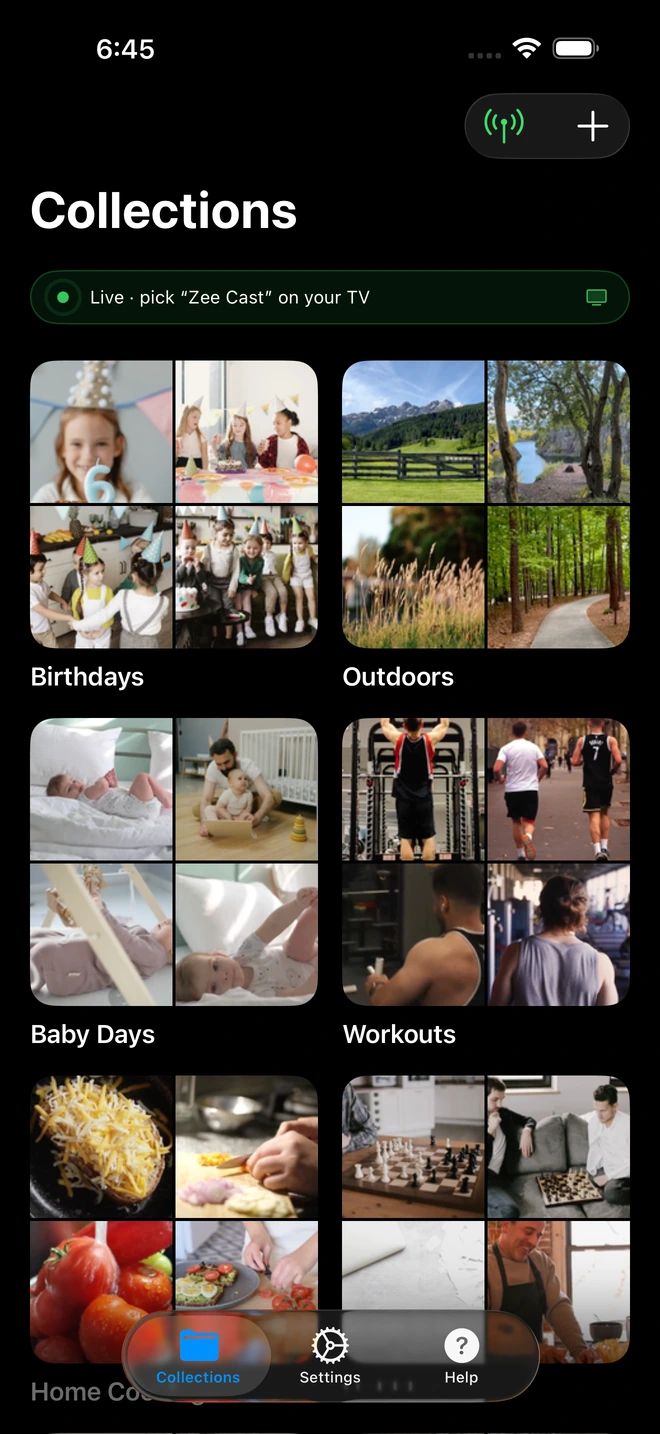
- 1Server is live - instantly discoverable on TV.
The Wireless Alternative: How DLNA Direct Play Replaces HDMI
Rather than treating your smartphone as an analog video transmitter pumping electrical signals down copper wires, modern home networking allows your phone to function as a high-speed, local UPnP/DLNA Media Server.
Every major Smart TV built since 2016 - running Samsung Tizen, LG webOS, Roku OS, Amazon Fire OS, or Google TV / Android TV - already contains an industrial-grade, hardware-accelerated DLNA Media Player pre-installed in its firmware.
When you install Zee Cast on your iPhone or Android device, the app starts a lightweight HTTP media server directly on your phone:
- 1
Zero-Configuration Discovery (SSDP)
Zee Cast broadcasts standard Simple Service Discovery Protocol (SSDP) announcements over UDP multicast port 1900. Your Smart TV listens on this port and instantly detects "Zee Cast" as an available media source on your home network - no Bluetooth pairing or PIN codes needed.
- 2
Direct Bitstream Delivery (HTTP Range Requests)
When you select a video or photo on your TV screen using your TV remote, your television connects directly to Zee Cast on your phone via TCP port 8080. Zee Cast serves the raw, bit-for-bit file bytes directly from your phone's flash storage using standard
HTTP 206 Partial Content(byte-range) requests. - 3
Hardware-Accelerated Playback on the TV
Because the raw video file is delivered intact, your Smart TV's dedicated silicon video processor handles all decoding. The TV renders buttery-smooth 4K 60fps HEVC or H.264 video with vibrant 10-bit HDR10 color, while your phone's processor stays completely idle.
- 4
Complete Multitasking and Screen Sleep
Because your phone is serving file packets in the background rather than mirroring its screen, you are free to lock your phone, turn off the screen, browse apps, or answer phone calls without ever interrupting the big-screen viewing experience.
Step-by-Step: Connect Phone to TV Without HDMI in 4 Easy Steps
Connecting your iPhone or Android phone to your Smart TV wirelessly requires less than two minutes of initial setup. Follow these four straightforward steps:
- 1
Connect Both Devices to the Same Local Wi-Fi
Ensure your smartphone and your Smart TV are connected to the same home Wi-Fi network. For smooth, high-bitrate 4K 60fps video streaming, connecting both devices to your router's 5 GHz Wi-Fi frequency band is strongly recommended.
No home Wi-Fi router available? No problem! Simply turn on your phone's Personal Hotspot or Mobile Hotspot, connect your Smart TV to your phone's hotspot Wi-Fi, and proceed. Zee Cast operates entirely over local radio waves, consuming 0 MB of cellular mobile data.
- 2
Launch Zee Cast and Enable Sharing
Open Zee Cast on your phone. Create a collection containing the specific photos and vacation videos you want to share on the TV. Tap Turn on sharing to activate the local UPnP media server.
- 3
Open the Media Player on Your Smart TV
Grab your Smart TV remote control and open the built-in media browser. Depending on your TV brand:
Universal Smart TV · Menu NavigationPress Source / Home → Navigate to Connected Devices / Media Player → Select Zee Cast
- 4
Browse Collections and Enjoy Full 4K Direct Play
Your phone will appear as a high-speed media source named "Zee Cast". Use your TV remote arrows to open your curated photo albums or video collections. Click any photo to begin an edge-to-edge 4K slideshow, or select a video to enjoy flawless hardware-accelerated playback.
Where to Find Zee Cast on Your Specific Smart TV Brand
Because DLNA is an open international standard, virtually every Smart TV operating system includes a built-in client. Here is exactly where to find Zee Cast across all major TV platforms:
| TV Brand / Operating System | Built-in Media Player Location | Remote Control Shortcut |
|---|---|---|
| Samsung Smart TV (Tizen OS) | Smart Hub → Connected Devices or Sources ribbon → Select Zee Cast | Press Home or Source button |
| LG Smart TV (webOS) | Home Dashboard → Media Server / Storage Devices → Or open the built-in Photo & Video app | Press Home, click Home Dashboard tile |
| Roku TV & Roku Streaming Sticks | Open the pre-installed Roku Media Player channel → Select Video or Photo → Select Zee Cast | Press Home, launch Roku Media Player |
| Amazon Fire TV / Fire Stick | Open pre-installed Media Player, or launch VLC for Fire TV → Local Network → Zee Cast | Press Home → Apps → Media Player or VLC |
| Sony Bravia / Android TV / Google TV | Open the native Media Player app, or use VLC / Nova Video Player → Local Network / UPnP | Press Inputs or open Media Player from App row |
| Hisense TV (VIDAA OS) | Launch the built-in Media app → Select Network Media Server → Select Zee Cast | Press Home → Select Media app tile |
Comprehensive Comparison: HDMI Cable vs. Screen Mirroring vs. Zee Cast DLNA
When comparing all three methods of connecting a smartphone to a television, the architectural advantages of local DLNA Direct Play via Zee Cast become immediately apparent:
| Feature / Capability | Physical HDMI Cable / Adapter | Screen Mirroring (AirPlay / Miracast) | Zee Cast (DLNA Direct Play) |
|---|---|---|---|
| Hardware Cost | $25 – $50 for cables and dongles | $0 (Built-in software) | $0 (Free built-in native TV players) |
| Phone Mobility | Physically tethered (1–2 meters) | Wireless (Room-wide) | 100% Wireless (Walk anywhere in home) |
| Device Compatibility | Fails on budget/mid-range Android without DP Alt Mode | Fragmented (Miracast blocked on Pixel, AirPlay blocked on non-Apple) | Universal (100% iPhone & Android compatible) |
| Display Aspect Ratio | Mirrors phone 19.5:9 (Massive black side pillars) | Mirrors phone 19.5:9 (Massive black side pillars) | Native 16:9 Full Screen (Zero letterboxing) |
| Video Resolution & Bitrate | Compressed or downscaled to 1080p on Lightning | Re-compressed H.264/H.265 mirror stream with frame drops | Bit-for-bit uncompressed 4K 60fps HDR Direct Play |
| Phone Screen State | Must stay awake at full brightness | Must stay awake at full brightness | Screen can be locked & completely asleep |
| Battery Drain & Thermal Load | High (Severe adapter & phone heating) | Very High (Continuous GPU re-encoding) | Negligible (Idle background HTTP server) |
| Multitasking | Blocked (Everything on phone is mirrored) | Blocked (Everything on phone is mirrored) | Full (Text, take calls, browse social media) |
| Notification Privacy | Zero (Texts and alerts broadcast to TV) | Zero (Texts and alerts broadcast to TV) | Total (Zero notifications leak to TV) |
| Offline / No-Internet Support | Yes (Physical wire) | Varies (AirPlay often demands Wi-Fi router) | Yes (Works 100% offline via Phone Hotspot) |
| HDCP Error Risk | Frequent handshake failures on cheap dongles | None | None (Zero HDCP DRM handshakes required) |
Audio and Video Fidelity: Why Direct Play Crushes HDMI Mirroring
Most users assume that a physical copper wire inherently delivers higher audiovisual quality than a wireless network connection. In the context of smartphone screen mirroring, however, the exact opposite is true.
Original Bitstream Preservation
When you shoot a 4K 60fps HDR video on an iPhone 16 Pro or Samsung Galaxy S25, the camera sensor records at bitrates reaching 80 Mbps to 100 Mbps using 10-bit HEVC (H.265) compression with wide-color P3 gamuts and Dolby Vision or HDR10+ metadata.
When you connect via an HDMI cable or screen mirror:
- Your phone's display pipeline captures rendered framebuffers (which have already been tonemapped down to standard dynamic range for the phone display).
- The phone re-encodes these frames into a secondary, compressed H.264 stream.
- During motion-heavy scenes, bitrate starvation introduces visible blocky artifacts, color banding in skies, and stuttering frame drops.
With Zee Cast DLNA Direct Play, no re-encoding occurs. Zee Cast acts as a pure file streaming pipeline. When your television requests /media/vacation_4k.mp4, Zee Cast transmits the exact camera-roll file over local Wi-Fi. The TV's dedicated picture processor decodes the raw 10-bit HDR file with zero quality loss, delivering stunning, theatrical image quality.
True Multi-Channel Surround Sound
When streaming home movies recorded with stereo or spatial audio tracks, screen mirroring often downsamples audio to 16-bit 48kHz stereo with aggressive dynamic range compression. Through Zee Cast, multichannel AAC or AC-3 audio tracks are passed through untouched directly to your TV's sound system, eARC soundbar, or AV receiver.
Solving the iPhone HEIC Photo Format Barrier
Since the release of iOS 11, iPhones capture photos in Apple's proprietary High Efficiency Image Container (.heic) format. While HEIC offers superior compression efficiency compared to legacy JPEGs, television manufacturers have been notoriously slow to implement HEIC decoders within their DLNA media player firmware.
If you attempt to use generic DLNA server apps to share iPhone photos with a Samsung, LG, or Sony TV, the TV will typically fail to render the image, displaying an annoying "Unsupported File Format" error icon.
The Zee Cast Solution: Zee Cast features an intelligent on-the-fly image processing pipeline. When a connected Smart TV requests a photo thumbnail or full-size image, Zee Cast automatically inspects the request header, detects the client's format requirements, and renders an ultra-crisp, maximum-resolution JPEG stream directly from the original HEIC image data. You get full 24-megapixel or 48-megapixel camera sensor sharpness on your 4K or 8K TV screen without ever needing to manually convert files on your iPhone.
Complete Privacy: Never Show Your Text Messages on the Big Screen
Perhaps the single greatest advantage of ditching HDMI cables and screen mirroring in favor of Zee Cast is privacy protection.
We have all witnessed the awkward living room scenario: someone plugs their phone into the TV to show photos from a recent trip, and suddenly an intimate text message, a sensitive banking notification, or a private email alert banner flashes across the entire 65-inch screen for all family members and friends to see.
Because Zee Cast streams curated media collections through a dedicated media server rather than mirroring your screen:
- Zero Notification Leakage: Text messages, Slack alerts, phone calls, and push notifications remain strictly on your phone screen. Nothing appears on the TV.
- Curated Collections: You choose exactly which photos and videos are exposed to the TV. Your private photos, camera roll screenshots, and personal receipts remain completely invisible to anyone browsing the TV interface.
- Zee Cast Pro Device Approval: With the optional Pro Edition, Zee Cast introduces an on-screen Device Approval firewall. Whenever any device on your Wi-Fi attempts to connect to your media server, your phone vibrates with an interactive prompt asking you to Allow or Deny access by IP address.
💡 Pro Tip: Optimize Your Wi-Fi Router for 4K DLNA Streaming
For the smoothest 4K 60fps video playback without initial buffering, ensure both your smartphone and your Smart TV are connected to the 5 GHz Wi-Fi frequency band of your router rather than the older 2.4 GHz band. Additionally, check your router settings to verify that AP Isolation (Access Point Isolation) is turned OFF and UPnP / Multicast (IGMP Snooping) is enabled so devices can discover each other freely.
Frequently Asked Questions
Why doesn't a standard USB-C to HDMI cable work with every Android smartphone?
A physical USB-C to HDMI cable requires the smartphone's USB-C port to implement 'DisplayPort Alternate Mode' (DP Alt Mode) hardware wiring. Most mid-range and budget Android phones - including popular models from Google (Pixel 6, 7, and 8 series before recent firmware updates), Motorola, Xiaomi, Nothing, and OnePlus - only support USB 2.0 data transfer speeds without DisplayPort video-out hardware pins. When you plug an HDMI cable into these devices, nothing happens because the hardware literally lacks physical video-out circuitry. Zee Cast bypasses physical port limitations entirely by transmitting media over standard IP networking protocols supported by 100% of smartphones.
Why does the official Apple Lightning to Digital AV Adapter get hot and lag?
Apple's Lightning connector is an 8-pin interface that cannot carry raw HDMI video signals. To circumvent this, Apple engineered a miniature computer inside the bulky $49 adapter: an ARM system-on-chip running a micro-kernel OS with 256 MB of RAM. When connected, the iPhone encodes its screen into an H.264 compressed MPEG video stream, transmits the packets over Lightning pins, and the adapter's micro-chip decodes and outputs HDMI. This dual-encoding architecture produces substantial latency, severe thermal throttling, battery drain, and visual compression artifacts. Zee Cast serves the raw file directly over Wi-Fi to your TV's dedicated high-performance hardware decoder, eliminating adapter overheating entirely.
Does wireless streaming without HDMI degrade 4K video quality?
No, wireless streaming via Zee Cast actually delivers higher visual fidelity than screen mirroring or budget HDMI adapters. When using Zee Cast, the app acts as a DLNA media server, serving the exact bit-for-bit file bytes directly to the TV's native media player via HTTP Range requests. Your Smart TV decodes the raw 4K HEVC/H.264 video file locally using its internal quad-core video processor. Unlike HDMI mirror streams that downsample to 1080p, introduce compression banding, and crush color dynamic range, DLNA Direct Play preserves original camera-sensor sharpness, 10-bit HDR color metadata, and 60fps frame rates.
Can I connect my phone to a TV without HDMI if there is no Wi-Fi router or home internet?
Yes, absolutely. DLNA is an offline, local-area networking protocol (RFC 1918) that never touches the global internet. If you are in a hotel room, vacation cabin, campervan, or facing a home broadband outage, turn on your smartphone's Personal Hotspot or Mobile Hotspot. Connect your Smart TV to your phone's hotspot Wi-Fi. Zee Cast will instantly discover the TV over the hotspot's private local subnet, allowing you to stream hours of 4K vacation video and high-resolution photos using exactly 0 MB of your cellular carrier plan.
What is HDCP and how does DLNA avoid HDCP handshake black-screen errors?
HDCP (High-bandwidth Digital Content Protection) is an encryption protocol enforced over physical HDMI connections to prevent digital piracy. Cheap third-party USB-C to HDMI adapters frequently fail the cryptographic handshake with 4K televisions, resulting in flickering displays, 'HDCP Error' alerts, or permanent black screens. DLNA Direct Play transfers personal media files over local HTTP/TCP network sockets. Because personal camera roll videos and photos do not require DRM encryption handshakes, HDCP negotiation is never triggered, completely eliminating handshake errors.
Will my phone battery drain as fast as it does when using an HDMI cable or screen mirroring?
No. When you mirror your screen over an HDMI cable or AirPlay/Miracast, your smartphone's GPU is forced to continuously render two displays simultaneously while keeping the phone screen illuminated at full brightness, draining the battery in 1 to 2 hours. With Zee Cast, the phone merely acts as a lightweight background file server. Once video playback starts on your Smart TV, you can lock your phone screen, turn off the display, or put your phone in your pocket. Battery consumption is minimal - comparable to listening to a background podcast.
How does Zee Cast handle iPhone HEIC photos when connecting wirelessly to a TV?
Modern iPhones shoot photos in Apple's proprietary HEIC (High Efficiency Image Container) format. Most Smart TVs (including Samsung Tizen and LG webOS) do not possess hardware HEIC decoders within their DLNA media engine, meaning they fail to display raw HEIC files. Zee Cast automatically recognizes TV renderer limitations and transcodes HEIC files into pristine, full-resolution JPEG streams on the fly during transmission. Your photos display instantly in edge-to-edge 4K resolution without requiring any manual conversion on your iPhone.
Can I receive phone calls, text messages, or use other apps while streaming?
Yes. Because Zee Cast uses local DLNA media streaming rather than live display mirroring, your phone's screen is completely decoupled from the television. You can respond to private text messages, take phone calls, scroll social media feeds, or play games without interrupting the photo slideshow or 4K video playing on the living room TV. Furthermore, private incoming notifications will never accidentally flash across the TV screen in front of family or guests.
Is a dedicated wireless HDMI transmitter kit worth buying instead of using software like Zee Cast?
For streaming personal camera roll photos and videos, wireless HDMI transmitter kits (dongle transmitter and receiver pairs costing $60 to $150) are generally an expensive and cumbersome mistake. They require physical dongles plugged into both your phone's port and the TV's HDMI port, demand external USB power cables hanging from the wall, suffer from line-of-sight signal drops, and still suffer from the same DisplayPort Alt Mode incompatibility on many Android phones. Zee Cast achieves superior 4K quality using the Wi-Fi and DLNA hardware already built into your smartphone and Smart TV, requiring zero extra hardware purchases.


