

 ⚡ At a Glance: Samsung Smart View for iOS Specs ⚡ At a Glance: Samsung Smart View for iOS Specs | |
|---|---|
| Target Platform & OS | Samsung Smart TVs (Tizen OS 2.4+ / 2016–2026+ Neo QLED, OLED, The Frame, Crystal UHD) |
| Protocol & Port | DLNA 1.5 / UPnP MediaServer, Port 8080 (Local HTTP Range Requests) |
| Connection Type | Local Wi-Fi (5 GHz recommended for 4K) or Hotspot (0 MB Internet Data) |
| Transcoding | None (Direct Play original bitstream; automatic HEIC-to-JPEG compatibility) |
| Typical Setup Time | ~60 seconds (No SmartThings account, no TV app required) |
If you search the Apple App Store for "Samsung Smart View," you will find thousands of confused iPhone owners asking the same question: where did the Smart View app go? In late 2020, Samsung abruptly killed its beloved, standalone Smart View app on iOS, pushing millions of iPhone and iPad users into their bloated SmartThings smart-home ecosystem.
For Apple users who simply want to show holiday photos or high-definition 4K videos on their living room Samsung TV, SmartThings is an over-engineered nightmare. And while Apple AirPlay 2 is built into newer Samsung TVs, its letterboxing, audio desync, and battery drain leave much to be desired.
This guide shows you how to bring back the seamless, one-tap "Smart View" experience on iOS using Zee Cast and Samsung Tizen's built-in, hardware-accelerated DLNA Media Player.
The Fall of Samsung Smart View: What Happened in October 2020?
For years, the official Samsung Smart View app was the gold standard for connecting non-Samsung smartphones to Samsung Smart TVs. It was fast, lightweight, and focused purely on media: you launched the app, it detected your TV over Wi-Fi, and you could beam photos, music, and home videos straight to the big screen with a single tap.
However, on October 5, 2020, Samsung officially pulled the plug on Smart View:
- Samsung permanently delisted the Smart View app from the Apple App Store and Google Play Store.
- Push notifications and splash screens instructed existing users that the app was deprecated and would no longer receive updates or function reliably with newer TV firmware.
- Samsung mandated that all casting, remote control, and device management features be folded into the Samsung SmartThings app.
While consolidating software makes sense for Samsung's corporate strategy to sell smart refrigerators, washing machines, and IoT smart plugs, it created a disastrous user experience for iPhone owners who just wanted to view their camera roll on a Samsung TV.
The SmartThings Frustration: Why It Fails for iPhone Users
Attempting to use the modern Samsung SmartThings app on an iPhone or iPad introduces massive friction:
- Mandatory Samsung Account Registration: SmartThings will not even open its main interface until you register a personal Samsung Account, verify your email, accept extensive privacy terms, and stay logged in.
- Invasive Permissions: SmartThings demands continuous Bluetooth scanning, precise GPS location access, local network access, and notification privileges just to communicate with a television sitting three feet away.
- Complex Smart-Home Hierarchy: Instead of opening straight to your camera roll, SmartThings forces you to configure "Locations," assign devices to "Rooms" (e.g., Living Room, Bedroom), and navigate through menus filled with smart thermostat widgets and appliance automations.
- Cloud Dependency and Lag: SmartThings routes communication and device state through Samsung's cloud infrastructure. If your home broadband connection experiences latency, or if Samsung's cloud authentication servers are undergoing maintenance, connecting to your TV will fail - even though both devices are on the exact same Wi-Fi router!
- App Size & Battery Drain: SmartThings consumes over 300 MB of storage space and runs persistent background processes that accelerate iPhone battery drain.
AirPlay 2 on Samsung TV: Why Screen Mirroring Is a Flawed Alternative
Recognizing the friction of SmartThings, many iPhone owners turn to Apple AirPlay 2, which has been integrated into Samsung Smart TVs since 2018 (Tizen OS 4.0 and newer).
While AirPlay 2 is convenient for quick screen mirroring, using it to stream high-resolution photos and high-framerate videos reveals severe architectural drawbacks:
1. Severe Aspect Ratio Mismatch (The Pillarboxing Problem)
Modern iPhones feature tall, cinematic aspect ratios: iPhone 12 through iPhone 17 models use approximately 19.5:9 aspect ratio displays. Samsung Smart TVs, by contrast, use the standard 16:9 television ratio.
When you mirror your iPhone screen via AirPlay, the TV mirrors the phone's vertical screen geometry. As a result, your television screen is dominated by massive black vertical bars (pillarboxing) on both sides. Even landscape photos fail to fill the 65-inch screen properly unless you manually zoom in, which crops vital parts of the image.
2. Frame Drops and 1080p Downscaling on 4K 60fps Videos
When you record a 4K 60fps video on an iPhone camera, the file is encoded at bitrates ranging from 60 Mbps to over 100 Mbps in 10-bit HEVC. AirPlay screen mirroring does not stream the raw file; instead, the iPhone's GPU captures the display buffer, compresses it into a live H.264 stream (frequently downsampled to 1080p 30fps), and broadcasts it wirelessly.
The result on a large Samsung 4K or 8K Neo QLED TV is immediately noticeable: motion stutter, dropped frames during camera pans, macroblocking in dark areas, and audio desync that drifts over time.
3. Zero Notification Privacy
AirPlay screen mirroring broadcasts everything that happens on your iPhone screen to the living room TV. If you receive an intimate iMessage, an embarrassing WhatsApp notification, a two-factor security code, or a bank transaction alert while showing vacation photos to family or friends, it pops up for everyone in the room to read.
4. Accelerated iPhone Thermal Throttling & Battery Drain
During screen mirroring, your iPhone is forced to do double duty: keep the phone's Super Retina XDR OLED display lit at full brightness while the GPU continuously encodes and transmits a live video feed. Within 20 minutes, the iPhone becomes noticeably warm, triggers thermal throttling, and loses 15% to 25% of its battery charge.
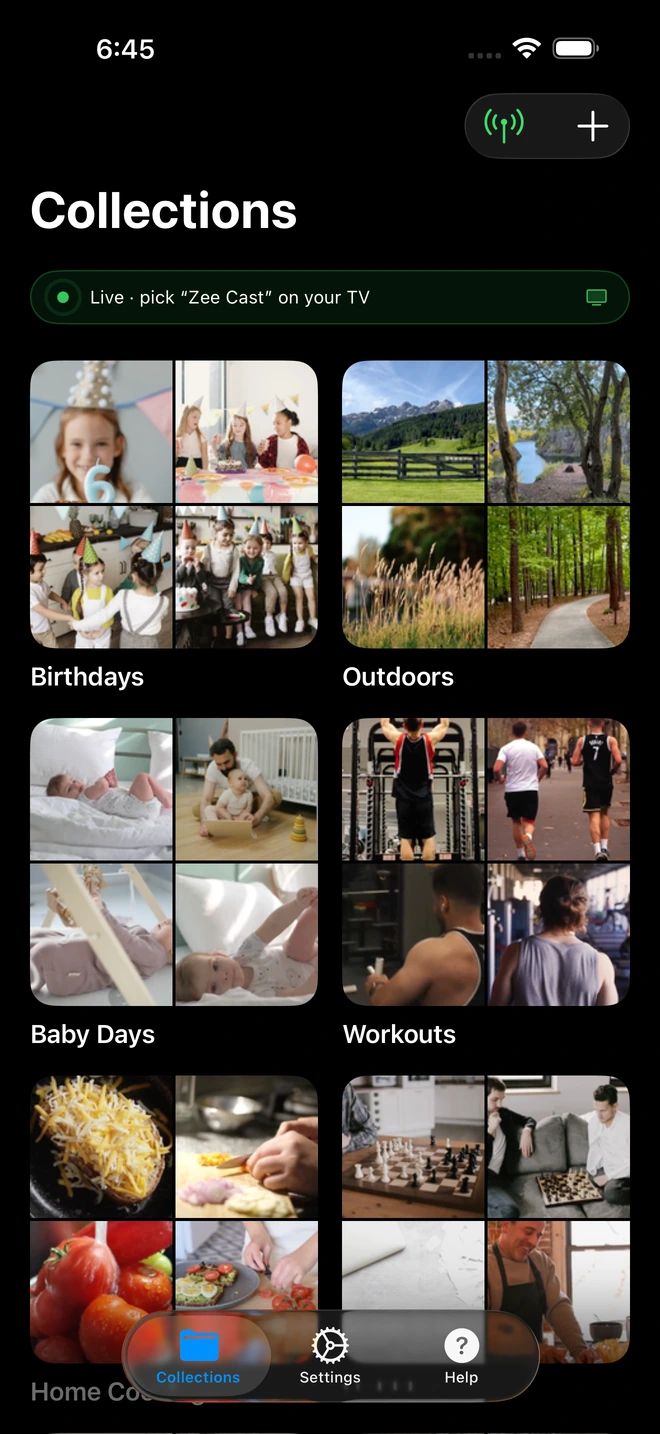
- 1Sharing is Live: TV detects Zee Cast under Connected Devices.
- 2Direct Play streams full-resolution photos & videos without mirroring.
The Native Solution: Samsung's Built-In Tizen DLNA Media Player
What Samsung's marketing never highlights is that every Samsung Smart TV built since 2015 contains an enterprise-grade, hardware-accelerated DLNA/UPnP Media Player built directly into its Tizen operating system firmware.
When your iPhone runs Zee Cast, the app activates a lightweight local HTTP media server on your phone. Your Samsung TV immediately recognizes your iPhone as a local media source - just like a high-speed network-attached hard drive.
This architecture delivers the true "Smart View" experience iPhone users have missed:
- Zero Accounts or Logins: 100% anonymous, zero cloud communication, no Samsung or Apple accounts required.
- Bit-for-Bit 4K 60fps Playback: The raw video file is transmitted directly via HTTP Range requests. Samsung's internal picture processor decodes the video in hardware with zero quality degradation.
- Full 16:9 Screen Fill: Photos and videos fill the Samsung TV display edge-to-edge in native 4K resolution without black side pillars.
- Complete Privacy: Only the photos and videos you explicitly curate into collections are visible. Your private messages and notifications never touch the TV.
- Total Phone Freedom: Once playback begins, you can lock your iPhone screen, answer phone calls, or browse social media without interrupting the TV.
Step-by-Step Walkthrough: Stream iPhone to Samsung TV in 4 Steps
Setting up Zee Cast on your iPhone and connecting to your Samsung TV takes less than 60 seconds:
- 1
Connect iPhone & Samsung TV to the Same Local Wi-Fi
Make sure your iPhone and your Samsung Smart TV are connected to the same home Wi-Fi network. For pristine 4K 60fps streaming, connect both devices to your router's 5 GHz Wi-Fi frequency band.
No home Wi-Fi? Simply turn on your iPhone's Personal Hotspot under Settings, connect your Samsung TV to your iPhone hotspot, and proceed. Zee Cast consumes 0 MB of cellular mobile data.
- 2
Curate Media & Tap 'Turn on sharing' in Zee Cast
Open Zee Cast on your iPhone. Create a collection and select the photos and 4K videos you want to share. Tap Turn on sharing to spin up the local UPnP media server.
- 3
Select Zee Cast Under Connected Devices on Samsung TV
Grab your Samsung One Remote, press the Home button, and navigate to Connected Devices (or press Source on 2016–2021 models). Select Zee Cast from the list.
Samsung Smart TV · Menu NavigationPress Home → Navigate to Connected Devices → Select Zee Cast
- 4
Browse Albums and Enjoy Full 4K Direct Play
Use your Samsung One Remote directional arrows to open photo albums or video folders. Select any photo to start an edge-to-edge slideshow, or press play on 4K videos. Your iPhone remains 100% free to use or lock.
Technical Superiority: SmartThings vs. AirPlay 2 vs. Zee Cast DLNA
Comparing all three approaches side-by-side illustrates why local DLNA streaming via Zee Cast is the superior engineering solution for iPhone owners:
| Feature / Capability | Samsung SmartThings App | AirPlay 2 Screen Mirroring | Zee Cast (DLNA Direct Play) |
|---|---|---|---|
| Account Required | Yes (Mandatory Samsung Account) | No (Apple ID / Local PIN) | No (Zero Accounts / 100% Anonymous) |
| Internet Connection Needed | Yes (Cloud sync & authentication) | No (Local Wi-Fi) | No (100% Offline / Personal Hotspot) |
| App Footprint & Bloat | Heavy (300+ MB IoT home suite) | Built-in iOS system menu | Lightweight (Under 20 MB single-purpose app) |
| Photo Display Resolution | Downscaled / Cloud Compressed | Screen resolution (often 1080p) | Native Camera Sensor (4K / 8K Uncompressed) |
| Aspect Ratio & Screen Fill | Varies | 19.5:9 Phone Aspect (Black side pillars) | 16:9 Native TV Screen Fill |
| iPhone HEIC Format Handling | Requires cloud upload | Decoded by phone, compressed mirror | Automatic High-Res JPEG Streaming |
| 4K 60fps Video Playback | Severe lag / Cloud buffering | Frequent frame drops & audio desync | Bit-for-bit hardware Direct Play (Zero lag) |
| iPhone Multitasking | Clunky background state | Blocked (Screen mirrored live) | 100% Free (Lock phone, text, or call) |
| Notification Privacy | IoT alerts | Zero (Texts and alerts flash on TV) | Total Privacy (Zero leaks to TV) |
| Battery & Thermal Impact | Moderate background drain | Severe (High phone heating & drain) | Negligible (Idle background HTTP server) |
How Zee Cast Solves the iPhone HEIC Photo Barrier on Samsung TV
Since the release of iOS 11, iPhones capture photos in Apple's proprietary High Efficiency Image Container (.heic) format. While HEIC halves photo storage sizes on your iPhone, Samsung Tizen TVs do not include a native HEIC decoder in their DLNA media pipeline. Attempting to stream raw HEIC files to a Samsung TV using ordinary media server apps typically results in an "Unsupported File Format" error or a blank black screen.
How Zee Cast Solves This: When your Samsung TV requests an image, Zee Cast automatically recognizes that the TV client requires standard image formats and serves an ultra-high-quality, full-resolution JPEG stream rendered directly from the original HEIC image data. You get the maximum resolution and dynamic range of your iPhone camera sensor on your Samsung Neo QLED or OLED display - with zero user intervention required.
4K 60fps Video Playback Without Stutter or Audio Desync
Modern iPhone camera sensors capture 4K video at 60 frames per second with bitrates reaching 60–100 Mbps. When you attempt to screen mirror these clips via AirPlay 2, your iPhone's processor must simultaneously decode the video, re-encode it into a compressed mirror stream, and transmit it over Wi-Fi. This causes severe frame drops, audio desync, and phone overheating.
With Zee Cast's Direct Play architecture:
- Bit-for-Bit Delivery: Zee Cast serves the raw MP4 or MOV container directly over HTTP byte-range requests.
- TV Hardware Acceleration: Your Samsung TV's dedicated video processor decodes the HEVC or H.264 video stream in hardware, rendering buttery-smooth 60fps motion.
- Surround Sound Passthrough: Audio streams (AAC, Dolby Digital AC-3) are delivered intact to your Samsung TV and connected soundbars or eARC audio receivers.
Remote Control Integration: Using Your Samsung One Remote
One of the greatest benefits of using Samsung's native media player rather than screen mirroring is that your Samsung One Remote takes full control of playback:
- Directional Navigation: Use the directional ring to browse photo thumbnails, jump between albums, and select video files.
- Slideshow Controls: Press the Center/Select button during photo display to access transition speed (Fast, Normal, Slow), background music, and zoom options.
- High-Speed Video Seeking: Use Fast Forward and Rewind buttons or the on-screen scrubber bar. Because Zee Cast supports standard HTTP byte-range requests (
Range: bytes=start-end), your Samsung TV can seek to any point in a two-hour 4K home movie in less than half a second.
💡 Pro Tip for Samsung TV Instant On & Discovery
If your Samsung TV does not immediately show "Zee Cast" under Connected Devices, ensure that Wi-Fi Direct and UPnP are enabled in your router settings. On 2021–2025 Samsung TVs, you can also force a network refresh by going to Settings → General → Network → Network Status, or simply power-cycling the TV by holding down the Power button on your Samsung One Remote for 5 seconds until the Samsung Tizen boot logo appears.
Frequently Asked Questions
What happened to the official Samsung Smart View app for iPhone?
Samsung officially discontinued and removed the standalone 'Samsung Smart View' app from the Apple App Store on October 5, 2020. Samsung replaced it by forcing all users into the massive 'SmartThings' smart-home application. The original Smart View was a lightweight, direct casting utility that allowed quick photo and video playback over local Wi-Fi. By killing Smart View, Samsung created significant friction for iPhone owners who do not want a complex IoT smart-home app just to display personal vacation photos on their living room TV.
Why is the SmartThings app so frustrating for iPhone users who just want to view photos?
The modern SmartThings app is an IoT home-automation suite engineered to manage refrigerators, robotic vacuums, and smart lightbulbs - not a nimble media caster. On iOS, SmartThings requires you to create a Samsung Account, sign in, grant persistent Bluetooth and background location permissions, register the television into a 'virtual room', and route communication through Samsung's cloud servers. The app is over 300 MB in size, suffers from slow loading times, and frequently drops device connection if your internet connection experiences latency.
How does AirPlay 2 on Samsung Smart TVs compare to Zee Cast DLNA Direct Play?
While newer Samsung TVs support Apple AirPlay 2, the implementation on Tizen OS suffers from noticeable limitations: (1) AirPlay screen mirroring projects your iPhone's narrow 19.5:9 display onto the 16:9 television, creating massive black vertical bars on both sides; (2) Live screen mirroring causes significant frame drops and audio desync (often 300ms to 600ms latency) during 4K 60fps playback; (3) Mirroring broadcasts every private text message, incoming call, and notification banner to everyone watching the TV; and (4) It rapidly drains iPhone battery because the GPU is continuously encoding the screen. Zee Cast streams files directly via DLNA, delivering true 16:9 full-screen 4K playback with zero notification leaks and minimal battery impact.
How does Zee Cast solve the iPhone HEIC photo issue on Samsung Tizen TVs?
Since iOS 11, iPhones capture photos in Apple's proprietary High Efficiency Image Container (HEIC) format. Samsung Tizen TVs do not include a native HEIC image decoder within their DLNA media engine, which causes generic media servers to display a black screen or 'Unsupported File Format' error. Zee Cast contains an automated, high-speed image processing engine: when your Samsung TV requests a photo, Zee Cast renders a pristine, full-resolution JPEG stream directly from the original HEIC data on the fly. You enjoy maximum 24MP/48MP camera sensor sharpness on your Samsung 4K or 8K display with zero manual file conversion.
Where do I find Zee Cast on different generations of Samsung Tizen TV models?
On 2022–2026 Samsung TVs running Tizen OS 6.5, 7.0, and 8.0, press the Home button on your Samsung One Remote, navigate left on the sidebar to 'Connected Devices' or 'Workspace', and select 'Zee Cast' under the Media/Storage devices list. On 2016–2021 Samsung TVs running Tizen 2.4 through 6.0, press the Source button on your remote control and select 'Zee Cast' directly from the horizontal input ribbon.
Can I stream 4K 60fps iPhone videos to a Samsung TV without lag or audio desync?
Yes. iPhone 4K 60fps HDR videos recorded in HEVC/H.265 are served bit-for-bit to your Samsung TV over HTTP Range requests (TCP port 8080). Your Samsung TV's dedicated Neo Quantum Processor or Crystal 4K chip decodes the video bitstream in hardware. Because no CPU transcoding occurs on your iPhone and no lossy screen mirroring compression is applied, video plays buttery-smooth at a full 60 frames per second with perfect lip-sync audio.
Does Zee Cast require an active internet connection or a Samsung Account?
No. Zee Cast operates strictly over your local Wi-Fi Local Area Network (LAN) using open UPnP/DLNA protocols (RFC 1918). It requires 0 KB of internet data, zero Samsung Accounts, zero cloud logins, and zero pairing codes. It works during broadband internet outages and even operates seamlessly over an iPhone Personal Hotspot when traveling or camping off-grid.
Will incoming notifications or phone calls on my iPhone appear on the Samsung TV?
No. Unlike AirPlay or Smart View screen mirroring which broadcasts your entire phone screen, Zee Cast is a background media file server. Your iPhone's screen is completely decoupled from the television. Incoming phone calls, WhatsApp messages, iMessages, and banking alerts stay private on your phone. You can lock your iPhone screen or use other apps while the slideshow or video continues on the Samsung TV.
Can I control the photo slideshow on the Samsung TV using the Samsung One Remote?
Yes! Once you open Zee Cast on your Samsung TV, you navigate albums and select photos using the directional arrows on your Samsung One Remote. Pressing the Center/Select button during photo viewing brings up Samsung's on-screen media toolbar, where you can adjust slideshow transition speeds, enable background music, zoom in to inspect details, or rotate portrait images.


