

 ⚡ At a Glance: Dongle-Free Direct Play Specs ⚡ At a Glance: Dongle-Free Direct Play Specs | |
|---|---|
| Target Platform & OS | All Smart TVs (Samsung Tizen, LG webOS, Roku OS, Amazon Fire TV, Android/Google TV) |
| Protocol & Port | UPnP / DLNA 1.5 MediaServer, Port 8080 (Local HTTP Range Requests) |
| Connection Type | Existing Home Wi-Fi (2.4 / 5 GHz) or Phone Personal Hotspot (0 MB Data) |
| Transcoding | None (Direct Play original camera roll bitstream directly to TV hardware decoder) |
| Typical Setup Time | ~60 seconds (No dongle purchase, no cables, no Google account) |
Walk into any electronics retail store or search online for "how to cast phone to TV," and the default recommendation is almost universal: buy a Google Chromecast dongle for $30 to $50. But if you already own a Smart TV from Samsung, LG, Roku, TCL, Hisense, Sony, or Amazon, buying an external Chromecast is not only completely unnecessary - it is actively inferior to the technology already built inside your television.
In this guide, we break down why smart TV owners should skip the Chromecast dongle entirely, how all modern smart TV operating systems feature built-in DLNA/UPnP media players capable of native 4K 60fps playback, and how Zee Cast gives you a seamless, private, and instant casting experience from any iPhone or Android phone.
The Chromecast Myth: Why You Don't Need a $30–$50 External Dongle
When Google introduced the original Chromecast in 2013, it served a vital purpose: television screens were "dumb" displays with basic digital tuners and zero network capability. An external HDMI stick was the only affordable way to bring Wi-Fi connectivity and streaming video to a living room TV.
Today, the consumer electronics landscape is completely different. Virtually every television sold over the past decade is a fully capable Smart TV equipped with:
- Dedicated Multi-Core SoCs: Modern smart TVs feature quad-core ARM processors running sophisticated operating systems like Samsung Tizen, LG webOS, Roku OS, or Fire OS.
- Hardware Video Decoders: Integrated silicon decoders capable of rendering 4K UHD, HDR10, Dolby Vision, 60fps HEVC (H.265), VP9, and AV1 video streams with negligible latency.
- High-Speed Wi-Fi Cards: Dual-band 802.11ac (Wi-Fi 5) or 802.11ax (Wi-Fi 6) wireless networking chips capable of 200+ Mbps local transfer throughput.
- Pre-Installed Media Server Clients: Firmware-level UPnP/DLNA renderers and media players that have adhered to universal networking standards since the mid-2000s.
Buying a Google Chromecast dongle to plug into a modern Smart TV is the technical equivalent of buying an external portable CD player and plugging it into a car that already has Bluetooth, Apple CarPlay, and Android Auto built into the dashboard.
The Downside of External Chromecast Dongles
Beyond the redundant purchase cost, relying on a physical Chromecast introduces significant everyday friction:
1. HDMI Port Clutter and Dangling Power Cables
Most modern televisions have only 3 or 4 HDMI ports. Connecting soundbars via HDMI eARC, next-gen gaming consoles (PS5, Xbox Series X), and set-top boxes quickly fills these inputs. A Chromecast permanently occupies a precious HDMI port. Worse, modern Chromecasts draw too much current to be powered by the TV's onboard USB port, forcing you to run an ugly black power brick and cable down the wall to a power strip.
2. Mandatory Google Account Logins and Cloud Telemetry
To even set up a Chromecast with Google TV, you are forced to download the Google Home app, log into a personal Google account, agree to invasive advertising terms, and enable location services. Google tracks every video you play, every app you launch, and every timestamp of your viewing habits, integrating this data into your global Google advertising profile.
3. The Cluttered, Ad-Heavy Google TV Interface
Google TV has transitioned from a minimalist media bridge into an advertising engine. The home screen is dominated by sponsored movie recommendations, subscription banner ads, and algorithmic suggestions. If all you want to do is show vacation photos to your grandparents, navigating past rows of commercial ads and waiting for the dongle to boot up is a frustrating experience.
4. iPhone Friction and Lock-In
If you own an iPhone or iPad, Chromecast is notoriously hostile. Apple does not include Google Cast in iOS's native Control Center or system share sheets. To cast personal photos or camera roll videos from an iPhone to a Chromecast, you must install third-party casting utilities that are frequently riddled with intrusive popup ads, mandatory monthly subscriptions, or slow cloud transcoders.
5. Cloud Dependency and Broadband Outages
Standard Google Cast architecture relies heavily on cloud handshakes. When you "cast" a video, your phone typically sends a cloud URL or initiates a session via Google's servers. If your home internet connection goes down, or if you are in a location with weak broadband (e.g., an RV, cabin, or hotel), the Chromecast frequently refuses to initialize casting sessions - even for media stored right on your phone!
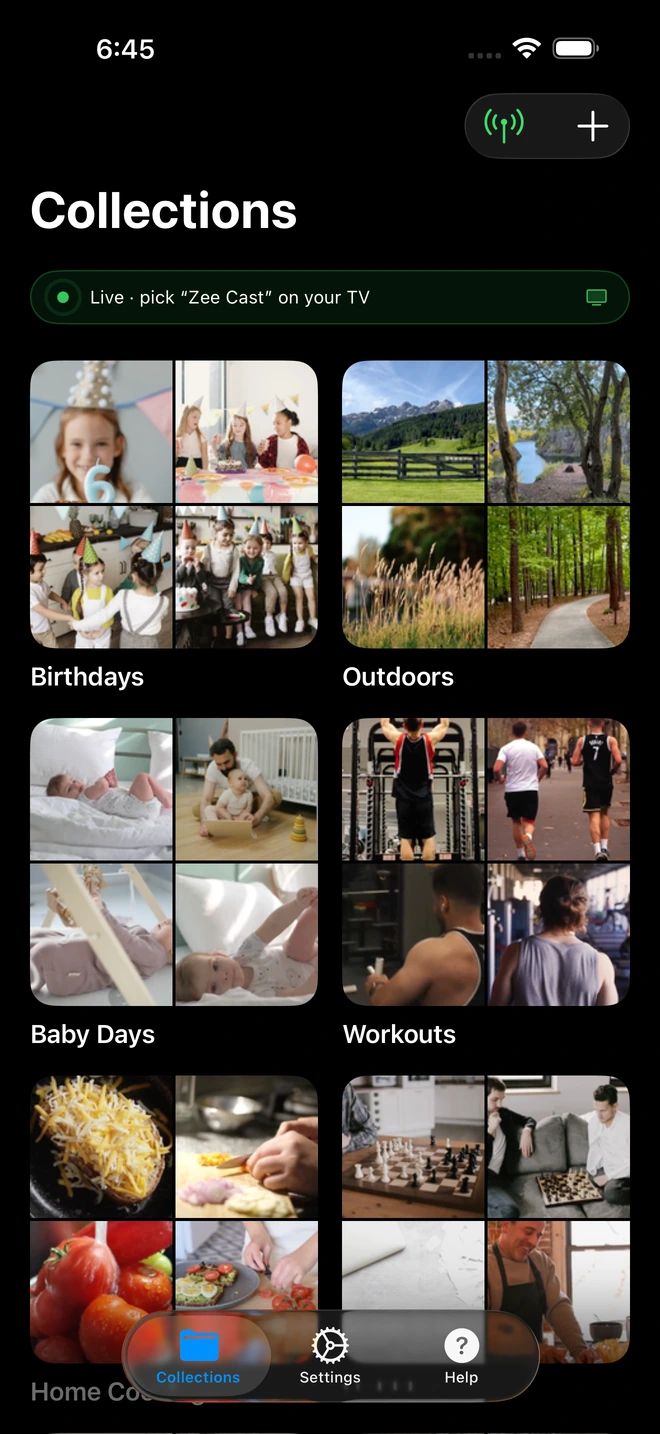
- 1Server is live - instantly discoverable on TV.
The Native Solution: Your TV's Built-In DLNA Media Player
Instead of buying external dongles and routing your private memories through Google's cloud servers, the elegant solution is to use the DLNA/UPnP media player already pre-installed inside your Smart TV.
DLNA (Digital Living Network Alliance) is an open industry standard established by Sony, Intel, Microsoft, Samsung, and over 200 other electronics manufacturers. It was specifically engineered to allow consumer electronics on a local home network to discover each other and stream digital media seamlessly.
Here is where that native media player lives on every major Smart TV platform:
Samsung Smart TVs (Tizen OS 2016–2026+)
Samsung televisions contain an exceptionally fast, hardware-accelerated media player. Simply press the Home button on your Samsung One Remote and navigate to Connected Devices on the left sidebar (or press Source on older models). Your phone running Zee Cast will appear as an available media source instantly. You can browse photo albums, play 4K videos, and control slideshow intervals using the Samsung remote.
LG Smart TVs (webOS)
LG OLED, QNED, and NanoCell TVs running webOS feature LG's built-in SmartShare / Photo & Video system. Press the Home button on your LG Magic Remote and select the Home Dashboard tile. Under the "Storage / Media Server" section, Zee Cast appears immediately. LG's media engine supports smooth hardware playback of 4K HEVC and AVC video files.
Roku TVs and Roku Streaming Sticks
TCL, Hisense, Sharp, and Onn televisions powered by Roku OS come equipped with the official Roku Media Player channel. If it is not already pinned to your home grid, it can be downloaded for free in seconds from the Roku Channel Store. Roku Media Player automatically scans your local network, discovers Zee Cast, and renders full 4K UHD video and high-resolution photo galleries without any subscription fees.
Amazon Fire TV & Fire TV Edition Smart TVs
Amazon Fire TV devices (Insignia, Toshiba, and Amazon Omni series TVs) feature built-in media playback support. You can access local UPnP servers directly through the native media gallery or via the universally praised, free, open-source VLC for Fire TV. In VLC, simply navigate to the Browsing → Local Network tab, and Zee Cast will appear immediately.
Sony Bravia & Android TV / Google TV
Sony Bravia televisions running Google TV or Android TV already have the official Media Player app installed. Alternatively, apps like VLC or Nova Video Player from the Google Play Store provide immediate UPnP browsing. There is zero reason to attach an external Chromecast dongle to a TV that already runs Android or Google TV!
Step-by-Step: Cast Phone to TV in 4 Simple Steps
You do not need to configure complex IP addresses or set up network port forwarding. The entire setup takes under 60 seconds:
- 1
Verify Both Devices Are on the Same Network
Make sure your iPhone or Android phone and your Smart TV are connected to the same home Wi-Fi network. For smooth 4K 60fps streaming, connect to the 5 GHz Wi-Fi band. If you are away from home or experiencing an internet outage, simply turn on your smartphone's Personal Hotspot and join the TV to it.
- 2
Open Zee Cast and Start Sharing
Download and open Zee Cast on your phone. Create a collection containing the photos and videos you wish to display. Tap Turn on sharing to start the local UPnP media server. Zee Cast immediately broadcasts SSDP discovery beacons across your local network.
- 3
Open the Media Player on Your TV
Using your TV remote control, open the native media player or input source list:
Smart TV Media Player · Menu NavigationPress Home / Source → Select Connected Devices / Media Player → Click Zee Cast
- 4
Browse and Enjoy Pristine 4K Direct Play
Select Zee Cast on your TV screen. Your curated photo albums and video folders will load instantly. Select any photo to start an edge-to-edge slideshow or play any 4K video clip. Your phone is completely free to lock, text, or take calls.
Deep Protocol Comparison: Google Cast vs. Miracast vs. Zee Cast DLNA
To understand why local DLNA streaming via Zee Cast provides a superior experience compared to proprietary casting dongles and screen mirroring, examine the technical differences across key operational metrics:
| Metric / Capability | Google Cast (Chromecast Dongle) | Miracast (Screen Mirroring) | Zee Cast (DLNA Direct Play) |
|---|---|---|---|
| External Hardware Required | Yes ($30 – $50 dongle + power brick) | No (Built-in on some TVs) | No ($0 hardware; uses TV firmware) |
| Mandatory User Account | Yes (Google Account required) | No | No (100% Anonymous & Account-Free) |
| Native iPhone (iOS) Support | Poor (No native iOS menu integration) | None (Apple devices do not support Miracast) | Native & Seamless (iOS 15–19+) |
| Streaming Architecture | Cloud URL handoff or WebRTC mirror | Wi-Fi Direct display mirror | Local HTTP Byte-Range Direct Play |
| Video Decoding Fidelity | Often compressed; limited codecs on Gen 3 | Lossy compressed mirror stream with latency | Bit-for-bit uncompressed 4K 60fps HDR |
| Aspect Ratio & Screen Fill | Varies; mirrors phone 19.5:9 during mirroring | Pillarboxed 19.5:9 with black side bars | True 16:9 Full Screen Edge-to-Edge |
| Phone Multitasking & Sleep | Limited during local media casting | Blocked (Screen must remain awake) | Full (Screen can be locked & asleep) |
| Internet Connection Dependency | Mandatory for setup and handoff | Offline (Wi-Fi Direct) | 100% Offline (Works with zero internet) |
| Adverts & Interface Bloat | Heavy ads and sponsored content on Google TV | None | Zero Ads (Clean native TV player) |
| User Privacy & Tracking | Extensive telemetry logged by Google | Local | Total Privacy (No logs, Device Approval) |
Why Direct Play Beats Chromecast for Personal Photos and Videos
Chromecast was primarily engineered for cloud subscription streaming services - like Netflix, YouTube, Spotify, and Disney+. In that model, your phone merely acts as a remote control, passing a cloud URL to the Chromecast, which then downloads the video stream directly from the internet.
However, when it comes to personal camera roll photos and home videos, the Chromecast architecture breaks down:
No Cloud Uploads or Data Plan Penalties
To view high-resolution 4K video clips or RAW photos via cloud casting, apps typically upload the media to cloud storage (Google Photos or iCloud) before streaming it back down to the television. This burns through mobile data allowances, takes minutes to upload large multi-gigabyte video files, and fails completely when your internet connection is slow or capped.
Zee Cast routes packets strictly over local radio waves. A 4 GB 4K video file recorded on your phone streams directly from your device's solid-state flash memory to your TV's processor over local 5 GHz Wi-Fi at speeds upwards of 150 Mbps. Zero bytes leave your house.
Pristine Uncompressed 4K 60fps Playback
When attempting to mirror a phone screen to a Chromecast, the phone's processor must encode the screen into an H.264 video feed on the fly. This results in heavy compression artifacts, washed-out dynamic range, and severe stutter during high-motion camera pans.
With Zee Cast, the video is served in its original bitstream format. Your TV's dedicated picture processor decodes the HEVC or H.264 file in hardware, preserving full 10-bit color, HDR metadata, and silky 60fps frame rates.
Security and Access Control: Zee Cast Pro Device Approval
When you plug a Chromecast into a shared home or dorm network, anyone connected to the Wi-Fi network can see your Chromecast, hijack playback, or cast unwanted videos to your screen. There is virtually zero access control.
Zee Cast solves this with an integrated security feature in Zee Cast Pro: Device Approval. When enabled, any new television or media client attempting to access your media server is paused. Your phone immediately alerts you with an interactive permission dialog displaying the client's IP address:
- Tap Allow: The TV is granted access to stream the curated collections.
- Tap Deny: The client is immediately blocked at the socket level.
- Whitelist Management: Approved devices are remembered in your settings, ensuring your living room TV connects instantly while unauthorized network devices are kept out.
💡 Pro Tip for Roku Users
On Roku TVs, if you want your photo slideshows to advance automatically, open Roku Media Player, select Zee Cast, open your photo album, and press the Play/Pause (*) button on your Roku remote. You can customize the slide duration (from 3 seconds to 10 seconds), choose transition styles, and enable continuous looping.
Frequently Asked Questions
Why does my Smart TV not need an external Chromecast dongle to receive media from my phone?
Every modern Smart TV manufactured by Samsung, LG, Roku, TCL, Hisense, Sony, or Philips already contains a powerful multi-core system-on-chip, Wi-Fi connectivity, and a dedicated hardware video decoder. More importantly, their operating systems (Tizen, webOS, Roku OS, Fire OS, Google TV) come with pre-installed, open-standard DLNA/UPnP media player clients. When your phone runs an open UPnP server like Zee Cast, your TV discovers it directly over your local home network. Buying a $30 to $50 external Chromecast dongle merely duplicates hardware your television already possesses.
What are the main limitations and frustrations of using a Google Chromecast dongle?
Chromecast dongles carry significant friction: (1) They occupy a valuable HDMI input on your television and require a permanent USB power cord dangling to a wall outlet; (2) They demand a mandatory Google account login and enforce aggressive telemetry tracking of your viewing habits; (3) The modern 'Chromecast with Google TV' interface is cluttered with sponsored advertisements, algorithmic recommendations, and slow bloatware; (4) Google Cast primarily relies on cloud handoff, meaning if your internet connection is down or slow, casting local phone media frequently buffers or fails entirely; and (5) iPhones have no native system integration for Google Cast.
How does Zee Cast stream to a Smart TV without using Google Cast technology?
Instead of proprietary Google Cast protocols that route requests through Google cloud authentication servers, Zee Cast utilizes DLNA (Digital Living Network Alliance) and UPnP (Universal Plug and Play) standards. Zee Cast turns your smartphone into a lightweight HTTP media server on your local Wi-Fi subnet. It announces itself via SSDP multicast (UDP port 1900), and when you select a media file on your TV, the television streams it directly from your phone over local HTTP Range requests (TCP port 8080). It is purely peer-to-peer on your home LAN, with zero cloud intermediaries.
Can I stream from an iPhone to any TV without a Chromecast or Apple TV?
Yes, completely. While Apple restricts native AirPlay 2 receiver support to selected newer television models and does not support Google Cast natively in iOS system menus, DLNA is universally supported. Zee Cast runs seamlessly on iOS 15 through iOS 19+, transforming your iPhone into a universal DLNA media server. It communicates effortlessly with Samsung Tizen TVs, LG webOS TVs, Roku devices, Fire Sticks, and gaming consoles without needing an Apple TV box or Chromecast dongle.
Does casting with Zee Cast require a Google Account, subscription, or cloud registration?
No. Zee Cast requires zero user accounts, zero email addresses, zero passwords, and zero cloud logins. You install the app, grant local photo library permission, and immediately tap 'Turn on sharing'. All streaming happens locally between your phone and your TV over your private home Wi-Fi network. Nothing is ever uploaded to external cloud servers, and no tracking profiles are built.
Can I cast 4K 60fps phone videos to my TV without buffering or transcoding?
Yes. When you use Zee Cast, video files are delivered bit-for-bit to your Smart TV's native media player. Modern smart TVs feature hardware decoding blocks specifically engineered for 4K HEVC (H.265), VP9, and H.264 video. Because your phone does not need to transcode or re-encode the stream, and because data travels across high-bandwidth 5 GHz local Wi-Fi, 4K 60fps video clips stream instantaneously without buffering, stutter, or dropped frames.
Will casting without Chromecast work during a home internet or Wi-Fi router outage?
Yes. Because DLNA is an offline Local Area Network (LAN) protocol, it does not require an active Wide Area Network (WAN) internet connection. If your home internet is down, or if you are camping in an RV, staying in a vacation rental, or staying in a hotel without Wi-Fi, simply turn on your smartphone's Personal Hotspot. Connect your Smart TV to your phone's hotspot Wi-Fi, and Zee Cast will stream full 4K movies and photos using exactly 0 MB of cellular data.
How does Zee Cast protect my privacy compared to a Google Chromecast dongle?
Google's business model relies on ad targeting, search intent capture, and media consumption analytics. Every interaction with a Chromecast dongle reports usage statistics back to Google servers. By contrast, Zee Cast has zero analytics trackers, zero cloud servers, and zero data collection. Furthermore, with Zee Cast Pro's 'Device Approval' security firewall, you can actively inspect and whitelist/blacklist every device attempting to access your media server by IP address.
What if my Smart TV doesn't show a Media Player app on its home screen?
On some television models, the native media player is located within the input sources rather than the app grid. On Samsung TVs, press the Source or Home button and check 'Connected Devices'. On LG TVs, open the 'Home Dashboard' from the input picker. On Roku, if 'Roku Media Player' is not visible on your home screen, you can install it for free from the Roku Streaming Channels Store in 5 seconds. On Fire TV and Android TV, you can install the free, open-source VLC Media Player from the app store.


