
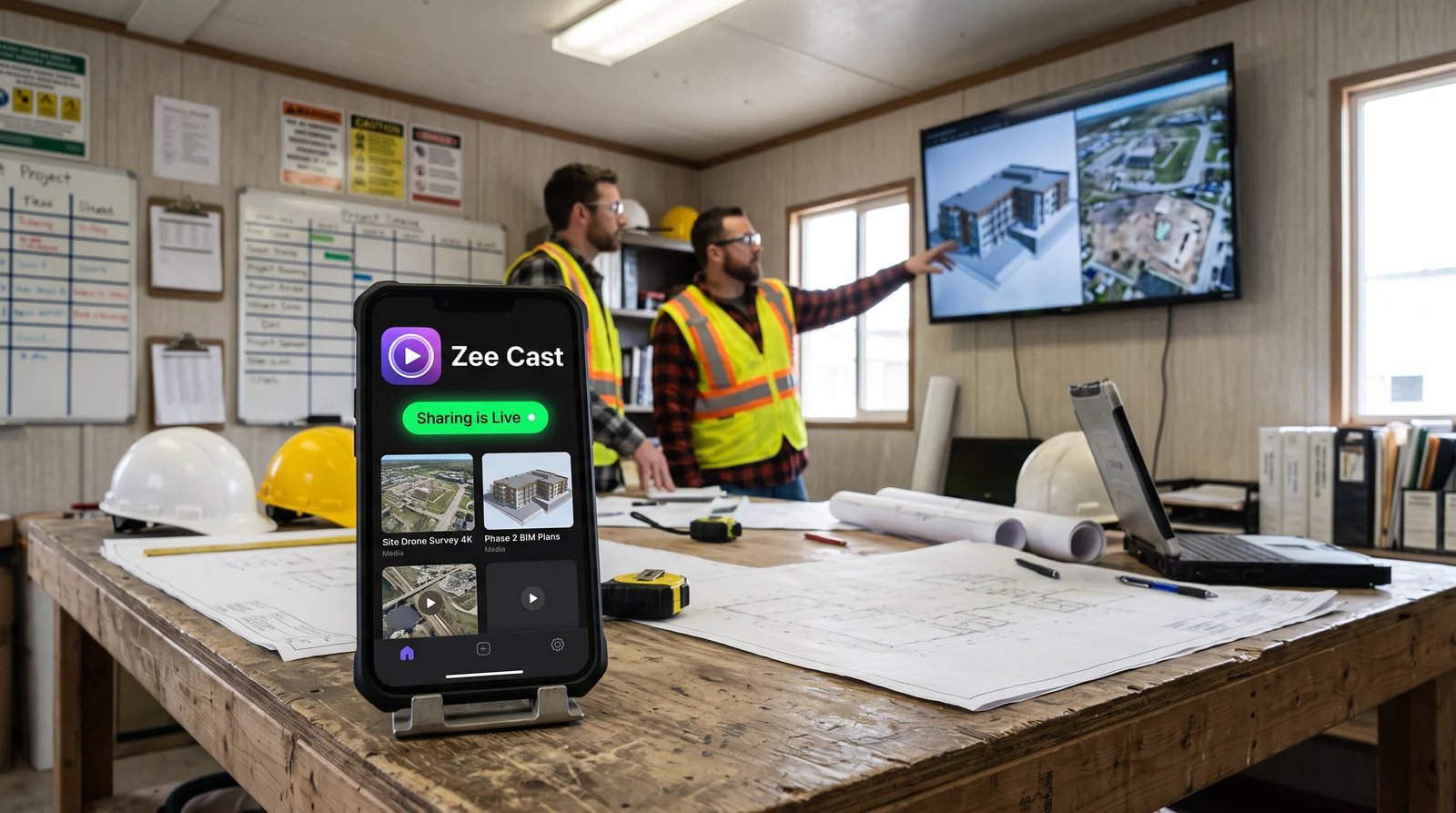
 ⚡ At a Glance: Job-Site Blueprint & Safety Media Server Specs ⚡ At a Glance: Job-Site Blueprint & Safety Media Server Specs | |
|---|---|
| Target Platform & OS | Job-Site Trailer Smart Displays (Samsung Commercial, LG webOS, TCL Roku TV, Sony) |
| Protocol & Port | DLNA 1.5 MediaServer, Port 8080 (HTTP Byte-Range RFC 7233) |
| Connection Type | Phone Personal Hotspot or Trailer Wi-Fi (0 MB Cellular Data) |
| Transcoding | None (Direct Play 4K UHD Architectural Still Renderings & Safety Video) |
| Typical Setup Time | ~60 seconds (Instant wireless presentation from phone or iPad) |
The Job-Site Trailer Transition: Paper Plan Tables vs. 4K Digital Displays
For decades, the physical centerpiece of every general contractor's construction trailer was the plan table: a massive plywood drafting bench covered with thick binders of 36"×48" paper blueprint sets.
In modern construction, physical paper plans are an expensive, fragile liability. Architectural design teams issue electronic revisions, addenda, and structural engineering bulletins weekly. Printing wide-format paper sets costs hundreds of dollars per trade, and paper drawings get torn, covered in job-site mud, or ruined by rain on the job site.
Progressive general contractors and design-build firms now mount inexpensive 65-inch or 75-inch 4K commercial smart TVs on trailer walls. These displays serve as digital coordination centers for morning trade briefings, BIM clash detection reviews, MEP rough-in coordination, and mandatory OSHA safety toolbox talks.
The Presentation Barrier: Mirroring Lag and Blurry Vector Lines
Displaying complex architectural drawings from field tablets or smartphones onto trailer TVs often creates frustrating technical friction. When field engineers attempt Screen Mirroring (Apple AirPlay Mirroring or Miracast):
- Illegible Micro-Dimensions: Screen mirroring compresses the display into a lossy 1080p stream. Fine 1/8" dimension strings, weld callouts, and electrical conduit tags blur into unreadable pixels.
- Notification Embarrassment: Private text messages from subcontractors, safety incident alerts, and personal notifications pop up in front of a dozen trade foremen.
- Locked Handsets: While a drawing is mirrored on the wall, the superintendent cannot reference submittal logs, check change orders in Procore, or look up architectural RFIs on their mobile device without exposing everything on the trailer screen.
The Engineering Solution: High-Res Direct Play with Zee Cast
Zee Cast transforms any iPhone, iPad, or Android phone into a high-performance, completely offline UPnP/DLNA Media Server designed for job-site coordination.
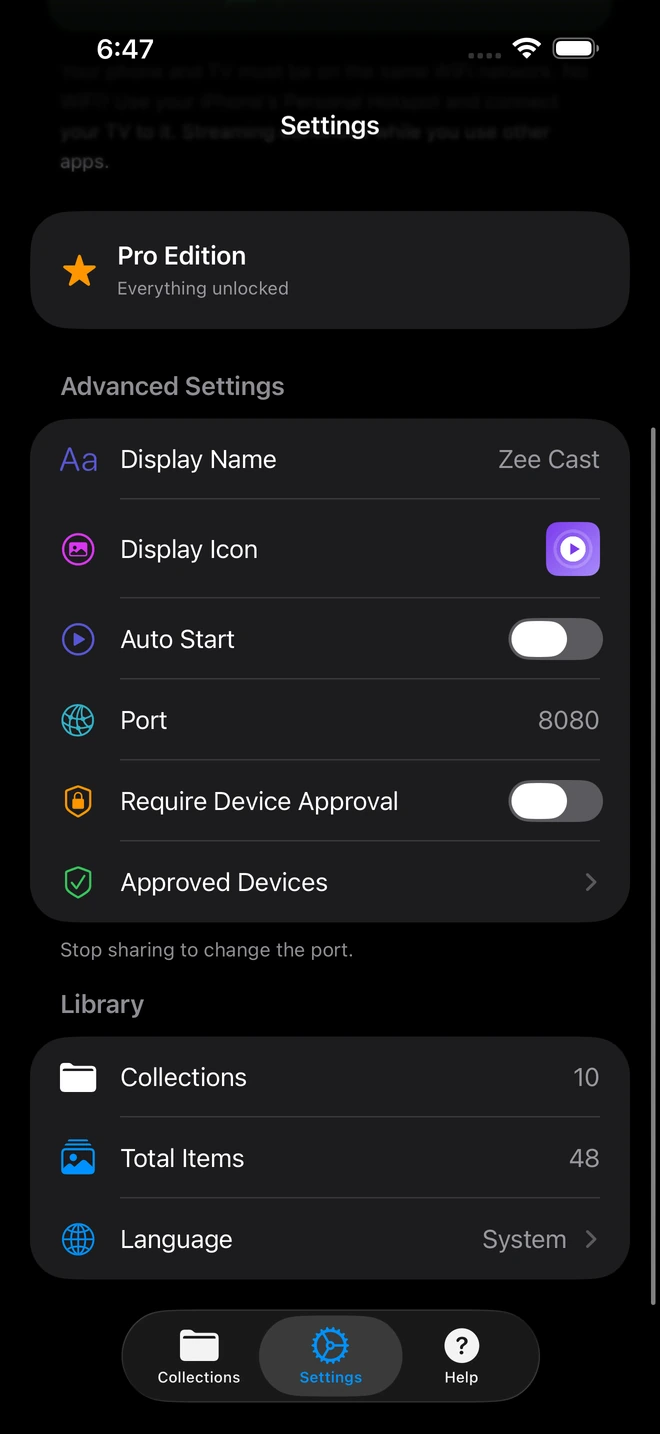
- 1Device Approval gates every connection request.
- 2Only approved screens can browse or stream selected media.
By serving architectural renderings and video assets directly to the smart TV's native image processor:
- Pixel-Perfect 4K Clarity: Drawings are delivered as original high-resolution JPEG, PNG, or 4K video files over HTTP byte-range requests. Wall monitors render razor-sharp vector line art, crisp text tags, and vivid MEP trade color coding.
- 0 MB of Mobile Data Consumed: The entire data exchange occurs strictly over the local Wi-Fi subnet created by your phone's Personal Hotspot or trailer local router. Your trailer's limited cellular data plan is completely untouched.
- Superintendent Device Freedom: The TV displays the active architectural sheet while the superintendent freely uses their phone or tablet to reference RFI specifications, verify material delivery slips, or respond to owner emails.
- TV Remote Navigation: Foremen and engineers can step up to the screen and use the TV remote's directional pad to zoom in 200–400% on complex pipe penetrations or structural steel connections.
Field Method Comparison: Job-Site Drawing Presentation
| Feature / Metric | Paper Blueprint Sets | Screen Mirroring (AirPlay) | Zee Cast (DLNA over Hotspot) |
|---|---|---|---|
| Cost per Revision | ❌ $150–$300 per wide-format plot | $0 (Electronic) | $0 (Direct from tablet/phone) |
| Legibility of Fine Callouts | Crisp (if undamaged) | ❌ Blurry / pixelated (Lossy 1080p compression) | Razor-sharp 4K / 8K uncompressed raster |
| Field Weather Resistance | ❌ Ruined by mud, water & tears | N/A (Digital) | N/A (Digital 65" trailer display) |
| Presenter Handset Multitasking | N/A | ❌ Device frozen mirroring screen | ✅ Full multitasking (E-mail, RFIs, Procore) |
| Notification Privacy | N/A | ❌ Texts & calls flash on TV | ✅ 100% private (Phone screen isolated) |
| Cellular Data Consumption | 0 MB | 0 MB (if local) | 0 MB (100% offline local subnet) |
Daily Trailer Workflow: Morning Subcontractor Briefings
Implement this streamlined 3-step routine to conduct professional MEP coordination and safety meetings every morning:
Step 1: Curate the Daily Sheet Collection
Before the 6:30 AM trade briefing, export the relevant architectural sheets, clash detection views, and daily safety videos as 4K image/video files into your phone's photo library. Open Zee Cast, tap + Create Collection, and select only those files (e.g., "Oct 11 - Level 2 Framing & Trench Safety").
Step 2: Connect Trailer TV to Phone Hotspot
Turn on Personal Hotspot on your mobile device. Turn on the trailer smart TV and join the hotspot. Tap Turn on sharing in Zee Cast.
Step 3: Conduct the Briefing & Safety Toolbox Talk
Grab the TV remote and select Zee Cast from the Connected Devices source menu.
- OSHA Toolbox Video: Play the 3-minute trenching shoring and fall protection video directly from your collection to start the morning safety talk.
- MEP Conflict Resolution: Advance to the MEP coordination sheet. Use the TV remote directional arrows to zoom in on the ceiling plenum in Corridor 204 to show mechanical duct and plumbing pipe clearances to the trade foremen.
- Independent Device Access: While subcontractors discuss duct hanger brackets in front of the TV, search your phone for RFI #142 to confirm the engineer's approved sleeve tolerance.
Summary: Modernizing Field Construction AV
General contractors cannot afford miscommunicated dimensions, torn paper blueprints, or clunky screen mirroring interruptions during fast-track builds. By using Zee Cast to stream full-resolution drawings and safety briefings over an offline phone hotspot, field engineering teams save thousands in plotting costs, streamline trade coordination, and maintain an authoritative, professional presence on the job site.
Frequently Asked Questions
Why replace physical paper blueprints with 65-inch smart TVs in job-site trailers?
Full-size paper blueprint sets (Arch D and Arch E) are expensive to print (often $100 to $200 per revised set), highly vulnerable to rain, coffee spills, and job-site mud, and quickly become obsolete when architectural addenda and RFIs are issued. A 65-inch or 75-inch commercial 4K smart TV in the job-site trailer costs under $500 once and provides a crystal-clear, edge-to-edge digital plan table where trade subcontractors can review revised drawings, clash models, and safety notices without paper waste.
How does Zee Cast stream ultra-high-resolution architectural drawings without blurriness?
Conventional screen mirroring (AirPlay or Miracast) dynamically compresses the tablet screen into a lossy 1080p video stream, causing fine blueprint line weights, dimension callouts, and tiny room labels to blur and pixelate. Zee Cast serves the original, uncompressed high-resolution JPEG, PNG, or 4K video file directly to the television's hardware image processor over local UPnP/DLNA, rendering razor-sharp vector line art edge-to-edge.
Can site superintendents use their phones for RFIs while blueprints stay on the TV?
Yes! Because Zee Cast is a background UPnP media server and not a screen mirror, your mobile screen remains 100% independent. The architectural drawing stays locked on the trailer TV while the superintendent pulls up Procore, Autodesk Construction Cloud, submittal specs, or email correspondence on their tablet or phone without disrupting the meeting.
How do field teams stream OSHA toolbox safety videos without using cellular data?
Construction trailers operating on cellular routers frequently run out of high-speed data. Zee Cast streams all media strictly over the local Wi-Fi subnet created by your phone's Personal Hotspot or trailer local router. Once safety demonstration videos or equipment inspection clips are saved to your device, streaming to the TV consumes exactly 0 MB of mobile data.
Can trade foremen zoom in and navigate drawings using the TV remote control?
Yes. Most modern smart TV media players (Samsung Tizen, LG webOS, Sony Google TV) include built-in image zoom, pan, and slide navigation via the directional pad on the TV remote. Presenters can zoom in to 200% or 400% on specific column lines, MEP duct penetrations, or electrical conduit racks.
What if our job-site trailer has no cellular reception or internet connection at all?
Zee Cast requires zero internet connectivity. Personal Hotspots on iOS and Android maintain local Wi-Fi routing even when there is 'No Service' or zero cellular bars. The smart TV communicates directly with your mobile device over local TCP/IP sockets with zero reliance on cloud servers or external cell towers.
Do subcontractors see personal family photos when browsing drawings on the TV?
No. Zee Cast enforces a strict Curated Collections architecture. Only the specific architectural drawings, site progress photos, and safety clips you select for that specific collection are indexed by the media server. Your personal camera roll, family photos, financial apps, and private messages are completely invisible to everyone in the trailer.
Can multiple trailer TVs display different drawing sheets from one phone simultaneously?
Yes. With Zee Cast Pro, you can create multiple curated collections (e.g., 'Architectural A-Sheets', 'Structural S-Sheets', 'Mechanical M-Sheets'). Two or three smart TVs inside a large trailer or field office can connect to the same phone's Zee Cast server simultaneously, allowing electrical trades to view power plans on TV #1 while plumbing trades inspect sanitary sewer lines on TV #2.
How do I convert Bluebeam or Revit PDFs into high-resolution images for Zee Cast?
In Bluebeam Revu, Adobe Acrobat, or Revit, simply use 'Export as Image' (JPEG or PNG) at 300 DPI or 3840×2160 resolution. Save the rendered sheets directly into your mobile Files or Photos library. Zee Cast immediately recognizes these image assets and serves them at full 4K UHD fidelity.


