
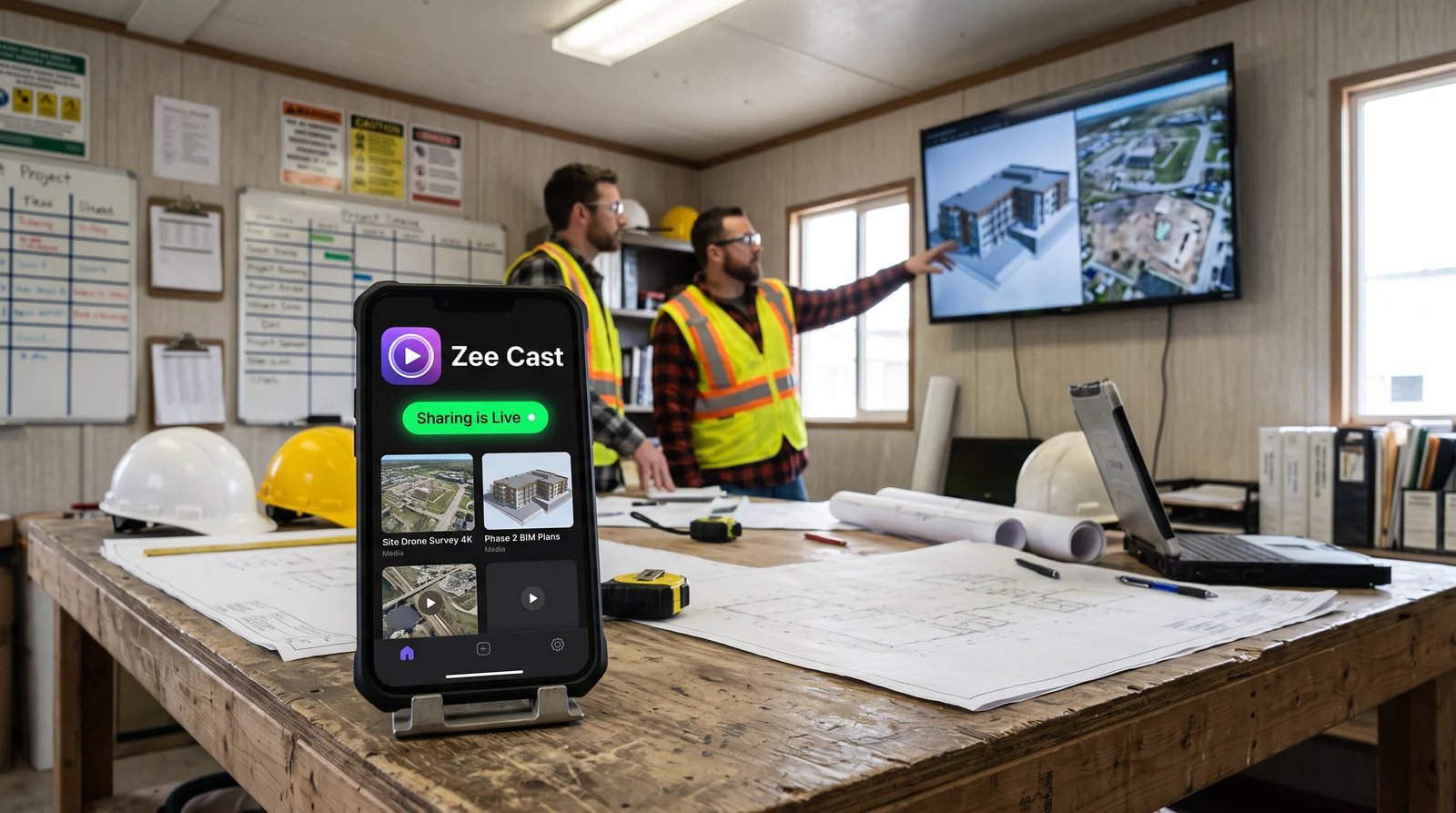
 ⚡ At a Glance: Job-Site Aerial Media Server Specs ⚡ At a Glance: Job-Site Aerial Media Server Specs | |
|---|---|
| Target Platform & OS | Job-Site Trailer Smart Displays (Samsung Commercial, LG webOS, TCL Roku TV, Sony) |
| Protocol & Port | DLNA 1.5 MediaServer, Port 8080 (HTTP Byte-Range RFC 7233) |
| Connection Type | Phone Personal Hotspot (0 MB Cellular / Cloud Data Consumed) |
| Transcoding | None (Direct Play 4K 60fps Raw Drone Bitstream, 100–150 Mbps) |
| Typical Setup Time | ~60 seconds (Instant playback straight off the drone landing pad) |
The Remote Job-Site Bottleneck: 4K Drone Scans vs. Trailer Cellular Caps
Commercial drone surveys have become an indispensable operational standard on commercial, civil, and industrial construction projects. Every morning, drone pilots fly automated aerial patterns across job sites, capturing 4K 60fps orthomosaics, site progress flyovers, and volumetric scans of earthwork cuts and fills.
These high-resolution aerial scans are critical for morning subcontractor coordination: general contractors, earthmoving foremen, concrete superintendents, and civil engineers gather in the job-site construction trailer to resolve trade conflicts, check grade staking, and plan heavy equipment paths.
However, sharing these massive 4K drone files on the trailer's 65-inch or 75-inch smart television immediately collides with severe infrastructure limitations:
The Job-Site Connectivity Crunch
During the raw dirt, mass grading, and early foundation phases of a major commercial project, permanent fiber or cable internet is months away. Construction trailers rely on cellular routers (such as Cradlepoint or Pepwave modems) equipped with commercial SIM cards.
These cellular modems come with strict monthly data caps (often 50 GB to 100 GB) and volatile field speeds. A single 15-minute 4K 60fps drone flight generates 6 to 12 GB of uncompressed video. Attempting to upload this footage to cloud platforms like DroneDeploy, Autodesk Construction Cloud, or Procore chokes the trailer's internet connection for hours, rapidly consumes the monthly cellular allotment, and triggers severe carrier bandwidth throttling.
Why Conventional Workarounds Stall the Morning Briefing
Faced with sluggish field internet, construction managers try makeshift workarounds that waste precious morning hours:
- The USB Flash Drive Shuffle: Field engineers must offload files from the drone controller to a laptop, transfer them onto a USB stick, and wedge themselves behind a wall-mounted TV in a cramped trailer. Often, the TV's built-in USB port fails to recognize exFAT file systems or stutters on high-bitrate 4K HEVC video files.
- Screen Mirroring Compression: AirPlay or Miracast screen mirroring compresses the video into an 8-bit 1080p stream over volatile Wi-Fi. Fine details - such as underground conduit markers, silt fence integrity, or survey rebar pins - are blurred into muddy compression artifacts.
- Crowded Laptop Screens: Ten trade foremen, safety managers, and inspectors are forced to huddle around a 13-inch field laptop screen in the trailer, squinting at complex sitework drawings.
The Zero-Data Offline Solution: Zee Cast Local Hotspot Streaming
Zee Cast solves the job-site trailer AV problem by turning the project manager's or drone pilot's smartphone into a high-throughput, completely offline UPnP/DLNA Digital Media Server.
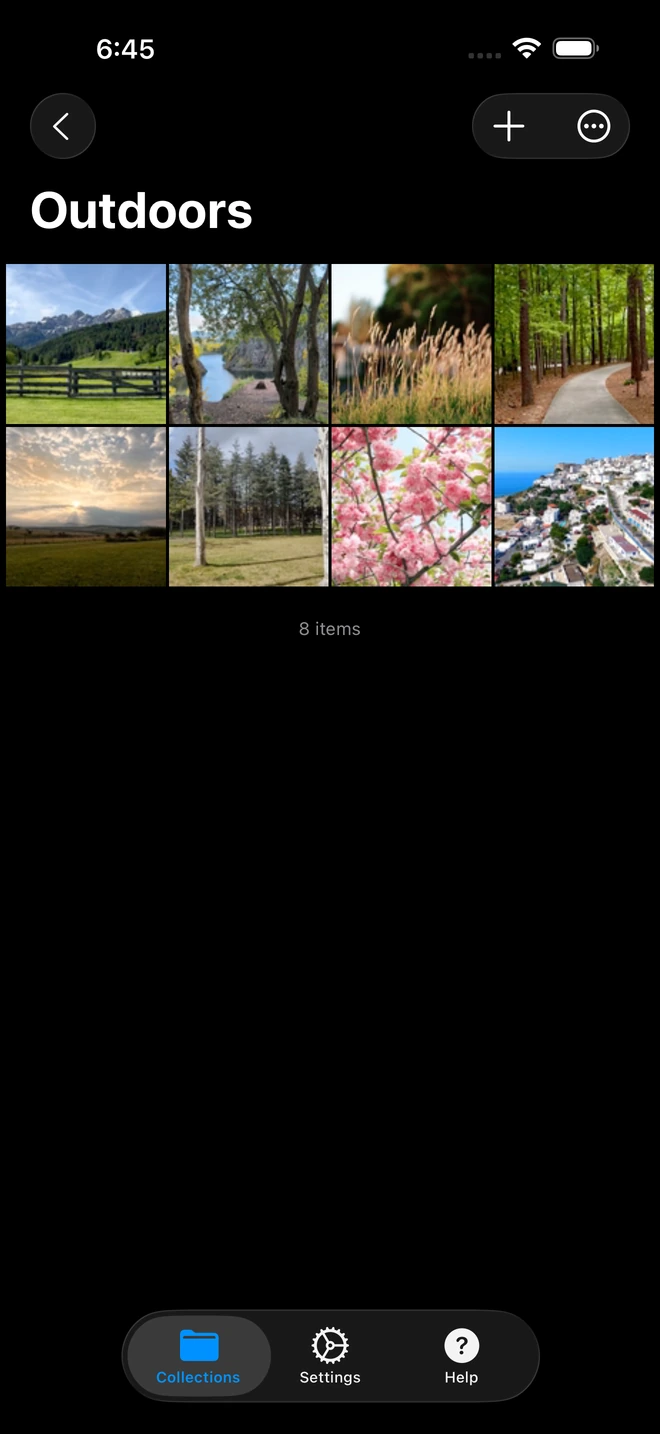
- 1High-bitrate 4K files stream without transcode compression.
Instead of routing gigabytes of data through the cloud, Zee Cast streams directly from your phone's ultra-fast internal storage to the trailer smart TV over local Wi-Fi:
- 0 MB of Cellular Data Consumed: The entire video stream flows across the local Wi-Fi subnet. Your trailer's limited cellular data plan remains completely untouched.
- Works in Zero-Cellular Dead Zones: Even if your job site is in a rural canyon, mountainous terrain, or an underground foundation with zero cellular service, phone hotspots establish high-speed local 5 GHz Wi-Fi links that stream smoothly.
- Master 4K 60fps Bitrate: The television pulls the raw master file via HTTP Byte-Range requests and decodes it using the TV's internal 4K hardware processor. Every blade of rebar, trench elevation, and structural edge is displayed in razor-sharp native resolution.
- TV Remote Navigation & Zoom: Field superintendents can use the TV remote to pause on critical foundation sleeves, rewind 10 seconds, or scrub smoothly across the flight path.
- Guaranteed Personal Privacy: Curated collections isolate project flight scans from personal family media, private text messages, and internal subcontractor pricing files.
Field Comparison: Job-Site Drone Video Delivery Methods
| Method | Cellular Data Used | Time from Flight to TV | Resolution & Bitrate | TV Remote Control |
|---|---|---|---|---|
| Cloud Upload (DroneDeploy / Procore) | ❌ 8–12 GB per flight (Throttles router) | ❌ 2–4 hours (Slow site upload) | Cloud-compressed proxy | ❌ Requires browser / mouse |
| USB Flash Drive | 0 MB | ❌ 15–20 minutes (Double-copy) | Varies (TV codec compatibility issues) | ✅ TV remote control |
| AirPlay / Miracast Screen Mirroring | 0 MB (if local) | ~2 minutes | ❌ Compressed 1080p 30fps (Muddy artifacts) | ❌ Must scrub on tiny phone screen |
| Zee Cast (DLNA over Hotspot) | 0 MB (100% offline) | ~60 seconds (Direct flight to TV) | Bit-perfect 4K 60fps (Native master) | ✅ Full TV remote scrub & freeze-frame |
The 60-Second Job-Site Routine: From Landing Pad to Trailer TV
Incorporate fast aerial reviews into your daily trailer stand-up meetings with this simple field procedure:
Step 1: Land Drone & Transfer to Handset
Following the flight, power on DJI QuickTransfer or connect a high-speed USB-C card reader to your iPhone or Android device. Copy the morning's 4K 60fps video takes directly into your local photos or files storage (takes ~45 seconds over direct NVMe).
Step 2: Create the Daily Site Collection in Zee Cast
Launch Zee Cast. Tap + Create Collection and title it "2026-10-11 - South Pier Pour Progress". Select the 2 to 4 flight passes recorded this morning.
Step 3: Enable Phone Hotspot & Connect Trailer TV
Swipe down to your phone settings and activate Personal Hotspot. Turn on the trailer TV, open Network Settings, and join your hotspot SSID.
Step 4: Stream in Bit-Perfect 4K
Tap Turn on sharing in Zee Cast. On the trailer TV, select Zee Cast from the Connected Devices menu, press Play on the morning survey clip, and hand the remote to the project superintendent.
- Verify Concrete Forms: Freeze playback at timestamp 02:14 over the elevator core to confirm anchor bolt placement before the pour begins.
- Check Earthmoving Quantities: Scrub over the retention pond cut to review scraper haul roads and stockpile setbacks with the grading contractor.
- Multitask Without Interruption: While trades examine the 4K scan on the wall, use your phone to answer client calls, approve daily subcontractor tickets, or check project specs.
Summary: Industrial-Strength Field AV for Modern Builders
High-resolution drone data is only as valuable as your ability to review it before critical work starts. By leveraging Zee Cast's offline UPnP architecture over a simple phone hotspot, construction managers can bypass cellular bottlenecks, protect project budgets, and transform trailer smart TVs into powerful 4K site coordination command centers.
Frequently Asked Questions
Why can't construction teams upload 4K drone videos to cloud platforms like Procore or DroneDeploy from the trailer?
Job-site trailers during early earthwork and foundation phases rarely have wired fiber or cable broadband. Instead, trailers rely on cellular Cradlepoint routers with strict data caps (such as 50 GB or 100 GB per month) and volatile upload speeds (1–5 Mbps). Uploading a 15-minute 4K 60fps drone survey file (which typically weighs 6 to 12 GB) consumes hours of upload time, exhausts the monthly cellular quota in days, and triggers severe carrier throttling.
How does Zee Cast stream massive 10 GB 4K video files with 0 MB of mobile data?
Zee Cast turns your smartphone into a local UPnP/DLNA Digital Media Server. All data transfer occurs strictly over the local Wi-Fi link created by your phone's Personal Hotspot or trailer local router. The video bitstream travels directly from your phone's high-speed NVMe flash memory across local Wi-Fi to the smart TV's network card. Zero bytes are uploaded to external cloud servers, and zero cellular internet data is consumed.
What if the construction job site has zero cellular signal or is an underground tunnel?
Zee Cast works completely offline. Even when your smartphone shows 'No Service' or zero cellular bars, iOS and Android Personal Hotspots maintain active 5 GHz Wi-Fi routing locally. As long as your phone and the smart TV are paired to that local hotspot SSID, Zee Cast streams 4K video flawlessly without internet connectivity.
Why not just plug a USB flash drive into the trailer TV?
Plugging USB drives into trailer TVs introduces constant friction. Field managers must first offload drone footage to a laptop, format the USB drive to FAT32 or exFAT, wait 10 minutes for slow USB write speeds, and physically plug it into the back of a TV wall-mounted against trailer plywood. If the TV firmware fails to index exFAT or crashes on 4K HEVC bitrate spikes, the meeting stalls. Zee Cast shares directly from your phone within 60 seconds of touchdown.
Can superintendents pause and inspect structural rebar or concrete forms on the TV?
Yes! Because Zee Cast implements UPnP HTTP Byte-Range requests (RFC 7233), the smart TV's native media player can pause, scrub, and step through frames smoothly. Site superintendents and structural engineers can freeze a 4K frame over an open foundation trench to verify sleeve locations, conduit runs, and rebar clearance with extreme clarity.
Does screen mirroring (AirPlay / Miracast) work for 4K drone video review in trailers?
Screen mirroring performs poorly on job sites. Mirroring re-encodes the phone screen into a lossy, compressed 30fps H.264 stream. Aerial drone footage - with complex dirt textures, gravel piles, and framing steel - triggers heavy macroblocking and pixelation over screen mirroring, obscuring small details like grade stakes or anchor bolts. Furthermore, incoming personal calls or safety text alerts interrupt the entire presentation.
Can multiple trailer TVs or subcontractor laptops stream the drone footage at once?
Yes. Zee Cast can serve multiple UPnP/DLNA clients concurrently. The main conference TV can stream the overall site scan, while a project manager on a laptop running VLC can stream a detailed drone flyover of the electrical substation from the same phone media server.
Do subcontractors see my personal camera roll photos when looking at the trailer TV?
No. Zee Cast enforces strict Curated Collections. Only the drone flight files explicitly assigned to the active collection are indexed and served. Your personal photos, family videos, receipts, and private text messages are 100% invisible to the smart TV and everyone in the trailer.
What video resolutions and codecs does Zee Cast support for drone video?
Zee Cast supports all major drone camera formats, including 1080p, 2.7K, 4K UHD, and 5.4K video recorded in MP4 and MOV containers using H.264 or HEVC (H.265) codecs at bitrates up to 150+ Mbps, depending on the television hardware decoder.


