
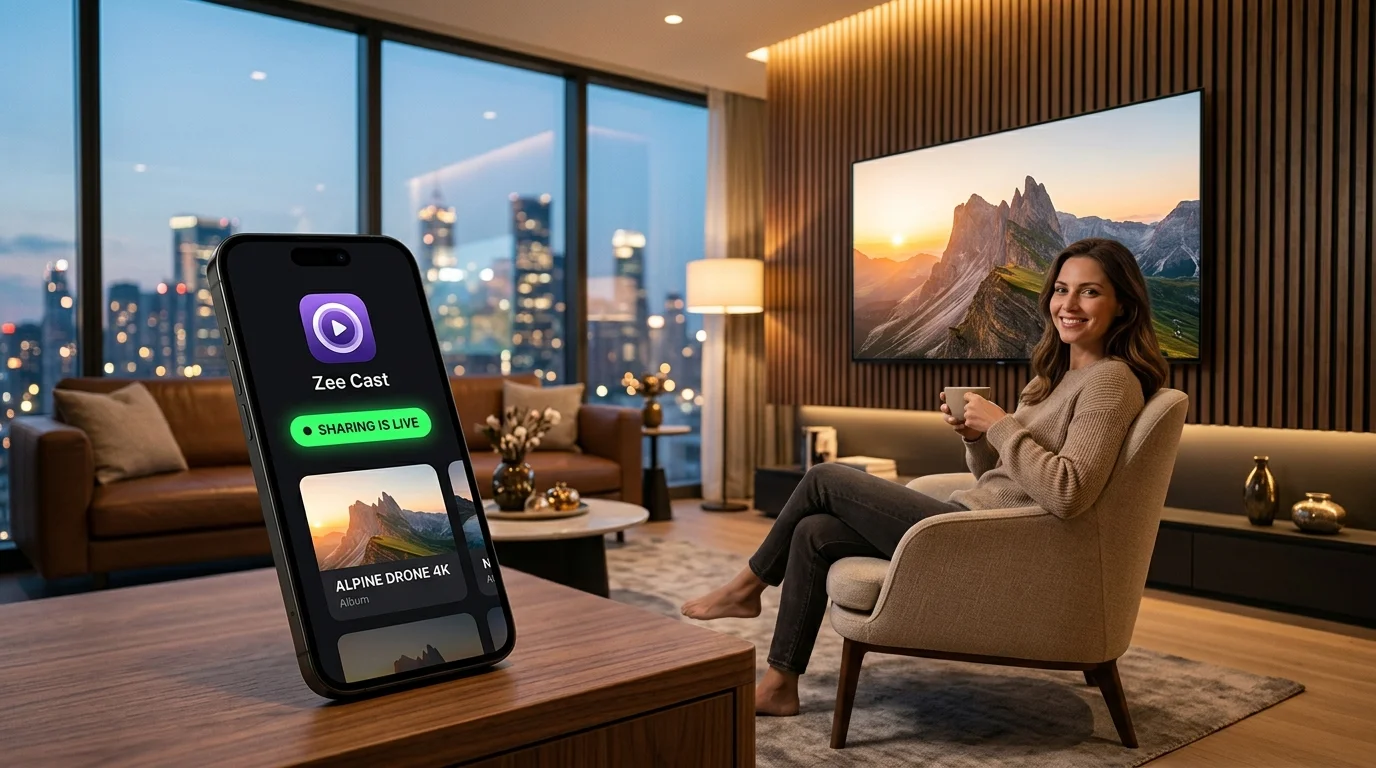
 ⚡ At a Glance: Local Hotspot Direct Play Specs ⚡ At a Glance: Local Hotspot Direct Play Specs | |
|---|---|
| Target Platform & OS | Universal Smart TVs (Samsung, LG, Sony, TCL, Hisense, Roku, Projectors) |
| Protocol & Port | DLNA 1.5, UPnP MediaServer, HTTP Port 8080 |
| Connection Type | Direct Mobile Hotspot (2.4 GHz / 5 GHz AP) |
| Transcoding | Direct Play (Zero cellular data, zero cloud relays) |
| Typical Setup Time | ~2 minutes (Works 100% offline with no internet service) |
Key takeaways
- Streaming from phone to Smart TV via Personal Hotspot uses 0 KB of cellular internet data.
- The smartphone acts as both the wireless router (DHCP server) and the media server (HTTP daemon).
- Bypasses hotel captive portals, weak Wi-Fi networks, and broadband internet outages effortlessly.
- Supports full 4K 60fps HEVC videos, HDR10, and high-fidelity lossless audio with zero screen mirroring lag.
The Big Myth: Does Hotspot Streaming Use Mobile Data?
One of the most persistent misconceptions among smartphone owners is that connecting a Smart TV to a phone's mobile hotspot will rapidly consume their monthly cellular data allowance. If you have a 10GB or 15GB mobile plan, the fear of burning through high-speed data in an hour of 4K video is understandable.
Here is the technical reality: Streaming your camera roll photos, personal 4K video clips, or downloaded music from your phone to your Smart TV via Zee Cast consumes zero bytes of cellular data.
When you activate your phone’s Personal Hotspot, your device turns on its internal Wi-Fi transmitter as an Access Point (AP) and launches a local DHCP server. When your TV connects to this network, a direct local peer-to-peer connection is established. Video bytes travel strictly between the phone's storage and the TV's wireless receiver—they never travel over 4G/5G cellular towers.
Step-by-Step: How to Connect Any Smart TV to Phone Hotspot
Follow these four simple steps to establish an offline direct streaming link:
- 1
Turn On Personal Hotspot on Your Phone
On iPhone, open Settings → Personal Hotspot, set a Wi-Fi password, and toggle Allow Others to Join ON. If connecting to a TV manufactured before 2020, make sure to enable Maximize Compatibility. On Android, navigate to Settings → Network & internet → Hotspot & tethering and activate the Wi-Fi hotspot.
- 2
Connect Your Smart TV to the Hotspot
Grab your TV remote and navigate to Settings → Network → Wireless / Wi-Fi. Your television will scan for networks and display your phone's hotspot name. Select it, enter your password, and connect.
- 3
Launch Zee Cast and Turn On Sharing
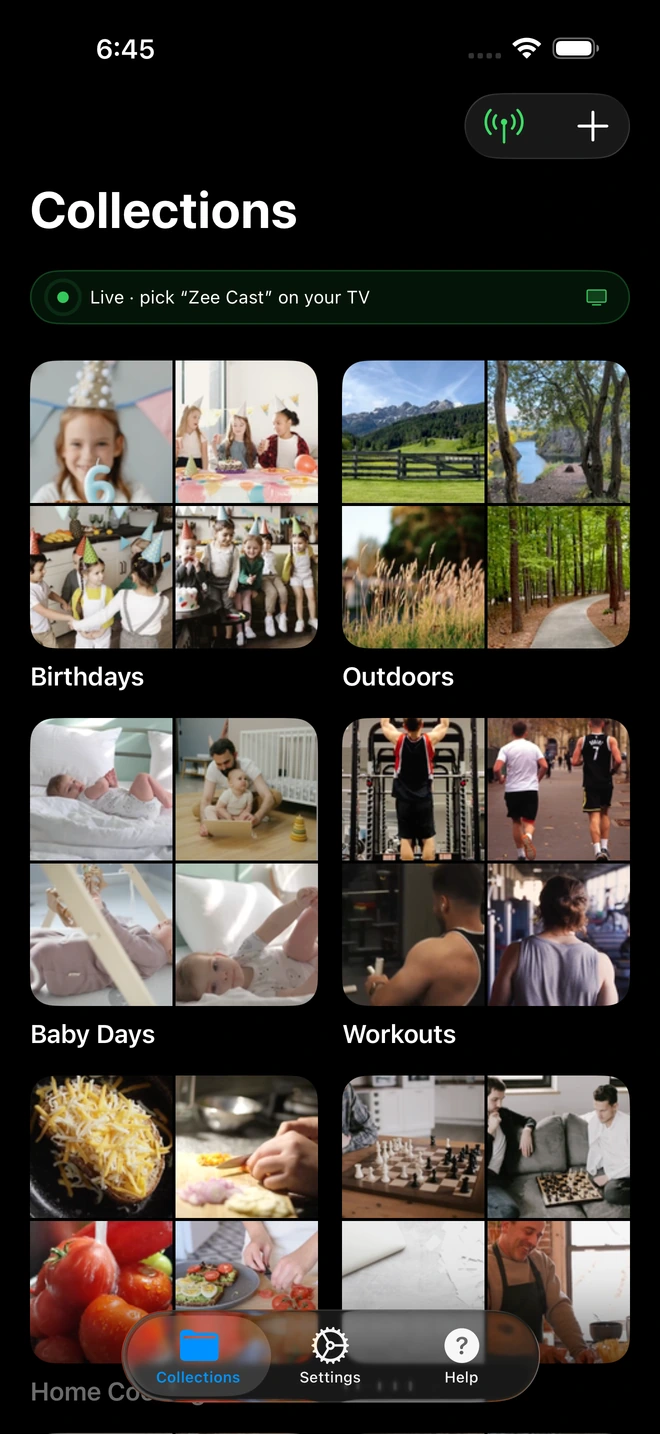
Open Zee Cast on your phone. Group the photos, 4K videos, or audio tracks you want to share into a collection. Tap Turn on sharing. Zee Cast launches an internal HTTP server and broadcasts its presence across the hotspot subnet.
- 4
Select Zee Cast on Your TV and Stream
Open the TV's native Media Player or Sources / Connected Devices menu. Select Zee Cast and press OK to enjoy full 4K 60fps playback.
When Hotspot Streaming Is a Lifesaver
- Hotel Rooms & Airbnbs: Hotel Wi-Fi networks enforce web browser captive portals that smart TVs cannot authenticate, and isolate connected devices. Using your phone hotspot creates a private local network in seconds.
- Campervans, RVs & Road Trips: Enjoy evening movies on your RV television or portable projector while camping completely off the grid.
- Broadband Outages: When your home ISP fiber or cable internet goes down, home Wi-Fi often stops routing local traffic. Switching your TV to personal hotspot lets you watch your stored videos uninterrupted.
- Trade Shows & Client Presentations: Avoid paying venues \$500–\$1,000 for a convention hall Wi-Fi connection just to display a video loop on a TV display.
Hotspot Streaming vs Cloud Casting Comparison
| Metric | Zee Cast Hotspot Direct Play | Chromecast / Cloud Mirroring |
|---|---|---|
| Cellular Data Consumption | ✅ 0 KB (Zero mobile data used) | ❌ High (Burns 3GB–7GB per hour) |
| Internet Connection Needed | ✅ No (100% Offline functional) | ❌ Mandatory (Fails without internet) |
| Video Playback Quality | ✅ Native 4K 60fps Direct Stream | ⚠️ Compressed 1080p 30fps |
| Phone Screen Status | ✅ Phone screen can be locked | ❌ Screen must remain awake |
| Notification Privacy | ✅ Private (Notifications hidden) | ❌ Broadcasts private alerts to TV |
Frequently Asked Questions
Does streaming from my phone to TV via hotspot use my mobile data plan?
No! When you turn on your phone's Personal Hotspot, your phone creates a local wireless Access Point and assigns private IP addresses (such as 172.20.10.x on iPhone or 192.168.43.x on Android). When you stream through Zee Cast, media files travel directly over the local peer-to-peer Wi-Fi link between your phone and your TV. Not a single byte of video data travels across cellular cell towers or counts against your mobile data cap.
Can I stream over personal hotspot if I have no cellular reception?
Yes! Even in remote vacation cabins, campervans, or off-grid campsites with zero cellular reception, your phone's Wi-Fi hotspot hardware still broadcasts a local LAN. Zee Cast works 100% offline without internet access.
Why doesn't Apple AirPlay or Google Cast work on a mobile hotspot?
Apple AirPlay and Google Chromecast dongles frequently perform an online handshake with Apple or Google authentication servers before establishing a stream. If your hotspot has no cellular data or weak signal, casting fails completely. Zee Cast uses standard UPnP/DLNA which requires zero cloud handshakes, allowing pure offline playback.
Why can't my older Smart TV find my iPhone hotspot?
iPhones (iPhone 12 through iPhone 16) default to broadcasting their personal hotspot on the 5 GHz Wi-Fi band. Older smart TVs only contain 2.4 GHz Wi-Fi receivers. To fix this, open Settings → Personal Hotspot on your iPhone and enable 'Maximize Compatibility'. This forces the iPhone to broadcast on 2.4 GHz so older TVs can connect immediately.
Which TV brands support local streaming over phone hotspot?
Virtually every modern Smart TV brand supports this setup, including Samsung (Tizen OS), LG (webOS), Sony (Google TV), TCL (Roku TV & Google TV), Hisense (VIDAA & Google TV), Philips (Titan OS), and portable smart projectors (Anker Nebula, XGIMI, BenQ).
Can I lock my phone screen while streaming via hotspot?
Yes. Zee Cast operates as a lightweight local background service on iOS and Android. Once playback begins on your television, you can lock your phone screen, answer incoming calls, or multitask without interrupting the video stream.
Can I stream 4K 60fps HDR video over a mobile hotspot?
Yes. Modern smartphone Wi-Fi chips deliver local transfer speeds exceeding 150–300 Mbps over personal hotspot. This is more than triple the bandwidth required to stream uncompressed 4K 60fps HEVC camera roll footage (which averages 45–60 Mbps) in pristine Direct Play quality.
What should I do if someone else tries to connect to my hotspot media?
With Zee Cast Pro's 'Device Approval' security firewall, your media is guarded. When any connected device attempts to stream from your server, playback is paused until you review the client's IP address on your phone screen and explicitly tap 'Allow'.


