
⚡ At a Glance: Quick Specs | |
|---|---|
| Target Platform & OS | |
| Protocol & Port | DLNA 1.5 / UPnP MediaServer, Port 8080 (HTTP Byte-Range) |
| Connection Type | Local Wi-Fi (5 GHz recommended) or Hotspot (0 MB Internet Data) |
| Transcoding | None (Direct Play original bitstream to native TV hardware) |
| Typical Setup Time | ~2 minutes (Instant local discovery) |
Key takeaways
- Portable smart projectors run full Android TV or Google TV, meaning they contain built-in DLNA hardware media engines.
- Your phone's personal hotspot creates a high-bandwidth local wireless LAN (300–867+ Mbps) that requires zero active cellular internet.
- DLNA Direct Play bypasses the lag, 30fps screen-tearing, and battery-draining GPU compression associated with Miracast and AirPlay screen mirroring.
- Zee Cast lets you isolate specific video files and photo collections while keeping personal chats and banking apps invisible to your audience.
The Challenge: Outdoor Streaming Without Home Wi-Fi
Portable smart projectors like the Anker Nebula Capsule 3, XGIMI Halo+, and BenQ GV30 have redefined outdoor entertainment. Packed with built-in battery packs, auto-focus, keystone correction, and integrated speakers, they allow you to project a 120-inch cinema display on a tent wall, campervan awning, or backyard sheet.
However, once you leave your home Wi-Fi perimeter, streaming becomes challenging:
- Streaming apps require constant internet: Netflix, Prime Video, and Disney+ won't stream without continuous internet, and downloading offline movies directly onto projector internal flash storage is severely limited (often only 8 GB to 16 GB total storage).
- AirPlay & Chromecast fail without a router: Traditional Chromecast requires an active internet connection to authenticate and communicate with Google cloud services. AirPlay handshakes frequently fail when no gateway to Apple verification servers exists.
- Screen mirroring overheats your phone: Miracast or generic Wi-Fi Direct mirroring keeps your phone screen lit for 2 continuous hours, rapidly draining the phone battery and exposing personal WhatsApp and Telegram notifications to everyone watching the movie.
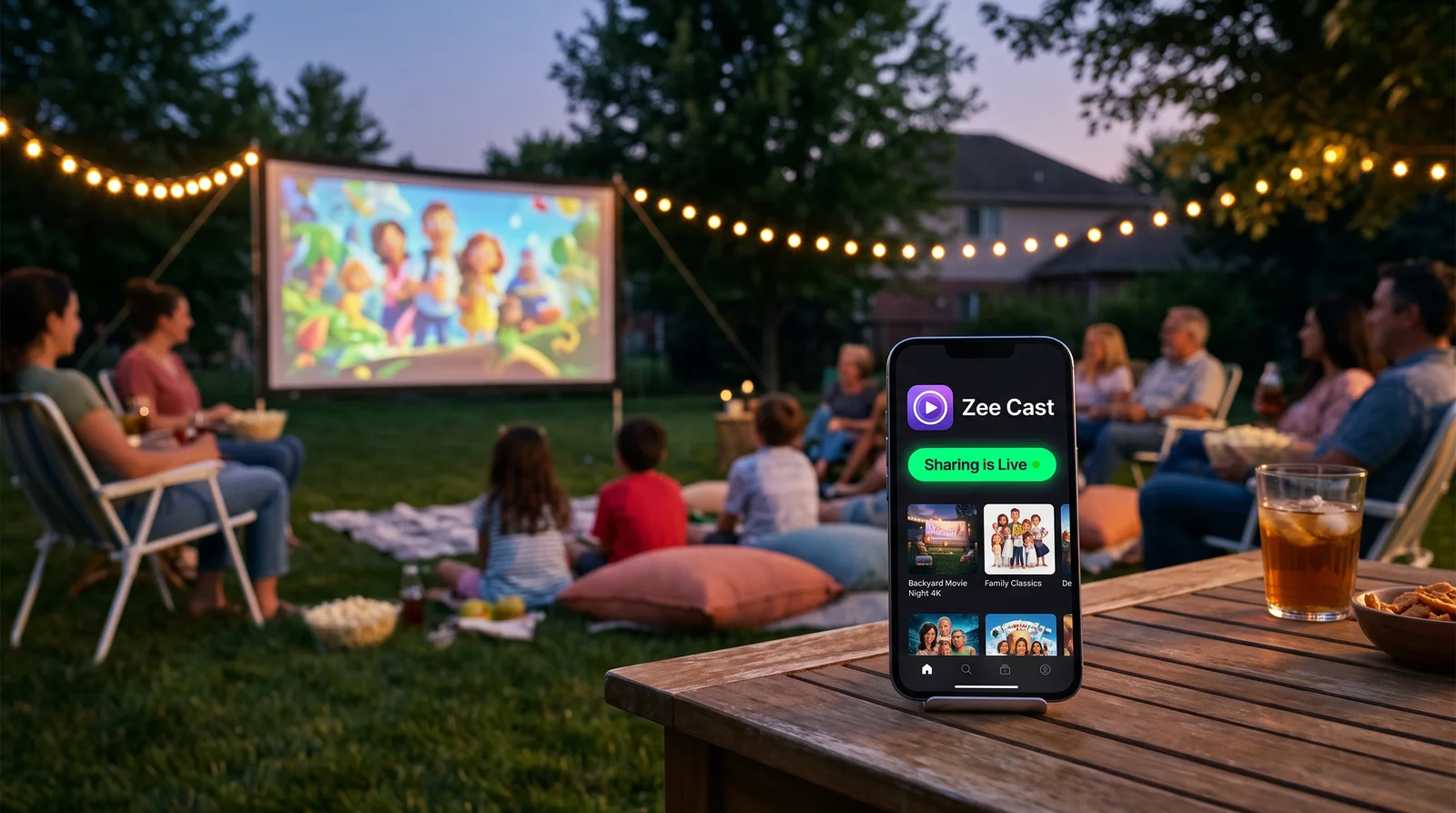
Zee Cast solves this entirely by turning your iPhone or Android phone into an ultra-low-latency UPnP/DLNA media server. By bridging your phone and projector over a local personal hotspot, you get flawless 1080p and 4K playback directly from your phone's storage.
Step-by-Step Setup Guide
- 1
Turn On Your Phone's Personal Hotspot
On iOS, go to Settings → Personal Hotspot and toggle Allow Others to Join. On Android, go to Settings → Network & internet → Hotspot & tethering and toggle Portable Wi-Fi hotspot.
Tip: You can leave Cellular Data on or turn it completely off. The hotspot creates an independent 802.11 LAN. All media data stays inside this local loop without data usage.
- 2
Connect the Projector to the Hotspot
Grab the projector's remote, enter Settings → Network & Internet, find your phone's hotspot SSID in the scan list, and type your password. The projector will establish a high-speed local IP connection.
- 3
Launch Zee Cast & Turn On Sharing
Open Zee Cast on your phone. Tap the + button to create a dedicated collection for your movie night, select your downloaded video files, drone clips, or holiday photo slideshows, and tap Turn on sharing.
- 4
Browse & Play on the Projector
On your projector, launch your preferred DLNA media player app:
- Nebula Projectors: Open the pre-installed File Manager app → Network / LAN, or launch VLC for Android → Local Network.
- XGIMI Projectors: Open File Manager → Storage → Network Devices (DLNA), or use Nova Video Player.
- BenQ Projectors: Launch BenQ Media Player or VLC from the Android TV launcher.
Select Zee Cast, tap into your movie folder, and press play. You can lock your phone screen, slide it into your pocket, and enjoy the show!
Recommended Player Apps for Android TV Projectors
Nova Video Player
The gold standard for Android TV and Google TV projectors. Scans UPnP/DLNA servers seamlessly, automatically organizes videos, and provides hardware-accelerated HEVC/VP9 playback with built-in night mode audio compression.
VLC for Android TV
Renowned versatility. Plays every conceivable video container (MKV, MP4, AVI, MOV, TS) and audio format (AC3, DTS, FLAC, Opus). Instant SSDP UPnP discovery under the Local Network tab.
Frequently Asked Questions
Does streaming from phone to projector via hotspot consume cellular data?
No, exactly 0 KB of cellular data is used. Your phone's personal hotspot operates as a standard IEEE 802.11 Wi-Fi router, broadcasting a local IPv4 subnet (such as 192.168.43.0/24). Media bytes travel straight over the local high-speed 5 GHz Wi-Fi link between your phone and the projector. You can even turn mobile data off completely or stream in remote campgrounds without cellular reception.
Which smart projectors support offline DLNA streaming?
Virtually all modern smart projectors running Google TV, Android TV, or custom Linux firmware support DLNA. This includes Anker Nebula (Capsule, Capsule 3 Laser, Mars 3, Apollo, Cosmos 4K SE), XGIMI (MoGo 2, Halo+, Horizon Ultra, Elfin), BenQ (GV30, GV31, GS50), Dangbei, and Formovie portable projectors.
Why does Apple AirPlay fail on projectors when camping or outdoors?
AirPlay 2 on Android TV projectors (and AirPlay receivers like AirScreen) frequently contacts Apple authentication servers via the public internet during the initial handshake. When camping, in a hotel without internet, or on an airplane, AirPlay fails with connection timeout errors. DLNA Direct Play uses standardized local UPnP protocol with zero internet dependency.
Which player app on the projector delivers the smoothest playback?
For Android TV / Google TV projectors (XGIMI, Nebula, BenQ), we strongly recommend Nova Video Player or VLC for Android TV. Both players feature native UPnP/DLNA discovery, automatic hardware decoding for HEVC (H.265) and VP9, multi-track audio switching, and soft subtitle rendering.
Can I stream 4K HDR home videos and HEVC drone footage smoothly?
Yes! Modern phone hotspots provide 5 GHz 802.11ac/ax Wi-Fi link speeds ranging from 433 Mbps to over 1200 Mbps. Zee Cast serves video files via native HTTP byte-range requests directly from phone storage, easily supporting 40–80 Mbps 4K bitrates without buffering.
Will streaming drain my phone battery rapidly during an outdoor movie night?
No. Unlike screen mirroring which continuously runs a heavy GPU screen-encoder, DLNA Direct Play streams only raw media chunks over HTTP while your phone screen can remain dimmed or locked. Zee Cast operates as a lightweight, backgrounded socket server with minimal battery impact.


