

 ⚡ At a Glance: Roku Media Player (RMP) Specs ⚡ At a Glance: Roku Media Player (RMP) Specs | |
|---|---|
| Target Platform & OS | Roku TV (TCL, Hisense, Sharp), Roku Ultra & Streaming Stick 4K |
| Protocol & Port | DLNA 1.5, UPnP MediaServer, HTTP Port 8080 |
| Connection Type | Direct Mobile Hotspot (2.4 GHz / 5 GHz) |
| Transcoding | Direct Play (Native 4K 60fps HEVC, MP4, MKV, AAC, FLAC) |
| Typical Setup Time | ~2 minutes (Pre-installed official Roku app) |
Key takeaways
- Roku Media Player (RMP) is an official Roku app with built-in UPnP/DLNA client detection.
- Pairing your phone with Roku over personal hotspot requires zero home Wi-Fi and consumes 0 KB of cellular data.
- Supports native 4K 60fps HEVC direct play with original video bitrates and multi-track audio.
- Bypasses hotel Wi-Fi captive portals and broadband outages effortlessly.
Why Roku Media Player Beats Screen Mirroring
Roku devices (including the popular Roku Streaming Stick 4K, Roku Ultra, and smart TVs from TCL, Hisense, and Sharp) offer screen mirroring. However, mirroring your phone screen to Roku is notoriously laggy: videos stutter at 30fps, audio slips out of sync, and incoming phone calls take over your television screen.
Roku Media Player (RMP) offers a dramatically superior solution. As Roku's official local media client, it accesses UPnP/DLNA servers across the local network and streams high-bitrate files directly into Roku’s dedicated hardware video decoder.
By launching Zee Cast on your smartphone and connecting your Roku to your phone’s personal hotspot, you get fluid 4K 60fps playback without needing home Wi-Fi or broadband internet service.
Step-by-Step: Stream to Roku via Phone Hotspot
Follow these four simple steps:
- 1
Enable Hotspot on Your Smartphone
On iPhone, open Settings → Personal Hotspot and turn on Allow Others to Join (enable Maximize Compatibility if using a Roku Express or older stick). On Android, open Settings → Network & internet → Hotspot & tethering and activate your Wi-Fi hotspot.
- 2
Connect Your Roku to the Hotspot
On your Roku remote, navigate to Settings → Network → Set up connection → Wireless. Select your phone’s hotspot name and enter the password.
- 3
Open Zee Cast and Turn On Sharing
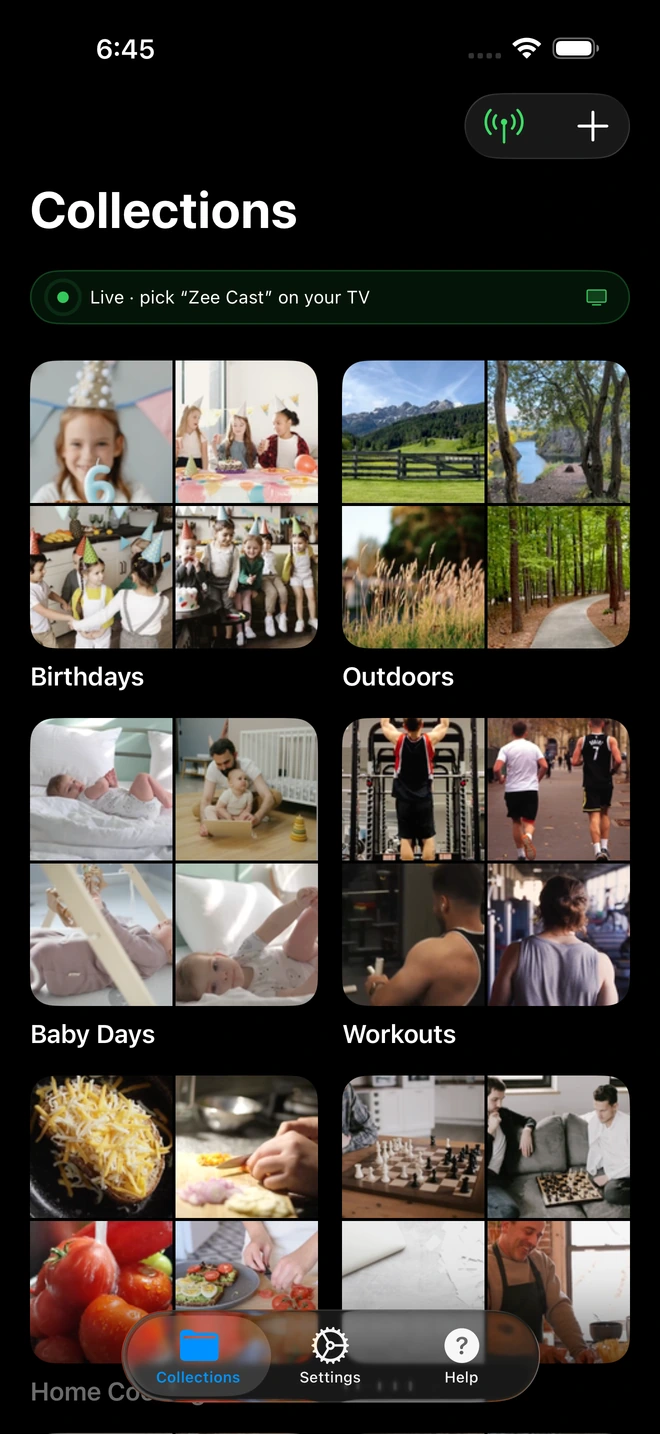
Launch Zee Cast on your phone. Select the photos, 4K video recordings, or music albums you wish to share into a collection. Tap Turn on sharing.
- 4
Launch Roku Media Player
Open the Roku Media Player app on your Roku home screen. Click on Video or Photo, select Zee Cast from the media server list, and press OK to start direct playback.
Supported Video & Audio Formats on Roku
| Format Category | Supported Codecs | Roku Hardware Capabilities |
|---|---|---|
| Video Formats | H.264 / AVC, H.265 / HEVC, VP9 | Up to 4K 60fps Direct Play on 4K models |
| Audio Tracks | AAC-LC, AC3, E-AC3, MP3, FLAC | Bitstream passthrough & stereo downmix |
| Container Files | MP4, MOV, MKV, M4V | Native container demuxing via DLNA |
| Subtitles | Embedded & Sidecar SRT | Toggled via Asterisk (*) remote button |
Frequently Asked Questions
Does Roku Media Player work without internet access?
Yes! While the Roku device requires internet during initial factory activation, the official Roku Media Player (RMP) app functions 100% locally on any connected wireless network, including offline mobile hotspots. It scans the local subnet for UPnP/DLNA servers like Zee Cast without touching the internet.
Does streaming from phone to Roku via hotspot use mobile data?
No. All media streaming through Zee Cast occurs locally over peer-to-peer Wi-Fi sockets between your phone and your Roku device. Not a single kilobyte of video traffic travels across your mobile carrier's cellular network.
What video formats does Roku Media Player support over DLNA?
According to official Roku developer specifications, Roku Media Player natively decodes MP4 and MKV video files encoded in H.264/AVC and H.265/HEVC (4K models) with AAC, AC3 (Dolby Digital), and MP3 audio tracks. Zee Cast streams original files directly without mobile transcoding.
Why doesn't my Roku device find my phone's hotspot?
Older Roku models (such as Roku Express and Roku Premiere) only have 2.4 GHz Wi-Fi antennas. If you are on an iPhone, open Settings → Personal Hotspot and enable 'Maximize Compatibility' to force the hotspot to broadcast on 2.4 GHz.
Can I stream 4K HDR videos to a Roku Streaming Stick 4K or Roku TV?
Yes. 4K-capable Roku devices (Roku Streaming Stick 4K, Roku Ultra, and 4K Roku TVs from TCL and Hisense) natively hardware-decode 4K 60fps HEVC video streams with HDR10 support directly from Zee Cast.
Can I lock my phone screen while a movie is playing on Roku?
Yes. Zee Cast operates as a lightweight local background service on iOS and Android. Once playback begins in Roku Media Player, you can lock your phone screen or use other apps without interrupting playback.
How do subtitles work in Roku Media Player?
Roku Media Player supports SubRip (.srt) subtitles embedded within MKV/MP4 files or delivered via sidecar files. You can toggle closed captioning on or off using the Asterisk (*) button on your Roku remote.
What if someone else on the hotspot tries to stream my files?
With Zee Cast Pro's 'Device Approval' security firewall, any new device attempting to access your server is paused until you explicitly review its IP address on your phone and tap 'Allow'.


