
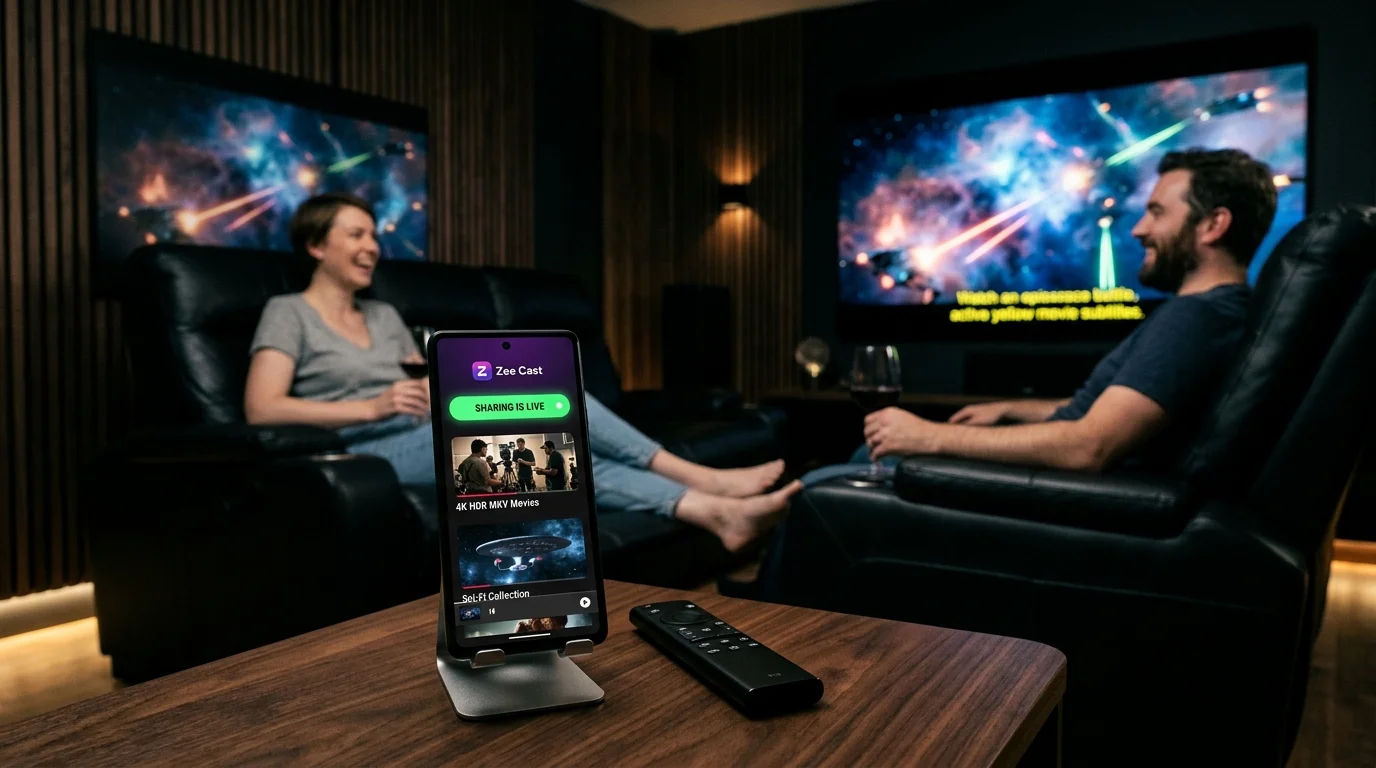
 ⚡ At a Glance: MKV Container & Subtitles Specs ⚡ At a Glance: MKV Container & Subtitles Specs | |
|---|---|
| Target Platform & OS | Samsung Tizen, LG webOS, Sony Google TV, TCL Roku TV, Apple TV (VLC/Infuse) |
| Protocol & Port | DLNA 1.5 / UPnP MediaServer, Port 8080 (HTTP Byte-Range) |
| Connection Type | Local Wi-Fi (5 GHz / Wi-Fi 6 strongly recommended; 0 MB Internet Data) |
| Transcoding | None (Direct Play original MKV bitstream with native TV subtitle overlay) |
| Typical Setup Time | ~60 seconds (Zero video re-encoding or burnt-in subtitle lag) |
The Matroska Standard: Why Home Cinema Enthusiasts Choose MKV
For movie collectors, anime fans, and home theater purists, the Matroska multimedia container (`.mkv`) is the undisputed gold standard for digital cinema. Derived from the Russian word for nesting dolls (matryoshka), the MKV container is engineered using Extensible Binary Meta Language (EBML). Unlike the rigid constraints of the older MP4 container, a single MKV file can seamlessly encapsulate:
- Multiple Video Streams: Pristine 4K 10-bit HEVC, H.264, or bleeding-edge AV1 video with full High Dynamic Range (HDR10, HDR10+, and Dolby Vision metadata).
- Uncompressed Multi-Channel Audio: Dolby Atmos, TrueHD 7.1, DTS-HD Master Audio, and multi-language stereo director commentaries.
- Rich Subtitle Streams: Multiple timed text tracks, including SubRip (`.srt`), Advanced SubStation Alpha (`.ass` / `.ssa`) with stylized fonts and positioning, and PGS bitmap graphics from physical 4K Ultra HD Blu-ray discs.
However, when people attempt to stream these MKV files from their phone or personal media library to a Smart TV, they frequently encounter an infuriating dilemma: the dreaded subtitle transcode stutter.
⚠️ The Subtitle Transcoding Penalty on Traditional Media Servers
If you have ever used traditional media server software (such as Plex, Jellyfin, or Emby), you may have noticed that a 4K movie plays smoothly until the exact moment you turn on subtitles. Suddenly, the video freezes, a buffering wheel spins, the server CPU fans scream at 100%, and HDR colors turn washed-out and gray.
Why does this happen? Most server software panics when encountering non-standard subtitle styling. Instead of sending the raw subtitle text to the TV, the server initiates an intensive real-time transcoding process to burn the subtitle glyphs pixel-by-pixel into the video frames. Re-encoding a 4K 60 Mbps HEVC video stream on the fly crushes phone and NAS processors, resulting in unwatchable buffer underruns.
The DLNA Direct Play Solution: Hardware Demuxing on the TV
Modern Smart TVs from Samsung (Tizen OS), LG (webOS), and Sony (Google TV) are equipped with sophisticated multi-core media processors (such as the LG α9/α11 AI Processor and Samsung Neural Quantum 4K). These chips feature dedicated silicon capable of demuxing MKV containers and rendering subtitle overlays natively:
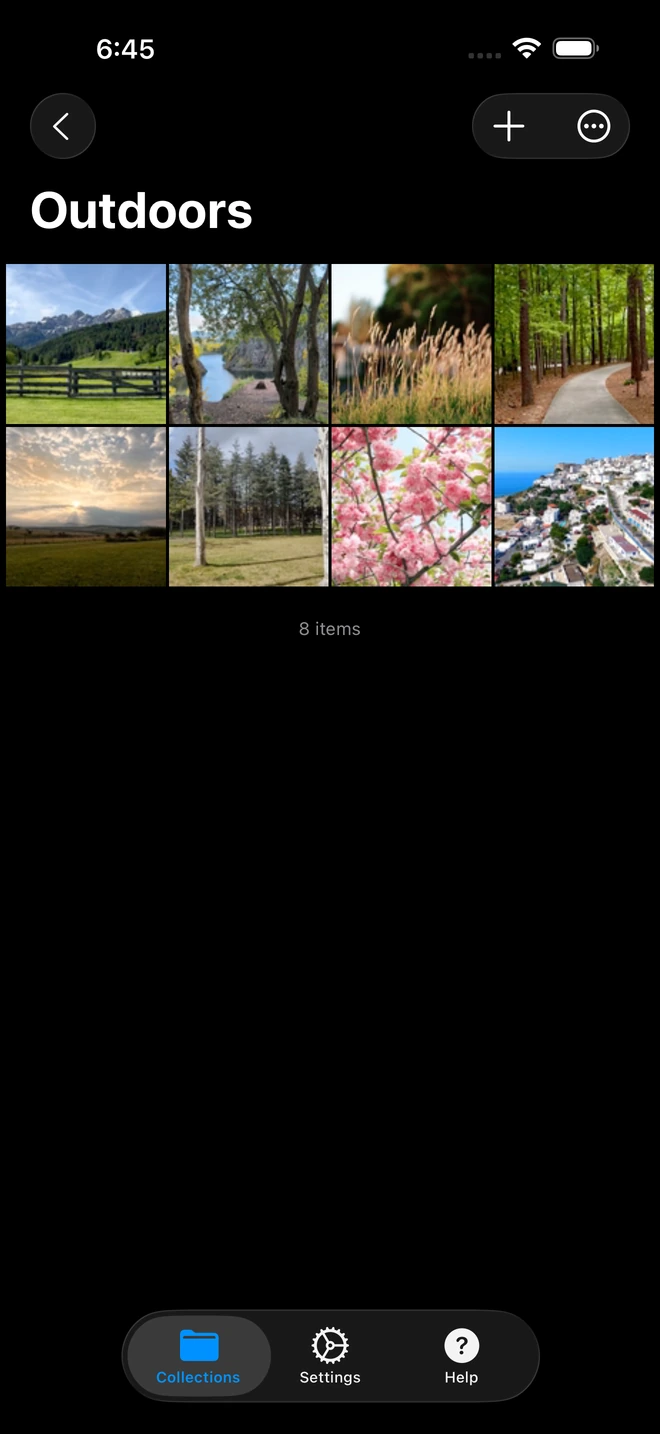
- 1High-bitrate 4K files stream without transcode compression.
By utilizing Zee Cast for local UPnP/DLNA streaming, you bypass the server-side transcoding trap entirely:
- Raw Stream Delivery: Zee Cast serves the original `.mkv` container byte-for-byte over local HTTP without modifying a single bit. Your phone uses less than 3% CPU power and generates zero heat.
- Native Subtitle Overlay: Your Smart TV's graphics hardware extracts the SubRip (`.srt`) or SubStation Alpha (`.ass`) text stream, rasterizing crisp vector subtitles directly on top of the untouched 4K video frame.
- Preserved HDR & Color Grading: Because the video stream is never re-encoded, 10-bit color depth, Dolby Vision, and HDR10 dynamic range remain 100% bit-for-bit accurate with ink-black OLED contrast.
Direct Play vs. Transcoding Media Servers vs. Screen Mirroring
Compare how different streaming architectures handle high-bitrate MKV video playback with subtitles:
| Performance Metric | Server Transcoding (Plex/Jellyfin) | Phone Screen Mirroring | Zee Cast (DLNA Direct Play) |
|---|---|---|---|
| Host CPU & Battery Load | Severe (90%–100% CPU burn) | Heavy (Continuous live screen encode) | Negligible (<3% background network I/O) |
| Video Fidelity | Compressed, crushed bitrate | Downscaled, 30fps stutter | 100% Bit-for-Bit Original Quality |
| HDR & Color Preservation | Often washed out (tone-mapping loss) | Compressed 8-bit sRGB gamut | Pristine 10-bit HDR / Dolby Vision |
| Subtitle Crispness | Blurry (Burned into video pixels) | Pixelated phone font | Razor-sharp native TV vector typography |
| Seeking & Scrubbing Speed | Laggy (10–20s re-buffer penalty) | Requires touching phone screen | Instantaneous (HTTP Range requests) |
| Phone Multitasking | Varies | Blocked (Phone screen must stay awake) | 100% Free (Screen locked, sleep mode) |
Step-by-Step Guide: Streaming MKV Movies with Subtitles
Follow these four simple steps to achieve flawless, stutter-free MKV playback on your television:
- 1
Verify Subtitle Tracks and File Naming
Ensure your MKV file contains embedded subtitle tracks (SRT or ASS). If you are using external sidecar subtitles, ensure the subtitle file uses the exact same base filename as the movie and ends with
.srt(for example:Interstellar.2014.mkvandInterstellar.2014.en.srt). - 2
Add Media to Zee Cast and Turn On Sharing
Open Zee Cast on your phone. Select your MKV movie files or video folders into a collection, and tap Turn on sharing. Zee Cast initializes your local UPnP ContentDirectory server on port 8080.
- 3
Open Zee Cast on Your Smart TV
Pick up your television remote and navigate to the built-in media browser:
 Samsung Smart TV (Tizen) · Menu Navigation
Press Home → Connected Devices → Select Zee Cast → Videos
 LG Smart TV (webOS) · Menu Navigation
Press Home → Home Dashboard → Storage / Media Servers → Select Zee Cast
 Sony Bravia (Google TV) · Menu Navigation
Launch Media Player or VLC for Android TV → Local Network → Select Zee Cast
 Roku TV / Streaming Stick · Menu Navigation
Launch Roku Media Player → Videos → Select Zee Cast
- 4
Toggle Subtitles and Select Audio Tracks
Once your MKV movie begins playing, press the Subtitles / CC button or the Options / Gear icon on your TV remote. Select your preferred subtitle language (e.g., English, Spanish, French) and adjust size or synchronization if needed.
Understanding Subtitle Codecs: SRT vs. ASS vs. PGS
Knowing which subtitle format is embedded inside your MKV file ensures seamless compatibility with your specific television hardware:
| Subtitle Format | Type | Typical Use Case | Smart TV Hardware Compatibility |
|---|---|---|---|
| SubRip (.srt) | Plain UTF-8 text with timestamps | Universal standard for movies & TV | 100% Native on all Smart TVs (Samsung, LG, Sony, Roku) |
| SubStation Alpha (.ssa / .ass) | Rich text with font styles & positioning | Anime karaoke, multi-speaker styling | Supported by LG webOS, Android TV (VLC), and Tizen |
| PGS (.sup) | Bitmap image overlay | Direct 4K Blu-ray disc rips | Native on Android TV (VLC/Kodi); Samsung/LG prefer text SRT |
| VobSub (.sub / .idx) | Bitmap image overlay | Legacy DVD disc rips | Supported by Android TV / Google TV via VLC |
💡 Pro Tip: Quick Conversion from PGS to SRT
If you rip 4K Blu-ray discs and have graphic PGS subtitles that your television's native media player doesn't render, you can use free tools like Subtitle Edit (which features automated OCR) or download a matching text .srt file from Subscene or OpenSubtitles. Simply drop the .srt file beside your MKV file with the identical filename, and Zee Cast will serve it instantly to your television.
Audio Passthrough: DTS, Dolby Atmos & HDMI eARC
Many high-end MKV releases feature premium multi-channel audio tracks. To ensure your television and soundbar reproduce the audio faithfully:
- Dolby Digital (AC-3) & Dolby Digital Plus (E-AC-3): Universally decoded by 100% of televisions and soundbars. Dolby Atmos metadata embedded in E-AC-3 streams passes cleanly to your Atmos-capable sound system via HDMI eARC.
- DTS & DTS:X Passthrough: While LG OLEDs (2023+ models like C3/G3/C4/G4) and Sony Bravia TVs natively decode DTS audio tracks, Samsung TVs from 2018 onwards do not license DTS. If playing on a modern Samsung TV, choose the AC-3 or AAC audio track included in the MKV file.
- HDMI eARC Configuration: Set your Smart TV audio output mode to Pass-Through (rather than Auto or PCM) in your TV audio settings. This allows the raw bitstream from your MKV file to route untouched to your soundbar or AV receiver.
Frequently Asked Questions
What is an MKV container and why is it preferred for high-definition video with subtitles?
Matroska (MKV) is a universal, open-standard multimedia container format based on Extensible Binary Meta Language (EBML). Unlike rigid MP4 containers, MKV can encapsulate an unlimited number of video, audio, and subtitle tracks within a single file. This allows movies to package pristine 4K HEVC or AV1 video alongside multi-language audio streams (Dolby Atmos, 5.1 surround) and multiple subtitle tracks (SubRip .srt, Advanced SubStation Alpha .ass, and PGS Blu-ray subs).
Why do media servers like Plex, Emby, and Jellyfin transcode video when subtitles are turned on?
Traditional media servers often transcode when subtitles are enabled because their web clients or target devices cannot render styled subtitle formats (such as ASS/SSA or PGS bitmap subs). To display them, the server's CPU or GPU must re-encode the entire video frame-by-frame, 'burning' the subtitle text directly into the video pixels. This causes massive CPU spikes, phone overheating, battery drain, buffer underruns, and destroys 10-bit HDR tone mapping.
How does Zee Cast enable Direct Play of MKV files without burning in subtitles?
Zee Cast streams the untouched, bit-for-bit MKV container directly over local Wi-Fi using standard HTTP byte-range requests. Modern Smart TVs (Samsung Tizen, LG webOS, Sony Google TV) incorporate powerful media demuxers. The TV's own internal hardware extracts the text subtitle stream and overlays it crisply on the screen in real time, completely bypassing the need for server-side transcoding.
Which subtitle formats are supported natively by Samsung Tizen, LG webOS, and Sony Google TV?
Virtually all modern Smart TVs natively support SubRip (.srt), SubStation Alpha (.ssa / .ass), SubViewer (.sub), and Timed Text (TTML) when embedded within an MKV container or provided as external sidecar files. For graphic-based bitmap subtitles (such as PGS from 4K Blu-ray remuxes), Android TV / Google TV with VLC or Kodi renders them with zero transcoding, while LG and Samsung prefer text-based SRT tracks.
Can I switch between multiple audio tracks (e.g. Director's Commentary or 5.1 Surround) in an MKV file?
Yes. Because Zee Cast serves the entire multi-track MKV container to your television, your TV's built-in media player can access all multiplexed audio streams. Press the Audio or Options button on your TV remote during playback to toggle between stereo, Dolby Digital 5.1 (AC-3), Dolby Digital Plus (E-AC-3), or alternate language tracks.
What is the difference between embedded subtitles and external sidecar (.srt) files?
Embedded subtitles are multiplexed directly inside the single '.mkv' container file alongside the video and audio bitstreams. External sidecar subtitles are separate text files (such as 'avatar.en.srt') sitting in the same folder as the video file. Zee Cast serves both: it streams embedded subtitle tracks within the container and references external sidecar SRT files in its UPnP DIDL-Lite metadata for native TV pickup.
How do I stream high-bitrate 4K HDR and Dolby Vision MKV remuxes without stuttering?
4K remux MKV files have enormous bitrates ranging from 45 Mbps to 100+ Mbps. To stream them without buffering, ensure both your phone and Smart TV are connected to the 5 GHz or Wi-Fi 6 band of your router. If your TV has a 100 Mbps Ethernet port (common on many Smart TVs), 5 GHz Wi-Fi often provides higher real-world throughput (200–400 Mbps) for ultra-high-bitrate 4K remuxes.
What should I do if my Smart TV says 'Audio format not supported' on an MKV file?
Some televisions (notably Samsung models from 2018 onwards) dropped native licensing for DTS and DTS-HD audio codecs. If your MKV file only contains a DTS audio track, your TV will play the video smoothly but output no sound. To resolve this, you can use a free tool like MKVToolNix or HandBrake to remux a secondary AC-3 or AAC audio track into the file, or play the stream via the free VLC app on Android TV/Fire TV.
Does streaming raw MKV files over DLNA consume internet data or upload bandwidth?
No. All media data flows strictly within your local home network between your phone and your Smart TV. Zee Cast consumes zero kilobytes of internet data and requires no internet upload bandwidth, allowing you to stream massive 50 GB 4K movie files without touching your ISP data cap.


