
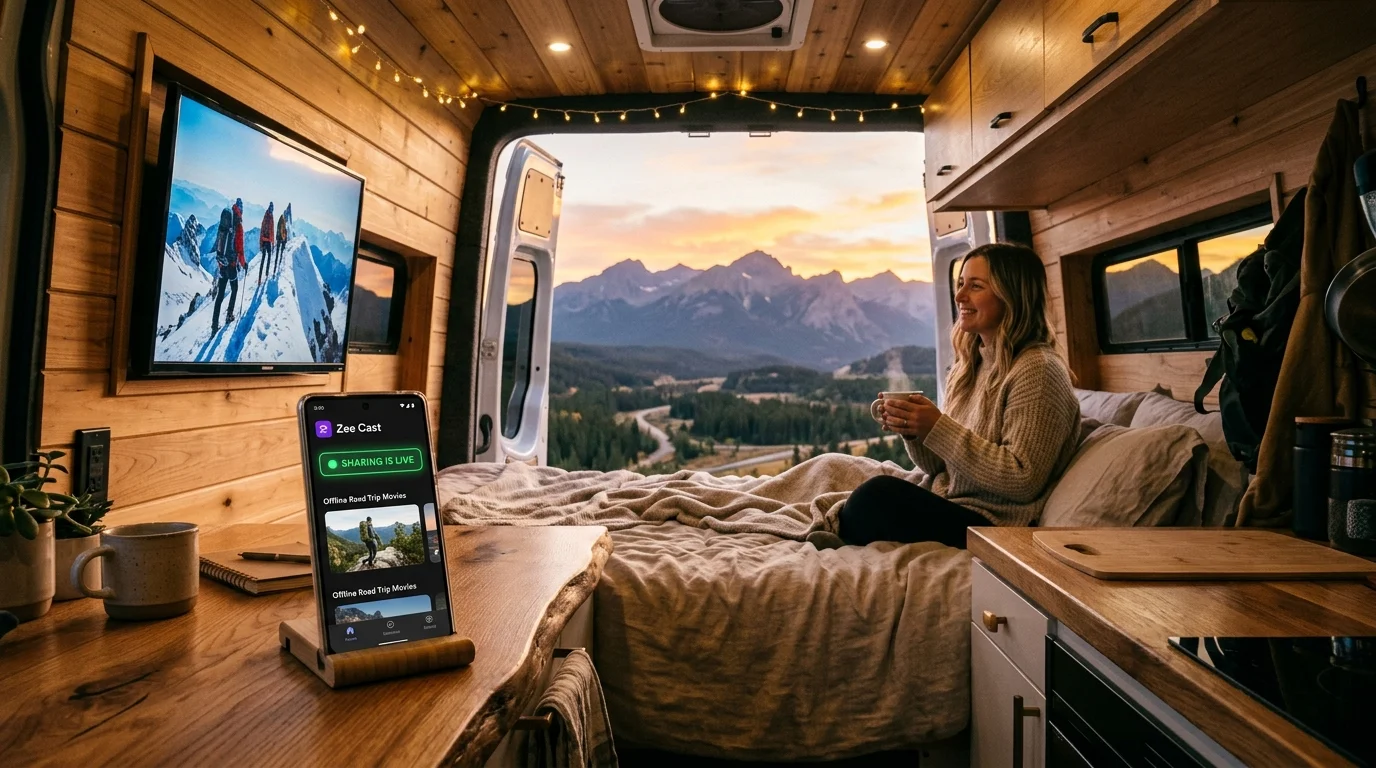
Key takeaways
- Downloaded DRM-free MP4, MOV, and MKV files stored in your iPhone Files app or Photos stream wirelessly without copying to USB drives.
- Your iPhone's Personal Hotspot acts as a private offline Wi-Fi bridge—0 KB of carrier data is used during playback.
- Honest catch: DRM-encrypted offline downloads inside Netflix/Disney+ cannot be served by any local DLNA app; use DRM-free MP4/MKV files.
First Check: DRM-Free Files vs. App-Locked Downloads
When searching how to watch downloaded movies from your iPhone on a TV without Wi-Fi, there is one critical technical distinction most articles hide until the end:
- Works wirelessly with zero internet: Personal DRM-free
.mp4,.mov,.mkv, and home movies saved in your iPhone Files app ("On My iPhone" / iCloud Drive downloaded locally) or Camera Roll. - Blocked by hardware DRM: Offline downloads inside subscription apps like Netflix, Prime Video, or Disney+ are encrypted inside each app's sandbox and restrict wireless AirPlay/DLNA streaming (only certified HDMI adapters or Smart TV native logins can play those).
Step-by-Step: Stream Downloaded iPhone Files Without Wi-Fi
- 1
Turn On Personal Hotspot ("Maximize Compatibility" ON)
Open Settings → Personal Hotspot on your iPhone, toggle Allow Others to Join ON, and switch on Maximize Compatibility (2.4 GHz mode) so older cabin or Airbnb TVs find it immediately.
- 2
Join the Hotspot on Your TV
On the TV or streaming stick, join your iPhone's hotspot Wi-Fi password. If the TV reports Connected without internet, ignore the warning—you only need the local radio link.
- 3
Select Your File Using "Browse Files" in Zee Cast
Open Zee Cast on your iPhone, create a collection, tap Browse Files to pick any downloaded
.mp4,.mov, or.mkvmovie directly from the iOS Files picker without copying duplicates, and tap Turn on sharing. - 4
Press Play on the TV Media Player
Open Connected Devices (Samsung), Media Player / Home Dashboard (LG), Roku Media Player, or VLC (Fire TV / Google TV), select Zee Cast, and lock your phone screen while the movie plays.
💡 What If You Have Zero Cellular Signal in a Remote Cabin?
iOS hides Personal Hotspot when cellular signal is completely absent ("No Service") or Airplane Mode is active. In total dead zones, pack an inexpensive battery-powered pocket travel router—create a mini local Wi-Fi network between your iPhone and TV with zero internet or SIM required. See our full Cast to TV Without Wi-Fi and MKV & Subtitles guide.
Frequently Asked Questions
Why can't Netflix, Prime Video, or Disney+ offline downloads stream wirelessly to a TV?
Commercial streaming apps encrypt offline downloads with strict hardware DRM (FairPlay/Widevine) that blocks third-party apps from reading or serving those video files over Wi-Fi. Zee Cast works with your personal, DRM-free video files—such as downloaded MP4/MKV movies stored in Apple Files, travel action-camera clips, or iPhone camera recordings.
Does streaming downloaded movies from iPhone to TV over Personal Hotspot use my data plan?
No. Your video file moves locally from iPhone flash storage directly over your hotspot's Wi-Fi chip to the television (consuming 0 KB of cellular data). Just leave iOS's Cellular Data toggle ON so iOS allows the hotspot SSID to broadcast—with Data Roaming turned OFF if you're abroad.
What if I'm on a road trip or cabin with zero cell signal?
iPhone requires an active carrier check to turn on Personal Hotspot initially. Once the hotspot is running—or if there is weak reception—local HTTP traffic never touches cellular towers. In complete dead zones (zero signal or Airplane Mode), bring a pocket travel router (GL.iNet) so phone and TV share an offline Wi-Fi LAN without hotspot.
Can I also open a downloaded movie in a TV browser instead of a DLNA app?
Yes, for standard MP4 / H.264 movies! With Zee Cast v2.19.0+, tap Watch in a Browser and enter http://


