
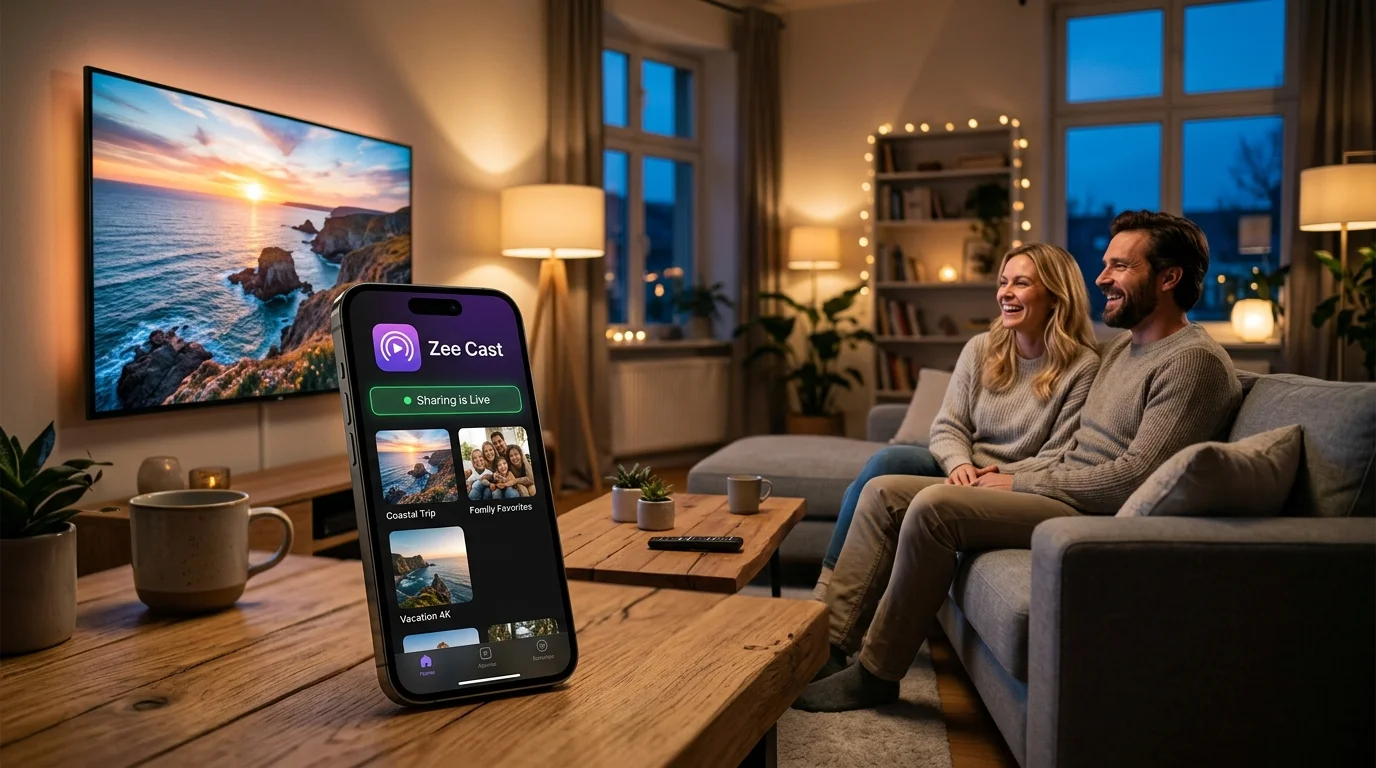
 ⚡ At a Glance: Web Browser Viewer (LAN) Specs | |
|---|---|
| Target Platform & OS | Chrome, Safari, Firefox, Edge, Samsung Tizen Browser, LG webOS Browser, Fire TV Silk, Xbox Edge |
| Protocol & Port | Local HTTP Server (http://<phone-ip>:8080, ES5 + Byte-Range) |
| Connection Type | Same Wi-Fi Router or Personal Hotspot (0 KB Internet Data) |
| Transcoding | None (Original HTML5 playback + direct Download fallback) |
| Typical Setup Time | ~15 seconds (Scan QR or type URL) |
Key takeaways
- Zero client app required: open your phone's shared collections in Chrome, Safari, Edge, Fire TV Silk, or Smart TV browsers.
- One URL + QR code in the Zee Cast app serves the same curated collections and respects Pro Device Approval.
- Built-in D-pad spatial navigation supports TV remotes cleanly alongside desktop mouse and touch controls.
- Works even on networks where UPnP/SSDP multicast discovery fails—just enter the direct LAN IP URL.
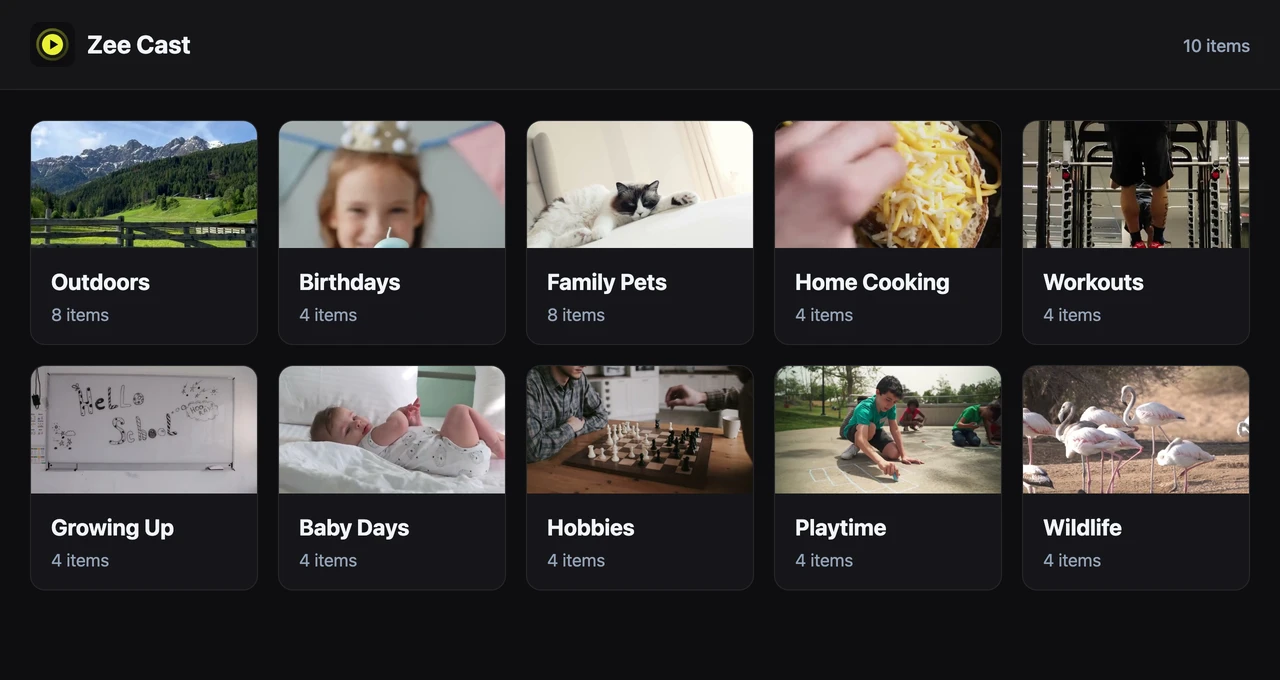
When to Use Watch in a Browser vs. Native DLNA
Every Zee Cast server runs both UPnP/DLNA discovery and the Watch in a Browser web viewer on the same port. Pick whichever fits the screen in front of you:
| Scenario | Recommended Mode | Why |
|---|---|---|
| 4K HDR HEVC / MKV / Dolby Vision on Smart TV or Apple TV | Native DLNA (TV Media Player / Infuse / VLC) | TV and desktop hardware players decode HEVC, 10-bit HDR, and surround audio natively with zero browser codec limits. |
| Windows PC, Mac, Chromebook, or Linux Laptop (No Install) | Watch in a Browser | Open Chrome, Safari, Edge, or Firefox, type the local URL, browse full-res photos, play clips, or download originals in one click. |
| Smart TV / Fire TV / Xbox Without Installing VLC | Watch in a Browser (Silk / Edge / TV Browser) | Use the built-in remote D-pad arrows for instant photo slideshows and compatible MP4/H.264 playback. |
| Hotel / Guest Wi-Fi Blocking SSDP Multicast Discovery | Watch in a Browser (or Personal Hotspot DLNA) | Direct HTTP IP access bypasses UDP multicast discovery when routers drop SSDP beacons. |
Step-by-Step: Open Zee Cast in Any Browser
- 1
Confirm Shared Local Network
Connect your phone and the receiving screen (TV, laptop, tablet, or console) to the same Wi-Fi network or your phone's Personal Hotspot.
- 2
Turn On Sharing & Tap "Watch in a Browser"
Pick the collections you want to show in Zee Cast, toggle Turn on sharing, and tap Watch in a Browser. You'll see a scannable QR code and your local URL (such as
http://192.168.1.42:8080). - 3
Open the Address on Your Screen
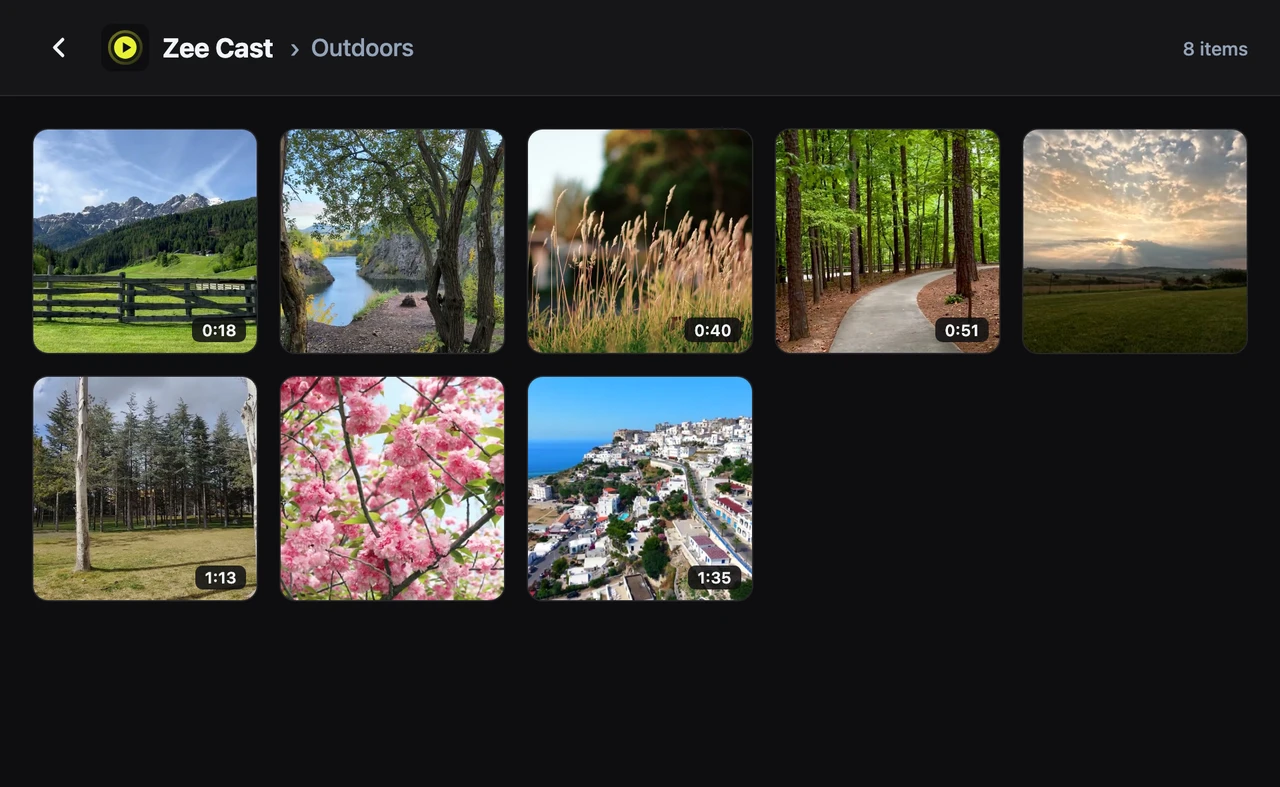
Scan the QR code from another phone or tablet, or type the IP and port into your TV or laptop browser. Only items inside your shared collections appear—and if Device Approval (Pro) is enabled, you'll be prompted to Allow the browser's IP before anything loads.
- 4
Play, Slideshow, or Save Originals
Launch a full-screen photo slideshow, scrub through compatible videos and audio tracks (MP3, M4A/AAC, WAV), or tap Download on any card—including formats the browser itself cannot decode inline.
TV Remote & Browser Compatibility Notes
- Smart TV Browsers Supported: Samsung Tizen Internet, LG webOS Browser, Amazon Silk on Fire TV, and Microsoft Edge on Xbox Series X|S / Xbox One—all tested with remote D-pad navigation.
- HEIC Photos Handled Automatically: iPhone HEIC photos are served as browser-friendly JPEG streams on iOS so images render across Chrome, Firefox, Edge, and older TV browsers.
- Codec Fallback Built In: When an HEVC, MKV, or non-browser audio track cannot decode inside Chrome or Edge, the player clearly offers an original file download (and you can switch to VLC or Roku Media Player over DLNA anytime).
Frequently Asked Questions
How is Watch in a Browser different from DLNA streaming?
DLNA uses SSDP multicast discovery so Smart TVs and apps like Roku Media Player or VLC find Zee Cast automatically. Watch in a Browser serves an HTML/ES5 web gallery directly over HTTP on your local network (http://
Can I use my TV remote in the browser viewer?
Yes. The browser viewer includes spatial D-pad arrow-key focus navigation built for smart TV browsers (Samsung Tizen Internet, LG webOS Browser, Amazon Silk on Fire TV, Xbox Microsoft Edge). Use Left/Right/Up/Down arrows, OK/Enter to open items, and Back/Escape to return to collections.
What happens if a 4K video codec isn't playable inside my web browser?
Because Zee Cast never transcodes on your phone, playback relies on what the target browser can decode natively (for example, Safari plays HEVC/MOV well, while some non-Apple or older TV browsers only play H.264 MP4). If a browser cannot decode a codec, the viewer displays an unsupported-format notice with a direct Download button—and you can always open the exact same collection in VLC, Infuse, or your TV's native DLNA player for full hardware decoding.
Does Watch in a Browser upload my photos to the internet?
No. Even though you open a web address in Chrome or Safari, the URL points strictly to your phone's private LAN IP address (such as 192.168.x.x or 172.20.10.x). No data ever leaves your router, and it works offline over Personal Hotspot too.
How do I block unwanted browsers on shared Wi-Fi?
Enable Device Approval (Zee Cast Pro). Any browser IP address connecting for the first time pauses on an approval wait until you tap 'Allow' on your phone; denied devices receive a denied screen and HTTP 403 block.
Can I use Watch in a Browser on PlayStation 5?
No—Sony PlayStation 5 does not expose a general-purpose standalone web browser for manual URL entry. Use TV web browsers (Samsung, LG, Fire TV Silk, Xbox Edge) or desktop/tablet browsers instead.


