

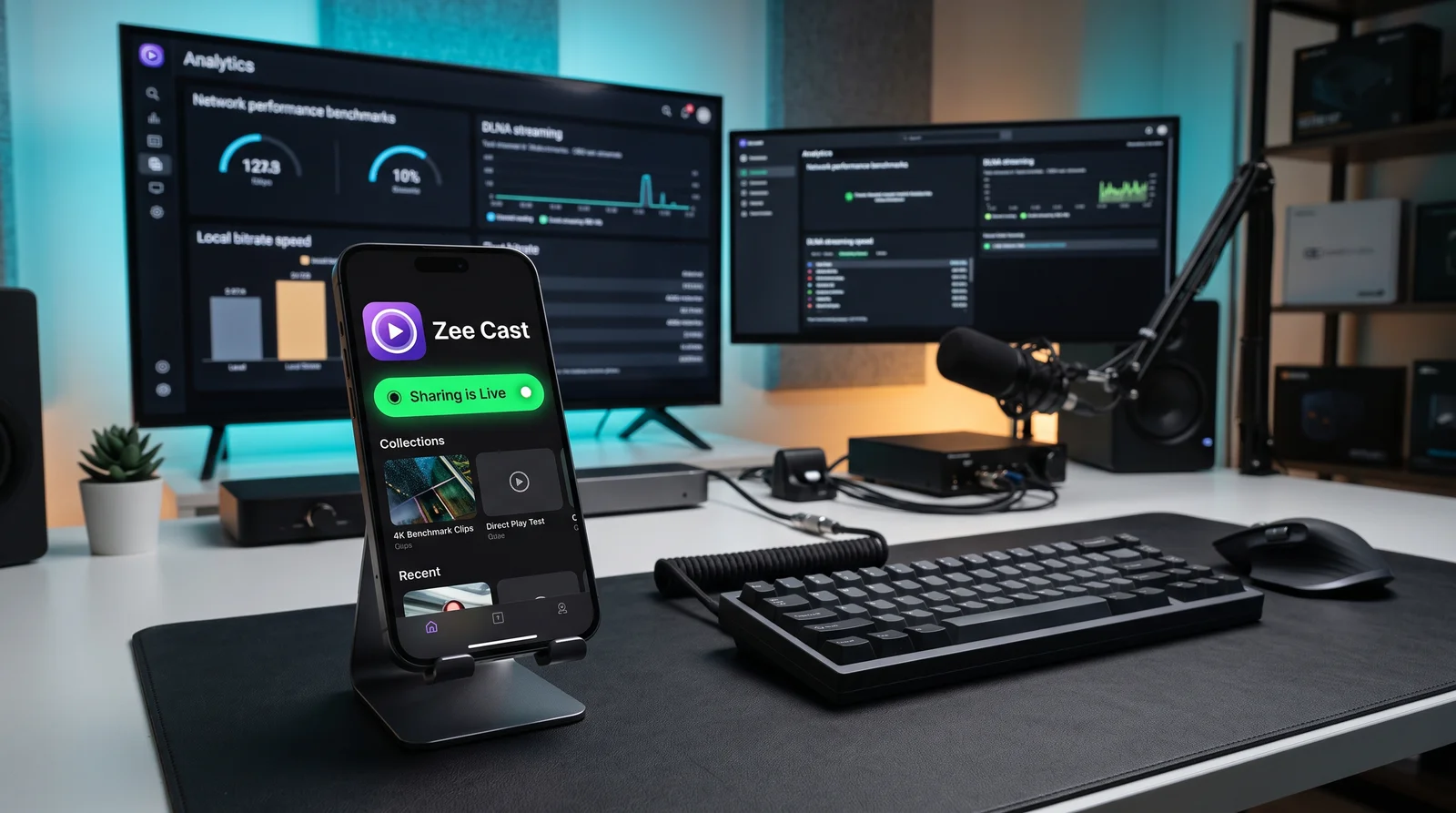
⚡ At a Glance: Quick Specs | |
|---|---|
| Target Platform & OS | |
| Protocol & Port | DLNA 1.5 / UPnP MediaServer, Port 8080 (HTTP Byte-Range) |
| Connection Type | Local Wi-Fi (5 GHz recommended) or Hotspot (0 MB Internet Data) |
| Transcoding | None (Direct Play original bitstream to native TV hardware) |
| Typical Setup Time | ~2 minutes (Instant local discovery) |
Key takeaways
- Desktop VLC has a built-in Universal Plug 'n' Play discovery module located right inside the Playlist window.
- Streaming lets you review 4K footage on a calibrated monitor immediately without waiting for slow cloud syncing.
- Works simultaneously with iPhone, iPad, and Android devices sharing to the same computer.
- Zee Cast handles HTTP range headers so you can scrub forward and backward through multi-gigabyte video files instantaneously.
Why Stream to VLC on Your Computer?
Whether you are a content creator inspecting drone footage, a parent wanting to share holiday photos on the living room PC, or simply looking to watch a video without draining phone battery, transferring files via USB or waiting for cloud backups (Google Drive, Dropbox, iCloud) is agonizingly slow.
By using Zee Cast alongside VLC Media Player on your computer, your phone instantly turns into an ultra-fast streaming server. You can click any video and start playback in milliseconds, with full scrubbing support and zero disk space consumed on your PC or Mac.
Step-by-Step Instructions
- 1
Verify Local Wi-Fi Connection
Ensure your PC or Mac and your phone are connected to the same local network. (If your computer uses an Ethernet cable plugged into the same Wi-Fi router, that works even better!)
- 2
Start Zee Cast on Your Phone
Open Zee Cast on iPhone or Android, create a collection or select your files, and tap Turn on sharing.
- 3
Open Playlist in Desktop VLC
Launch VLC on your computer:
- Windows / Linux: Press
Ctrl + Lor click View → Playlist in the top menu. - macOS: Press
Cmd + 1or click Window → Playlist in the menu bar.
- Windows / Linux: Press
- 4
Click Universal Plug 'n' Play
In the left sidebar of the Playlist window, expand the Local Network category and click on Universal Plug 'n' Play.
Within 2–5 seconds, Zee Cast will appear in the main playlist pane. Double-click it to expand your shared folders and play any file immediately!
Frequently Asked Questions
Do I need any cables or iTunes to stream to my computer?
No. Zero USB cables, Lightning/Type-C cords, iTunes, or cloud services (like iCloud or Google Photos) are needed. Desktop VLC discovers Zee Cast wirelessly across your local network using standard UPnP/SSDP protocols.
Can I stream full 4K 60fps HDR iPhone recordings without lag?
Yes! Modern 5 GHz Wi-Fi networks easily transfer 40–100 Mbps video streams. Desktop VLC utilizes your computer's dedicated GPU hardware acceleration (Nvidia NVDEC, AMD AMF, or Apple Silicon VideoToolbox) to decode 4K HEVC and ProRes smoothly.
Why doesn't Zee Cast show up under Universal Plug 'n' Play in VLC?
This is most commonly caused by local firewall settings. On Windows, verify that Windows Defender Firewall allows inbound traffic for VLC on UDP port 1900. On macOS, ensure VLC has 'Local Network' permissions enabled in System Settings → Privacy & Security.
Can I take high-resolution screenshots or export frames in VLC?
Yes. Once streaming in desktop VLC, you can press Shift+S (Windows) or Cmd+Alt+S (Mac) to capture original-resolution PNG/JPEG snapshots of any video frame directly to your computer.
Does this work on Linux (Ubuntu, Fedora, Arch)?
Yes! Desktop VLC on Linux features the identical Universal Plug 'n' Play discovery module under the Playlist sidebar. Ensure your firewall (such as UFW or firewalld) permits UDP port 1900.


