
⚡ At a Glance: Hotel Streaming Setup Specs | |
|---|---|
| Target Platform & OS | Hotel Smart TVs & Travel Media Sticks (Commercial Samsung LYNK, LG Pro:Centric, Roku, Fire TV) |
| Protocol & Port | DLNA 1.5 / UPnP MediaServer, Port 8080 (HTTP Byte-Range) |
| Connection Type | Phone Hotspot or Travel Router (0 MB Mobile Data; Bypasses Captive Portal) |
| Transcoding | None (Direct Play original camera roll files straight to TV decoder) |
| Typical Setup Time | ~2–3 minutes (No hotel network authentication needed) |
Key takeaways
- Hotel networks use client isolation and multicast filtering, which is why AirPlay/Chromecast never find the TV.
- The reliable fix is a Personal Hotspot: the phone creates its own local network with none of those blocks.
- The TV joins the phone's hotspot, the phone runs Zee Cast, and playback needs zero mobile data.
- A travel router in WISP mode is the alternative when the TV cannot join a hotspot.
After an incredible day of exploring, you return to your hotel room excited to watch your high-resolution vacation photos and 4K video clips on the big screen. You open your phone, tap "AirPlay" or "Cast", and... nothing happens. The TV never appears. Here is the technical reason hotel Wi-Fi blocks casting - and two proven, fail-safe methods to stream your media smoothly with zero mobile data consumption.
The Anatomy of Hotel Wi-Fi: Why Casting Always Fails
Hospitality Wi-Fi networks in hotels, resorts, and vacation rentals are designed for security and guest isolation, not peer-to-peer home media streaming. When you attempt to cast photos or videos on hotel Wi-Fi, three enterprise network mechanisms - including A router setting that blocks devices on the same Wi-Fi from reaching each other; common on guest and hotel networks. Glossary → and The sign-in web page a hotel or café network shows before granting internet access; many TVs cannot complete it. Glossary → - actively block the connection:
1. Access Point (AP) Client Isolation
Commercial wireless networks (powered by enterprise hardware like Cisco Meraki, Aruba, or Ruckus) enforce Station Isolation (IEEE 802.11 AP Isolation). Under client isolation, the access point treats every connected device as a separate island. Your phone can communicate with the internet gateway, and the smart TV can communicate with the internet gateway, but direct packet exchange between your phone and the TV is strictly dropped at the access point level.
2. Multicast & SSDP Packet Filtering
Discovery protocols rely on local multicast broadcasts to locate playback targets:
- UPnP/DLNA: Uses Simple Service Discovery Protocol (SSDP) via UDP multicast address
239.255.255.250:1900. - Apple AirPlay: Uses mDNS (Bonjour) via UDP multicast address
224.0.0.251:5353. - Google Cast: Uses mDNS and proprietary discovery beacons.
To prevent "broadcast storms" that can degrade wireless performance when hundreds of hotel guests connect, enterprise network controllers automatically drop all local multicast packets. Even if your phone and TV share the same Wi-Fi SSID, neither device can ever discover the other.
3. Captive Portals & Browser Splash Pages
Most hotel networks redirect initial web requests to a captive portal splash page requiring a room number, guest last name, or access code. Most hotel Smart TVs, older streaming dongles, and smart display hardware lack a fully functional web browser or the SSL/TLS cipher suites needed to complete captive portal authentication, leaving them stranded without an IP lease.
⚠️ The Security Risk of Public Hotel Wi-Fi Casting
Even if a hotel Wi-Fi network happens to have AP isolation disabled, casting personal photos and family videos over an open public network is dangerous. Any guest on the same floor running a network packet sniffer or UPnP browser could discover your device and view your private photos. Never stream private memories over unencrypted, shared hotel networks.
Solution 1 (Recommended): Smartphone Personal Hotspot
The fastest, most elegant, and 100% free solution is to turn your smartphone into your room's private media access point using Personal Hotspot (iPhone) or Mobile Hotspot (Android).
When your phone hosts its own hotspot, it creates an independent, WPA2/WPA3 encrypted Local Area Network (LAN):
- Zero AP Isolation: Direct device-to-device communication is fully enabled.
- Unrestricted Multicast: SSDP discovery broadcasts flow instantly between phone and TV.
- No Splash Pages: The connection bypasses the hotel's captive portal completely.
- Guaranteed 0 MB Data Usage: Local UPnP/DLNA media streaming travels solely across the local Wi-Fi radio waves - no cellular data is consumed.
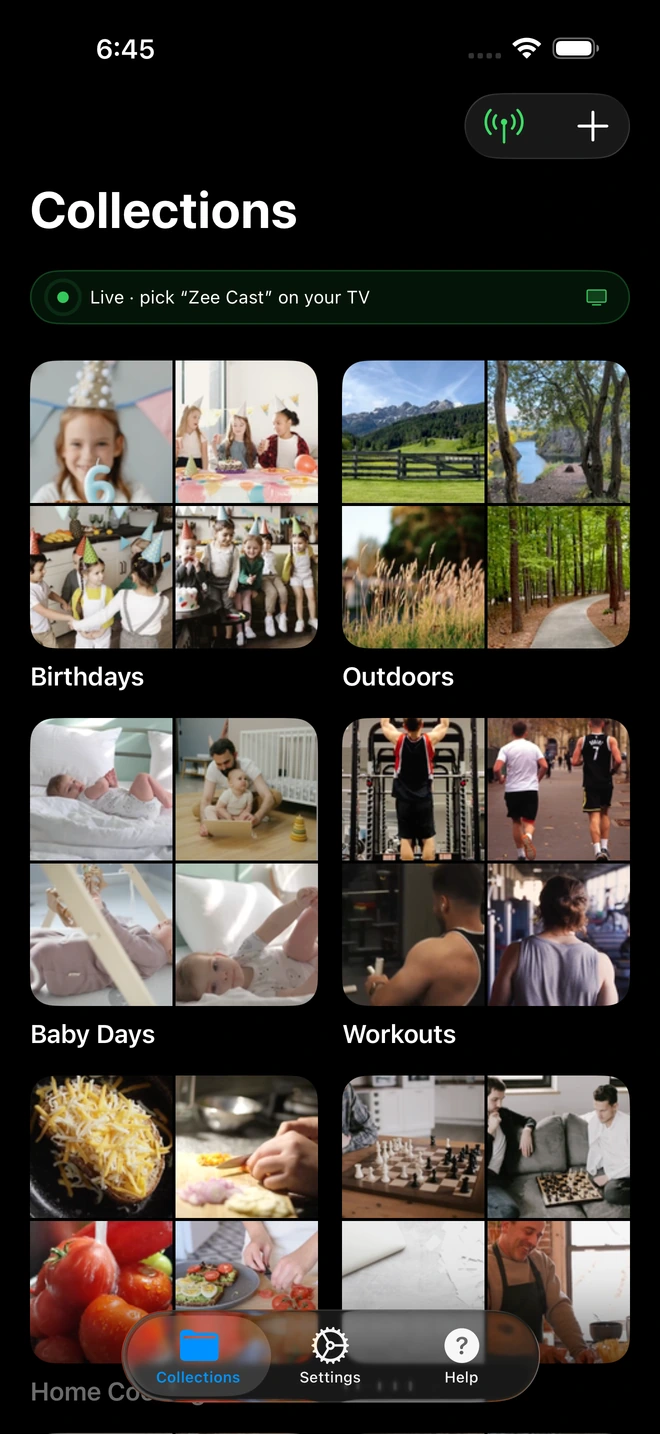
- 1Sharing is live on the phone's own hotspot, so hotel AP isolation and captive portals never enter the path.

Step-by-Step Hotspot Walkthrough
- 1
Activate Phone Hotspot
On iPhone, go to Settings > Personal Hotspot, toggle ON Allow Others to Join, and turn ON Maximize Compatibility (forces 2.4 GHz for older hotel TV compatibility). On Android, open Settings > Network & Internet > Hotspot & tethering and turn on Wi-Fi hotspot.
- 2
Connect the Hotel TV to Your Hotspot
Using the TV remote, navigate to Settings > Network / Wi-Fi, select your phone's hotspot SSID, and enter your password. (Ignore any "No internet" notifications - internet is not required for local media playback).
- 3
Launch Zee Cast and Share Media
Open Zee Cast, organize your photos and 4K vacation clips into a collection, and tap Turn on sharing.
- 4
Play on the Big Screen
Open the TV's native media player (e.g., Samsung Connected Devices, LG Photo & Video, Roku Media Player, or VLC), select Zee Cast, and browse your media in original 4K fidelity.
Solution 2: Portable Travel Router (WISP Repeater)
If you travel frequently with multiple devices (phone, tablet, laptop, Nintendo Switch, and a streaming stick), a pocket travel router (such as the GL.iNet GL-AXT1800 Slate AX or GL-MT3000 Beryl AX) is an indispensable travel companion.
Here is how a travel router solves hotel captive portals:
- WISP Mode (Wireless Client): The travel router connects wirelessly to the hotel's public Wi-Fi as a single client.
- One-Time Captive Portal Authentication: You connect your phone to the travel router's private Wi-Fi network. Open Safari or Chrome, and the hotel's captive portal splash page appears. You enter your room number and name once.
- Shared Access & Private Subnet: The travel router handles the authenticated WAN connection and creates an isolated private subnet for all your personal devices. Inside this bubble, SSDP multicast and DLNA streaming work without restriction.
How to Unlock Hotel TV Inputs & HDMI Ports
Many hotel chains utilize commercial "Hospitality TVs" (Samsung LYNK REACH / LYNK SINC, LG Pro:Centric, or Philips MediaSuite). These commercial units often lock the remote control, hiding the Input or Source button to prevent guests from switching away from the hotel's interactive welcome channel.
Here are four practical methods to unlock hotel TV inputs:
| Bypass Method | How It Works | Success Rate | Risk / Reversibility |
|---|---|---|---|
| Physical TV Chassis Buttons | Look along the bottom bezel, side edge, or behind the right rear corner of the TV for physical buttons or a multi-directional joystick. Pressing or toggling often cycles through HDMI 1, HDMI 2, and USB Media. | High (~75%) | 100% Safe & Reversible |
| Unplug Hospitality Data Cable | Inspect the back of the TV for a telephone-style modular cable (RJ12 or RJ45 connector labeled "Data", "MPI", "SmartPort", or "Game Port") connecting the TV to an external hospitality control box. Unplugging this cable boots the TV into standard consumer mode, unlocking the Input menu. Plug it back in before checkout. | Very High (~85%) | Safe; simply reconnect before leaving |
| IR Universal Remote App | If you carry an Android phone with an integrated IR blaster (or a portable universal remote), send standard consumer Samsung/LG IR discrete codes for "Input" or "HDMI 1". Commercial hospitality lockouts rarely disable raw IR receiver signals. | Medium (~60%) | 100% Safe |
| Hotel Remote Secret Menu Codes | On many commercial remotes, holding down Mute + 1 + 1 + 9 + Enter or Menu + 0 + 0 + 0 + 0 opens the installer menu, allowing you to toggle Hospitality Mode to "Off". (Always restore original settings before checkout). | Medium (~50%) | Advanced; take a photo of settings first |
Bringing a Travel Streaming Stick: The Ultimate Setup
For the smoothest hotel entertainment experience, pack an inexpensive streaming stick (Roku Streaming Stick 4K or Amazon Fire TV Stick) along with a short 1-foot HDMI extender and USB power cable in your luggage:
- Plug the streaming stick directly into an available HDMI port on the hotel TV.
- Connect the stick to your smartphone's Personal Hotspot.
- Launch Roku Media Player (on Roku) or VLC (on Fire TV).
- Start sharing in Zee Cast on your phone.
- Stream all your vacation photos, 4K camera videos, and offline movies directly without ever logging into hotel accounts or fighting captive portal web browsers.
Frequently Asked Questions
Why can't I use Google Chromecast or Apple AirPlay directly on hotel Wi-Fi?
Hotel networks employ two enterprise-grade barriers: Captive Portals and AP Client Isolation (Station Isolation). Captive portals intercept network traffic until a guest authenticates via a web browser (which headless devices like Chromecasts cannot easily do). AP Client Isolation blocks connected devices from communicating peer-to-peer. Additionally, hotel commercial routers drop UDP multicast discovery packets (SSDP port 1900 and mDNS port 5353) to prevent broadcast storms, rendering devices completely invisible to each other.
Does streaming over my phone hotspot use my cellular roaming or data allowance?
No. When your hotel TV connects to your phone's Personal Hotspot and streams local camera roll media via Zee Cast, all video and photo files are transferred entirely over the local Wi-Fi radio interface (Layer 2/3 LAN). The data travels directly from phone flash storage to the TV's hardware decoder without traversing cellular base stations. Cellular data usage is exactly 0 MB.
What if the hotel TV remote has no 'Input' or 'Source' button?
Hospitality TVs (Samsung LYNK REACH, LG Pro:Centric) often use custom remotes with stripped-down buttons. You can bypass this by checking the physical TV chassis for a manual 'Source' or 'Menu' button (usually located on the bottom bezel, side, or rear directional nub). Alternatively, look for an RJ12/RJ45 'Data' or 'MPI' cable plugged into the back of the TV that connects to the hotel set-top box; unplugging this communication cable often unlocks standard TV menus and input switching.
How does a portable travel router help with hotel Wi-Fi streaming?
A travel router (such as a GL.iNet Beryl AX or Slate AX) operates in WISP (Wireless Internet Service Provider) / Repeater mode. The travel router connects to the hotel Wi-Fi network and lets you complete the captive portal login once from your smartphone browser. The router then broadcasts its own private Wi-Fi network for all your devices (phone, TV, laptop, streaming stick). Inside your private subnet, AP isolation is gone, multicast discovery works perfectly, and all your devices communicate seamlessly.
Can the hotel or other guests see what photos and videos I am streaming?
No. Because you are streaming over your password-protected Personal Hotspot or a private travel router, your traffic never touches the shared hotel Wi-Fi network. Additionally, Zee Cast Pro includes 'Device Approval' access control, which intercepts incoming connection requests and requires you to tap 'Allow' on your phone before any TV can view your media directory.
Will Zee Cast work if my hotel room has zero mobile cell service?
Yes. Zee Cast operates as a local UPnP/DLNA media server. Even if your smartphone has 'No Service' or you are traveling internationally without a roaming data plan, your phone's Wi-Fi hotspot hardware can still broadcast an offline local network, allowing your Smart TV or streaming stick to connect and stream with zero internet required.
What should I do if the hotel TV blocks Wi-Fi setup in the settings menu?
Some hotel TVs run in locked 'Hospitality Mode' where network settings are disabled. In this case, plug an inexpensive streaming stick (such as a Roku Streaming Stick, Amazon Fire TV Stick, or Chromecast with Google TV) into an open HDMI port on the back or side of the TV. Power the stick using a wall outlet or the TV's USB port, connect the stick to your phone's hotspot, and stream to the stick using Zee Cast.
Can I bring an Amazon Fire Stick or Roku Stick to the hotel instead?
Yes, bringing a travel streaming stick is one of the most reliable strategies. When plugged into the hotel TV's HDMI port, you connect the streaming stick to your phone's Personal Hotspot. Open Roku Media Player or VLC on Fire TV, and Zee Cast will appear instantly as an available media server for smooth 4K playback.


