
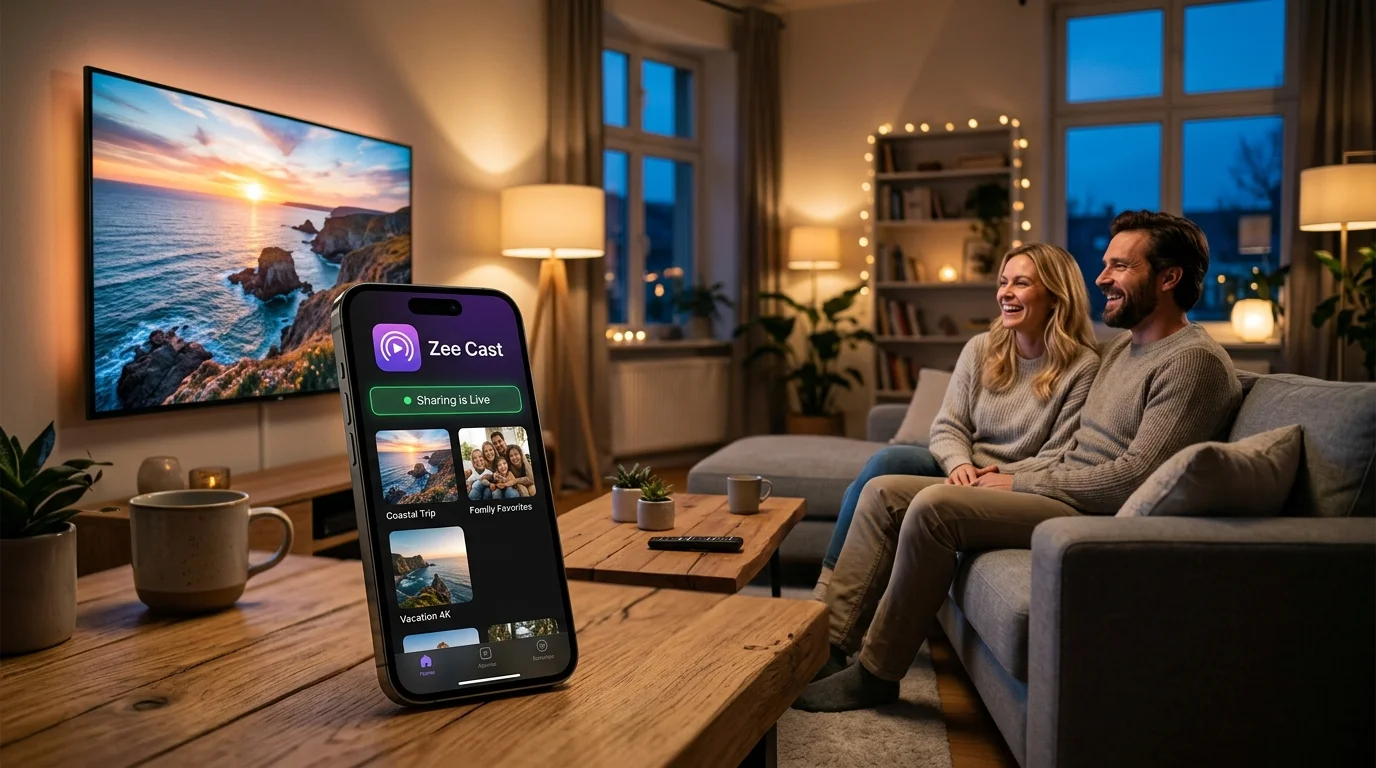
Key takeaways
- Open your shared photos, MP4/MOV clips, and audio in almost any Smart TV, console, laptop, or tablet web browser—no receiver app to install.
- Spatial D-pad arrow navigation lets Samsung Internet, LG webOS Browser, Fire TV Silk, and Xbox Edge remotes browse photo grids cleanly.
- All traffic stays strictly on your private Wi-Fi IP address (http://
:8080)—zero cloud servers or accounts.
When a Browser Beats Installing a Receiver App
Traditional Smart TV casting apps ask everyone to install a third-party receiver channel, sign in with pairing codes, or fight router SSDP discovery when you just want to pull up vacation photos on someone else's laptop, smartboard, or TV.
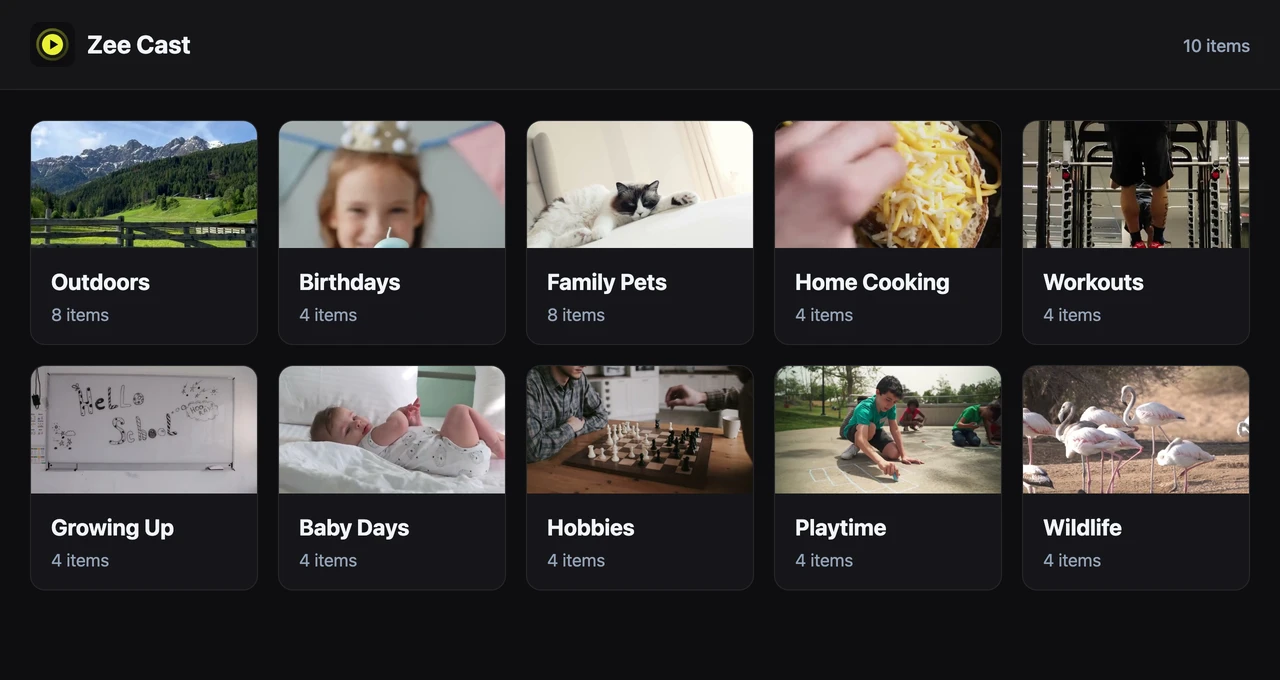
With Watch in a Browser in Zee Cast (v2.19.0+), your phone already serves a clean ES5 web gallery alongside DLNA on port 8080. Point any browser on the same Wi-Fi network to http://<phone-ip>:8080 (or scan the on-screen QR code on a tablet or laptop) and your curated collections open immediately.
TV, Console & Computer Browser Compatibility
| Device / Screen | Built-In Browser | Remote / Control Support |
|---|---|---|
| Samsung Smart TV (Tizen) | Samsung Internet | D-pad arrow navigation + fullscreen photo slideshow |
| LG Smart TV (webOS) | LG Web Browser | Magic Remote cursor + D-pad navigation |
| Amazon Fire TV Stick / Cube | Amazon Silk | Fire TV D-pad arrows + Back/Select buttons |
| Xbox Series X|S & Xbox One | Microsoft Edge | Controller D-pad & thumbstick pointer |
| Windows, Mac, Chromebook, iPad | Chrome, Safari, Firefox, Edge | Keyboard arrows, trackpad, touch + 1-click file Download |
Need full 4K HDR Dolby Vision, MKV, or external SRT subtitles on TV? Use Watch in a Browser for photos and quick browser playback, or switch in one second to native DLNA / VLC on the exact same server session.
Frequently Asked Questions
Which Smart TV and console web browsers work with Zee Cast Watch in a Browser?
Any device with a standards-compliant browser on the same local network works—including Samsung Internet on Tizen TVs, LG webOS Browser, Amazon Silk on Fire TV Stick/Cube, Microsoft Edge on Xbox Series X|S and Xbox One, plus Chrome, Safari, Firefox, and Edge on Windows, Mac, Chromebook, iPad, and Android tablets.
Do Vizio TVs, Roku, or PlayStation 5 have a web browser I can use?
No. Roku OS, Vizio SmartCast, and PlayStation 5 do not include an open standalone web browser for arbitrary LAN URLs. On Roku use Roku Media Player (DLNA); on PS5/PS4 use Media Player (DLNA); on Vizio pair a Fire TV Stick (Amazon Silk) or Roku Stick over HDMI.
Why would I use a TV web browser instead of DLNA?
Two big reasons: first, you might be at a friend's house, classroom, or Chromebook without VLC or a DLNA player installed; second, some guest or hotel Wi-Fi routers block SSDP multicast packets used for automatic TV discovery, while direct HTTP IP connections (http://
Can I download original photos or unsupported videos straight from the TV or laptop browser?
Yes. Every item in the browser viewer includes a Download button so friends or family can save original files directly over Wi-Fi—and if a browser cannot natively play a 10-bit HEVC or MKV codec inline, the player shows an Open original / Download fallback.


