
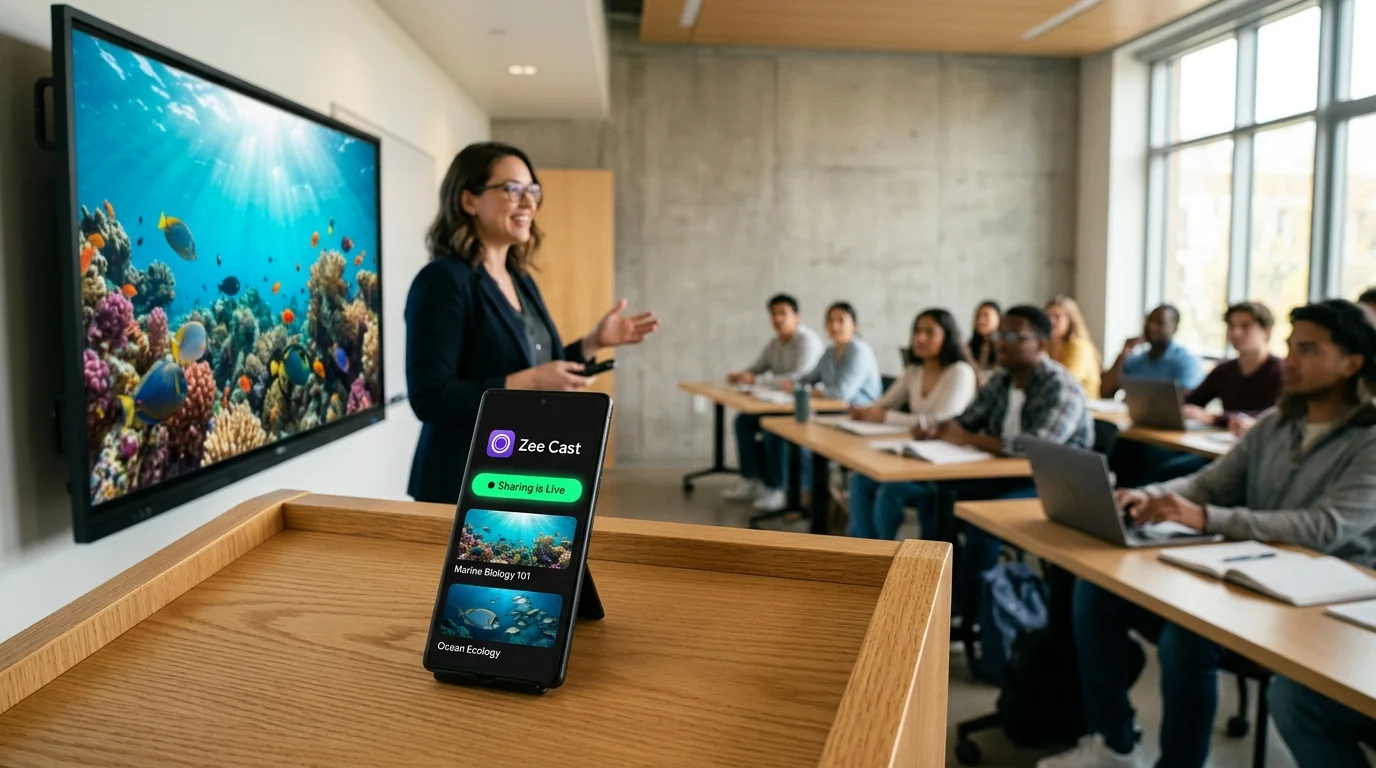
 ⚡ At a Glance: Campus Lab Displays Specs ⚡ At a Glance: Campus Lab Displays Specs | |
|---|---|
| Target Platform & OS | University STEM Lab Displays (Samsung, LG, Sony, Commercial Monitors, Apple TV / Google TV) |
| Protocol & Port | UPnP / DLNA MediaServer 1.5 (Port 8080 HTTP Direct Play) |
| Connection Type | TA Phone Hotspot (Completely Bypasses Eduroam 802.1X, 0 MB Data) |
| Transcoding | None (Direct Play native 4K macro video to lab monitor GPU) |
| Typical Setup Time | 60 seconds (Zero university IT support tickets or MAC registrations) |
The University STEM Lab Challenge: Enterprise Wi-Fi Meets Wet Lab Realities
Across university campuses worldwide, academic departments have mounted 55-inch to 75-inch 4K displays on laboratory walls above chemistry benches, biology dissection stations, and engineering fabrication tables. For Graduate Teaching Assistants (TAs), lab coordinators, and STEM faculty, these displays represent an invaluable teaching tool: rather than having twenty-four students crowd around a single bench to observe a delicate 3-minute titration, pipetting sequence, or circuit soldering demo, the instructor can broadcast high-resolution macro video directly overhead.
However, attempting to get that demonstration video from a smartphone or tablet onto the wall display on a university campus routinely runs into two formidable obstacles: impenetrable enterprise network architecture (Eduroam) and stringent wet lab biosafety regulations (EHS).
⚠️ The Eduroam 802.1X Barrier Explained
Eduroam (education roaming) is the international roaming access service used across thousands of universities and research institutes. While excellent for student laptops, it is inherently hostile to peer-to-peer multimedia sharing:
- WPA2/WPA3 Enterprise Authentication: Requires individual user credentials authenticated against institutional RADIUS servers via PEAP/MSCHAPv2. Most Smart TVs lack the enterprise cryptographic software stack to log into Eduroam.
- Mandatory AP Client Isolation: University network policies (enforced by enterprise controllers like Aruba, Cisco Catalyst, or Juniper Mist) isolate connected clients on separate dynamic VLANs. Peer-to-peer communication is blocked to prevent malware spread across tens of thousands of student laptops.
- Suppression of Multicast Beacons: Campus core switches drop mDNS (Bonjour) and SSDP discovery packets, rendering Apple AirPlay, Google Cast, and standard screen mirroring non-functional.
Wet Lab Safety: EHS Protocols & Contamination Hazards
In organic chemistry, microbiology, physiology, and pathology laboratories, instructors face severe Environmental Health and Safety (EHS) compliance mandates:
- Chemical & Biohazard Contamination: Instructors wearing nitrile or latex gloves contaminated with ethidium bromide, concentrated acids, or pathogenic cultures cannot touch personal smartphones without violating OSHA safety rules.
- The Fragile Screen Mirroring Trap: Traditional screen mirroring requires the phone to remain awake, unlocked, and constantly handled on the bench. If the screen goes to sleep, the TV cuts out. If an urgent call arrives, the demonstration is interrupted.
- Macro Visual Clarity: STEM demonstrations require extreme visual detail: seeing the exact meniscus curvature in a burette, the color transition of a chemical indicator, or the precision tip placement of a micropipette. Re-compressed screen-mirroring streams produce blocky artifacts that destroy educational utility.
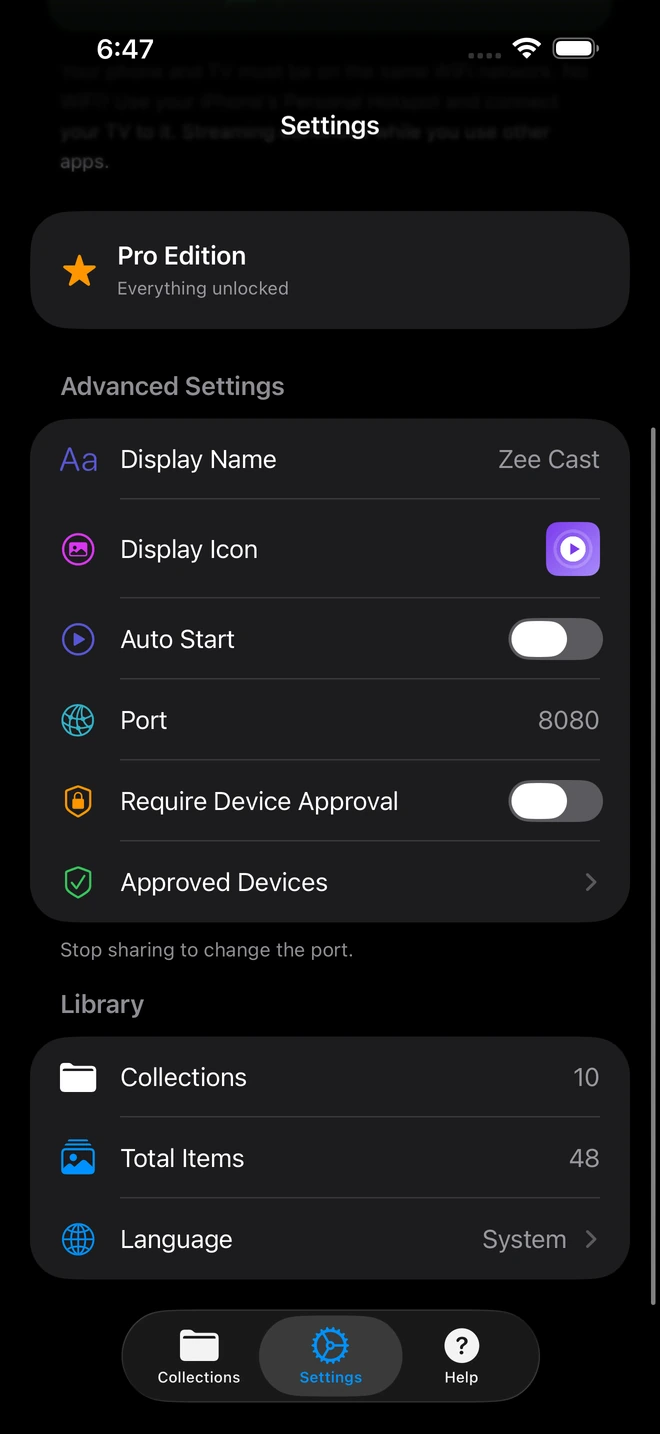
- 1Device Approval gates every connection request.
- 2Only approved screens can browse or stream selected media.
The Solution: Local Hotspot Direct Play via Zee Cast
Zee Cast solves both the technical and safety dilemmas by establishing a self-contained, offline multimedia server directly on the instructor's smartphone.
Instead of fighting campus IT to register the lab TV's MAC address on a restricted IoT VLAN or waiting weeks for firewall exceptions, the instructor simply:
- Enables Personal Hotspot on their phone.
- Connects the laboratory television or media box to the hotspot.
- Launches Zee Cast and streams high-definition demonstration videos directly over local 5 GHz Wi-Fi.
The TV pulls the raw video file directly from the phone. The phone can then be locked, sanitized, and placed safely away from hazardous reagents while the video loops continuously on the 65-inch display overhead.
Comparison: Lab Presentation Methods in Higher Education
Compare standard campus video delivery mechanisms against Zee Cast:
| Instructional Capability | Eduroam / Campus Wi-Fi | Campus Guest Portal | Tethered HDMI Lab PC | Zee Cast (Hotspot Direct Play) |
|---|---|---|---|---|
| Bypasses 802.1X / RADIUS | No (Blocks consumer TVs) | No (Requires web login) | Yes (Physical cable) | 100% Autonomous (Zero 802.1X) |
| Cellular Data Consumption | 0 MB (Campus Wi-Fi) | 0 MB | 0 MB | Exactly 0 MB Carrier Data |
| EHS Safety (Phone Isolated) | Phone must stay active | Phone must stay active | Computer occupies bench space | Phone locked in safe zone |
| Video Resolution & Clarity | Compressed, 720p/1080p lag | Throttled bandwidth | Native monitor resolution | Pristine 4K 60fps Native Bitstream |
| IT Helpdesk Authorization | Requires IT ticket & MAC bypass | Requires daily guest sponsor | Department PC maintenance | Zero IT Department Contact |
| Continuous Video Looping | Times out with phone lock | Session timeout drops link | Manual VLC loop on PC | Continuous Loop via TV player |
Step-by-Step Laboratory Instructional Workflow
1. Pre-Lab Preparation: Macro Recording
Before your lab section begins, use your smartphone's camera to record a 60-second to 2-minute high-definition demonstration of the critical bench skill:
- Focus closely on tricky techniques (e.g., proper air expulsion on a P1000 pipette, adjusting a bunsen burner needle valve, or setting rotary evaporator vacuum).
- In Zee Cast, tap Collections > Create Collection and name it after your course section (e.g.,
BIO 150 - Week 3 Gram Stain Procedure). - Add only the instructional demonstration videos to this collection.
2. Laboratory Setup: Establish the Private Local Link
When you enter the laboratory:
- 1
Turn On Personal Hotspot
Enable Personal Hotspot in your mobile settings. Ensure 'Maximize Compatibility' is toggled appropriately for older lab TV hardware.
- 2
Connect the Lab Display
Using the lab TV remote, navigate to Settings > Network > Wi-Fi and select your phone's hotspot. The TV connects immediately with standard WPA2/WPA3 security.
- 3
Launch Zee Cast and Tap "Turn On Sharing"
Open Zee Cast and tap Turn on sharing. Your phone is now serving your demonstration media over the isolated local link.
- 4
Launch the Demonstration Video on the Lab TV
Open the TV's native Media Player app (or VLC on an attached Apple TV / Google TV box). Select Zee Cast, choose your lab collection, and press Play. Set the player to repeat or loop if continuous visual guidance is needed.
- 5
Lock Your Phone and Place it in the Clean Zone
Lock your phone screen and place it safely at the instructor desk away from reagents, wash bottles, and biological samples. Put on your gloves and circulate freely to assist students.
💡 Pro-Tip: Autonomous Operation for Teaching Teams
If your department runs multiple lab sections throughout the day with different TAs, each TA can simply install Zee Cast on their own device. There is no need to share flash drives, manage shared lab PC user accounts, or fight with lost HDMI adapters between shift handoffs.
Summary: Elevating STEM Education with Zero Friction
Graduate teaching assistants and lab instructors have more than enough to manage without wrestling with university IT network restrictions and laboratory contamination hazards. By deploying Zee Cast's offline hotspot streaming, you gain absolute independence from Eduroam's 802.1X barriers, uphold rigorous biosafety standards, and provide students with crystal-clear 4K visual guidance across every lab bench.
Frequently Asked Questions
Why do smart TVs and streaming dongles refuse to connect to Eduroam?
Eduroam relies on WPA2/WPA3 Enterprise (802.1X) authentication, utilizing PEAP or EAP-TTLS with MSCHAPv2 and RADIUS server certificates. Most consumer smart TVs (Samsung Tizen, LG webOS, Roku) and streaming sticks only support standard WPA2/WPA3 Personal (pre-shared key) authentication. They lack the enterprise cryptographic supplicant required to enter university domain usernames, passwords, and trust CA root certificates, making direct Eduroam connection impossible without complex university IT device registration.
Why doesn't screen casting (AirPlay/Chromecast) work on university campus Wi-Fi?
University campus networks (managed via enterprise controllers like Aruba, Cisco Catalyst, or Mist) enforce strict Access Point (AP) Client Isolation and disable Layer 2 multicast forwarding. This deliberate cybersecurity measure stops malware from propagating across tens of thousands of student laptops and prevents students in dorms from accidentally broadcasting to printers or TVs across campus. Unfortunately, this also drops the mDNS and SSDP discovery packets required for standard screen casting.
Will streaming laboratory videos over my personal hotspot consume cellular data?
No. Zee Cast serves video files stored locally on your phone's flash memory. When the laboratory television connects to your hotspot, data packets travel over local Wi-Fi frequencies (LAN) directly between your phone and the television. No data traverses your carrier's cellular towers to the internet. You can loop 4K microscopy videos for three continuous lab sections with exactly 0 MB of carrier data consumption.
How does Zee Cast improve safety in wet chemistry and biology labs?
In wet laboratories containing corrosive acids, volatile solvents, or biohazardous specimens, touching personal smartphones while wearing contaminated nitrile or latex gloves violates OSHA and university Environmental Health and Safety (EHS) protocols. With traditional screen mirroring, the phone must stay unlocked and active on the bench. With Zee Cast, once the video is initiated on the wall TV, the phone can be locked and placed safely in a clean storage zone while students watch the clear 4K demonstration on the 65-inch display.
Can other graduate students or lab sections hijack the TV while I'm teaching?
No. With Zee Cast Pro's Device Approval firewall, your phone acts as a strict access gatekeeper. Only devices you explicitly approve on your phone screen can connect to your media server. Because you are operating over your own private hotspot network, students on Eduroam cannot even see your server, completely eliminating unauthorized access.
Do I need university IT department authorization or a service ticket to use Zee Cast?
No university IT tickets, device MAC registrations, or firewall exceptions are needed. Zee Cast runs entirely locally on your phone and communicates over your isolated hotspot to the lab display. You operate with complete technological autonomy.
Can I use my phone for timers, lab rubrics, or attendance while the video plays?
Yes! Zee Cast streams the media file in the background directly to the television's hardware decoder. Your phone's screen is completely free. You can run reaction countdown timers, grade lab notebooks in Canvas, or take section attendance on your phone without interrupting the video playing on the lab monitor.
What video formats work best for high-detail STEM demonstrations?
Zee Cast streams standard MP4, MOV, and MKV video files encoded in H.264 or H.265 (HEVC). Modern smartphones can record 4K 60fps video with incredible macro focus, allowing chemistry crystals, microfluidic chips, dissecting pins, and circuit traces to be displayed with pristine razor-sharp fidelity on the lab screen.
Does Zee Cast work on lab monitors that have an Apple TV, Google TV, or Fire TV attached?
Yes. Every major streaming platform attached to university lab monitors - whether an Apple TV running VLC or Infuse, a Google TV device, Fire TV stick, or the television's native operating system - includes full UPnP/DLNA media rendering support. They will discover and stream from Zee Cast effortlessly.


