
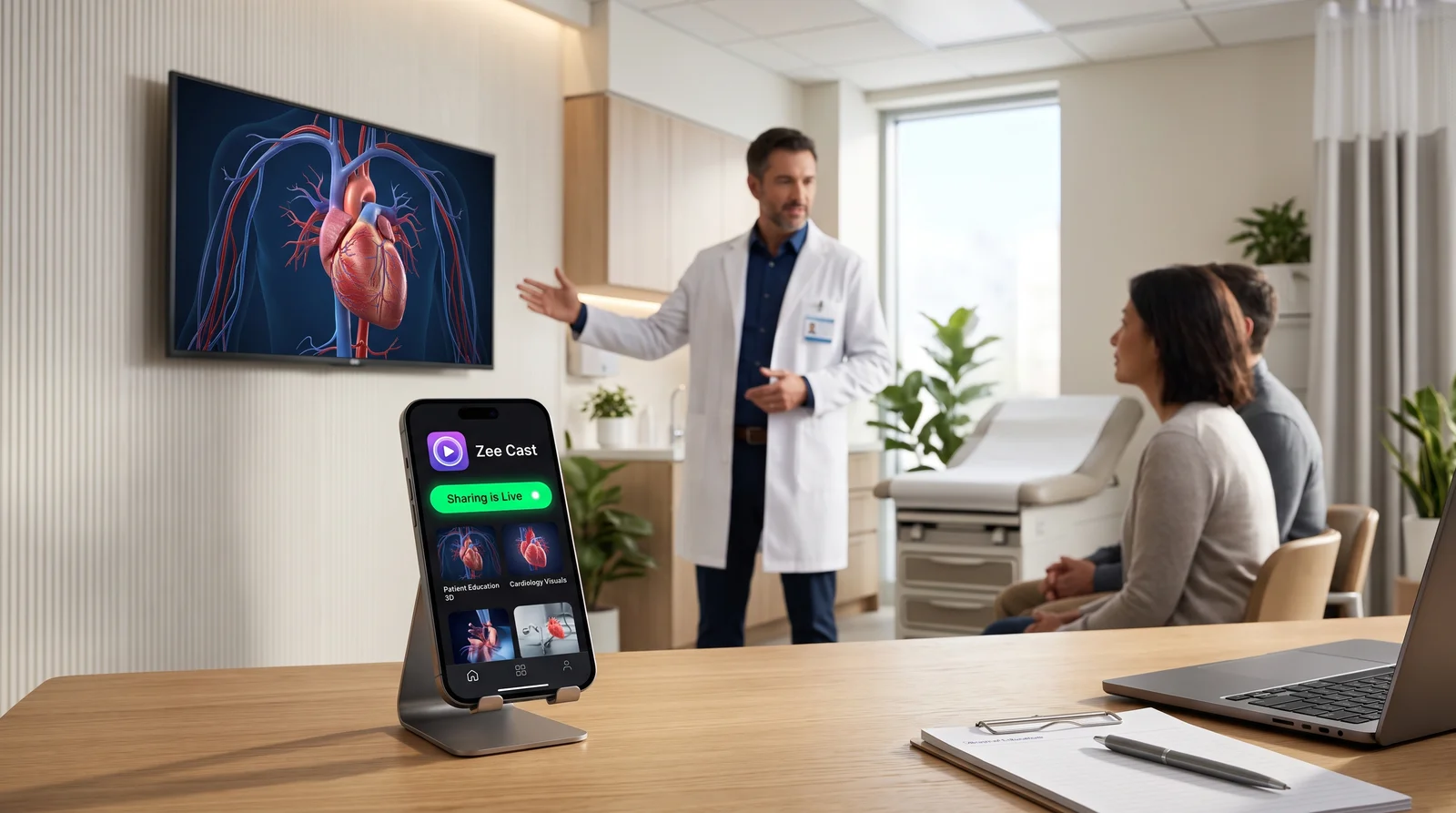
 ⚡ At a Glance: Operatory Isolation Media Architecture Specs ⚡ At a Glance: Operatory Isolation Media Architecture Specs | |
|---|---|
| Target Platform & OS | Multi-Chair Dental & Medical Displays (Samsung, LG, Sony, Sharp Commercial) |
| Protocol & Port | DLNA 1.5 MediaServer, Port 8080 (Per-IP Thread Latch & Whitelist) |
| Connection Type | Clinic Wi-Fi (5 GHz) with Static DHCP Reservations or Air-Gapped Hotspot |
| Transcoding | None (Direct Play 1080p/4K MP4/HEVC Video Streams) |
| Typical Setup Time | ~60 seconds per operatory pairing (Permanent IP whitelist) |
The Multi-Chair Nightmare: Accidental Wrong-Room Video Casting
Walk into any modern 6-to-12-chair dental practice, orthodontic clinic, or outpatient surgical center, and you will find wall-mounted or ceiling-mounted smart televisions in every operatory. These displays are vital tools for patient relaxation, intraoral photo review, and 3D procedural animations.
Because all operatory displays are connected to the same clinic Wi-Fi network, practice managers and clinical directors face a recurring, high-stakes operational hazard: casting cross-talk.
The "Wrong-Room Broadcast" Clinical Incident
Consider a typical busy morning: In Operatory 1, an oral surgeon is preparing a patient for a complex bone graft and impacted third molar extraction. In Operatory 2, a pediatric hygienist is cleaning the teeth of a nervous 7-year-old child.
The surgeon taps the AirPlay or Cast button on their tablet to show an educational surgical animation. In the hurry of clinical care, their finger slips and selects "Operatory TV 2" instead of "Operatory TV 1". Instantly, a graphic 3D animation of bone drilling and soft-tissue incisions flashes onto the ceiling display directly above the terrified child in Room 2.
Beyond traumatic patient distress and ruined chairside rapport, cross-room casting introduces severe HIPAA compliance violations if patient-identifiable radiographs, case photographs, or diagnostic notes are projected into an operatory occupied by another family.
Why Consumer Casting Solutions Fail in Multi-Room Clinics
Consumer streaming technologies (Apple AirPlay, Google Cast / Chromecast, and generic Miracast) were engineered for single-family living rooms, not clinical multi-operatory facilities. Their fundamental architectural flaws include:
- Push-Based Model: The mobile device pushes content outward to a flat list of discovered displays. Any misclick or inadvertent tap broadcasts media to the wrong screen instantly.
- Cryptic Device Names: Smart TVs frequently revert to generic factory broadcast names (e.g., [TV] Samsung 7 Series (55), LG webOS TV OLED55C3), making it virtually impossible for rotating assistants and temp staff to identify the correct room.
- Easily Bypassed PIN Codes: AirPlay on-screen PIN codes disrupt clinical flow, forcing doctors to re-enter four-digit numbers while wearing sterile surgical gloves, only to have PINs remain cached across the network.
- Zero IP Access Controls: Any smartphone connected to the clinic Wi-Fi (including visiting patients using guest access if networks are improperly bridged) can browse open casting endpoints.
The Architectural Fix: Pull-Based DLNA + Per-IP Device Approval
To permanently eliminate operatory cross-talk without investing $25,000+ in hardwired commercial AV matrix switchers, clinics deploy Zee Cast using a combination of two architectural safeguards: Pull-Based Media Streaming and Per-IP Device Approval Gatekeeping.
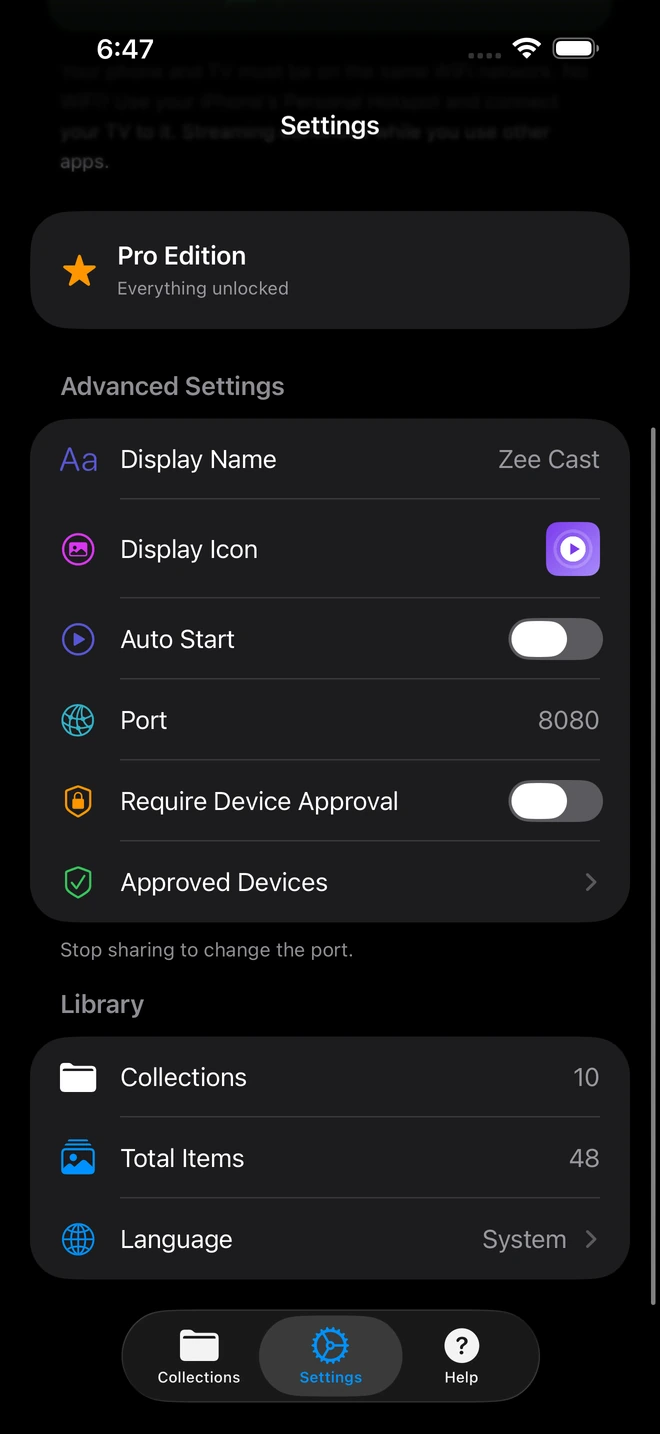
- 1Device Approval gates every connection request.
- 2Only approved screens can browse or stream selected media.
1. The Pull-Based Model (Remote in the Room)
With Zee Cast, the clinician's tablet acts as a silent, localized UPnP/DLNA media server. The tablet never pushes video outward. Instead, the video must be actively selected and pulled by the television using the physical TV remote located inside that specific operatory. Because the clinician is physically standing inside Operatory 3 with the Operatory 3 remote, it is physically impossible to push video onto the TV in Operatory 1.
2. Per-IP Device Approval Firewall
To prevent any TV from browsing another operatory's server, Zee Cast Pro includes a kernel-level network gatekeeper:
- When sharing starts, Zee Cast listens strictly for UPnP ContentDirectory queries.
- When a television attempts to connect, Zee Cast captures the client socket's IP address.
- If the IP address is not already stored in
approved_devices_v1.json, the connection handler thread blocks immediately (usingCountDownLatchon Android andDispatchSemaphoreon iOS). - A clear security prompt appears on the clinician's handheld device: "Device Approval Request: 192.168.1.53 (LG webOS TV) - Allow or Deny?"
- If the IP matches that room's TV, the provider taps Allow. If it originated from another room, the provider taps Deny, and the foreign TV is barred from receiving a single byte of data.
System Comparison: Clinic Operatory Video Management
| AV Architecture | Wrong-Room Casting Risk | Network Security Gating | Hardware Cost per Room | Glove-Friendly Usability |
|---|---|---|---|---|
| Apple AirPlay / Apple TV | Severe (Blind push list) | Weak (Shared PINs or open) | $150 + TV | Poor (Requires typing PINs on tablet) |
| Google Chromecast | Severe (One-tap push cast) | None (Open to all subnet devices) | $50 + TV | Poor (Easy to misclick adjacent room) |
| Hardwired Matrix (Crestron/Extron) | Low (Hardwired routing) | High (Isolated physical HDMI) | $2,500–$5,000+ | Moderate (Requires wall control panels) |
| Zee Cast (DLNA + Approval) | Zero (Pull-based architecture) | High (Per-IP thread firewall) | $0 (Uses native TV firmware) | Exceptional (1-click remote navigation) |
The 4-Step Clinical Protocol for Zero Cross-Talk
Follow this standard operating procedure (SOP) to configure a multi-operatory clinic for complete video isolation:
Step 1: Assign Static IP Reservations to Operatory TVs
Log into your clinic's router or managed switch (UniFi, Meraki, Omada, or Netgear). Under DHCP Reservation, assign fixed IP addresses to each operatory TV based on chair number:
Operatory 1 TV -> 192.168.1.101
Operatory 2 TV -> 192.168.1.102
Operatory 3 TV -> 192.168.1.103
Operatory 4 TV -> 192.168.1.104
Operatory 5 TV -> 192.168.1.105
Operatory 6 TV -> 192.168.1.106
Label each physical TV remote with the operatory number and affix a small label to the TV bezel with its assigned IP address.
Step 2: Configure Custom Server Names in Zee Cast
On the clinical iPad or Android tablet assigned to Operatory 3, open Zee Cast and navigate to Settings. Under Server Display Name, replace the generic default with: Zee Cast - Operatory 3. This ensures that when browsing input devices on the television, clinical staff immediately recognize their designated chair.
Step 3: Enable Per-IP Device Approval
In Zee Cast Settings, switch Device Approval to Enabled. This ensures that even if another display on the network attempts to connect, it will be immediately blocked by the thread latch until verified.
Step 4: Initial 1-Tap Handshake & Whitelisting
Turn on sharing in Zee Cast. On Operatory 3's TV, pick up the remote, open Connected Devices, and select Zee Cast - Operatory 3. When the approval prompt pops up on your tablet confirming IP 192.168.1.103, tap Allow.
From that moment on, Operatory 3's display is permanently whitelisted. The clinician can stream 4K 3D animations, patient consult videos, and educational series all day with 100% certainty that no video will ever bleed into adjacent treatment rooms.
Summary: Absolute Clinical Peace of Mind
In high-volume healthcare practices, clinical focus should remain on patient care, not on worrying whether a surgical video is casting into the next room. By replacing blind push-casting with Zee Cast's pull-based UPnP architecture and Per-IP Device Approval firewall, clinics achieve military-grade room isolation and patient privacy at zero hardware cost.
Frequently Asked Questions
Why does 'wrong-room casting' happen so frequently in dental and medical clinics?
In modern multi-operatory practices, consumer casting protocols (such as Apple AirPlay and Google Chromecast) rely on a 'push' architecture. When a clinician taps the Cast or AirPlay icon on their tablet, they are presented with a long list of nearly identical device names on the same Wi-Fi subnet (e.g., 'Samsung 7 Series', 'LG webOS TV', 'Operatory TV 2'). In a busy clinic, a hurried hygienist or dental assistant taps the wrong line, accidentally broadcasting a graphic surgical extraction video onto the TV in Room 4 where an anxious pediatric patient is receiving a gentle cleaning.
How does Zee Cast's 'pull-based' architecture prevent accidental casting to the wrong room?
Unlike Chromecast and AirPlay where a mobile device blindly pushes video outward to arbitrary screens, Zee Cast uses an architectural pull model via UPnP/DLNA. The clinician's tablet acts as a silent local media server. The physical television inside the room must actively request the media using its local remote control. Because the clinician or assistant in Room 2 is holding the physical TV remote in Room 2, it is impossible to accidentally project video into Room 5.
What is Per-IP Device Approval and how does it block unauthorized operatory access?
Zee Cast Pro includes a built-in Per-IP Device Approval firewall. When any device on the clinic network attempts to browse your media server, Zee Cast's HTTP handler thread blocks execution (using a native CountDownLatch on Android and DispatchSemaphore on iOS). A dialog appears on your tablet showing the incoming device's exact IP address and model. If a television from another operatory attempts to connect, you simply tap 'Deny', completely quarantining your consultation media.
Can clinicians customize the media server name for their specific operatory or chair?
Yes. In Zee Cast Settings, clinicians can set a custom Server Display Name (stored in `upnp_server_name`), such as 'Dr. Miller - Operatory 1' or 'Hygiene Suite B'. When the room's smart TV browses available network inputs, the provider's exact server name appears clearly, eliminating guesswork.
What happens if a patient or child in another room tries to connect to my tablet from a TV?
Because Device Approval is active, any unauthorized connection attempt is halted dead in its tracks. The TV in the other room sees an empty, unresponsive screen or connection failure until the clinician holding the tablet taps 'Allow'. Unless you physically approve their IP address on your handset, they cannot view or stream a single frame.
Do we need an expensive enterprise AV control system (Crestron / Extron) to achieve room isolation?
No. Enterprise AV matrix switchers and IP video encoders cost $10,000 to $40,000+ to wire across a 10-chair practice, requiring complex rack gear and ongoing IT service contracts. Zee Cast delivers complete room isolation and privacy governance using standard commercial smart TVs ($300–$500 each) over your existing clinic Wi-Fi with zero additional hardware.
Can multiple clinicians share videos simultaneously on the same clinic Wi-Fi without collisions?
Yes! Each smartphone or tablet running Zee Cast operates an independent UPnP media server on a unique IP and port. Six clinicians across six different operatories can stream completely different 4K educational videos simultaneously over the facility's 5 GHz Wi-Fi without cross-talk, packet collisions, or bandwidth bottlenecks.
Does Zee Cast require internet connectivity or cloud server access to enforce device approval?
Zero internet connectivity is required. Zee Cast processes device approval, IP whitelisting, and UPnP media delivery 100% locally on your smartphone or tablet. All approved device records are stored in encrypted local application storage (`approved_devices_v1.json`). Your practice remains completely private and functional even during ISP internet outages.
Can I use Zee Cast over a mobile hotspot if clinic Wi-Fi has strict VLAN segmentation?
Yes. If your hospital or dental corporate network enforces strict VLAN segmentation that prevents TVs from communicating across subnets, you can simply enable Personal Hotspot on the operatory tablet. Connect the operatory TV directly to the tablet's hotspot and stream with 0 MB data usage, establishing an air-gapped 1-to-1 connection for that operatory.


