
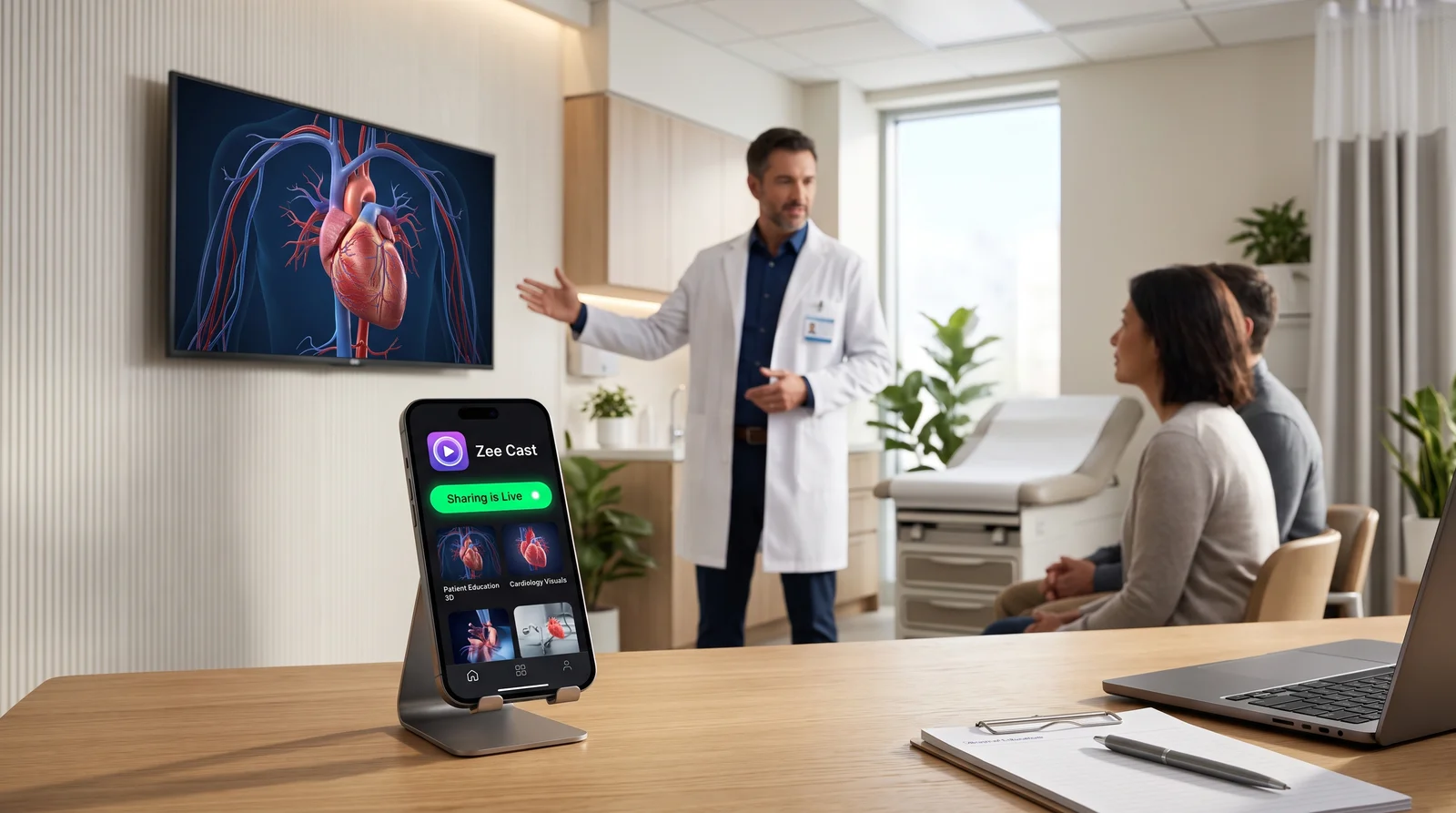
 ⚡ At a Glance: Clinical Consult Media Server Specs ⚡ At a Glance: Clinical Consult Media Server Specs | |
|---|---|
| Target Platform & OS | Exam Room Smart Displays (Samsung Commercial, LG webOS, Sony BRAVIA Medical) |
| Protocol & Port | DLNA 1.5 MediaServer, Port 8080 (HTTP Byte-Range RFC 7233) |
| Connection Type | Clinic Private VLAN (5 GHz Wi-Fi) or Air-Gapped Hotspot (0 MB Cloud Data) |
| Transcoding | None (Direct Play 1080p/4K 3D Renderings, Zero Cloud Processing) |
| Typical Setup Time | ~45 seconds (Pre-configured per-IP whitelist per operatory) |
The Patient Education Dilemma: 3D Visuals vs. Regulatory Compliance
In modern dentistry, orthodontics, plastic surgery, and orthopedic consultations, visual patient education is essential for informed consent and case acceptance. Patients struggle to understand bone loss, apical lesions, subperiosteal implants, or complex osteotomies from static 2D radiographs or verbal descriptions alone.
High-definition 3D animations - illustrating sinus lifts, clear aligner biomechanics, implant osseointegration, and ceramic crown seating - transform patient comprehension. However, displaying these high-resolution visual simulations on large wall-mounted consultation monitors introduces grave compliance vulnerabilities under the Health Insurance Portability and Accountability Act (HIPAA) and the EU General Data Protection Regulation (GDPR).
The Cloud Casting Privacy Breach Trap
Many clinicians reach for consumer casting dongles (such as Google Chromecast, Apple TV, or consumer smart assistants) or cloud-backed media apps to push videos to exam room TVs. These systems routinely synchronize file metadata, media thumbnails, device serials, and viewing logs to external public cloud platforms.
Under HIPAA Security Rule 45 CFR § 164.312(e) (Transmission Security), transmitting electronic protected health information (ePHI) or patient-associated consult media over third-party networks without end-to-end encryption, strict access control, and a signed Business Associate Agreement (BAA) represents a direct regulatory infraction subject to catastrophic financial liabilities.
The Second Compliance Trap: Screen Mirroring Notification Leaks
Clinicians who avoid cloud servers often resort to Screen Mirroring (Apple AirPlay Mirroring or Miracast) from their clinical iPad or workstation tablet. While local, screen mirroring creates an intolerable clinical risk: mirroring broadcasts everything visible on the clinician's screen onto the wall-mounted television.
- Incoming Clinical Alerts: An urgent text message from another provider mentioning another patient's name, biopsy result, or prescription order flashes on the screen in 60-point text right in front of the current patient.
- EHR Data Exposure: When the doctor switches apps to locate a video file, the patient glimpses other open patient charts, insurance pre-authorizations, or private practice financial dashboards.
- Accidental Camera Roll Navigation: Swiping through media galleries risks exposing personal clinical photos, sensitive surgical intra-op captures from other cases, or private family pictures.
The Architecture of HIPAA Compliance: Local UPnP Direct Play
Zee Cast eliminates both cloud transmission risks and screen mirroring notification leaks through a zero-cloud, 100% local-subnet UPnP/DLNA Digital Media Server architecture.
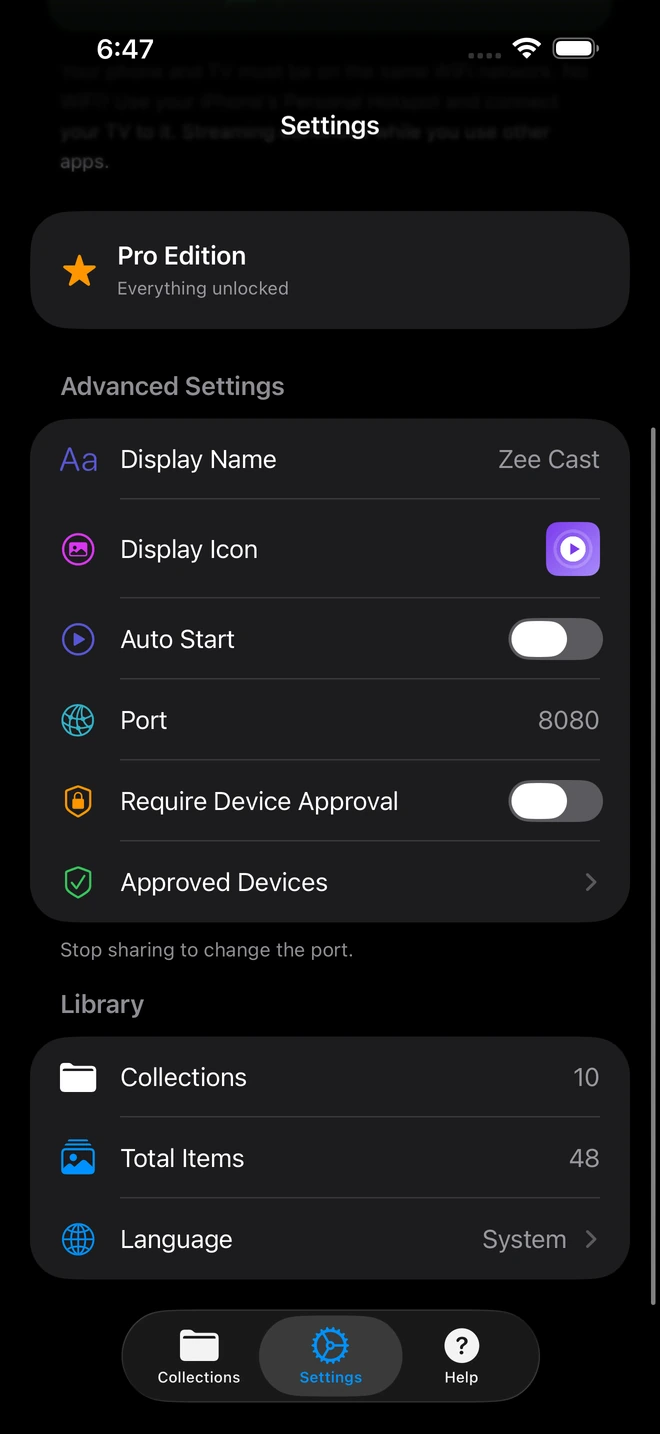
- 1Device Approval gates every connection request.
- 2Only approved screens can browse or stream selected media.
By operating strictly as a local media server within the clinic's secure internal network, Zee Cast establishes an impenetrable boundary:
- 100% Local-Subnet Pipeline (Zero Cloud): No media files, thumbnails, or metadata ever travel across the WAN internet. The video bitstream is transferred point-to-point over private local Wi-Fi via standard HTTP byte-range requests (RFC 7233).
- Curated Collections Isolation: Only the specific educational animations or pre-approved case studies added to the active collection are visible to the TV. All other files, patient charts, and personal media on the device are completely hidden and unindexed.
- Hardware-Level Per-IP Device Approval: When a television attempts to connect to Zee Cast, the connection thread is blocked until the clinician explicitly taps 'Allow' on their screen, locking down the stream strictly to the verified operatory TV.
- Independent Clinician Display: The clinician's tablet screen remains 100% free. The doctor can review confidential EHR charting, intraoral radiographs, or surgical notes on their tablet while the patient watches the 3D procedural animation on the wall TV.
Regulatory & Technical Security Matrix
| Compliance & Security Parameter | Consumer Cloud Casting (Chromecast / Smart Apps) | Screen Mirroring (AirPlay / Miracast) | Zee Cast (Local DLNA + Device Approval) |
|---|---|---|---|
| Cloud Metadata / Video Transmission | ❌ Syncs to external cloud servers | Varies (often cloud-assisted) | ✅ 0 bytes cloud data (100% local subnet) |
| HIPAA BAA Requirement | Mandatory (rarely provided by consumer dongles) | Complex legal gray area | ✅ Not required (Zero third-party processing) |
| Notification & Text Alert Leakage | Varies | ❌ High risk (All alerts flash on TV) | ✅ Zero risk (Phone screen never mirrored) |
| Simultaneous EHR Charting on Tablet | ❌ TV shows whatever tablet displays | ❌ TV mirrors active EHR chart | ✅ Full multitasking (EHR on tablet, video on TV) |
| Network Perimeter Access Control | Open PIN or universal broadcast | Open PIN or Bluetooth handshake | ✅ Per-IP Whitelist & Hardware Thread Latch |
| Third-Party TV App Installation | Requires consumer app downloads | Built-in receiver | ✅ Native firmware DLNA (Zero TV app install) |
Clinical Workflow: Operatory Consultation Protocol
Integrating HIPAA-compliant media streaming into high-throughput surgical, dental, and orthodontic practices requires zero IT overhead. Here is the daily clinical routine:
Phase 1: Organize Standard Educational Assets
Group your high-resolution 3D procedural animations into standard clinical categories on your tablet or smartphone:
- Periodontal & Hygiene: Ultrasonic scaling, bone grafting, soft-tissue regeneration.
- Restorative & Prosthodontic: Ceramic crown preparation, porcelain veneers, bridge placement.
- Implantology: Single-tooth implant osseointegration, sinus lift, All-on-4 full-arch rehabilitation.
- Orthodontics: Phase 1 expansion, clear aligner tracking, bracket debonding.
Phase 2: Establish the Operatory Collection & Turn On Sharing
When seating the patient in Operatory 2, open Zee Cast on your consultation tablet. Tap + Create Collection and select "Implant Consultation Reel". Tap Turn on sharing.
Phase 3: Connect Operatory TV with Per-IP Device Approval
Grab the TV remote mounted on the operatory wall or chair arm. Select Zee Cast from the Connected Devices source menu.
Instantly, a modal prompt appears on your tablet screen: "Connection request from 192.168.1.142 (Samsung Smart TV)". Verify that this IP matches Operatory 2's dedicated TV and tap Allow. The device is saved to your permanent whitelist. Any attempt by neighboring operatory screens or unauthorized devices to poll your server is automatically blocked.
Pro-Tip for Air-Gapped Surgical Suites
In specialized surgical suites where hospital IT mandates that commercial smart displays remain disconnected from the hospital intranet for cybersecurity quarantine, simply enable Personal Hotspot on your clinical tablet. Connect the room's display directly to your tablet's private Wi-Fi hotspot. Zee Cast streams pristine 4K video locally across the hotspot subnet with zero internet access and 0 MB of cellular data.
Summary: Elevating Patient Care with Uncompromised Privacy
Clinicians should never have to choose between cutting-edge patient education and stringent HIPAA compliance. By deploying Zee Cast's local UPnP/DLNA architecture, dental and medical practices eliminate cloud security exposure, banish embarrassing notification popups, and deliver crisp 4K 3D treatment demonstrations that build patient trust and drive treatment acceptance.
Frequently Asked Questions
Why do cloud-based video casting apps pose serious HIPAA and GDPR compliance risks?
Cloud casting applications and consumer streaming dongles often transmit media files, device IDs, patient-identifiable file metadata, and viewing telemetry across external internet servers for transcoding and telemetry logging. Under HIPAA Security Rules (§ 164.312) and GDPR Article 32, exposing Protected Health Information (PHI) or identifiable clinical case studies to third-party cloud servers without a formal Business Associate Agreement (BAA) constitutes a regulatory violation punishable by substantial fines.
How does Zee Cast guarantee zero cloud footprint for clinical consultations?
Zee Cast is architected from the ground up as a 100% offline, local-only UPnP/DLNA Digital Media Server. Media files, video streams, thumbnails, and directory structures are served directly between your mobile device and the operatory smart TV over local TCP/IP sockets (HTTP Port 8080). Zero data is ever uploaded to the cloud, no analytics SDKs monitor your consults, and no external internet access is required.
What is Per-IP Device Approval and why is it crucial in medical and dental clinics?
In multi-chair dental clinics or outpatient centers, dozens of smart TVs and workstation computers share the same facility local area network (LAN). Without security gating, a clinician or patient in Room 3 could inadvertently browse the media server running on a tablet in Room 1. Zee Cast's Per-IP Device Approval blocks incoming HTTP and UPnP requests with a thread-level latch until the clinician taps 'Allow' on their screen, locking access strictly to the physical display inside the current exam room.
Can patients or other clinic devices see other files on my tablet or phone?
No. Zee Cast enforces strict Curated Collections isolation. Unlike generic network file shares or DLNA servers that index your entire device storage or camera roll, Zee Cast only advertises the exact video files explicitly assigned to the active collection. Other patient consults, intraoral scans, staff photos, and personal media remain completely invisible to the UPnP ContentDirectory service.
Can I review electronic health records (EHR) on my tablet while the patient watches the TV?
Yes! Because Zee Cast runs as a background media service rather than a screen mirror, your tablet display remains completely private and independent. The patient watches clear 3D procedural animations on the exam room monitor while you pull up confidential EHR charting, billing codes, or treatment consent forms on your handheld device.
Does Zee Cast work on hospital and clinical VLANs with strict firewalls?
Yes. As long as the clinical tablet and the operatory smart TV are on the same local subnet or VLAN that permits standard UPnP multicast (SSDP port 1900) and HTTP traffic (port 8080), Zee Cast functions seamlessly. For completely air-gapped operatories without enterprise network access, clinicians can turn on Personal Hotspot on their tablet and connect the TV directly with zero cellular data consumption.
What video formats and resolutions does Zee Cast support for clinical 3D animations?
Zee Cast direct plays all standard video containers natively supported by smart TV hardware decoders, including MP4, MOV, and MKV with H.264 and HEVC (H.265) video codecs up to 4K 60fps. Whether presenting 3D bone grafting models, CAD/CAM crown milling animations, or orthodontic tooth movement time-lapses, visuals are rendered at native master resolution.
Do clinicians need to install any proprietary apps on the exam room television?
No. Zee Cast leverages the universal UPnP/DLNA media player standards built natively into commercial and consumer smart TVs from Samsung (Tizen), LG (webOS), Sony BRAVIA (Google TV), Philips, and Sharp. There is no need to sideload unapproved APKs, manage TV app store logins, or configure external streaming dongles.
What happens if an incoming phone call or emergency message arrives during a patient consult?
Because Zee Cast is not screen mirroring, incoming phone calls, urgent hospital paging alerts, SMS messages, and calendar reminders stay strictly on your private handheld device. Zero notification banners or popups ever appear on the patient's viewing screen.


