
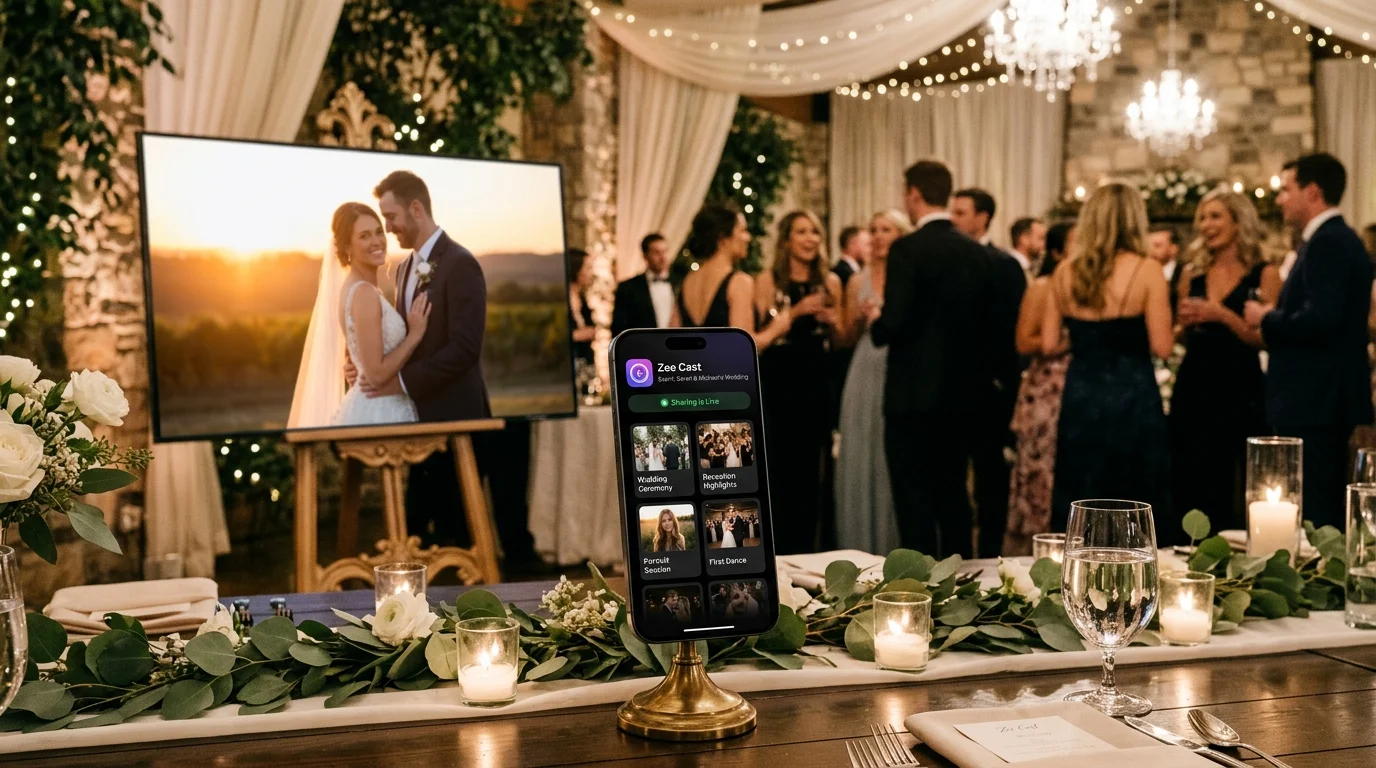
 ⚡ At a Glance: Banquet Slideshow Specs Specs ⚡ At a Glance: Banquet Slideshow Specs Specs | |
|---|---|
| Target Platform & OS | Hotel Banquet Hall Smart TVs & Projectors (Samsung, LG, Sony, Sharp, Hisense) |
| Protocol & Port | DLNA 1.5 MediaServer, Port 8080 (Local HTTP Range Serving) |
| Connection Type | Phone Personal Hotspot (0 MB Cellular Data, Bypasses Captive Portals) |
| Transcoding | None (Direct Play original photos and high-res video to TV decoder) |
| Typical Setup Time | < 90 seconds (Turn on Hotspot, connect TV, tap 'Turn on sharing') |
The Banquet Hall Dilemma: A Cherished Tradition Meets Broken Wi-Fi
Screening a personal photo slideshow during a wedding reception dinner, rehearsal dinner, or anniversary party is a time-honored tradition. Guests gather with drinks to laugh over the couple's goofy childhood pictures, teenage throwback memories, first vacation adventures, and romantic engagement portraits.
Yet, for wedding planners, maids of honor, and anxious best men tasked with setting up the display, hotel banquet ballrooms and private event halls are notorious technical minefields:
- The Captive Portal Web Barrier: Hotel and event venue Wi-Fi networks almost universally enforce web-based splash pages demanding room numbers, guest names, or confirmation checkboxes. Smart TVs lack modern web browsers and mouse inputs, leaving them completely stranded and unable to connect to the venue internet.
- Client Isolation Firewalls: Even if you manage to connect a laptop and a TV to the venue's guest Wi-Fi, enterprise hospitality networks enable Access Point (AP) Client Isolation. This security setting deliberately blocks connected devices from communicating with one another, instantly killing Apple AirPlay, Google Cast, and wireless display discovery.
- The Awkward DJ Table Tether: Planners often resort to placing an open laptop on the DJ's table with a long, precarious HDMI cable trailing across the floor. This ties up a personal computer all night, risks drinks being spilled on delicate keyboards, and exposes personal desktop wallpapers or incoming chat messages to the entire ballroom.
- 1Full-resolution photos and 4K clips play without cloud uploads.
Why Screen Mirroring Is a Disaster for Wedding Celebrations
When wedding planners or bridal party members attempt to mirror an iPhone or Android screen to a ballroom TV via AirPlay or Miracast, disaster frequently strikes:
- Embarrassing Notifications in Front of Families: While photos of the couple cycle on the 85-inch screen, an incoming text message from a bridesmaid - "Did anyone find the missing groom's shoes?" or an argument from family members - flashes across the television in huge letters for 200 wedding guests to read.
- Unwanted Camera Roll Browsing: In generic photo-sharing apps, swiping back or tapping the home button reveals your entire personal camera roll - including personal selfies, party snaps, and confidential work documents.
- Phone Lockdown: Screen mirroring requires keeping your phone screen awake and running all evening. Your phone overheats, drains its battery in 90 minutes, and prevents you from answering calls or coordinating with the catering staff.
The Clean Solution: Local Hotspot Direct Play with Zee Cast
Zee Cast transforms any smartphone into a private, high-performance local media server that operates completely independently of the hotel's network infrastructure:
| Setup Method | Hotel Wi-Fi Requirement | Privacy & Notification Safety | Phone Usability During Event | Hardware & Cable Clutter |
|---|---|---|---|---|
| Hotel Guest Wi-Fi (AirPlay) | Fails (Blocked by captive portal & AP isolation) | Zero (Mirroring exposes incoming texts) | Phone locked to mirroring | Wire-free (when it works) |
| Laptop with Long HDMI Cable | Requires laptop internet or USB files | Exposes desktop files and alerts | Ties up laptop on DJ table | Hazardous cable run across floor |
| Physical USB Thumb Drive | None | High (Only drive files visible) | N/A | Blocked TV ports; crash prone |
| Zee Cast Local Hotspot | Zero (100% bypass of hotel Wi-Fi) | 100% Private (Curated album only) | Phone in pocket; full normal use | Zero cables, zero dongles |
Step-by-Step Banquet Setup: Running the Perfect Slideshow
1. Build Your Curated Wedding Album Ahead of Time
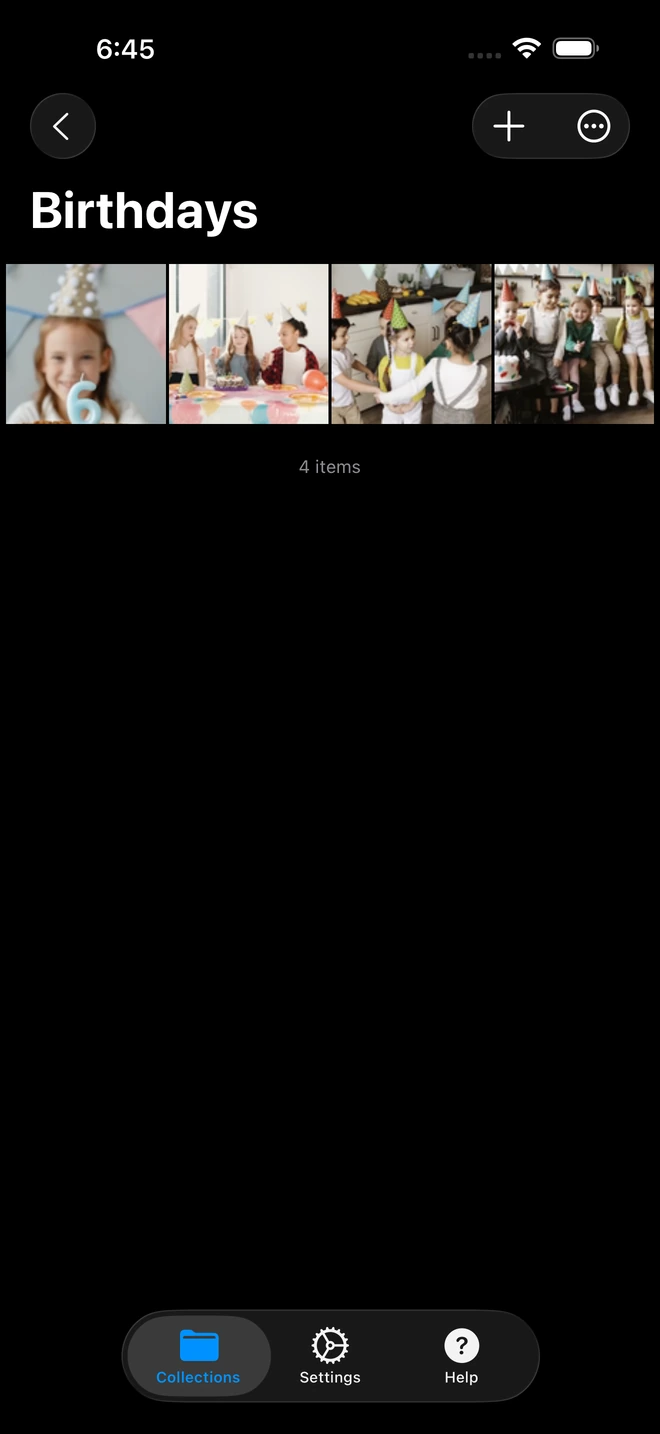
Open Zee Cast at home or during rehearsal. Tap + to create a collection titled "Sarah & Michael - Wedding Celebration". Select only approved, high-resolution childhood photos, family memories, and couple portraits. Your private camera roll remains completely invisible to the TV.
2. Power Up Phone Hotspot and Connect the TV
Turn on your phone's Personal Hotspot. Pick up the banquet television remote control, navigate to Network > Wi-Fi Connection, select your phone's hotspot name, and connect. The TV joins your private local wireless network in seconds, completely ignoring the hotel's captive portal.
3. Tap 'Turn on sharing' in Zee Cast
Launch Zee Cast and tap Turn on sharing. Zee Cast activates its UPnP/DLNA media server daemon on port 8080 and announces the wedding collection across the local wireless link.
4. Start the Native Slideshow on the TV Remote
Using the television remote, open the TV's native media browser:
- Samsung: Open Connected Devices and choose Zee Cast.
- LG: Select Photo & Video or Home Dashboard and choose Zee Cast.
- Sony / Android TV: Open Media Player and select Zee Cast.
Open your wedding album and press Play Slideshow. You can adjust the slide duration (e.g., 5 seconds per photo) and enable subtle fade or Ken Burns pan-and-zoom transitions directly from the TV's options menu.
5. Pocket Freedom Throughout the Celebration
Once the slideshow begins, slip your phone into your pocket or clutch. Zee Cast runs silently in the background, serving crisp 4K imagery to the television while using exactly 0 MB of cellular data. You can take photos, check the reception schedule, text vendors, and dance all night while the slideshow plays flawlessly.
Frequently Asked Questions
Why do hotel banquet halls and reception ballrooms make TV streaming so difficult?
Hotel ballrooms and banquet event venues utilize enterprise-grade wireless networks protected by captive portal web splash pages (requiring users to enter room numbers, last names, or accept terms of service). Smart TVs lack fully featured web browsers or mouse pointers, making it virtually impossible to complete captive portal authentication. Furthermore, hotel networks enforce strict Access Point (AP) Client Isolation, an enterprise firewall rule that deliberately blocks devices on the Wi-Fi from detecting or talking to each other, completely breaking consumer AirPlay and Google Cast.
How does Zee Cast bypass hotel captive portals and client isolation?
Zee Cast circumvents hotel network infrastructure entirely by utilizing your smartphone's built-in Personal Hotspot. Your phone acts as a private, high-speed local Wi-Fi router for the ballroom television. Because both devices communicate on this private local subnet (Layer 2 link), hotel network firewalls, captive portals, and client isolation rules are rendered completely irrelevant.
Does streaming a 4-hour wedding slideshow over Personal Hotspot consume mobile cellular data?
No. Zee Cast streams media strictly over the local wireless link between your phone and the television using local HTTP byte-range requests. Because the photos and video clips reside in your phone's internal memory and are delivered directly across the local Wi-Fi interface, exactly 0 MB of cellular carrier data is consumed. Even if the hotel ballroom is deep inside a basement or concrete structure with zero cellular bars, local hotspot streaming functions flawlessly.
How does Zee Cast prevent private or embarrassing camera roll photos from appearing on the TV?
Unlike consumer screen mirroring - which broadcasts your entire phone screen, camera roll, and incoming text alerts to the whole ballroom - Zee Cast uses strict, containerized 'Collections'. When you create a 'Wedding Slideshow' album in Zee Cast, only the specific pictures and video clips you explicitly add to that collection are exposed to the television. Your personal camera roll, private family photos, and text messages remain 100% confidential.
Can I interleave short video clips with still photos in the slideshow?
Yes. Zee Cast collections support mixed media. You can include childhood home video clips, proposal recordings, and wedding day greetings alongside high-resolution still photographs. Modern smart TVs can transition between still images and video playback seamlessly.
Can we add background music to the photo slideshow?
Yes. Most smart TV media players (including Samsung Tizen and LG webOS) feature built-in background music options during photo slideshows. Alternatively, because the slideshow streams over your phone's local hotspot without monopolizing phone audio, the venue DJ or sound system can play romantic reception music over the hall's main PA system independently.
Will streaming a photo slideshow all evening drain my phone battery?
No. Serving still photos and low-bitrate video clips over a local UPnP socket requires negligible CPU power on modern smartphones. Because Zee Cast does not perform any GPU rendering or keep your phone screen lit, power draw is exceptionally low. A typical smartphone running Zee Cast will consume less than 15% battery over a 4-hour reception. For extended events, simply connect your phone to a small portable power bank tucked behind the cake table.
What television brands are compatible with Zee Cast in banquet halls?
Zee Cast utilizes universal UPnP/DLNA 1.5 standards, which are natively supported by virtually every smart television manufactured worldwide, including Samsung (Tizen), LG (webOS), Sony (Bravia / Google TV), Roku TV, TCL, Hisense (VIDAA / Android TV), Panasonic, and commercial hospitality displays with media player functionality.
What should I do if the hotel TV remote is missing or locked in hospitality mode?
Many hotel banquet TVs have physical navigation joysticks or directional buttons located beneath the center bezel or on the rear corner of the display. These physical buttons allow you to switch input sources to 'Media Player' or 'Network'. If hospitality restrictions lock the TV menus, ask the hotel banquet captain or banquet houseman to unlock the display with their master service remote.


