

 ⚡ At a Glance: Philips SimplyShare / Titan Media Player Specs ⚡ At a Glance: Philips SimplyShare / Titan Media Player Specs | |
|---|---|
| Target Platform & OS | Philips Titan OS (2024–2026) & Saphi Smart TVs |
| Protocol & Port | DLNA 1.5, UPnP MediaServer on Port 8080 |
| Connection Type | Wi-Fi (5 GHz) or Wired Ethernet Switch |
| Transcoding | Direct Play (Original 4K 60fps HEVC, MP4, MKV, AAC, FLAC) |
| Typical Setup Time | ~2 minutes (Zero TV app store installations required) |
Key takeaways
- Philips migrated its 2024–2026 TV line to Titan OS, omitting Apple AirPlay 2 on many popular models.
- Every Philips Titan OS and Saphi TV includes a built-in DLNA media player (SimplyShare) that works out-of-the-box.
- Zee Cast turns iPhone and Android devices into local UPnP servers, streaming 4K media directly to Titan OS without dongles.
- Ambilight real-time LED backlighting remains 100% active and perfectly synchronized during DLNA Direct Play.
The 2024–2026 Philips TV Shift: What Is Titan OS?
If you recently purchased a new Philips Ambilight television (such as the The One PUS8909, PUS7609, PUS8009, or OLED759), you might have noticed a major change: Philips replaced Android TV with a proprietary operating system called Titan OS.
While Titan OS provides a fast, responsive interface with popular streaming apps like Netflix, Prime Video, and Disney+, millions of buyers were surprised to find that Apple AirPlay 2 is missing from entry and mid-range models. iPhone users opening their Control Center discover that their brand-new television simply does not appear in the AirPlay list.
Fortunately, TP Vision retained one of Philips' most robust underlying technologies: SimplyShare DLNA. By pairing your phone with Zee Cast, you can stream your personal photos, 4K camera roll videos, and music albums directly to your Philips Titan OS television with full Ambilight synchronization.
Step-by-Step: Streaming to Philips Titan OS & Saphi TVs
Follow these four simple steps to get seamless local playback running:
- 1
Connect Phone and Philips TV to the Same Wi-Fi
Ensure your smartphone and Philips television are connected to the same home Wi-Fi network. For uncompressed 4K video playback, connect both devices to the 5 GHz Wi-Fi band or connect the TV via Ethernet cable.
- 2
Launch Zee Cast and Pick Your Media
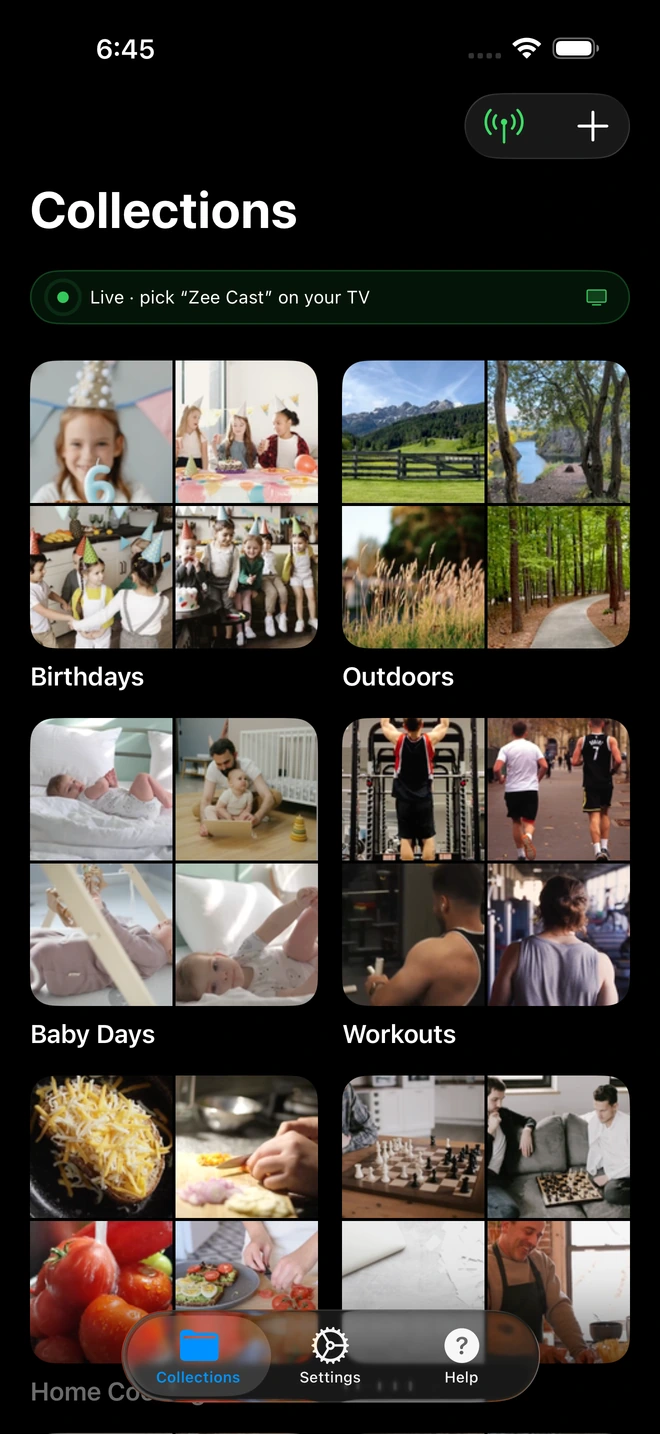
Open Zee Cast on your iPhone or Android phone. Select the photos, 4K videos, or music albums you want to stream into a collection. Tap Turn on sharing to launch the local media server.
- 3
Open Sources on Your Philips Remote
Press the Sources button on your Philips remote control. Navigate down the list and select Network (or SimplyShare).
- 4
Select Zee Cast & Direct Play
Click on Zee Cast under the detected media servers list. Browse your collections and press OK to play your videos in original 4K resolution with vibrant Ambilight illumination.
The Ambilight Experience: Why DLNA Direct Play Beats Mirroring
Philips Ambilight is celebrated for casting dynamic colored light onto the wall behind your TV, matching the colors on screen. However, when using laggy third-party screen mirroring apps, the video transmission suffers from severe compression artifacts, letterboxed black side bars, and desaturated color spaces, which ruins the Ambilight effect.
With Zee Cast DLNA Direct Play:
- The raw video bitstream is passed directly to the television's internal P5 Perfect Picture Engine.
- Full 10-bit HDR10 and HLG dynamic range is preserved.
- Ambilight LEDs respond instantly to edge-of-frame pixels with zero latency and zero letterbox distortion.
- Your phone remains unlocked, cool, and private: incoming text messages and notifications never appear on the big screen.
Philips TV Operating System Comparison
| Philips OS Platform | Model Years | AirPlay 2 Support | Zee Cast DLNA Compatibility |
|---|---|---|---|
| Titan OS | 2024–2026 (PUS7009, 7609, 8009, OLED759) | ❌ Omitted on mid-range models | ✅ 100% Native SimplyShare DLNA |
| Saphi OS | 2019–2023 (Linux-based budget models) | ❌ Not Supported | ✅ 100% Native SimplyShare DLNA |
| Google TV / Android TV | 2021–2024 (OLED+908, The One 8808) | ⚠️ High-end models only | ✅ 100% Native DLNA Client |
Frequently Asked Questions
Why doesn't my new 2024–2026 Philips TV support Apple AirPlay 2?
TP Vision (the manufacturer of Philips TVs in Europe and global markets) migrated its 2024–2026 lineup (including the PUS7009, PUS7609, PUS8009, and OLED759 series) to a new proprietary operating system called Titan OS, replacing Android TV on many mid-range models. To keep retail prices competitive, many Titan OS and older Linux-based Saphi OS models omit Apple AirPlay 2 licensing. Zee Cast bridges this gap completely by streaming directly to Titan OS's built-in DLNA media player.
Does Philips Titan OS feature a built-in DLNA media player?
Yes! Every Philips Titan OS and Saphi television includes an official, hardware-accelerated Media Player (historically branded as SimplyShare). It natively discovers UPnP/DLNA Digital Media Servers across your local network and plays MP4, MKV, and photo slideshows without requiring companion receiver apps.
Does Ambilight work when streaming via Zee Cast DLNA?
Yes! Because Zee Cast streams raw video bitstreams directly to the television's internal video processor via DLNA Direct Play, the TV's native picture engine and Ambilight microcontrollers analyze the video signal in real time. Ambilight delivers full, immersive color tracking with zero lag.
Can I stream 4K 60fps HDR10 and Dolby Vision videos to Titan OS?
Yes. Modern Philips Titan OS chipsets (including the MediaTek MT9676 and Novatek NT676) natively support 4K 60fps HEVC (H.265), HDR10, HLG, and Dolby Vision bitstreams. Zee Cast streams original files via HTTP byte-range requests without mobile downscaling.
Do I need to install any app from the Philips Titan OS App Gallery?
No. You do not need to download or purchase any app from the Titan OS App Gallery. The television's internal Media / SimplyShare engine is pre-installed in the factory firmware and runs natively.
How is Zee Cast different from third-party screen mirroring apps?
Third-party screen mirroring apps on the App Store often charge expensive recurring weekly subscriptions, compress your screen to 30fps with visible stutter, and broadcast private notifications and messages onto the TV screen. Zee Cast uses DLNA Direct Play: original media files stream cleanly to the TV while your phone stays unlocked, cool, and private.
Can I lock my phone while a movie is playing on my Philips TV?
Yes. Once playback begins on your Philips TV, Zee Cast runs as a lightweight background service. You can lock your phone, take phone calls, or browse the web without interrupting the video stream on your TV.
Does this require an internet connection or consume cellular data?
No. All media streaming occurs 100% locally across your Wi-Fi router. Zee Cast consumes zero kilobytes of internet data and works even during broadband ISP outages.


