

 ⚡ At a Glance: Philips Smart TV Specs ⚡ At a Glance: Philips Smart TV Specs | |
|---|---|
| Target Platform & OS | Philips Smart TVs (Titan OS, Saphi OS, Android TV / Google TV with Ambilight) |
| Protocol & Port | DLNA 1.5 / UPnP MediaServer, Port 8080 (HTTP Byte-Range) |
| Connection Type | Local Wi-Fi (5 GHz recommended) or Ethernet / Hotspot |
| Transcoding | None (Direct Play original 4K HEVC/H.264 camera bitstreams) |
| Typical Setup Time | ~60 seconds (Built-in SimplyShare / Media Player client) |
Unleash 4K Video & Photos with Philips Ambilight Immersion
Philips Ambilight Smart TVs (such as the OLED808, OLED809, The One PUS8909, and the PUS series) are acclaimed for their signature rear LED lighting arrays that project on-screen colors onto the surrounding wall. When you watch family vacation videos or high-resolution photography portfolios on an Ambilight display, the experience is uniquely cinematic.
However, using generic screen mirroring apps or AirPlay mirroring compresses your media down to 1080p with noticeable latency, flattening dynamic range and spoiling the Ambilight color-matching accuracy. Zee Cast solves this by turning your iPhone or Android device into an ultra-fast local DLNA server, streaming uncompressed 4K HDR files straight to Philips' built-in video processing engine.
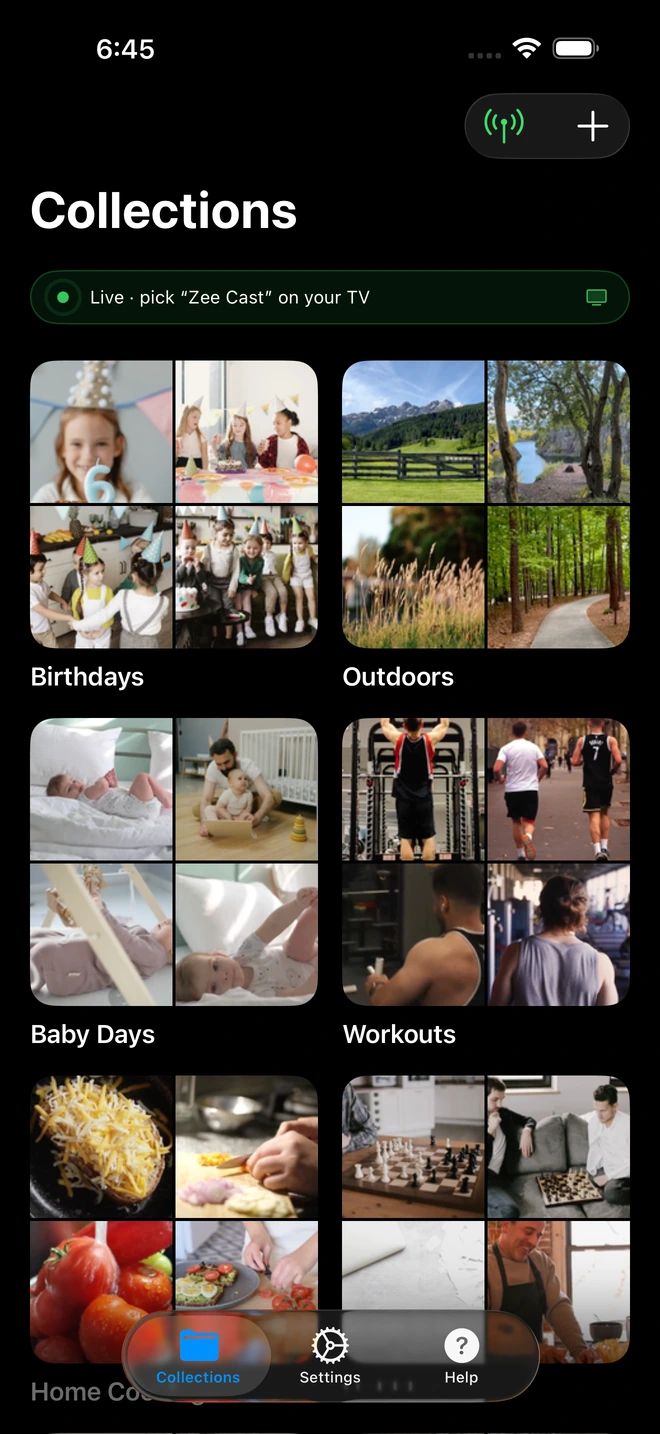
- 1Server is live - instantly discoverable on TV.
Step-by-Step Setup: Streaming to Philips Titan OS, Saphi & Android TV
Philips has used three primary operating systems across its Smart TV lineups. Regardless of which OS your TV runs, native DLNA playback is supported out of the box:
- 1
Connect to the Same Local Network
Ensure your smartphone and your Philips TV are connected to the same Wi-Fi router (preferably the 5 GHz band) or wired Ethernet switch.
- 2
Activate Sharing in Zee Cast
Open Zee Cast on your phone. Select the photos, home videos, or music albums you want to share, and tap Turn on sharing.
- 3
Navigate to Network Sources on Your Philips Remote
Press the Sources button on your Philips remote control and select your TV's media browser depending on your OS version:
Philips Titan OS (2024–2026) · Menu NavigationPress Sources → Select Network Devices → Choose Zee Cast
Philips Saphi OS · Menu NavigationPress Sources → Select SimplyShare / Media → Choose Zee Cast
Philips Google TV / Android TV · Menu NavigationHome screen → Open Media Player app → Select Zee Cast under Local Network
- 4
Browse and Play with Native Hardware Acceleration
Navigate your curated folders with the TV remote arrows. Press OK to start playing videos or launch an automatic photo slideshow. Your Ambilight system responds dynamically to every frame.
Comparison: Philips Native DLNA vs. Screen Mirroring
Here is why using Zee Cast's UPnP Direct Play architecture is significantly superior to wireless screen mirroring on Philips Smart TVs:
| Performance Feature | Screen Mirroring / Miracast | Zee Cast (DLNA Direct Play) |
|---|---|---|
| Ambilight Color Sync | Laggy, washes out edge colors | Frame-accurate real-time LED sync |
| Video Resolution | Downscaled to 1080p 30fps | Full 4K 60fps UHD with HDR10 |
| Aspect Ratio on TV | Phone-shaped with side black bars | True 16:9 full-screen television fill |
| Phone Battery Consumption | Heavy CPU/GPU screen encoding | Minimal (passive HTTP byte serving) |
| Multitasking & Privacy | Phone locked; notifications appear on TV | Phone completely free; total privacy |
| Remote Control Seeking | Not supported (must tap phone) | Native Play/Pause/Seek on Philips remote |
Harnessing the Philips P5 AI Picture Engine
Philips televisions equipped with the P5 AI Perfect Picture Engine analyze incoming video streams across five critical picture quality pillars: source perfection, sharpness, color, contrast, and motion.
When you stream through Zee Cast, the Philips TV receives the unaltered source bitstream directly from your phone's storage. The P5 engine can apply its advanced noise reduction, detail enhancement, and micro-dimming algorithms directly to the native pixel data, resulting in breathtaking depth and contrast on Philips OLED and Mini-LED displays.
💡 Pro Tip: Customizing Ambilight Follow Video Modes
While playing videos from Zee Cast on your Philips TV, press the Ambilight button on your remote control. Choose between Follow Video → Standard, Natural, or Immersive to tailor the lighting dynamism to your footage. For personal photography slideshows, the Follow Color → Warm White mode creates an elegant art gallery ambiance.
Frequently Asked Questions
Do Philips Smart TVs natively support DLNA / UPnP streaming?
Yes. Every modern Philips Smart TV - whether running the latest Titan OS (2024–2026 models), the lightweight Saphi OS, or Android TV / Google TV - features a native Digital Media Player (DMP) client historically branded as SimplyShare. It automatically scans your home network via SSDP and connects directly to Zee Cast without requiring any companion app installation on the TV.
Does Philips Ambilight work when streaming videos through Zee Cast?
Yes, absolutely! Because Zee Cast streams original video files directly to the TV's internal video processor via DLNA Direct Play, the TV decodes the video in hardware. The Philips Ambilight processor samples the real-time pixel colors along the frame edges, casting immersive synchronized lighting onto the wall behind your TV with zero latency.
How do I find Zee Cast on Philips Titan OS versus Saphi OS?
On Philips Titan OS (e.g. OLED759, OLED809, The One PUS8909), press the Sources button on your remote, select 'Network Devices' or 'Media', and choose Zee Cast. On Philips Saphi OS (PUS7505, PUS7805, 6800 series), press Sources, navigate to 'SimplyShare' or 'USB & Network', and select Zee Cast. On Philips Android/Google TV models (OLED808, OLED908), open the pre-installed 'Media Player' app from the Home menu.
Can I stream 4K 60fps HDR10 and Dolby Vision videos from iPhone to Philips TV?
Yes. Philips Smart TVs feature P5 AI Perfect Picture Engine processors capable of decoding 4K HEVC (H.265) and 10-bit HDR streams natively. Zee Cast streams original files using HTTP byte-range requests without mobile transcoding, preserving full dynamic range and fluid 60fps frame rates.
Why is DLNA streaming superior to Philips Miracast or screen mirroring?
Screen mirroring transmits a compressed video capture of your phone screen over Wi-Fi, which drains your battery, produces visible lag, causes 30fps stutter, and displays private phone alerts on the TV. DLNA Direct Play with Zee Cast streams the raw media file directly to the TV decoder while your phone stays unlocked, cool, and free to use.
Do I need to install any apps from the Philips App Gallery?
No. You do not need to download any apps from the Philips App Gallery or Google Play Store. The Philips firmware includes a built-in media browser that discovers Zee Cast out of the box.
Can I run photo slideshows with background music on Philips TVs?
Yes. In the Philips Media Browser, opening a photo folder lets you press the Options or Play button on your remote to launch a full-screen slideshow. Many Philips models also let you select background audio tracks from your Zee Cast music collection to accompany the photos.
Does Zee Cast work if my Philips TV is connected via an Ethernet cable?
Yes. As long as your Philips TV is plugged into your router via Ethernet and your smartphone is connected to the same router's Wi-Fi network, DLNA discovery and playback work seamlessly across wired and wireless subnets.


