
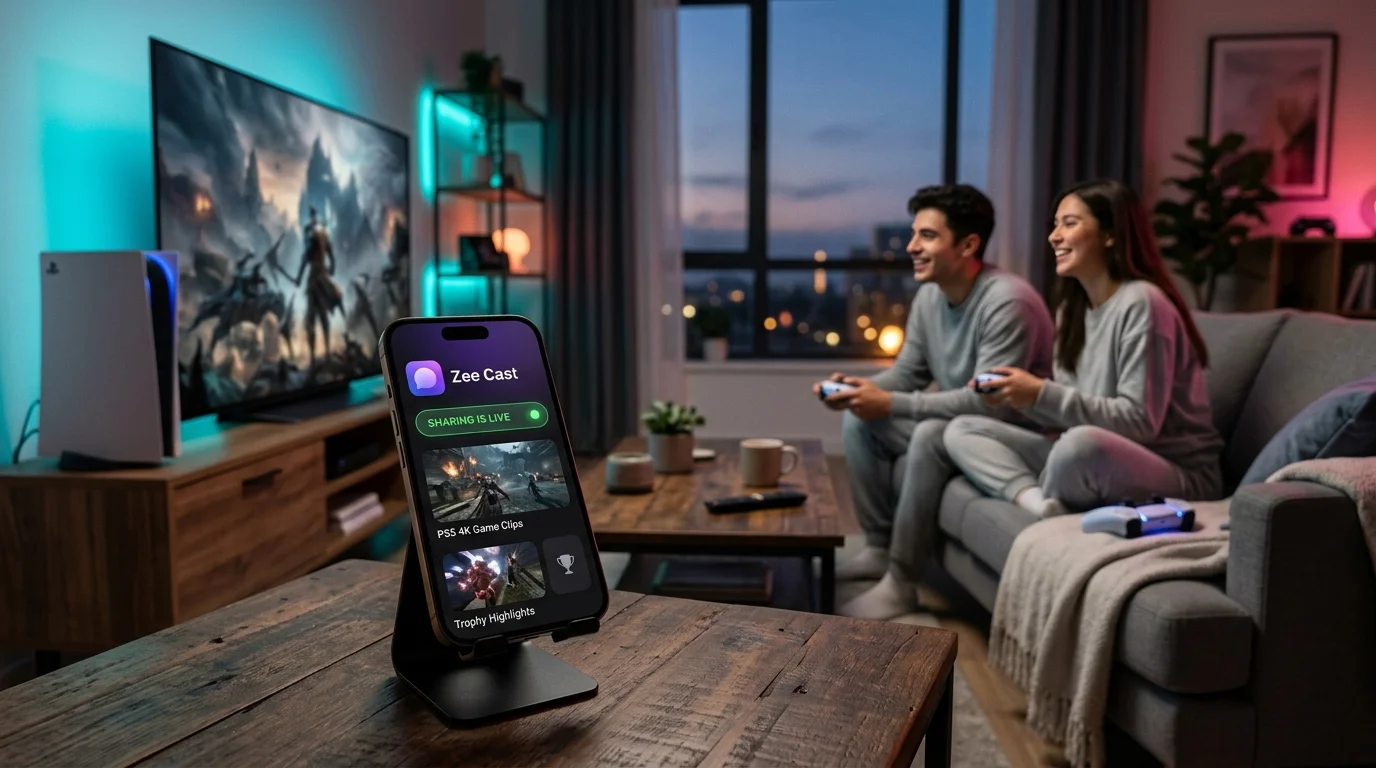
 ⚡ At a Glance: PS4 Media Player Specs ⚡ At a Glance: PS4 Media Player Specs | |
|---|---|
| Target Platform & OS | PlayStation 4 (Standard, Slim) & PlayStation 4 Pro |
| Protocol & Port | DLNA 1.5 / UPnP MediaServer, HTTP Port 8080 |
| Connection Type | Wi-Fi (2.4/5 GHz) or Ethernet Switch |
| Transcoding | Direct Play (Native MKV, MP4, AVI, MP3, FLAC, AAC) |
| Typical Setup Time | ~2 minutes (Pre-installed official Sony app) |
Key takeaways
- The PlayStation 4 includes an official Sony Media Player app with built-in UPnP/DLNA browsing.
- Zee Cast turns your iPhone or Android phone into a local media server that appears directly on your PS4 dashboard.
- Stream high-bitrate MP3, AAC, and lossless FLAC music in the background while playing multiplayer games.
- Zero USB flash drives, zero PC/NAS server hardware, and 100% private local transmission.
Why PS4 Is Still One of the Best Living Room DLNA Players
With over 117 million units shipped worldwide, the PlayStation 4 remains an entertainment powerhouse in millions of bedrooms, dorm rooms, and secondary living rooms. Unlike newer consoles that phase out local media features in favor of cloud subscriptions, the PS4 has one of the most mature, reliable DLNA client engines ever built by Sony.
Sony’s official Media Player application for PS4 scans the local Wi-Fi network using standard SSDP multicast protocols. When paired with Zee Cast on your iPhone or Android smartphone, your PS4 becomes an instant wireless projector for your personal video recordings, holiday slideshows, and offline music library.
Step-by-Step: Streaming Phone Media to PS4
Setting up direct streaming takes under two minutes. Follow these four simple steps:
- 1
Connect to the Same Local Network
Verify that your phone and PS4 console are connected to the same Wi-Fi router. If you have a PS4 Slim or PS4 Pro, connecting to the 5 GHz Wi-Fi band ensures the highest wireless bandwidth for smooth 1080p and 4K video streams.
- 2
Launch Zee Cast and Pick Your Media
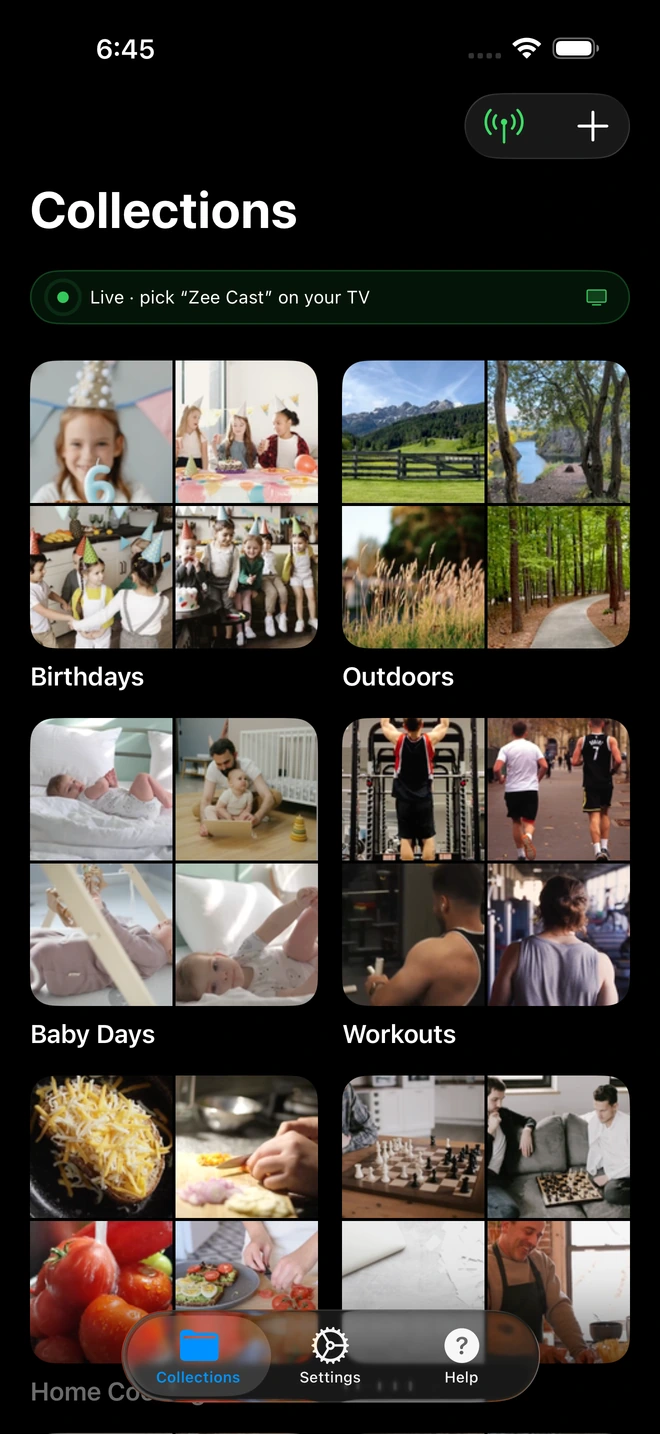
Open Zee Cast on your iPhone or Android device. Create a collection containing the videos, photos, or music tracks you wish to enjoy. Tap Turn on sharing to broadcast the local UPnP media server.
- 3
Open PS4 Media Player
On your PS4 dashboard or under your console Library, launch the official Media Player app (if you don't have it installed, download it for free from the PlayStation Store).
- 4
Select Zee Cast & Enjoy Direct Play
Your phone's server appears automatically under Available Media Servers as Zee Cast. Click into your collections and press X on your controller to play full-resolution media with zero lag.
Background Music While Gaming: The PS4 Superpower
One of the greatest features of the PS4 Media Player is its integration with the PlayStation 4 Quick Menu:
- Start playing your favorite music playlist from Zee Cast in the Media Player app.
- Press the PS button on your DualShock 4 controller to jump right into any game (like Apex Legends, FIFA, or Call of Duty).
- The music continues to stream in the background from your phone.
- Hold down the PS button to open the Quick Menu, where you can adjust music volume, skip tracks, or pause without exiting your gameplay session.
Troubleshooting PS4 Media Player Streaming
| Issue | Root Cause | Solution |
|---|---|---|
| Cannot find media server | Phone and PS4 are on different Wi-Fi bands (e.g. Guest network) or AP Isolation is enabled. | Connect both devices to the primary Wi-Fi SSID. In router settings, disable AP Isolation. |
| Video plays with no audio | The video contains unsupported DTS or high-bitrate EAC3 tracks. | Ensure your video file uses AAC-LC or AC-3 audio, which the PS4 hardware decodes natively. |
| Playback stuttering on base PS4 | Base PS4 2.4 GHz Wi-Fi antenna is subject to microwave/wall interference. | Plug an Ethernet cable into your PS4 or move your phone closer to the Wi-Fi router. |
Frequently Asked Questions
Does PlayStation 4 support DLNA media servers natively?
Yes! PlayStation 4 and PlayStation 4 Pro feature an official, pre-installed 'Media Player' application developed by Sony. It includes a built-in UPnP/DLNA client that automatically detects media servers like Zee Cast across your local Wi-Fi network.
Can I play background music on PS4 while playing games?
Yes. When you start audio playback from Zee Cast in the PS4 Media Player, you can press the PS button on your DualShock 4 to return to your game. Your personal music will continue playing in the background while you game, and you can hold the PS button to adjust volume or skip tracks in the Quick Menu.
What video formats does the PS4 Media Player support?
According to official Sony specifications, PS4 Media Player natively decodes MKV (H.264 High Profile Level 4.2 with MP3, AAC-LC, or AC-3 Dolby Digital audio), MP4 (H.264 High Profile Level 4.2 or Level 5.2 on PS4 Pro), AVI, and MPEG-2 TS. Zee Cast serves original files directly without re-encoding.
Why does my PS4 Media Player say 'Cannot find media server'?
This usually occurs if your phone and PS4 are on different subnets (such as a 2.4 GHz vs 5 GHz guest network) or if router AP Isolation is enabled. Toggle sharing off and on in Zee Cast to send a new SSDP discovery broadcast, and verify that both devices share the same Wi-Fi network.
Do I need a PlayStation Plus subscription or internet access?
No. Streaming media over DLNA takes place 100% locally across your Wi-Fi router. You do not need PlayStation Plus, a PlayStation Network login, or active internet broadband to stream personal media.
Can I stream 4K videos to a PS4 Pro using Zee Cast?
Yes. PlayStation 4 Pro hardware supports 4K H.264 MP4 playback up to Level 5.2. If you are using a standard base PS4 or PS4 Slim, videos will be output at up to 1080p Full HD.
Does streaming from my phone drain its battery quickly?
No. Unlike screen mirroring which continuously records and re-encodes your screen at high CPU cost, Zee Cast acts as a lightweight HTTP server. The PS4 processor handles all video decoding, allowing your phone to remain cool with negligible battery consumption.
What happens if someone else on my Wi-Fi tries to access my media?
With Zee Cast Pro's 'Device Approval' security feature, you have an active firewall: any new device attempting to access your media server is paused until you explicitly approve or deny it by IP address on your phone screen.


