
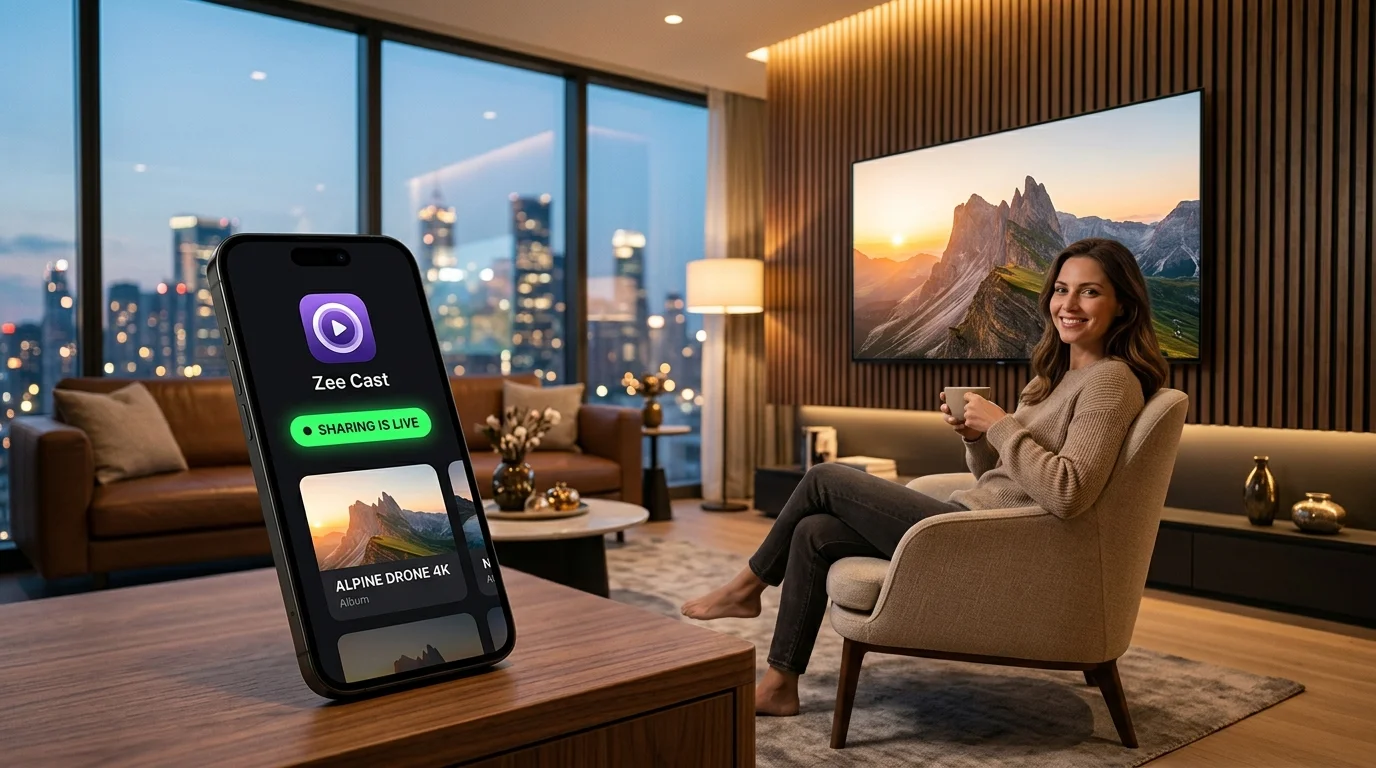
 ⚡ At a Glance: Campus & Dorm TV Specs ⚡ At a Glance: Campus & Dorm TV Specs | |
|---|---|
| Target Platform & OS | College Dorm Smart TVs (Roku TV, Samsung Tizen, LG webOS, Fire TV, Google TV) on Campus Networks |
| Protocol & Port | DLNA 1.5 / UPnP MediaServer, Port 8080 (HTTP Byte-Range) |
| Connection Type | Private Phone Hotspot or Travel Router (0 MB Mobile Data; Bypasses Eduroam / 802.1X) |
| Transcoding | None (Direct Play original phone 4K camera roll files & movies to TV hardware) |
| Typical Setup Time | ~60 seconds (Zero campus IT MAC registration or tickets required) |
The Campus Network Nightmare: Why College Dorm TVs Can't Cast
Moving into a college dormitory or university residence hall is an exciting rite of passage. You unpack your mini-fridge, set up your desk, and hang a 43-inch budget 4K Smart TV (or plug in a Roku or Fire TV stick) so you and your roommates can unwind with movie nights, watch recorded lectures, or share photos from campus events.
Then reality strikes. You connect your smartphone to the campus Wi-Fi (such as Eduroam or your university's student network), open YouTube, Apple Photos, or Google Photos, tap the AirPlay or Chromecast button, and... your dorm TV simply doesn't exist. You check your TV settings: the TV is connected to the same campus network, yet your phone cannot detect it.
Frustrated students often spend hours searching campus IT helpdesks, submitting support tickets, and trying to register device MAC addresses, only to discover that casting still fails. Here is the technical breakdown of why enterprise university Wi-Fi is engineered to block casting - and how Zee Cast solves this cleanly without touching campus IT.
⚠️ The Enterprise Triple-Barrier on Campus Wi-Fi
University wireless infrastructure (powered by enterprise gear like Cisco Catalyst, Aruba Networks, or Ruckus) enforces three strict network security policies that intentionally break consumer casting:
- 802.1X Enterprise Authentication: Requires WPA2-Enterprise credentials (username and student password). Most smart TVs and streaming sticks only support consumer WPA2-PSK (preshared password) and cannot authenticate directly.
- AP Client Isolation (Station Isolation): Blocks direct peer-to-peer packet exchange between wireless devices on the same access point. Your phone cannot send a single ping to your TV.
- Multicast Packet Suppression: Drops UDP multicast traffic (mDNS port 5353 and SSDP port 1900) to keep university networks from drowning in broadcast discovery chatter from 10,000 devices.
How Campus Client Isolation Kills AirPlay and Chromecast
Consumer streaming technologies like Apple AirPlay and Google Chromecast were designed for single-family residential homes with simple consumer routers. When you tap the Cast icon:
- 1
Multicast Discovery Broadcast
Your phone broadcasts an mDNS (multicast DNS) discovery packet across the network asking, "Who here is an AirPlay or Google Cast receiver?"
- 2
Campus Gateway Drops the Packet
On an enterprise campus network, the nearest Cisco or Aruba access point intercepts the multicast broadcast and immediately discards it. If access points forwarded every broadcast packet, tens of thousands of student laptops, phones, and wearables would flood the entire campus bandwidth with multicast storm traffic.
- 3
Zero Devices Found
Because the discovery packet never reaches your dorm TV, your phone concludes that no casting devices exist on the network.
The Clean Solution: An Isolated Dorm Micro-LAN via Hotspot
Instead of fighting university network administrators or waiting days for an IT helpdesk response, you can establish an isolated micro-LAN inside your dorm room using your phone's Personal Hotspot:
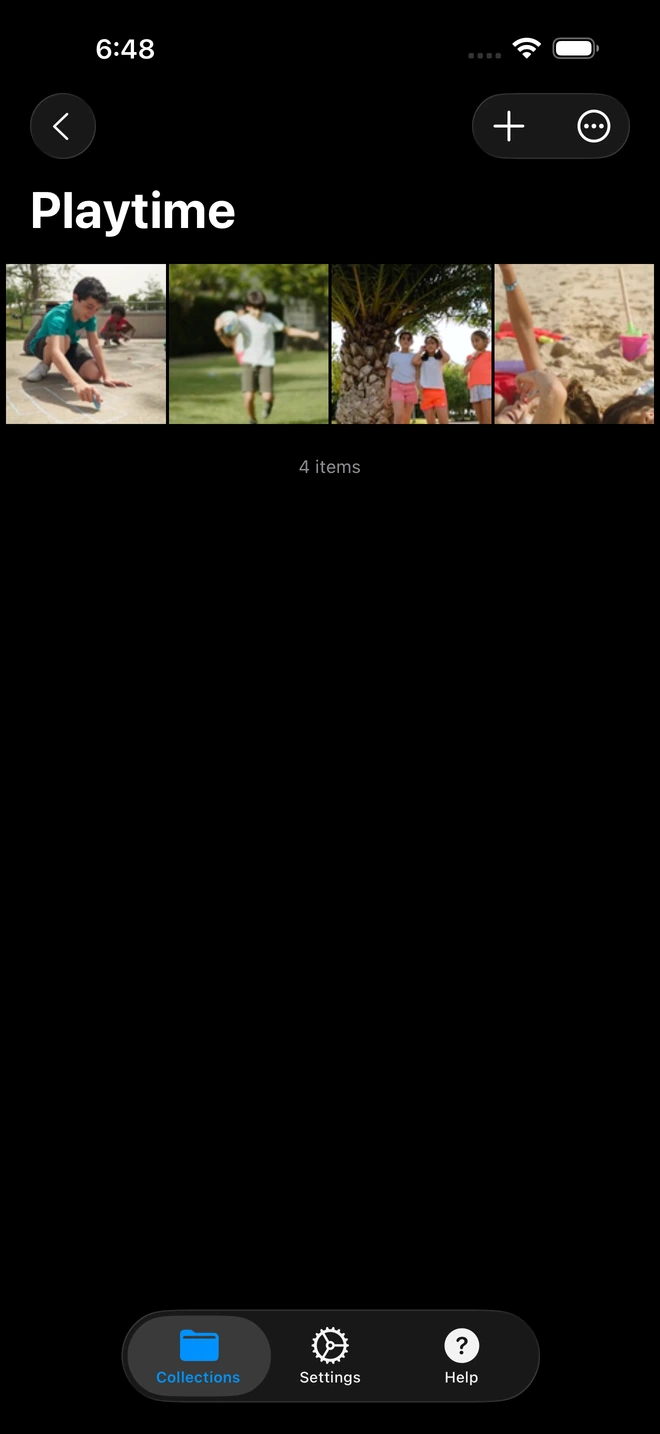
- 1Only selected preschool videos are visible on the smartboard.
When your dorm TV connects to your phone's Personal Hotspot:
- Zero 802.1X Headaches: Your hotspot uses standard consumer WPA2/WPA3 Personal security. Your TV connects instantly with a normal Wi-Fi password.
- No AP Isolation: Because your phone is the wireless router and DHCP server, local packet transmission between the phone and TV is 100% unrestricted.
- Zero Mobile Data Consumption: Zee Cast operates strictly as a local UPnP/DLNA media server. Video bytes flow directly over the local Wi-Fi radio from your phone's storage to the TV's network buffer - consuming 0 MB of cellular mobile data.
- Total Privacy: In a crowded dormitory, other students on your floor cannot see your photos, hijack your audio, or accidentally cast embarrassing memes to your screen.
Step-by-Step Setup: Stream to Your Dorm TV in 4 Steps
Get your dorm movie night or group study session running in less than 60 seconds:
- 1
Enable Personal Hotspot on Your Phone
On your iPhone, go to Settings → Personal Hotspot and turn on Allow Others to Join.
On Android, open Settings → Network & Internet → Hotspot & Tethering → Wi-Fi Hotspot and enable it.Tip: You can keep cellular data turned off if you want to be 100% sure no internet data is used. - 2
Connect Your Dorm TV to the Hotspot
Grab your TV remote and navigate to Network Settings:
 TCL Roku TV · Menu Navigation
Settings → Network → Set up connection → Wireless → Select Phone Hotspot
 Samsung Smart TV · Menu Navigation
Settings → General → Network → Open Network Settings → Select Phone Hotspot
 LG Smart TV (webOS) · Menu Navigation
Settings → All Settings → Connection → Wi-Fi Connection → Select Phone Hotspot
 Amazon Fire TV Stick · Menu Navigation
Settings → Network → Select Phone Hotspot → Enter password
- 3
Launch Zee Cast and Enable Sharing
Open Zee Cast on your phone. Create a collection with your favorite movie files, recorded class lectures, campus club presentations, or weekend trip photos. Tap Turn on sharing to start your local DLNA server.
- 4
Browse on TV with Native Hardware Playback
Open the built-in media browser on your dorm TV (such as Roku Media Player on TCL Roku TV, Connected Devices on Samsung, or Home Dashboard on LG). Select Zee Cast, pick your video or photo folder, and enjoy smooth, full-resolution playback.
Comparison: Campus Streaming Workarounds for Students
College students explore various ways to get media onto their dorm room screens. Here is how the different options compare:
| Method | IT Approval Required | Works with Campus Wi-Fi | Cost | Privacy & Security |
|---|---|---|---|---|
| Campus Wi-Fi (AirPlay / Cast) | Yes (MAC registration) | Fails (Blocked by AP isolation) | Free | Dangerous (Other students can probe device) |
| Long HDMI Cable from Laptop | No | N/A | \$15–\$25 cable | Tripping hazard in tight dorm rooms |
| Hardware Travel Router (GL.iNet) | Depends on dorm policy | Yes (Creates private subnet) | \$40–\$70 router | High privacy, but takes desk space |
| Zee Cast via Phone Hotspot | Zero IT interaction | 100% Reliable (Ad-hoc micro LAN) | \$0 Extra Hardware | Completely private & encrypted |
Perfect for Dorm Study Groups & Campus Organizations
Beyond entertainment, Zee Cast transforms your dorm TV into a powerful collaborative study hub:
- Reviewing Recorded Lectures: If you download Zoom lectures or professor recordings to your phone, you can stream them directly to your 43-inch or 50-inch TV. High-definition text on blackboard slides is crystal-clear and readable from across the room.
- Architectural & Engineering Diagrams: Present complex schematics, medical anatomy charts, or high-resolution infographics to your study group without cramming four people around a tiny 13-inch laptop display.
- Fraternity, Sorority & Club Photo Slideshows: Curate hundreds of high-resolution campus event photos into a Zee Cast collection. Put on a smooth, automatic photo slideshow during rush events or dorm social mixers while keeping your phone free to text and socialize.
🎓 Pro Tip: Multitask Freely While Streaming
Unlike screen mirroring - which broadcasts your entire phone screen and risks exposing private text messages, group chats, or social media notifications to everyone in your dorm room - Zee Cast only serves the specific media files you curate. You can text your friends, take FaceTime calls, or study on your phone while the TV plays smoothly in the background.
Frequently Asked Questions
Why do AirPlay and Chromecast never show up on university campus Wi-Fi (Eduroam)?
University Wi-Fi networks (such as Eduroam or campus student networks) are built on enterprise 802.1X security architectures. To protect tens of thousands of students from privacy invasions and network congestion, campus network administrators enable Access Point (AP) Client Isolation and strictly drop mDNS (multicast DNS port 5353) and SSDP (UPnP port 1900) broadcast packets. Because AirPlay and Google Cast rely entirely on these multicast protocols for device discovery, your phone and TV cannot detect each other across the campus network.
What is AP Client Isolation and why do university IT departments enforce it?
AP Client Isolation (also called Station Isolation or Private VLAN) prevents wireless devices connected to the same Wi-Fi network from communicating with one another. In a dorm building with hundreds of students, client isolation prevents malicious actors from scanning open ports, hacking unpatched IoT devices, or hijacking smart TVs. However, this security policy also kills standard consumer peer-to-peer media casting.
How does Personal Hotspot bypass campus 802.1X enterprise authentication?
Most smart TVs and streaming sticks (like Roku and Fire TV) lack the enterprise WPA2-Enterprise / 802.1X authentication software needed to enter a student username and university password. By enabling Personal Hotspot on your phone, you establish a standard WPA2/WPA3 Personal network. Your dorm TV connects seamlessly with a standard Wi-Fi password, completely bypassing Eduroam authentication and university captive portals.
Will streaming media to my dorm TV consume my monthly mobile phone cellular data?
No. When your dorm TV joins your phone's Personal Hotspot, a private Local Area Network (LAN) is established directly over your phone's Wi-Fi chip. Zee Cast transfers video files and photos across this local radio link using UPnP/DLNA HTTP byte-range streaming. Zero bytes of cellular internet data are consumed (0 MB cellular data), even if you toggle cellular data off or have zero mobile coverage.
Can other students in my dorm hall see my photos or hijack my TV stream?
No. On public campus Wi-Fi, if a device is somehow discoverable, any student on the floor could potentially cast pranks or view media. By creating a private hotspot for Zee Cast, your media is strictly isolated to your password-protected local network. Only devices with your private hotspot password can see the Zee Cast server.
Can I use a travel router in my dorm room instead of a phone hotspot?
Yes. Portable travel routers (such as GL.iNet models) are extremely popular among college students. You can connect a travel router to your dorm room Ethernet port or campus Wi-Fi in WISP mode, creating a private subnet in your room. Both your phone and your dorm TV connect to this travel router, allowing Zee Cast to stream locally while providing wired-speed connectivity.
Why do smart TVs require difficult MAC address registration on campus networks?
Because TVs cannot handle 802.1X login dialogs, universities usually require students to look up their TV's 12-character wireless MAC address, log into a campus device management portal, and register it. Even after completing this tedious process, AP isolation still blocks phone-to-TV casting. Using Zee Cast over a hotspot eliminates the need for MAC registration altogether.
Does Zee Cast require installing any software on my dorm TV or university computer?
No. Zee Cast requires zero app installations on your television. Samsung TVs, LG TVs, Sony Google TVs, Roku TVs, and Fire TV sticks already come pre-installed with native DLNA/UPnP media player engines that automatically detect Zee Cast over the local network.
Can I stream recorded study lectures, presentation slides, and campus club photos?
Yes. Zee Cast allows college students to create dedicated collections for study materials, group project slideshows, high-resolution diagrams, or weekend trip photos. You can display high-resolution charts and diagrams on a large 50-inch dorm TV for collaborative study sessions without squinting at a laptop.


