

 ⚡ At a Glance: TCL Smart TV Specs ⚡ At a Glance: TCL Smart TV Specs | |
|---|---|
| Target Platform & OS | TCL Smart TVs (Google TV QM7/QM8/Q6/C-Series & TCL Roku TV) |
| Protocol & Port | DLNA 1.5 / UPnP MediaServer, Port 8080 (HTTP Byte-Range) |
| Connection Type | Local Wi-Fi (5 GHz recommended) or Hotspot (0 MB Internet Data) |
| Transcoding | None (Direct Play original bitstream via TCL AiPQ Processor) |
| Typical Setup Time | ~90 seconds (Pre-installed TCL Media Center / Roku Media Player) |
TCL Smart TVs: Exceptional Value, Streaming Hurdles
TCL has established itself as an industry leader in high-performance Mini-LED and QLED displays, powered by its proprietary AiPQ Engine processors. Models like the TCL QM8, QM7, Q6, C845, and 6-Series deliver eye-popping peak brightness and deep contrast.
However, sharing personal camera roll media to TCL TVs often leaves users frustrated:
- Screen Mirroring Frame Drops: Using Miracast, Google Cast mirroring, or AirPlay to mirror your phone induces noticeable latency, downscales 4K videos to 1080p, and drops frames during fast action sequences.
- Aspect Ratio Distortion: Phone screen mirroring projects a narrow 19.5:9 mobile display with heavy black bars on the sides of your 16:9 television, wasting panel real estate.
- Privacy Vulnerabilities: Display mirroring reveals everything occurring on your phone - including WhatsApp notifications, banking push alerts, and incoming phone calls.
- Battery Exhaustion: Continuous live video capture causes your phone to overheat and rapidly drains the battery.
The Built-In Solution: TCL Media Center & Roku Media Player
TCL Smart TVs ship with either Google TV or Roku OS. In both operating systems, TCL provides a native, hardware-accelerated UPnP/DLNA media client:
- On TCL Google TV: The preinstalled TCL Media Center app discovers local network media servers and taps directly into the AiPQ processor.
- On TCL Roku TV: The official Roku Media Player handles local UPnP streaming with full TV remote navigation.
By pairing Zee Cast on your phone with your TCL TV's built-in media receiver, you achieve bit-perfect 4K direct playback without any cloud uploads or account logins.
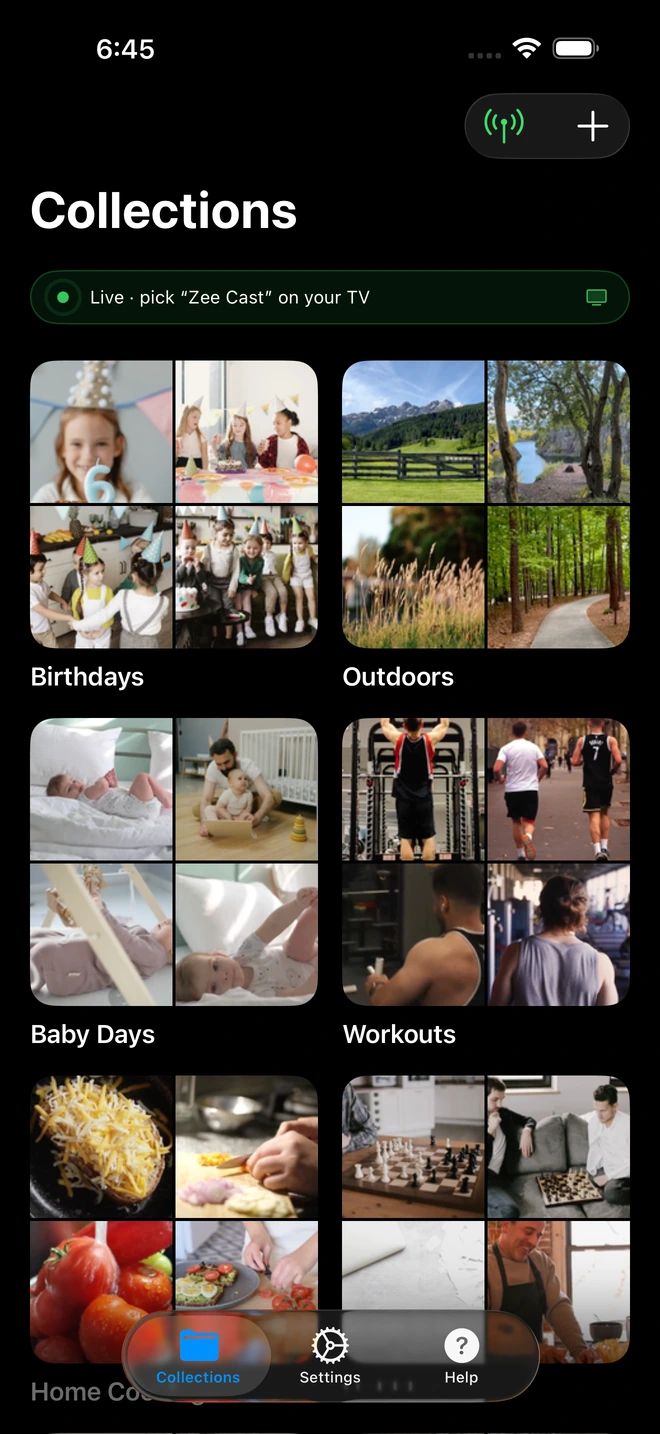
- 1Server is live - instantly discoverable on TV.
Step-by-Step: Stream to TCL Smart TV in 4 Steps
Follow these instructions to cast your photos and videos to your TCL Smart TV:
- 1
Connect to the Same Home Wi-Fi
Verify that your phone (iPhone or Android) and your TCL TV are connected to the same local Wi-Fi network. Connect to the 5 GHz Wi-Fi frequency to ensure ample bandwidth for high-bitrate 4K files.
- 2
Curate Media & Enable Sharing in Zee Cast
Open Zee Cast on your smartphone. Organize the photos and home video clips you want to showcase into a collection. Tap Turn on sharing to start the local media server.
- 3
Open TCL Media Center or Roku Media Player
On TCL Google TVs, navigate to the Your Apps row and open Media Center. On TCL Roku TVs, launch Roku Media Player from the home screen grid.
TCL Smart TV · Menu NavigationOpen Media Center (or Roku Media Player) → Select DLNA / Media Servers → Select Zee Cast
- 4
Browse Collections & Stream in Native 4K
Select Zee Cast from the server list. Use your TCL remote arrows to browse video folders and photo galleries. Your phone remains completely free for texting or taking calls.
Technical Comparison: Direct Play vs Screen Mirroring
Examining the difference between real-time screen casting and local DLNA media streaming highlights the benefits:
| Capability | TCL Screen Mirroring | AirPlay Mirroring | Zee Cast (DLNA Direct Play) |
|---|---|---|---|
| Playback Architecture | Re-encoded display stream | Re-encoded display stream | Direct Bitstream Delivery |
| Video Resolution | 1080p (Downscaled) | 1080p (Downscaled) | Original 4K UHD (3840×2160) |
| AiPQ Hardware Decoding | Bypassed / Generic input | Bypassed / Generic input | Full Hardware Acceleration |
| Notification Privacy | Popups broadcast on TV | Popups broadcast on TV | 100% Private (Chosen media only) |
| Multitasking | Blocked (Screen locked) | Blocked (Screen locked) | Full Multitasking (Lock, text, browse) |
| Battery Drain | Severe (CPU/GPU encode) | Severe (CPU/GPU encode) | Minimal (Low-power HTTP serve) |
Full Compatibility with iPhone HEIC Photos
iPhones take photos in Apple's proprietary HEIC format. Because TCL TVs do not have native system-level HEIC decoders, attempting to open raw HEIC files over the network causes decoding failures.
How Zee Cast solves this: Zee Cast renders HEIC camera photos into high-resolution, uncompressed JPEG streams specifically tailored for DLNA client requests. Your TCL QLED or Mini-LED TV displays razor-sharp photos with rich color vibrancy and zero manual conversion steps.
Hardware Acceleration via TCL AiPQ Engine
When streaming through Zee Cast, your TCL TV receives untouched MP4 and MOV video containers. This allows TCL's AiPQ Engine to apply its proprietary image enhancements:
- Ai-Clarity: Analyzes image textures in real time to reduce noise and deliver crystal-clear detail.
- Ai-Color: Maps phone camera color spaces to your TCL panel's wide color gamut (up to 97% DCI-P3).
- Ai-Motion: Uses MEMC frame interpolation to smooth camera pans and fast-moving subjects.
💡 Tip for TCL Roku TV Users
In Roku Media Player, you can press the * (Star / Options) button on your Roku remote to configure slideshow duration, enable random shuffle mode, or adjust aspect ratio display settings while viewing photos.
Frequently Asked Questions
Where do I find the Media Center app on TCL Google TVs?
TCL preinstalls 'Media Center' (sometimes listed as 'Safety Guard / Media Center') on all TCL Google TV models (including QM8, QM7, Q6, C845, C745). Press the Home button on your TCL remote, navigate to the 'Your Apps' row, and scroll to Media Center. If it is hidden, scroll to the end of the row and select 'See all' to pin it to your favorites.
How do I stream to a TCL Roku TV model?
TCL Roku TVs use Roku OS instead of Google TV. On your TCL Roku home screen, open 'Roku Media Player'. If it isn't installed, search for 'Roku Media Player' in the Streaming Store and install it free. When Zee Cast is running on your phone, Roku Media Player automatically detects it under the Videos and Photos tabs.
Why should I use DLNA Direct Play instead of AirPlay or screen mirroring on TCL?
Screen mirroring projects your phone's screen in low-bitrate 1080p, displays private text notifications, drains battery, and locks up your phone. DLNA Direct Play streams the raw, bit-for-bit 4K video file straight to TCL's AiPQ processor. Your phone's battery is preserved and you can lock your screen or text while the TV plays uninterrupted.
Does TCL TV support viewing iPhone HEIC photos via DLNA?
TCL televisions lack native hardware decoders for Apple's proprietary HEIC (.heic) photo format. When streaming through generic DLNA servers, photos fail to render. Zee Cast automatically converts HEIC camera photos into pristine, full-resolution JPEG streams on the fly, allowing TCL 4K screens to display every detail without format errors.
Can I play 4K 60fps HEVC home videos on TCL TVs without transcoding?
Yes. TCL's AiPQ Engine contains dedicated hardware silicon for decoding HEVC (H.265) and AVC (H.264) video profiles up to 4K 60fps. Zee Cast serves the untouched video container over HTTP byte-range requests without requiring any CPU transcoding on your smartphone.
Why doesn't Zee Cast show up in TCL Media Center?
Check that both your phone and TCL TV are connected to the exact same Wi-Fi router. Many modern mesh and dual-band routers feature 'Access Point (AP) Isolation' or 'Guest Mode' which prevents local devices from discovering each other. Disable AP Isolation in your router settings. In Zee Cast, ensure the toggle shows 'Sharing Active'.
Does Zee Cast require an active internet connection on TCL TV?
No. Zee Cast streams strictly over your local Wi-Fi network (LAN). It consumes zero internet data, preserves your ISP bandwidth cap, and functions perfectly even when your broadband internet connection is completely down.


